How To Use The Transactions Tab in Your Payments Section
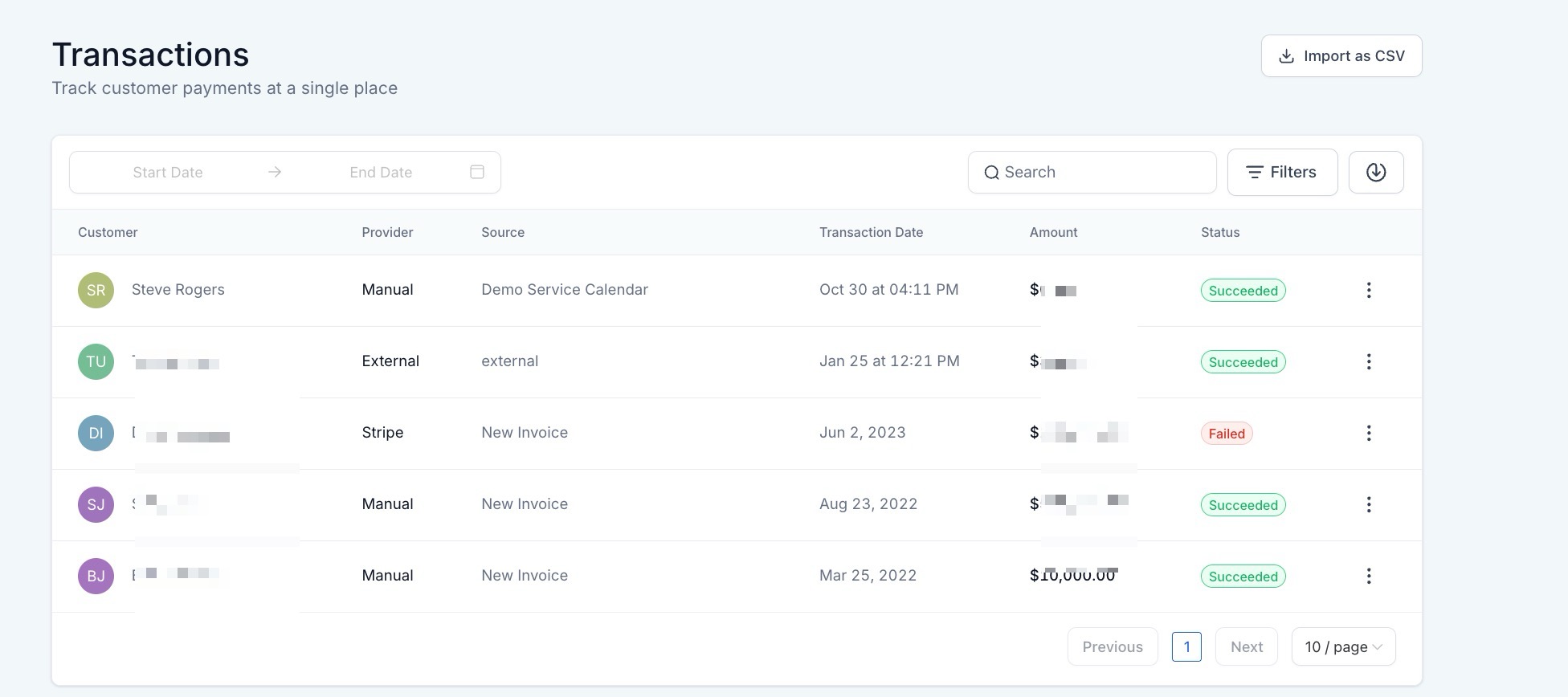
The Transactions tab of your Payments section allows you to manage all of your transactions conveniently in one spot. You can view a sortable, searchable list of all transactions, which you may also download via an Excel file.
The list gives you a history of all transactions which may be important for your accounting purposes such as managing receivables, managing metrics and goals for your team, planning business initiatives, and more.
How to access:
- Navigate to Payments > Transactions
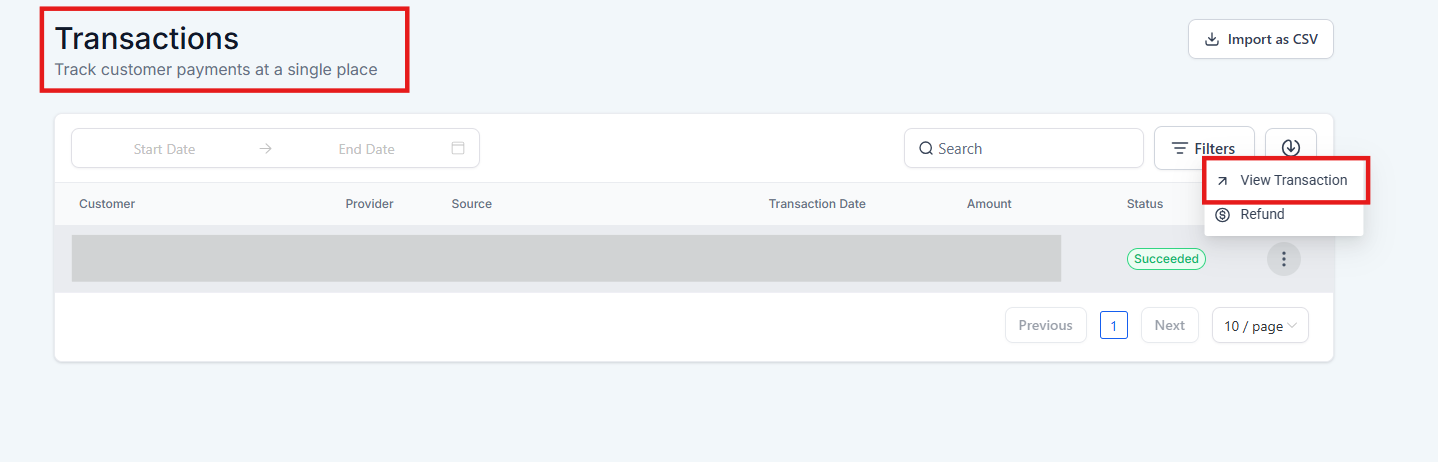
You can access key transaction details by navigating to Payments → Select Transactions → View Details. This view provides a clearer breakdown of payment methods, card details, and transaction history.
Within the list of all transactions, you can customize what information is displayed.
The CSV export for the Transactions tab adds key details like payment method, currency, subtotal, discounts, tax amounts, late fees, tips, coupon codes, and refund information, making it easier to export and analyze your transaction data.

Here’s an overview of each option:
Section titled “Here’s an overview of each option:”- Filters: view Status, Payment Mode, or source type
- Search for a particular time period using dates - such as January 1, 2022 - January 31, 2022
- Search for a specific transaction. This can be done using customer ID, name, email address, transaction ID, source ID, or source name
You can customize what filters for the information you wish to display, and you can sort the list as needed.
If you do want to download the data for use or analysis elsewhere, you can export/download an Excel file conveniently and easily using the button in the top right corner.


The CSV export for the Transactions tab adds key details like payment method, currency, subtotal, discounts, tax amounts, late fees, tips, coupon codes, and refund information.
Visibility on Transaction Details
Transaction details are easier to read, helping users manage billing, verify payment methods, and track activity more efficiently. Information such as card brand, last four digits, and expiry date is clearly shown, with fallback messages if data is missing. Users can also view cancellation dates, end dates, and the total number of completed payments at a glance.
How to use:
Go to Payments → Select Transactions → View Details

Question: How do I access the Transactions tab?
Answer: You can access the Transactions tab by navigating to Payments > Transactions.
Question: What kind of transactions can I view?
Answer: You can view all transactions, including sales, refunds, and other payment activities related to your account.
Question: Can I customize the information displayed in the transaction list?
Answer: Yes, you can customize the filters to display specific information such as Status, Payment Mode, or Source Type.
Question: How can I search for transactions within a specific date range?
Answer: You can search for transactions by entering your desired date range, for example, from January 1, 2022, to January 31, 2022.
Question: Is there a way to search for a specific transaction?
Answer: Yes, you can search for specific transactions using criteria such as Customer ID, Name, Email Address, Transaction ID, Source ID, or Source Name.
Question: What kind of payment methods are supported in the new view?
Answer: Both card and non-card payment methods are supported. For cards, the brand, last four digits, and expiry date are displayed. For others, only relevant available data is shown.
Question: How can this transaction data help my business?
Answer: The transaction list can help manage receivables, track metrics and goals, plan business initiatives, and ensure accurate accounting.
Question: How do I identify which transactions were paid via “WhatsApp” vs. “Stripe”?
Answer: Use the Payment Mode filter. This allows you to segment your list by the gateway used. In the “View Details” section, you can even see if a customer used a specific card brand (like Visa or Amex) or a non-card method (like a bank transfer or digital wallet).