How to Send Gift Cards
Sending a gift card in allows businesses to issue prepaid value directly to recipients without a checkout process. Delivered via email, SMS, PDF, or QR code, it’s ideal for rewards, loyalty gestures, and make-goods, giving recipients a ready-to-use balance.
Key Features and Benefits
Section titled “Key Features and Benefits”The ability to directly issue prepaid cards offers several strategic advantages for both operational efficiency and customer satisfaction:
- One-to-One Issuing: Instantly generate and send a unique gift card to a specific recipient or schedule it for a meaningful future date.
- No Checkout Required: Issue financial value to a customer without requiring them to provide credit card details or complete a purchase.
- Multi-Channel Delivery: Adapt to your customer’s preferences by delivering the digital asset via Email, SMS, a downloadable PDF, or a scannable QR code.
- Frictionless Redemption: Recipients can apply their unique code at any supported checkout point, including funnels, invoices, and online stores.
- Operational Visibility: Maintain a clear audit trail of all issued codes, including denominations, remaining balances, and delivery statuses.
- Service Recovery: Quickly compensate for service delays or technical issues by sending a professional gift card instead of a standard refund.
How to Send a Gift Card
Section titled “How to Send a Gift Card”Follow these steps to issue a gift card directly to a contact within your :
Step 1: Access the Gift Card Module Navigate to the Payments section and select Gift Cards.
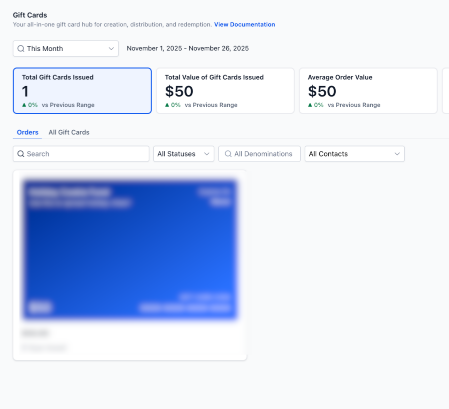
You may choose to create a new gift card product or select an existing active product from your list.
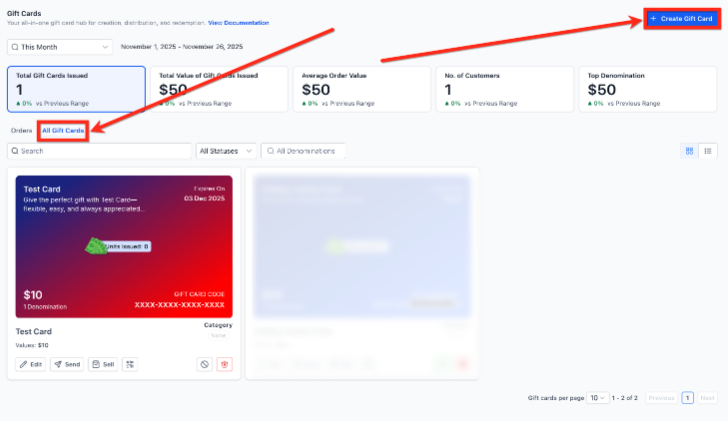
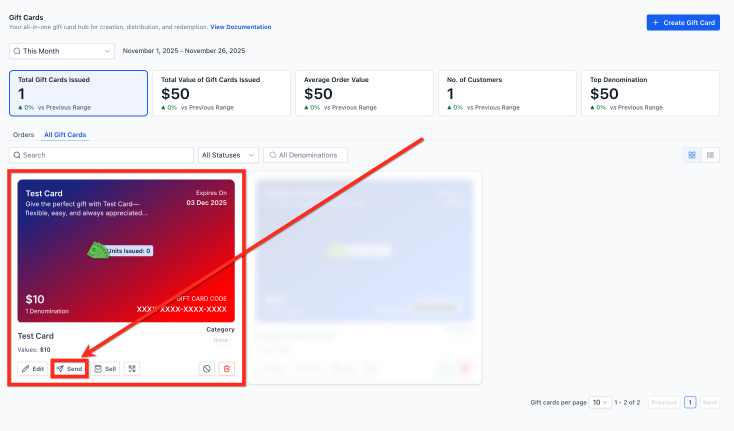
Click the Send button on the desired product to initiate the flow.
Step 2: Identify the Recipient Search for an existing contact in your database or add a new contact.
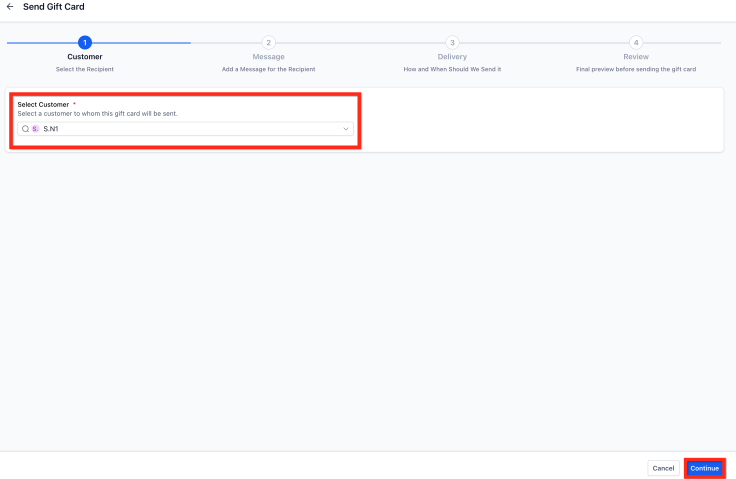
Note: The contact must have a valid email address or phone number to proceed with delivery.
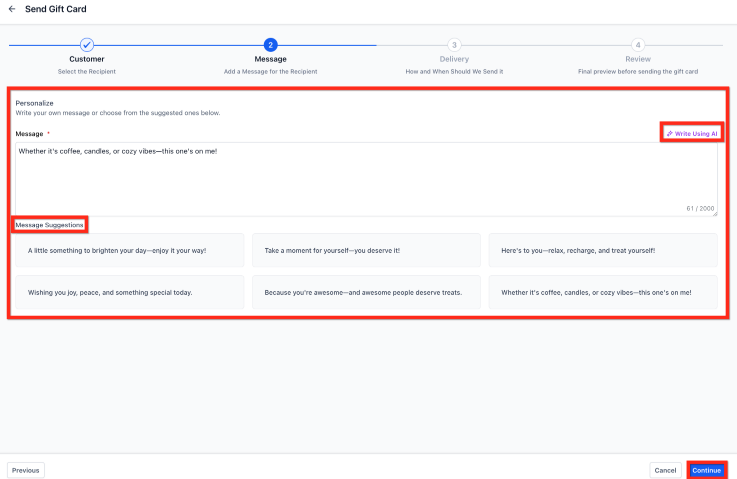
Step 3: Personalize the Communication Enter a custom message of appreciation or specific instructions. You may also utilize built-in assistance tools to draft a professional note.
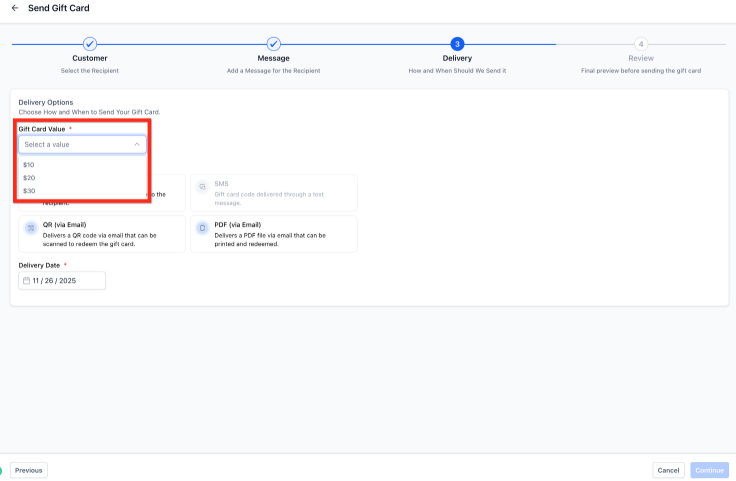
Step 4: Select Denomination and Delivery Choose from the preset denominations configured for that specific product.
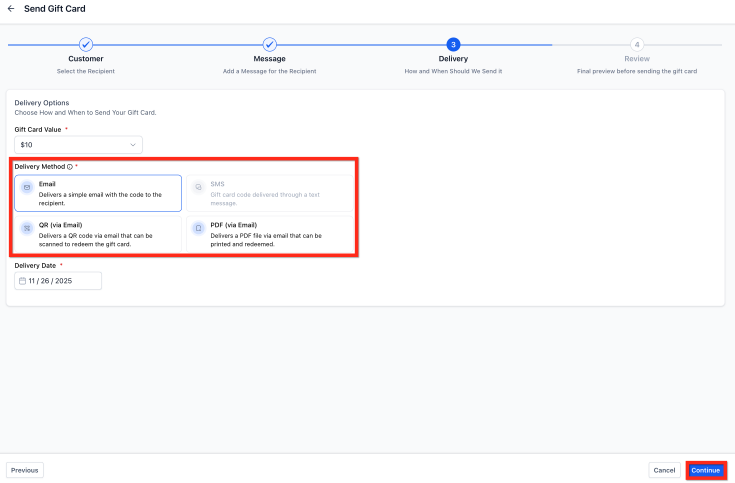
Select your delivery method (Email, SMS, PDF, or QR Code). The system will only enable methods for which the contact has valid data (e.g., SMS will be disabled if no phone number is present).
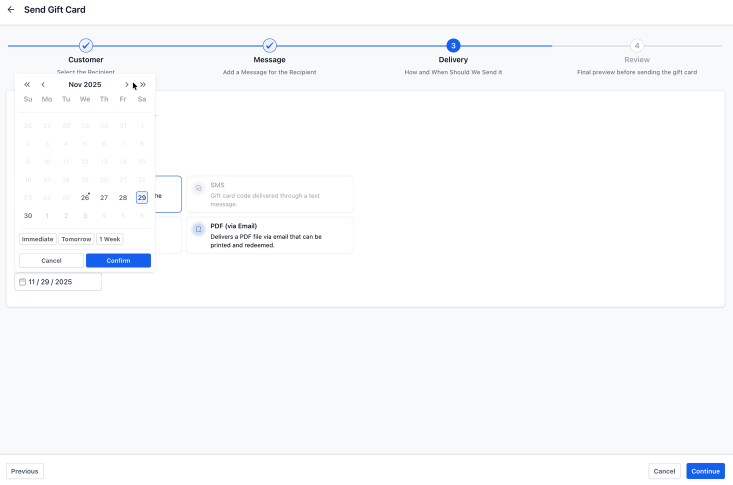
Step 5:Choose Delivery Date
Choose to send the card immediately or schedule it for a future date. Before finalizing, review the automatically generated preview, which displays the artwork, amount, and expiry details.
Step 6:Review & Send
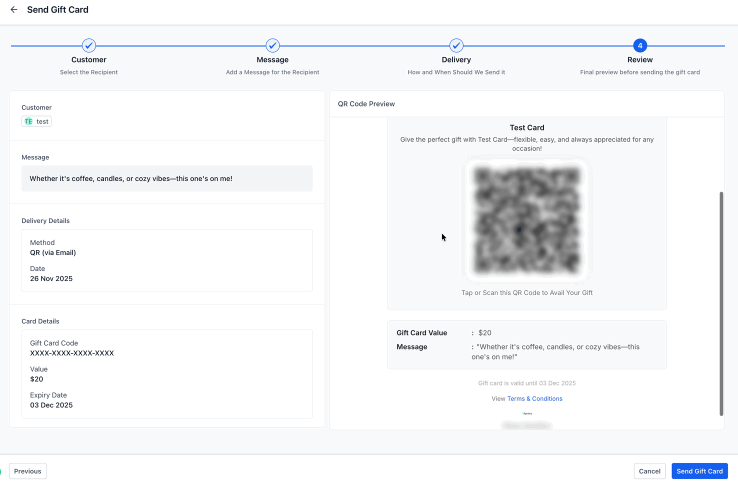
Before confirming, review the auto-generated email or SMS preview, including the gift card amount, custom message, expiry date, redemption instructions, and artwork. Then click ‘Send Gift Card.
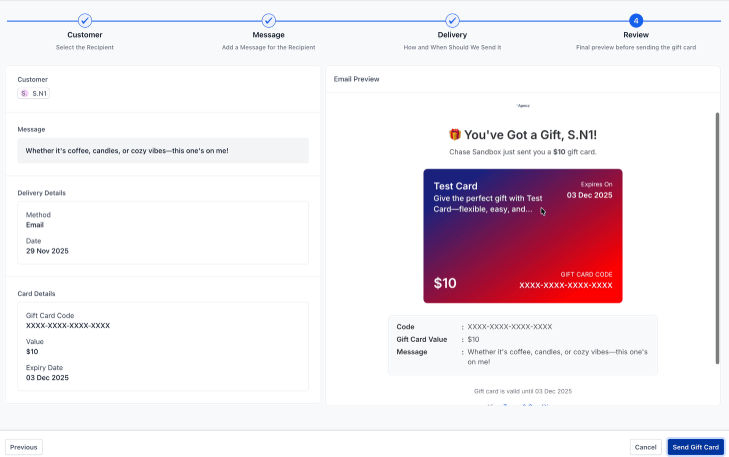
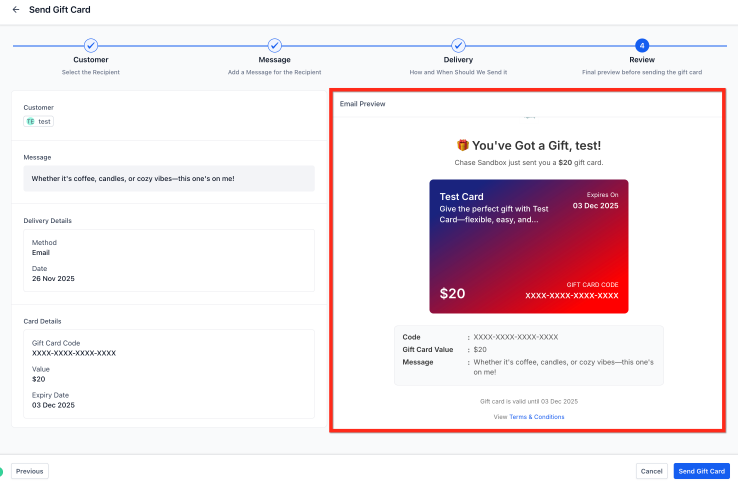
Delivery Methods Overview
- Includes a full visual gift card with artwork
- Displays expiry date, balance, and redemption link
- Recommended for most use cases
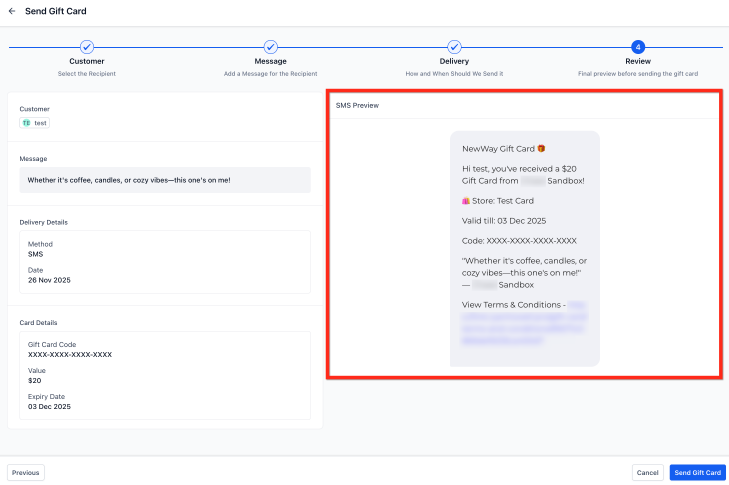
SMS
- Sends a simple message with the gift card link
- Artwork is not included due to SMS limitations
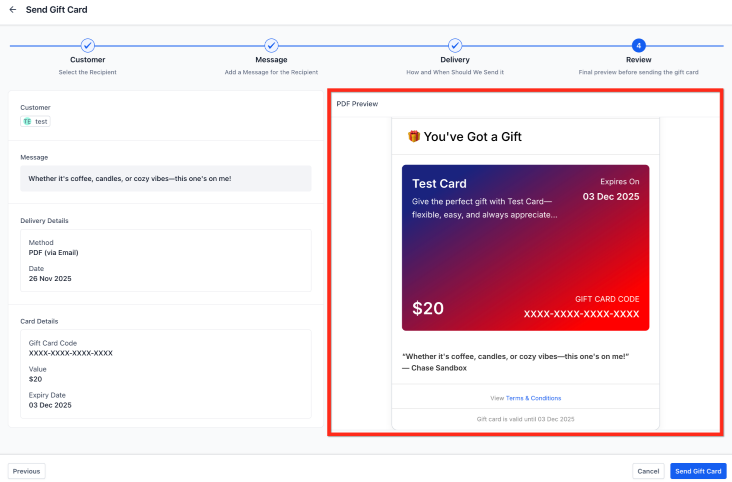
PDF (via Email)
- Sends a downloadable, printable PDF
- Ideal for in-store gifting, physical presents, or events
QR Code (via Email)
- Sends a scannable QR code that opens the gift card
- Perfect for in-person gifting or events
What Happens After Sending a Gift Card
After sending, the gift card can be found at:
Payments → Gift Cards → Gift Card Orders
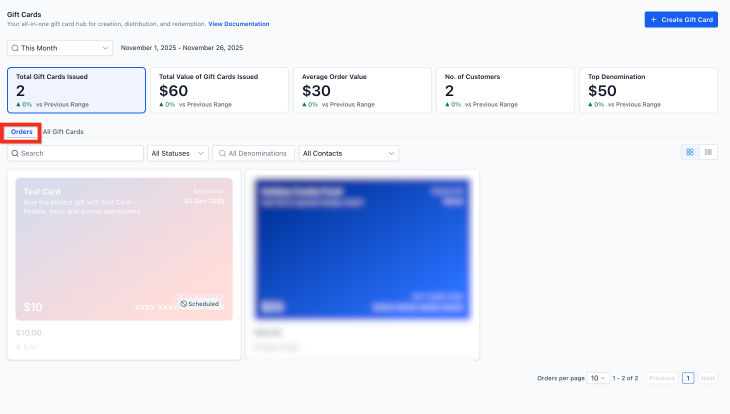
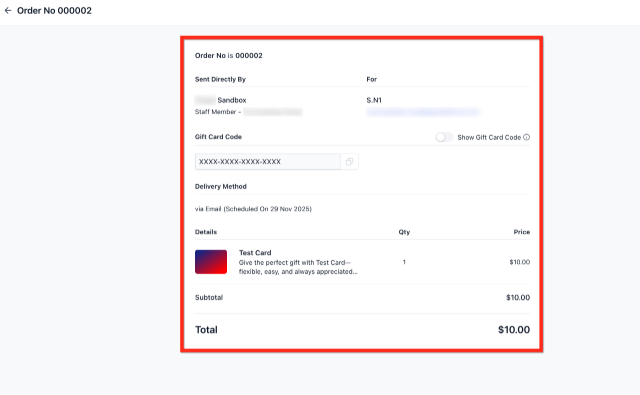
Gift Card Order Details include:
- Recipient information
- Delivery method and timestamp
- Denomination and expiry
- Remaining balance
- Status: Scheduled, Active, or Inactive
- Hidden gift card code
Use Cases
Section titled “Use Cases”- Loyalty & Rewards: Send a surprise gift card to long-term clients during their anniversary or as a reward for a high-value referral.
- Support Compensation: If a client experiences a minor service interruption, issuing a gift card is a high-touch way to apologize and ensure their next interaction is positive.
- Influencer Campaigns: Provide influencers or partners with prepaid codes they can use to experience your services or products firsthand.
- Internal Testing: Admins and developers can utilize the live “Send” flow to verify that redemption logic is working correctly across different checkout types.
Important Requirements and Limitations
Section titled “Important Requirements and Limitations”- Mode Restriction: The “Send” flow currently operates exclusively in Live Mode to ensure all issued values are authentic and functional.
- One-to-One Ratio: The system currently supports sending one gift card to one customer per transaction; bulk manual distribution is handled individually.
- Inventory Impact: Sending a gift card reduces the available inventory of that specific gift card product just like a standard sale.
- Reporting: Because no money is exchanged during the “Send” process, these cards appear under Gift Card Orders rather than the general Payments Transactions list.
Pro Tips
Section titled “Pro Tips”- PDF for Physical Gifting: If you are attending a live event or want to include a physical gift in a mailing, select the PDF delivery option. This allows you to print a high-quality version of the card that can be physically wrapped or handed to a recipient.
- Scheduled Delivery for Holidays: You can spend time in advance setting up holiday or birthday gifts by using the Future Date scheduler. This ensures the gift arrives exactly when it is most impactful without requiring manual action on the day of the event.
- AI-Assisted Messaging: When sending cards for service recovery, use the “Write with AI” feature to ensure the tone is empathetic and professional, which can help turn a frustrated customer into a loyal advocate.
Question: Can I send gift cards in a test environment? Answer: The “Send” functionality is supported in Live Mode only to ensure delivered cards are fully functional. Test mode support for this specific flow may be introduced in the future.
Question: Why are some delivery methods greyed out when I try to send a card? Answer: Delivery methods are dynamically enabled based on the contact’s information. If a contact only has an email address, SMS delivery will be unavailable. Ensure the contact record is complete before starting the send flow.
Question: Are directly sent gift cards redeemable on all checkout types? Answer: Yes. These gift cards are fully compatible with all checkouts that support gift card redemption, including invoices, website stores, funnels, and calendar bookings.
Question: Can a recipient use a scheduled gift card before the delivery date? Answer: Yes. While the notification is scheduled for the future, the code is generated and active immediately. If the recipient obtains the code through other means, it will be valid for redemption.
Question: Where can I see a history of all the gift cards I have manually sent? Answer: You can track all issued cards by navigating to Payments, then Gift Cards, and selecting the Gift Card Orders tab. This provides a central view of all balances, statuses, and delivery timestamps.