How to Create Custom Invoice Notifications
How to Create Custom Invoice Notifications
This guide will walk you through the steps to edit your invoice templates for notifications. These notifications include emails and SMS sent to your customers and team members when a payment has failed or succeeded. Customizing these templates ensures brand consistency and improves customer experience. Follow the steps below to learn how to effectively manage and customize your invoice notification templates.
Overview of Features
Section titled “Overview of Features”Editing invoice templates allows you to:
- Maintain brand consistency across all notification emails and SMS.
- Customize templates for various scenarios such as payment successes and failures.
- Ensure team members are promptly informed about payment statuses.
Step-by-Step Guide
Section titled “Step-by-Step Guide”Accessing Invoice Settings
Section titled “Accessing Invoice Settings”1. Navigate to Invoice Settings:
- Go to the main menu and click on Payments.
- Select Invoices & Estimates at the top of the screen.
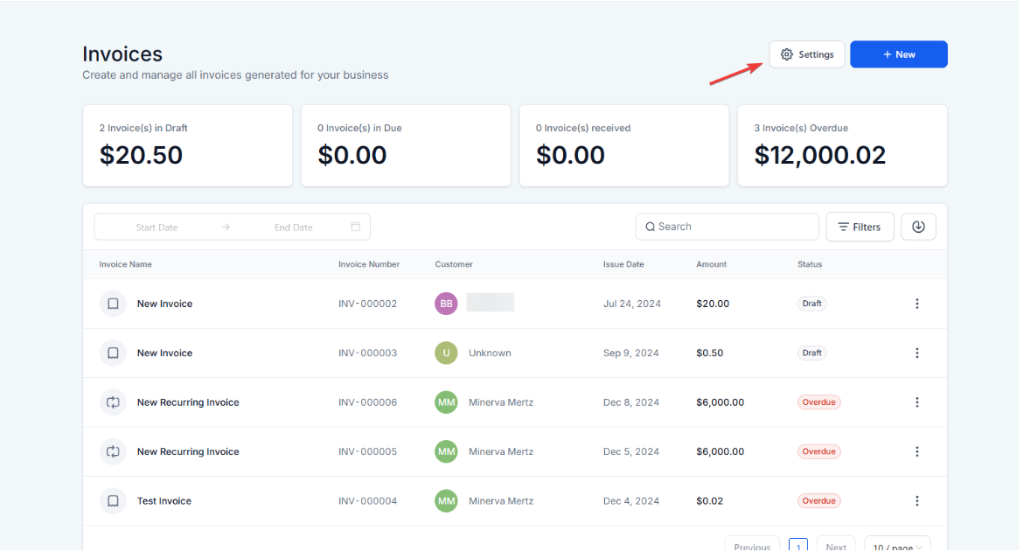
- Click on the Settings icon located next to the + New button.
2. Manage Notifications:
- In the settings, you will see a section for Notifications.
- Click on the dropdown menu to choose between Customer Notifications and Team Notifications.
.

Editing Customer Notification Templates
Section titled “Editing Customer Notification Templates”1. Select Customer Notifications:
- Choose Customer Notifications from the dropdown menu.
2. Edit Email and SMS Templates:
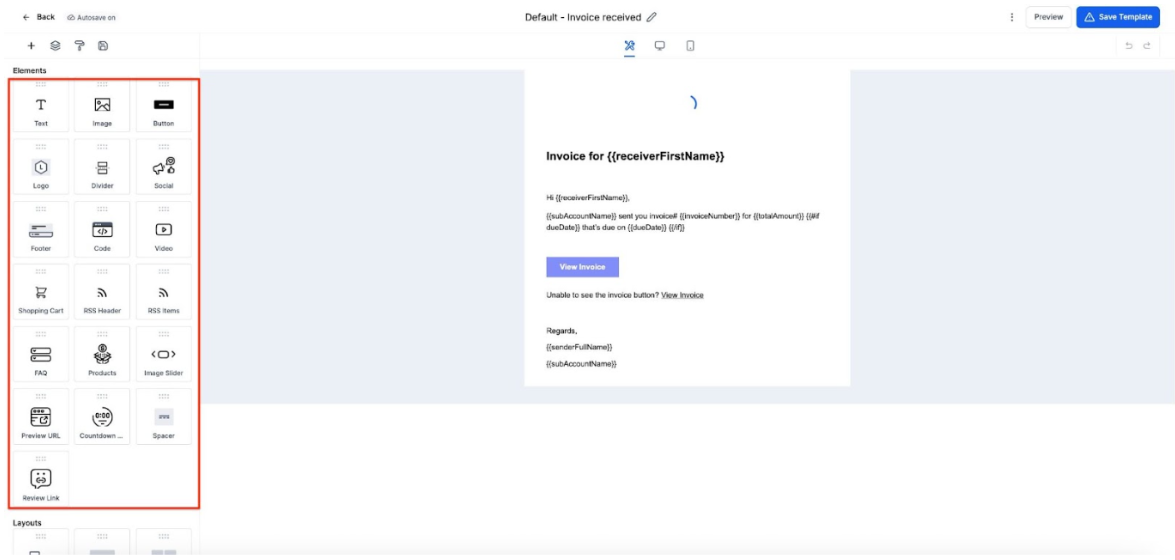
- You will see options for both Email Template and SMS Template. Click on Preview to open the template editor.

- In the editor, you can add images, and logos, change colors, and modify text to match your brand.
3. Save and Select Templates:
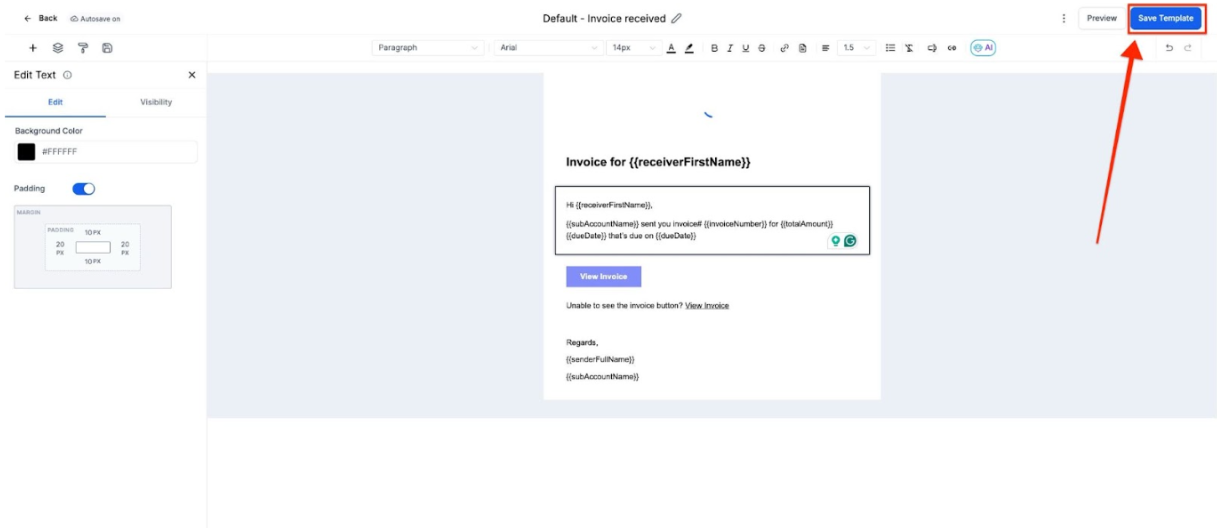
- After customizing, click Save as New Template at the top.
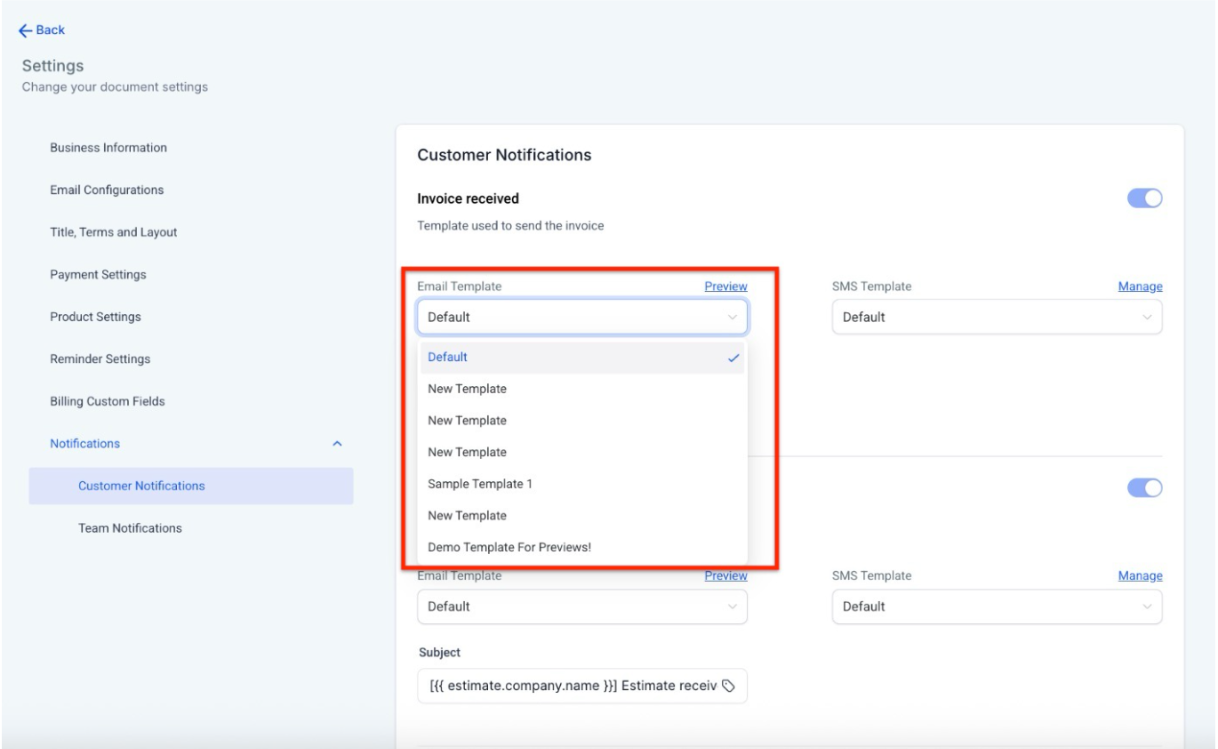
- To apply the template, select it from the dropdown menu.
Handling Payment Notifications
Section titled “Handling Payment Notifications”1. Payment Success and Failure Notifications:
- Create new templates for scenarios like Invoice Payment Successful or Invoice Payment Failed.
- Customize each template to include relevant information and branding.
- For failed payments, include a reminder for customers to update their payment details.

Editing Team Notification Templates
Section titled “Editing Team Notification Templates”-
Select Team Notifications:
-
Choose Team Notifications from the dropdown menu.
Note: Email notifications can be customized for the account user who is sending the invoice under the Team Notifications section
2. Edit Templates for Team Notifications:
- Follow similar steps as for customer notifications.
- Ensure team members are informed about payment statuses so they can take necessary actions.
- Assign specific tasks to team members for follow-ups on failed payments.

- Use the Invoice custom values in the Email and SMS Templates (Snippets in the Marketing tab) to include details in notifications like customer information, invoice total, due date, invoice URL, etc.
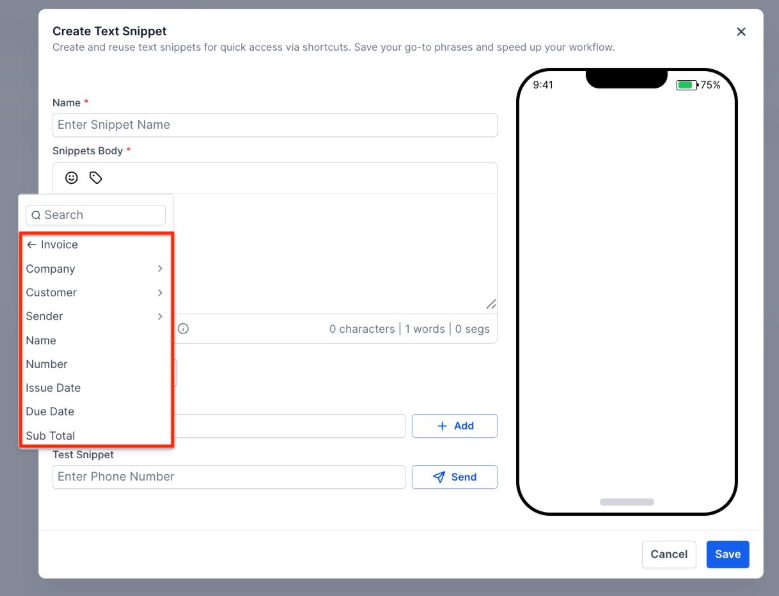
- Refer to the table below for the details on different types of notifications sent to the customer and the account user.

Creating and Sending Invoices
Section titled “Creating and Sending Invoices”1. Create a New Invoice:
- Go to the invoice section and click + New to create a new invoice.
- Enter the customer’s name and add the items.
- Save the invoice.
2. Send Invoice Notifications:
- Select Email Only or BCC options.
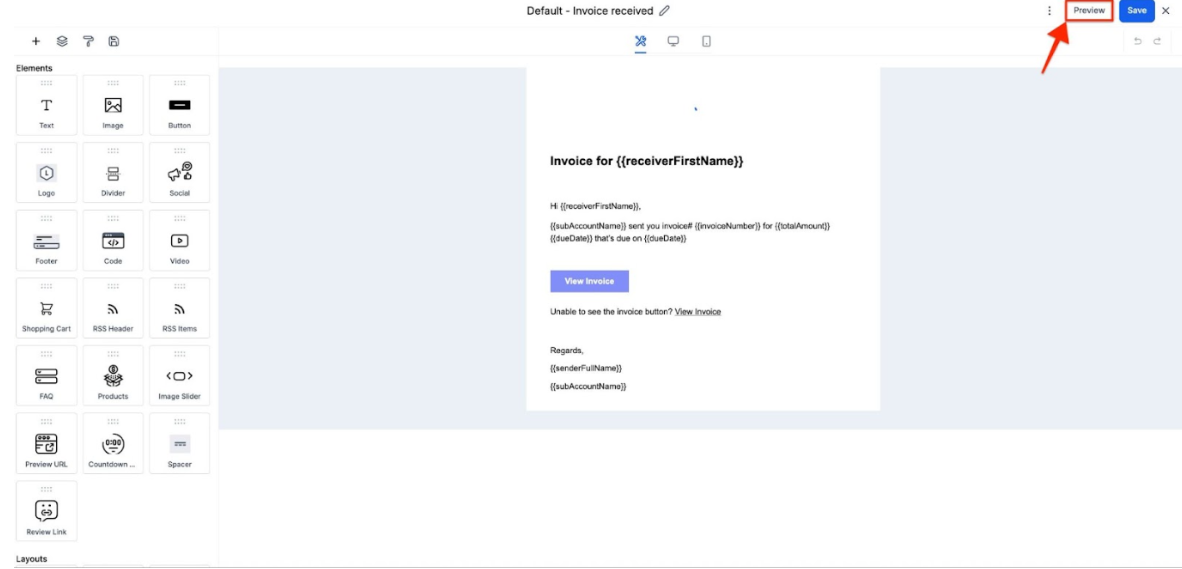
- Click Edit to customize the email template.

- Use the Preview button to check how the email will appear on different devices.
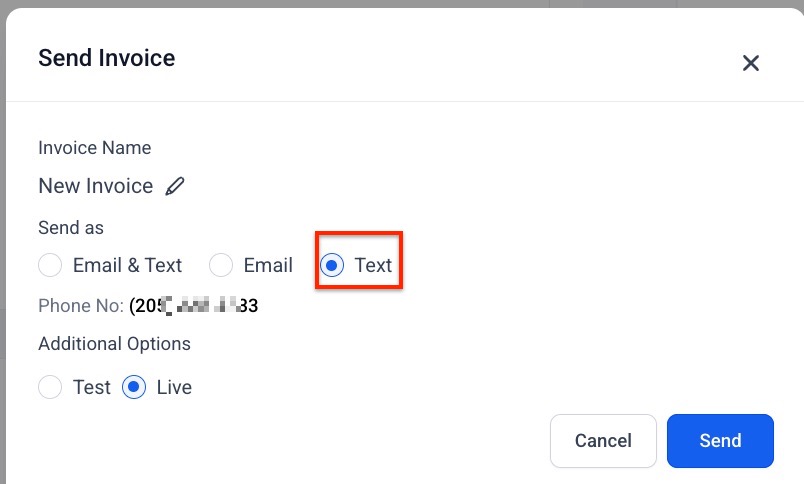
- For SMS, click Send or Resend and select Text.
Final Tips and Conclusion
Section titled “Final Tips and Conclusion”- Review All Templates:
- Ensure all templates are toggled on in the settings.
- Double-check that each notification is correctly branded and contains all necessary information.
- Benefits of Customizing Templates:
1. Improved customer experience through personalized and branded communications.
2. Efficient communication with team members regarding payment statuses.
3.Enhanced overall consistency in your business operations.
Question: How can I access the invoice settings to edit notification templates? Answer: To access invoice settings, navigate to the main menu, click on Payments, then select Invoices. Click on the Settings icon at the bottom of the page to access and manage notifications.
Question: How do I edit the email and SMS templates for customer notifications? Answer: Select Customer Notifications from the dropdown menu under Notifications. Click on Email Template or SMS Template, then use the preview editor to make changes. Save your customized template as a new version and select it from the dropdown menu.
Question: Can I create separate templates for payment success and failure notifications? Answer: Yes, you can create and customize separate templates for different payment scenarios, such as Invoice Payment Successful or Invoice Payment Failed. Customize each template to include relevant information and branding.
Question: How do I customize templates for team notifications? Answer: Choose Team Notifications from the dropdown menu under Notifications. Edit the email templates similar to customer notifications, ensuring that the templates provide necessary information about payment statuses and are tailored for team members.
Question: What should I include in my templates to ensure they are effective? Answer: Include branding elements such as images, logos, and color schemes to maintain consistency. Ensure templates contain all necessary information, like payment details, invoice totals, and due dates. For failed payments, include reminders for customers to update payment details.
**Question: Do I need to toggle on notifications for them to send?
Answer: Yes.
Ensure all relevant templates are toggled on in the settings so they are active and automatically sent when triggered (e.g., when a payment succeeds or fails).
Question: Why should I customize my invoice notification templates? Answer: Customizing templates improves customer experience through branded communications, ensures your team is informed about payment statuses, and maintains consistency across your business operations.
Question: What happens if no template is selected for a notification? Answer: If no custom template is selected, the system will use the default notification template, provided it is enabled.
Question: Where can I find the Invoice custom values to use in my templates?
Answer: You can use Invoice custom values within your Email and SMS templates (created as Snippets in the Marketing tab). These allow you to automatically pull in data such as the customer’s name, invoice total, due date, and the specific invoice URL.
Question: Can I see how my email notification will look on a mobile phone before I send the invoice?
Answer: Yes. When sending an invoice, you can click the “Preview” button to check exactly how the email will appear on different devices, ensuring the layout and branding look correct for both desktop and mobile users.