Document Delivery via SMS
Document Delivery via SMS
In today’s fast-paced communication landscape, ensuring documents are seen, reviewed, and signed quickly is crucial. Sending documents via SMS allows users to deliver important files directly through text messaging, offering a faster and more direct communication method. This article outlines the functionality, benefits, and step-by-step instructions for using SMS for document delivery, along with useful tips and answers to common questions.
Key Features & Benefits
- Flexible Delivery Options: Choose between SMS only or a combination of SMS and email for maximum visibility.
- Global Defaults: Save time by setting default delivery methods for all document sends.
- Custom SMS Templates: Personalize messages using predefined snippets to create a consistent and clear user experience.
- Workflow Integration: Send documents automatically via SMS within automation workflows.
- Individual Send Control: Override global defaults as needed for specific recipients or use cases.
- Improved Reach: SMS messages are generally seen faster than emails, increasing the chances of prompt action.
How to Use
1- Set Global Defaults
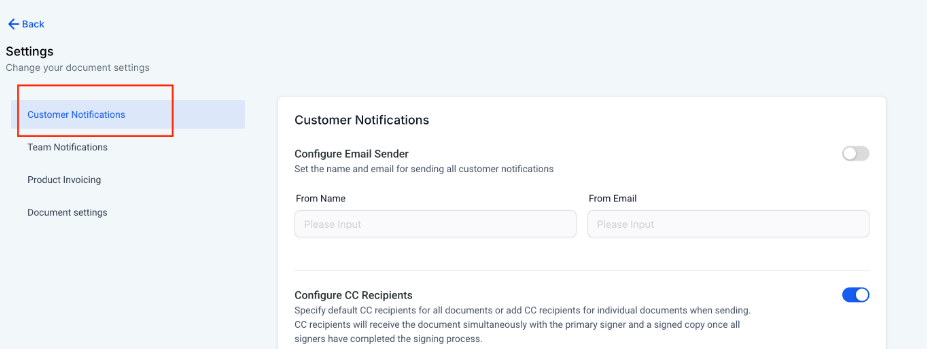
Section titled “1- Set Global Defaults”- Go to Documents & Contracts → All Documents and Contracts → Settings → Customer Notifications
-
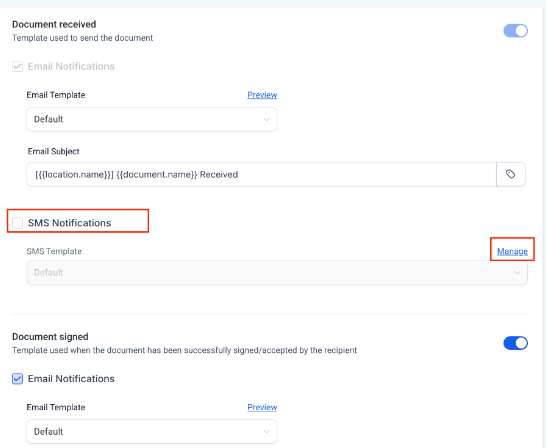
For both Document Received and Document Signed, select your preferred delivery method:
- SMS only
- Email + SMS
-
Click Save
2- Create SMS Templates (Snippets)
Section titled “2- Create SMS Templates (Snippets)”- Navigate to Marketing → Snippets

- Click New Snippet and select SMS as the type
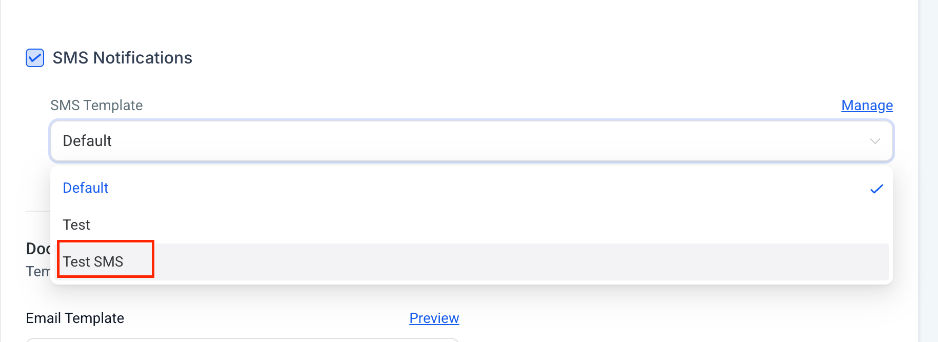
- Draft your message (e.g., “Your document is ready. Please review and sign.”)
- Save the snippet — it will now be available for future use
3- Send Documents Individually
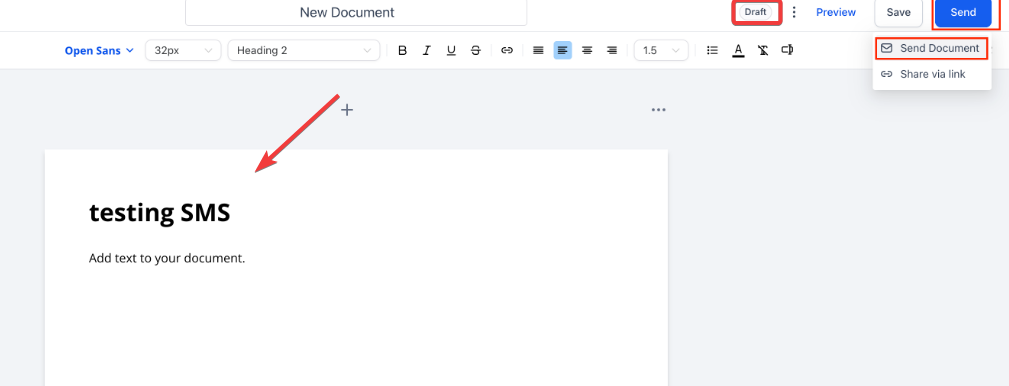
Section titled “3- Send Documents Individually”- Open the document you want to send
- Click Send
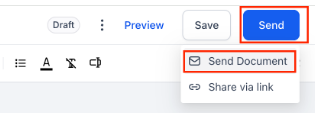
- Choose the delivery channel: SMS, Email, or Both
- Review and send
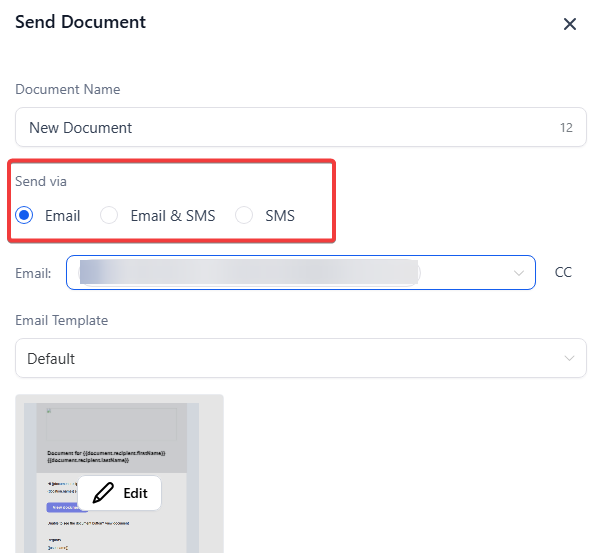
4- Send Documents via Workflows
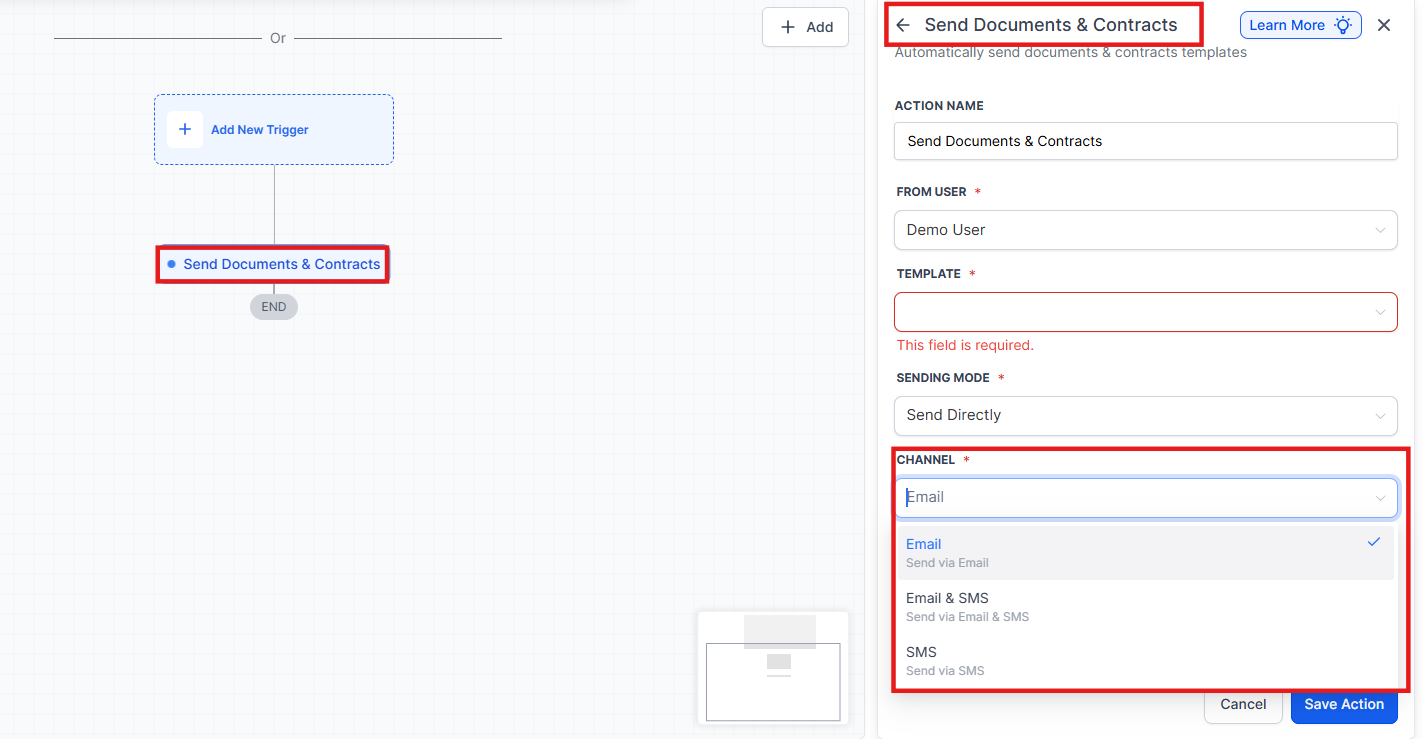
Section titled “4- Send Documents via Workflows”- Open Automation → Workflows
- Add a Send Document action
- Choose your delivery method (SMS, Email, or Both)
- Save the workflow
Question: Can I send documents using SMS only? Answer: Yes, you can select SMS as the sole delivery method either globally or during individual sends.
Question: What happens if I choose Email + SMS? Answer: The document will be delivered through both channels to ensure maximum visibility.
Question: Can I personalize SMS messages? Answer: Yes. Create reusable SMS templates using snippets, allowing for consistent and personalized communication.
Question: Do workflows always use the default SMS content? Answer: Yes. Workflows pull the default content set in snippets, but you can create variations if needed by adjusting the workflow logic.
Question: Is it possible to see a recipient’s contact info before sending? Answer: Yes. When adding recipients to documents, their contact information is visible to ensure accuracy.
Question: Can I choose different delivery methods for individual documents? Answer: Yes, you can override global settings and select a custom delivery method (SMS, Email, or both) for each document sent.Question: How can I save time when sending documents if I usually prefer the same delivery method?Answer: You can set Global Defaults for all your document sends within the “Customer Notifications” settings, which automatically applies your preferred delivery method (SMS, Email, or both) to every document.