Admin Team Notifications for Store Order Placement
Admin Team Notifications for Store Order Placement
One of the best ways to keep your team in the loop is by setting up instant order confirmation alerts. With this feature, your team receives immediate notifications via email or SMS every time a customer places an order. This real-time update not only helps acknowledge orders quickly but also speeds up processing, ensuring everything runs efficiently behind the scenes.
Key Features and Benefits
Section titled “Key Features and Benefits”This feature is designed with flexibility and convenience in mind. Some of the main benefits include:
- Real-time notifications: Ensure your team is immediately aware of every order placed, reducing delays in processing.
- Customizable alerts: Tailor the notification templates to your store’s tone and branding, ensuring that each communication aligns with your business.
- Independent toggles for Email and SMS: You can activate either or both channels, depending on your team’s preferences or availability.
- Easy management: Admins can effortlessly toggle alerts on or off and adjust templates as needed, making this solution user-friendly.
How to Use It
Section titled “How to Use It”Setting up order confirmation alerts for your team is simple and can be done in a few easy steps:
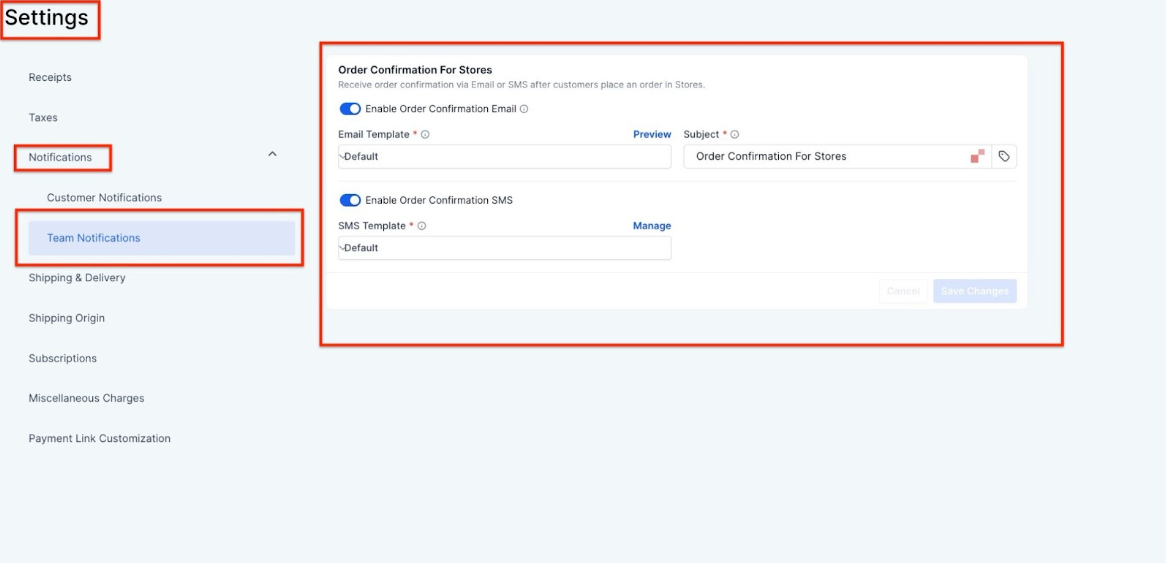
1- Navigate to Team Notifications: First, go to the Payments. Go to Settings, then click on Notifications > Team Notifications.
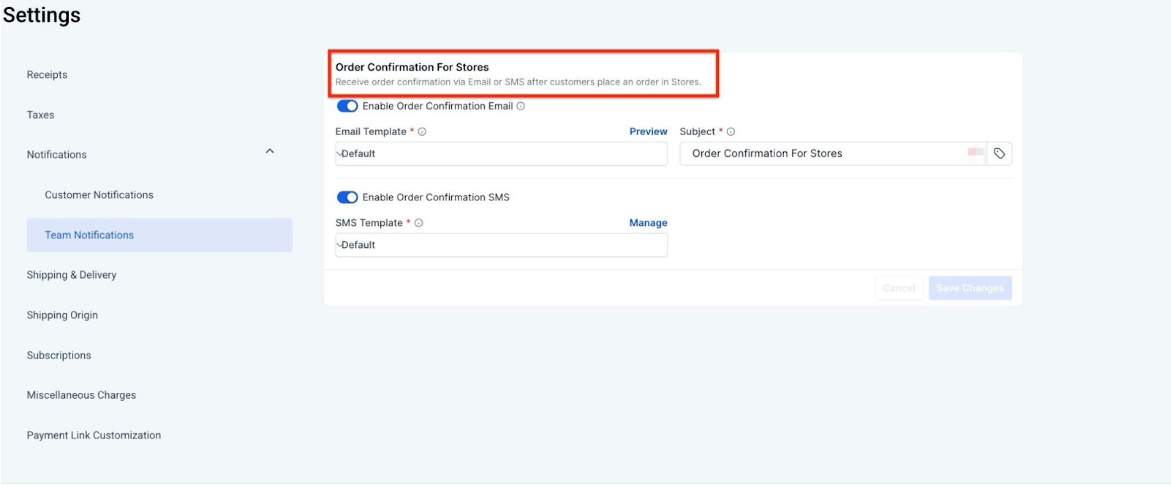
2- Access the Order Confirmation Settings: Once in the Team Notifications section, you’ll see the Order Confirmation for Stores settings.
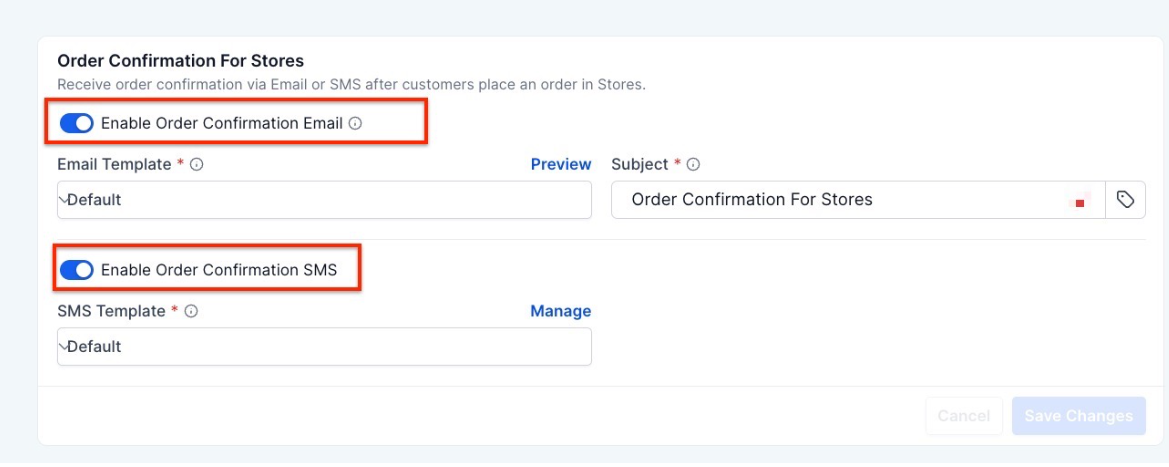
3- Enable Notifications: You will find toggles for both Email and SMS alerts. Simply toggle them on to activate notifications for your team.
4- Save Changes: Once you’ve made your selections and adjustments, click on Save Changes to finalize your settings.
Note: For admins to receive these notifications, they must be listed under Settings > My Staff with a valid email address and/or phone number. Additionally, the user must have Account Admin privileges to be eligible to receive the alerts.Pro Tips
- Multiple Contact Points: If your team has multiple members responsible for order fulfillment, consider enabling both email and SMS alerts for wider coverage. This ensures that someone will always be notified, even if one form of communication is missed.
- Template Personalization: Take advantage of the template customization options to make your notifications more aligned with your store’s branding. Personalize the subject line and body text to reflect your business’s style and tone.
- Test the Alerts: Before fully implementing the system, send a test notification to make sure everything works as expected. This will give you confidence that your team is receiving the right information.
Question: Can I choose who receives the order confirmation alerts? Answer: Yes, order confirmation alerts will be sent to users listed under Settings > My Staff with valid contact details. You can ensure that specific staff members or teams are included by assigning them the necessary permissions.
Question: What happens if the notifications are disabled? Answer: When notifications are disabled, no alerts will be sent to your team members regarding new orders. Ensure that you have enabled them to avoid missing out on important updates.
Question: Can I use both email and SMS notifications simultaneously? Answer: Yes, you can activate both email and SMS alerts at the same time. This provides a backup communication channel to ensure timely order acknowledgment.
Question: Do I need special permissions to enable notifications? Answer: Yes, only users with Account Admin privileges can enable or modify the order confirmation alert settings. Make sure your team members have the appropriate access level.
Question: Can I customize the email subject line? Answer: Yes, the system allows you to customize the email subject line for order confirmation alerts, giving you full control over the appearance and content of the notifications.
Question: How can I ensure the alerts are working correctly? Answer: Send a test notification after setup to confirm that your team receives the alerts via the selected channels. This helps verify accuracy and functionality.
Question: What are instant order confirmation alerts? Answer: Instant order confirmation alerts notify your team immediately via email or SMS whenever a customer places an order.
Question: Will my team receive a notification for every item in a large order, or just one per order?
Answer: The team will receive one summary notification per order. This prevents your team’s inbox from being flooded if a customer purchases multiple products in a single transaction.
Question: Can I turn off SMS alerts but keep Email alerts active?
Answer: Yes. The system features independent toggles for Email and SMS. This allows you to activate only the channel that best fits your team’s workflow or availability without being forced to use both.