Using The LeadConnector Mobile App: Reputation and Reviews
Using the LeadConnector Mobile App allows you to take the convenience of your system on the go with you, using features right from your phone. You can toggle between the various available features/sections using the icons at the bottom of the app.
Navigating the Reputation Section:
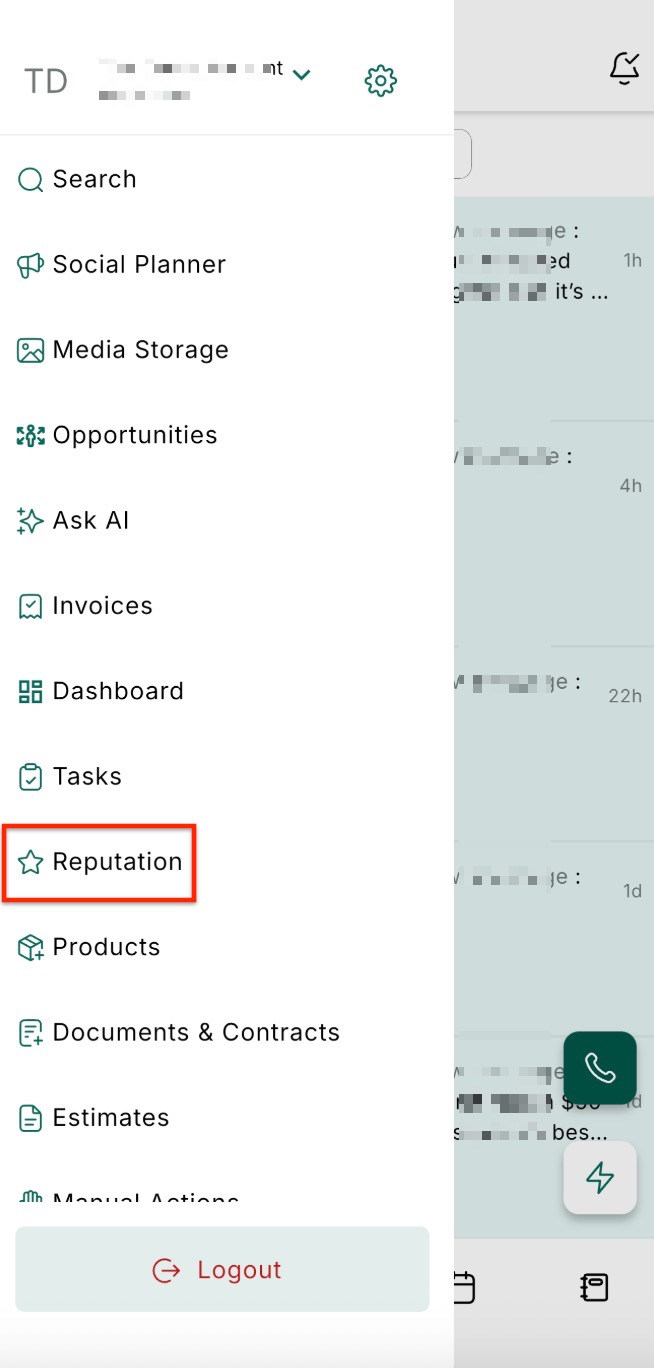
Section titled “Navigating the Reputation Section:”Upon launching the LeadConnector Mobile App, you can access the Reputation/Reviews tab represented by the star icon. Here, we have incorporated several enhancements to streamline your experience:
- Click on the Reputation/Reviews tab (the star icon).
Customizable Date Range:
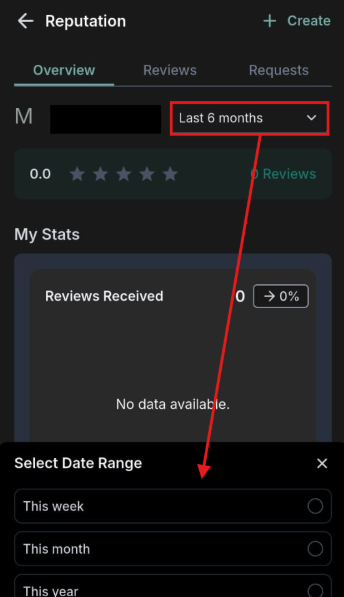
Section titled “Customizable Date Range:”At the top of the Reputation section, you can customize a date range to focus on a specific period. This feature allows you to narrow down your analysis to a particular timeframe, aiding in better decision-making based on historical data.
Swipe Navigation:
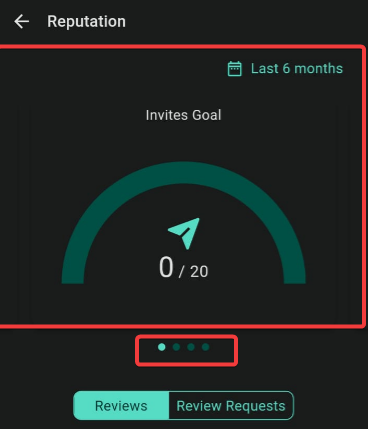
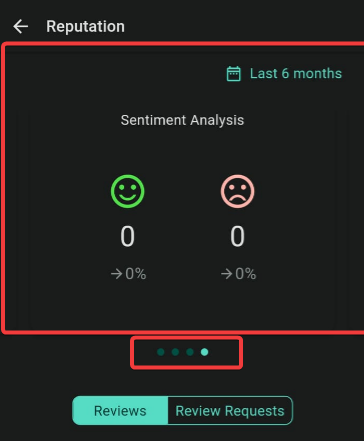
Section titled “Swipe Navigation:”Swipe left and right to effortlessly navigate through essential metrics such as Invites Goal, number of Reviews Received, Average Rating, and Sentiment Analysis. This intuitive gesture-based navigation ensures you have a comprehensive overview of your reputation statistics at your fingertips.
Detailed Reviews and Requests:
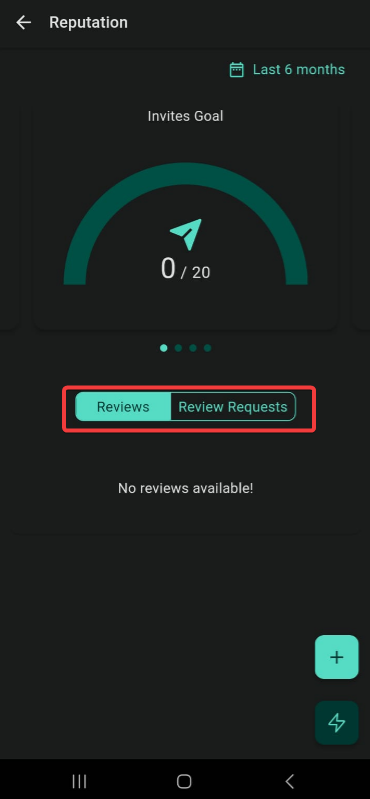
Section titled “Detailed Reviews and Requests:”By clicking the “Reviews” or “Review Requests” button, you can access a detailed list of each.
- Request Status: You can view specific statuses of requests, whether they are failed, opened, and more.
- Facebook and Google: See your Facebook and Google Reviews from within your LeadConnector mobile app.
- Send a Review Request: Invite anyone to review your business.
- Respond to reviews: Thank your reviewers for the honest review and save and reverse those negative reviews.
- Begin a Dispute: Begin a dispute to overturn a wrong or inaccurate review.
Create New Review Requests:
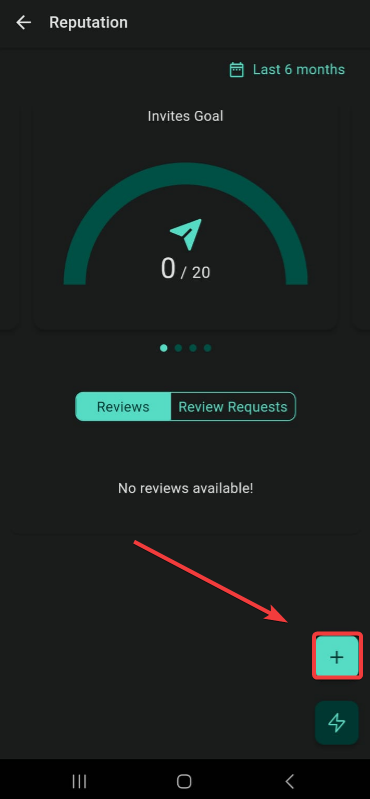
Section titled “Create New Review Requests:”Need to generate a new review request promptly? Simply click the + icon to create a new review request. Enter the name and email or phone, add a personalized message, and send it off. This streamlined process ensures you can actively engage with your customers for feedback, enhancing your online reputation.
Question: How can I customize the date range in the Reputation section of the LeadConnector app? Answer: To customize the date range, go to the Reputation/Reviews tab (star icon) and use the date range selector at the top of the section. This allows you to focus on specific periods and analyze data relevant to that timeframe.
Question: Can I see reviews from both Facebook and Google within the LeadConnector app? Answer: Yes, you can view reviews from both Facebook and Google directly within the Reputation section of the LeadConnector app, making it easy to monitor and respond to feedback from multiple platforms.
Question: How do I send a new review request through the LeadConnector app? Answer: To send a new review request, click the + icon in the Reputation section, enter the recipient’s name and email or phone number, add a personalized message, and send the request. This feature allows you to quickly gather feedback from your customers.
Question: Is it possible to dispute a review through the LeadConnector app? Answer: Yes, you can initiate a dispute for a review that you believe is wrong or inaccurate by using the “Begin a Dispute” option within the detailed review view. This helps you manage your online reputation more effectively.
Question: Why should I use the Reputation section in the mobile app? Answer: It allows you to monitor, respond, and request reviews on the go, providing real-time insights and helping maintain a strong online reputation from anywhere.
Question: How do I use the swipe navigation feature in the Reputation section? Answer: The swipe navigation feature allows you to effortlessly move through key metrics like Invites Goal, number of Reviews Received, Average Rating, and Sentiment Analysis. Simply swipe left or right to access these important statistics for an easy overview of your reputation data.
Question: How do I access detailed reviews and review requests within the LeadConnector app? Answer: To access detailed reviews and review requests, click on the “Reviews” or “Review Requests” button in the Reputation section. Here, you can view each request’s status, including whether they are failed, opened, or in another status.