Mobile App - Local Presence Dialing
This article explains how Local Presence Dialing enhances outbound calling from your LeadConnector mobile app by automatically selecting a number with the same or nearby area code as the contact you’re calling. This feature is designed to increase the likelihood of your calls being answered by making them appear local, familiar, and trustworthy. With smarter logic and a revamped number picker, the mobile experience now brings location-aware calling to the palm of your hand. Other than this, users also have the ability to categorize every conversation by selecting a custom disposition immediately after a call ends or from the post-call view, and they can also use a sticky phone number on the LeadConnector mobile app.
Key Features & Benefits
Section titled “Key Features & Benefits”- Increased Answer RatesCalls appear local, boosting trust and response rates, especially in cold outreach or sales.
- **City-Level Precision (Mobile Only)**The app intelligently selects the closest city number when available, not just a matching state or country code.
- Smart Fallback LogicIf a local number isn’t available, the system falls back to your assigned number or the default sub-account number, ensuring calls still go through.
- International CompatibilityWhen calling contacts outside the US or Canada, the app attempts to use a number from the same country if one is available.
- Enhanced Number Picker InterfaceClearly displays all available numbers, who they’re assigned to, and the number type (local, mobile, toll-free) for better decision-making.
How to Enable and Use Local Presence Dialing
Section titled “How to Enable and Use Local Presence Dialing”Step 1: Enable the Settings from Web
Section titled “Step 1: Enable the Settings from Web”- Navigate to:
Settings → Phone Numbers → Voice → Other Settings → Outbound Call - Select Local Presence Dialing.
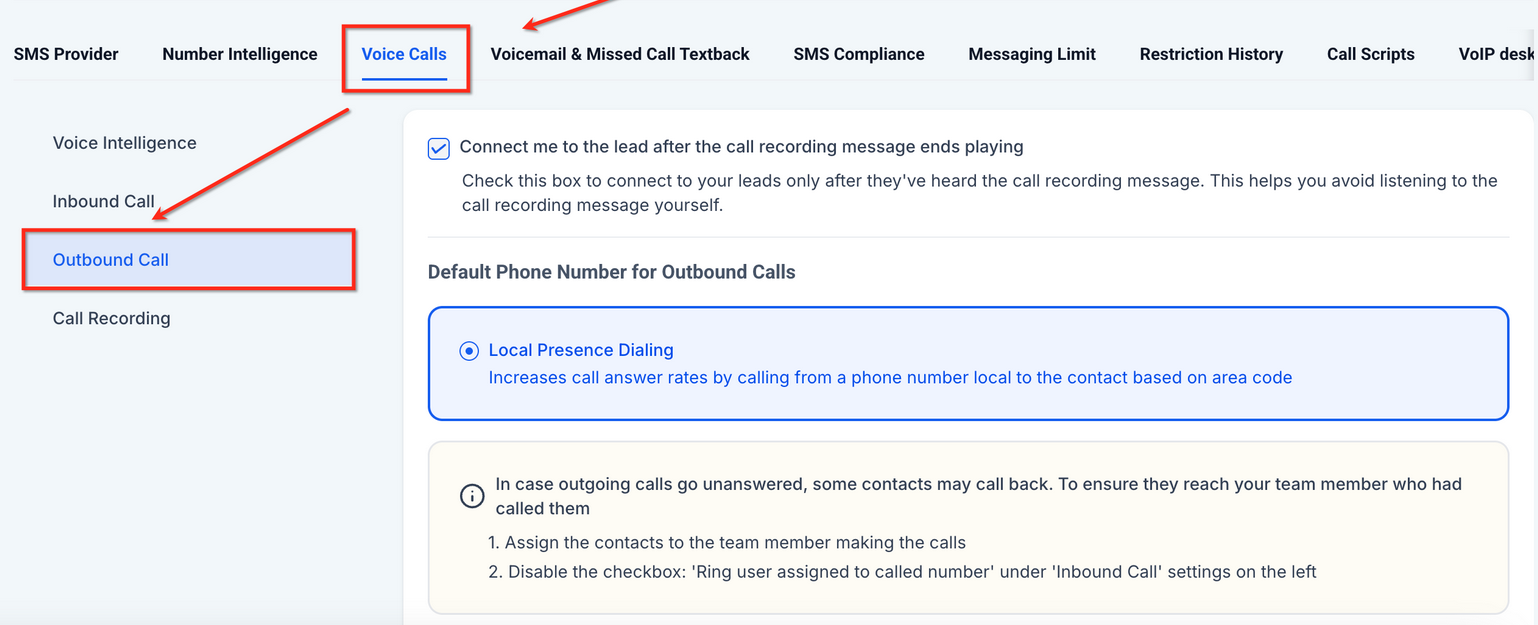
Once enabled, this feature automatically applies to outbound calls made from the mobile app.
Step 2: Make Calls from Mobile
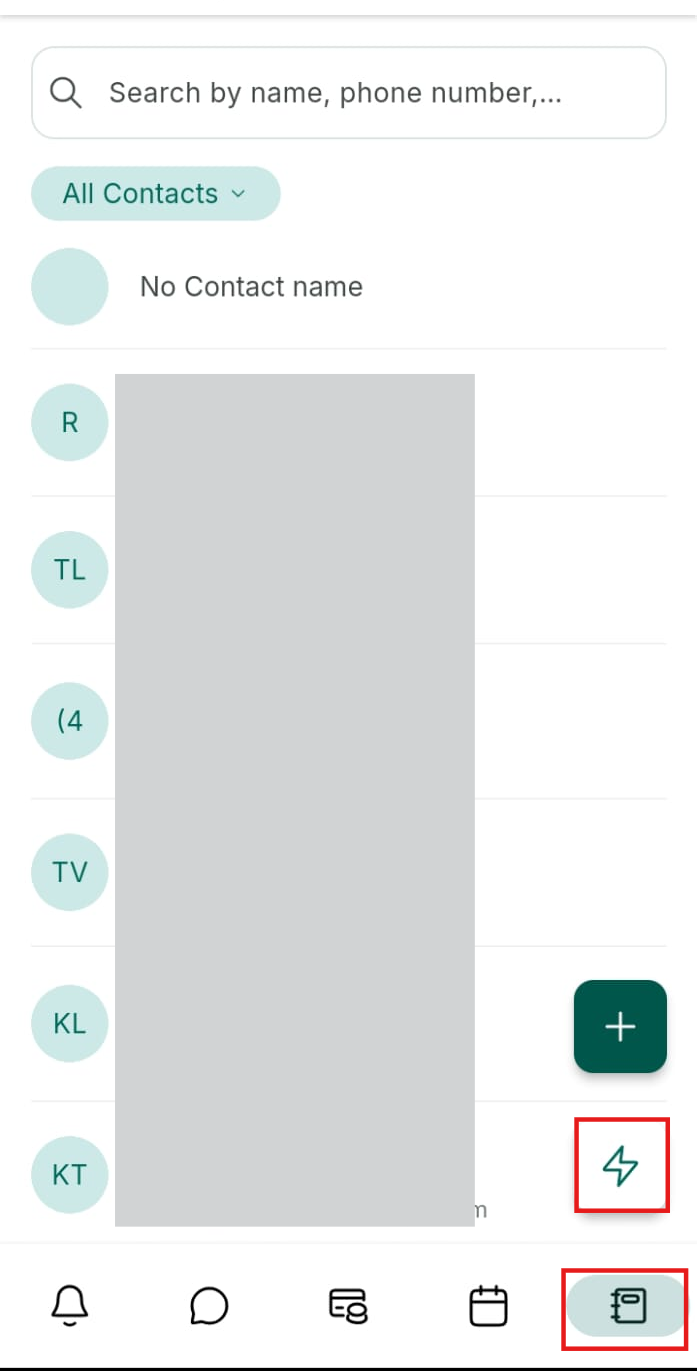
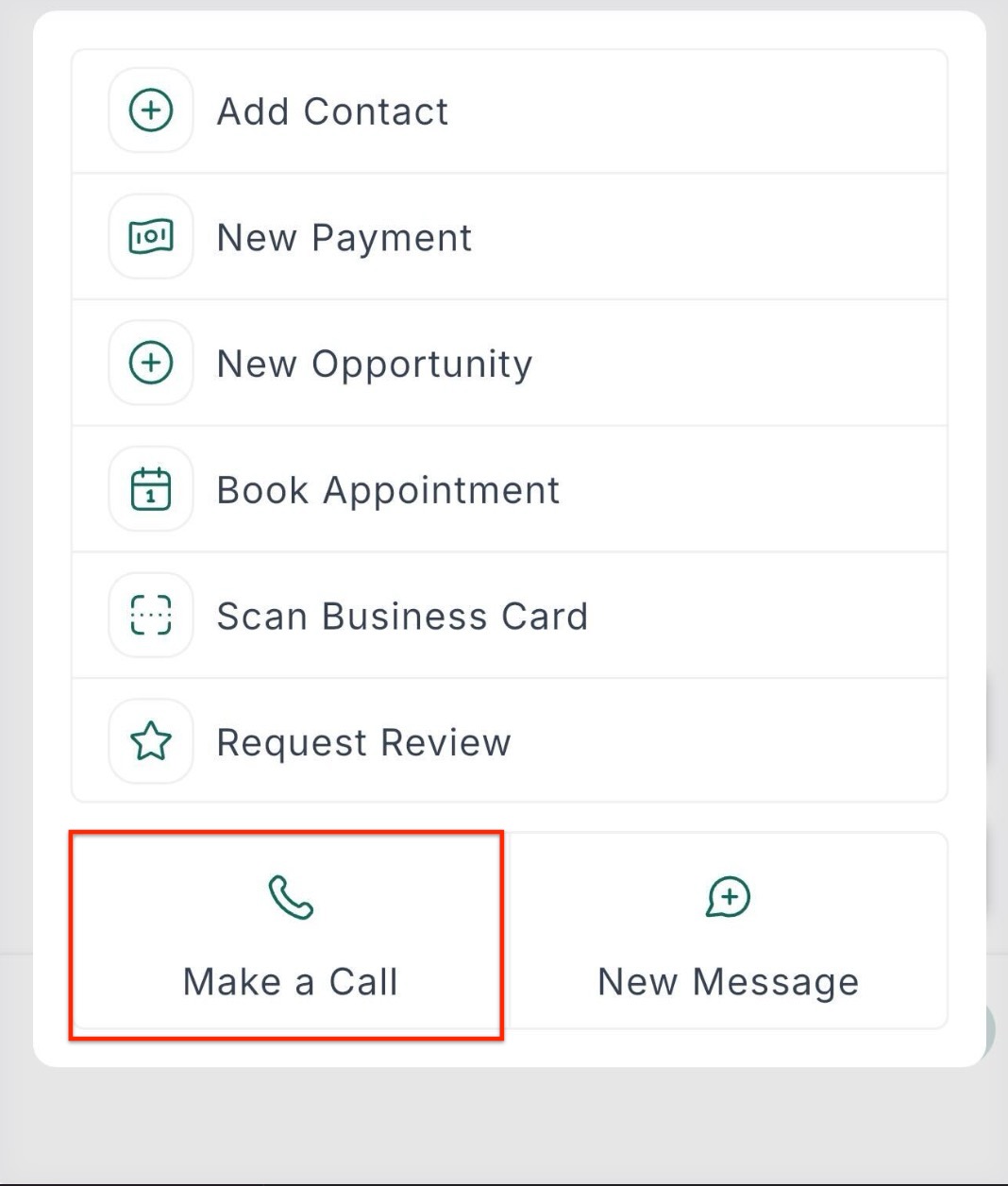
Section titled “Step 2: Make Calls from Mobile”- Open the mobile app and go to the Calls section.
- When dialing a contact, the system:
- Matches the area code of the contact and selects a local number.
- If a local number isn’t available:
- Falls back to the assigned number.
- If that’s also unavailable, use the default number.
Step 3: Use the Enhanced Number Picker (Optional)
Section titled “Step 3: Use the Enhanced Number Picker (Optional)”-
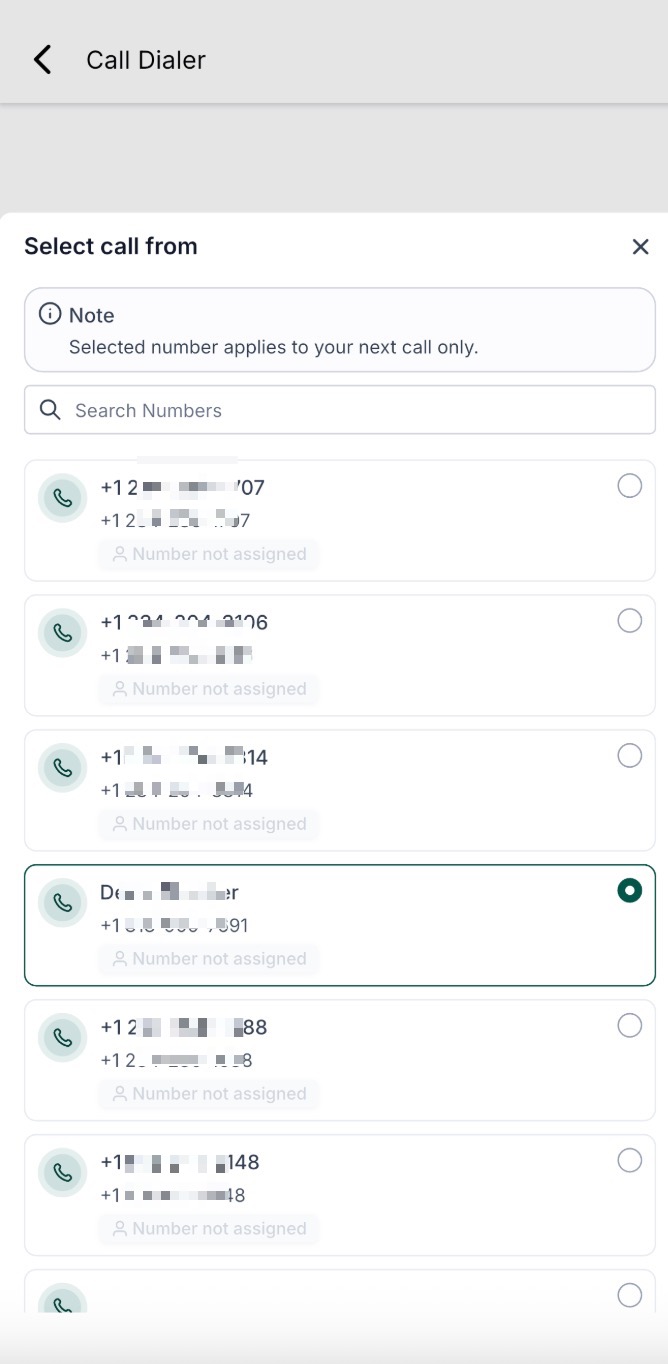
Tap on the Number Picker before placing a call.
-
View detailed information for each available number:
- Assigned user
- Number type
-
Select a temporary number for your next call.
-
When you have placed the call, your selection will persist across subsequent calls.
Note: To restore default settings and clear your selections, please log out of the app or perform a clean reinstall
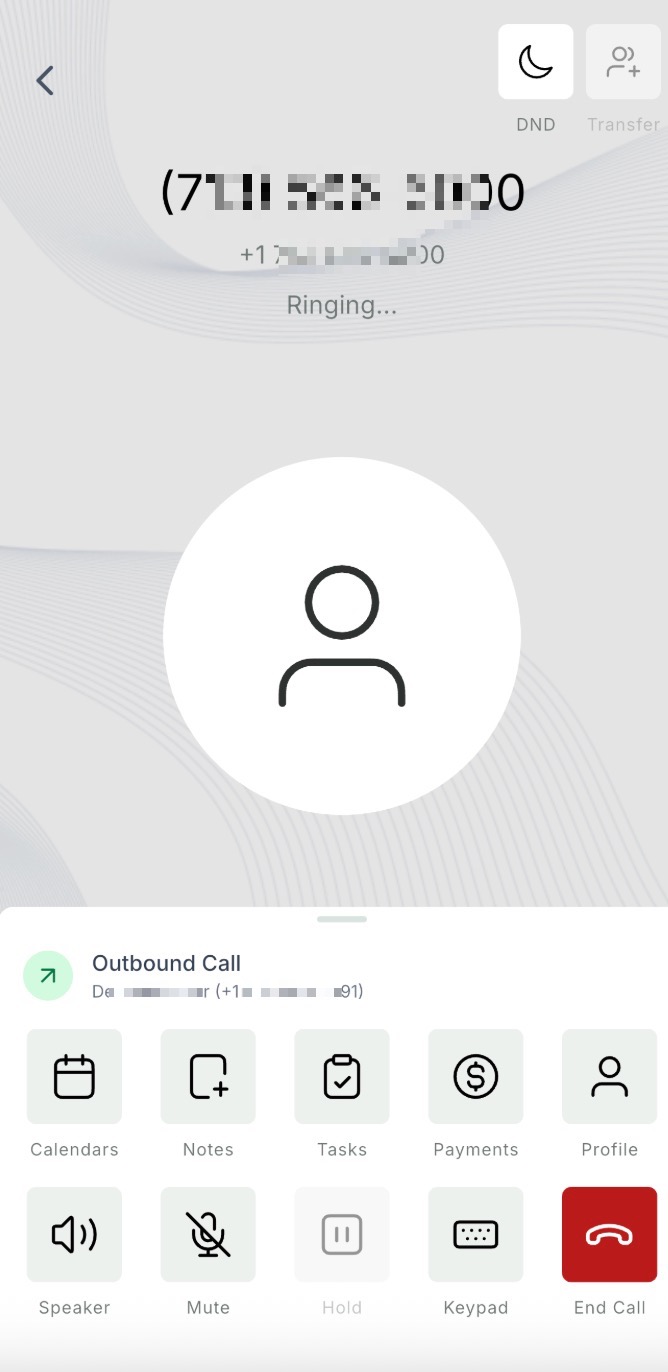
Step 4:After the call ends, users have the ability to use Custom Dispositions
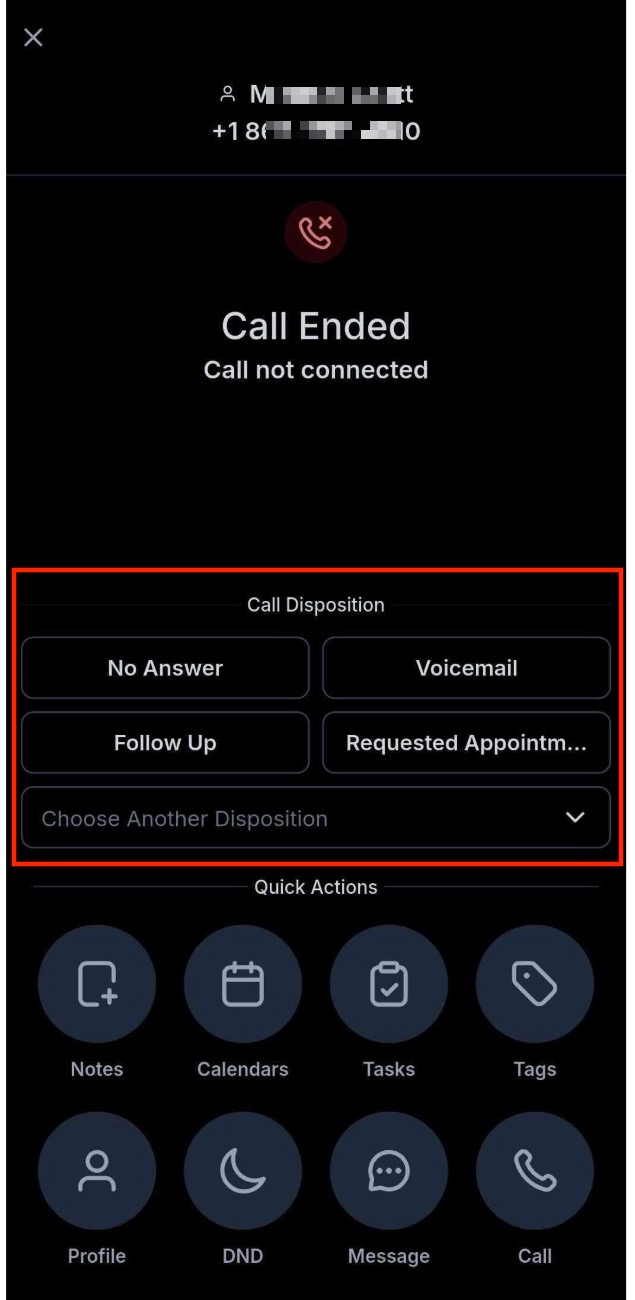
- Pick Your Outcome: Once the call ends, you will see your list of custom dispositions on the screen. Simply tap the one that fits the result, such as Follow Up or Qualified.
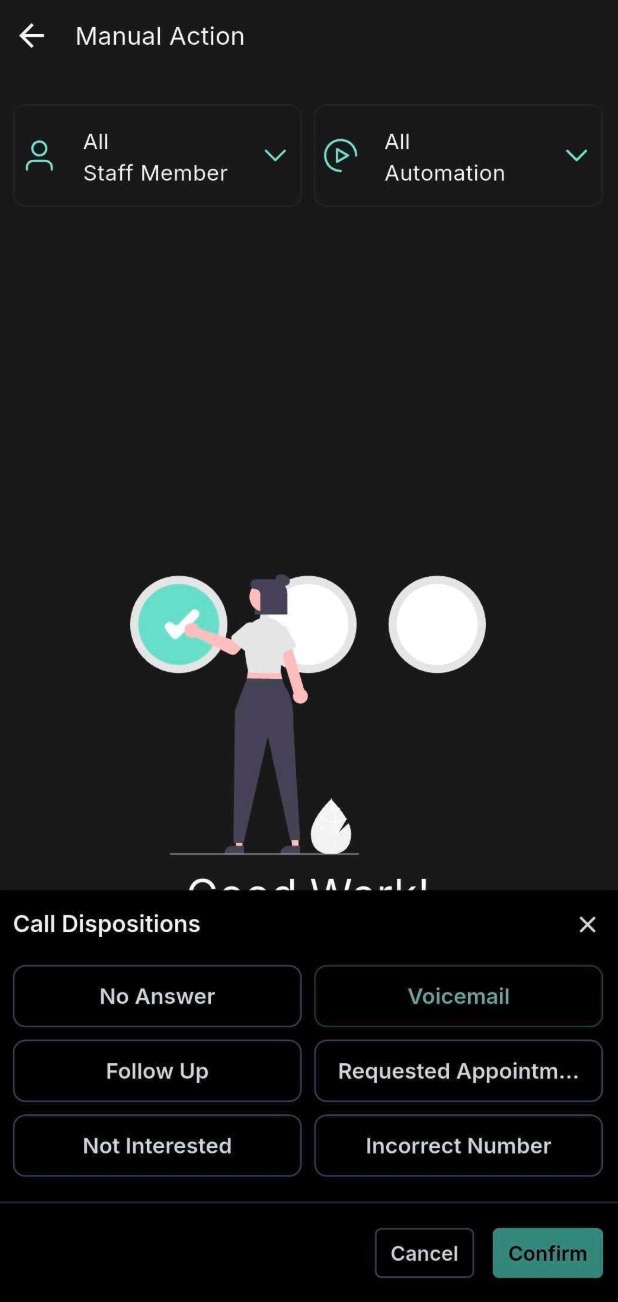
- Automate Your Results: To save time, head over to Workflows on the web version. You can add the Custom Disposition filter to your triggers or conditions.
Question: What happens if there’s no local number available? Answer: If a local number can’t be found, the system first uses your assigned number. If that’s also unavailable, it falls back to your sub-account’s default number.
Question: Will Local Presence work for international calls? Answer: Yes. When calling contacts outside the US or Canada, the app attempts to use a number from the same country if one exists.
Question: Can I choose a different number for a single call? Answer: Yes. Use the Number Picker in the mobile app to temporarily select a different number. It will only apply to the next call.
Question: Is the local number permanent for all calls? Answer: No. Local Presence dynamically chooses the number based on the contact’s area code each time a call is made.
Question: Can I view which number was used for a call? Answer: Yes. Call records in your call logs will show which outbound number was used for each call.
Question: Does the mobile app only match the state or country code for local calling?
Answer: No. On the mobile app, the feature provides City-Level Precision, meaning it intelligently selects the closest city number when available, rather than just matching at the state or country level.
Question: Can I select multiple outcomes for a single call? Answer: No, the system is designed for single disposition selection to maintain data integrity and ensure your reporting remains clear and actionable.