Mobile App: Customize Opportunities
Mobile App: Customize Opportunities
Managing leads effectively is essential for business growth, but traditional tools can slow you down. Digging through stages, clicking into cards, and switching tabs just to take simple actions wastes time and disrupts focus. That’s why the Opportunities V2 for mobile offers a smarter, faster way to manage and act on leads, right from your fingertips.
Key Features & Benefits
Section titled “Key Features & Benefits”- Customizable CardsChoose which fields and actions appear on your Opportunity cards. Personalize layouts to surface the info you need most, reducing the need to dig for details.
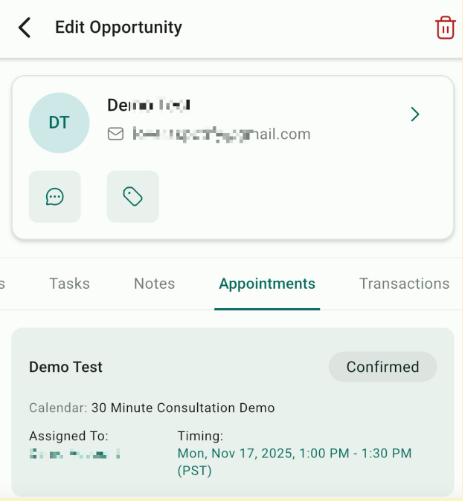
- All-in-One ViewAccess and update lead details, tasks, notes, appointments, and transactions, without leaving the Opportunity view. Everything you need is connected and easy to reach.
- Quick ActionsCall, message, tag, or update opportunities directly from the card. Fewer clicks mean quicker responses and more closed deals.
- Streamlined PipelinesNavigate a modern, intuitive layout with real-time badges and counters so you can act fast and stay on top of every lead.
- Improved Team ProductivityEnable your team to work faster with clear views, fewer distractions, and better context for each opportunity.
How to Use
Step 1: Customize Your Cards
1- Go to Opportunities → Settings → Customize Cards
2- Choose up to 7 fields from 40+ available options
3- Select your preferred quick actions (e.g., call, task, message)

4- Save changes; your cards will instantly reflect your selections
Step 2: Use the New Pipeline View
1- Navigate to Opportunities, where you will also see the Pipeline view.2- View each stage with your customized cards
3- Use badges to spot active items like tasks or notes
4- Perform quick actions directly from the card

Step 3: Manage Everything in One Place
1- Tap any Opportunity card
2- Use tabs like Details, Tasks, Notes, Appointments, Transactions
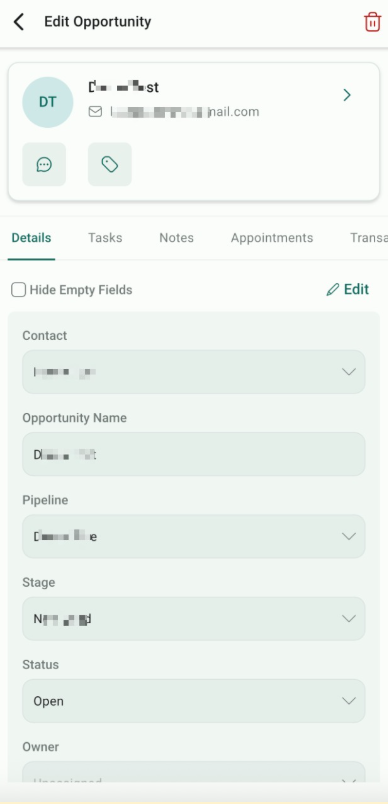
3- Make updates, log activity, and take action without leaving the screen
Important Info
Section titled “Important Info”- Customizations apply only to the mobile app and will not affect desktop views.
- Your current card layout will be reset, so make sure to reconfigure it after the update.
- Default fields include Name, Value, Owner, Source, Business, and Lost Reason.
- Up to 4 custom fields can be displayed, along with 3 fixed fields at the top.
- Default actions include Message, Add Tag, Add Task, and Move Opportunity.
Question: Do I need to do anything to enable this?
Answer: Just make sure the mobile app is updated. The new layout will automatically be available.
Question: Will these changes impact my web app experience? Answer: No. These customizations are specific to the mobile app and won’t affect the desktop layout.
Question: How many fields can I show on a card? Answer: You can display 4 custom fields, plus 3 always-visible fields (Name, Value, Owner).
Question: What actions can I perform from the card? Answer: Available quick actions include call, message, tag, add task, and move to a different stage.
Question: Can team members have different card layouts? Answer: Card customization is applied per user, allowing team members to personalize their own views.
Question: Will my existing mobile card layout stay the same after the update? Answer: No. Your current card layout will be reset once the update occurs.
Question: Does the “Call” action log the call automatically?
Answer: Yes. If you initiate a call through the quick action on the card, the system will prompt you to log the call outcome and add notes once the call ends, ensuring your activity feed stays current while you’re on the move.