AI Powered Business Card Scanner for LeadConnector Mobile App
AI Powered Business Card Scanner for LeadConnector Mobile App
The AI-Powered Business Card Scanner within mobile simplifies this process by instantly converting physical business cards into digital contact records. It eliminates manual data entry, reduces errors, and ensures no valuable contact slips through the cracks.
Key Features & Benefits
Section titled “Key Features & Benefits”- AI Business Card Scanning: Automatically extracts and populates key fields like name, phone, email, and company with high accuracy (98%+).
- Dual-Side Card Capture: Capture both front and back of the card for complete information coverage.
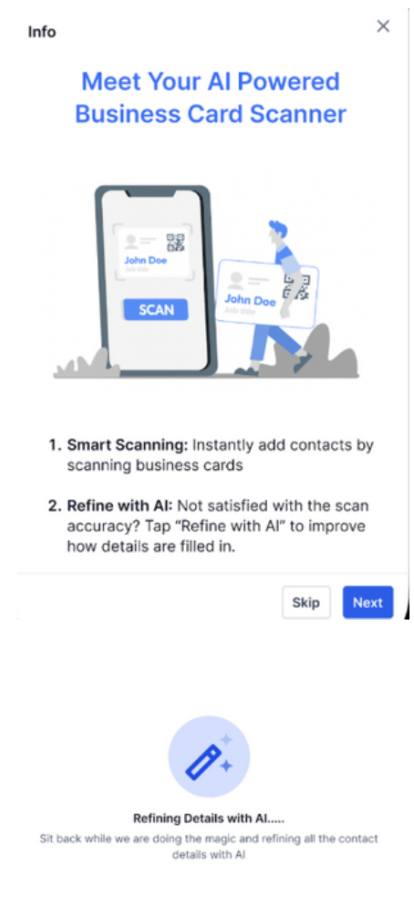
- Smart AI Refinement: If extraction is unclear, “Refine with AI” instantly reprocesses the scan to improve data accuracy.
- Auto Contact Creation: Extracted details are mapped directly into the contact form, ready for immediate use.
- Tag & Segment on the Spot: Add tags while creating the contact to organize or automate follow-ups.
- Media & File Storage: Optionally store scanned images with the contact record for easy future reference.
How to Use the AI Business Card Scanner
Section titled “How to Use the AI Business Card Scanner”Open the Mobile AppTap the + Icon in the bottom right corner of the screen → Scan Business Card
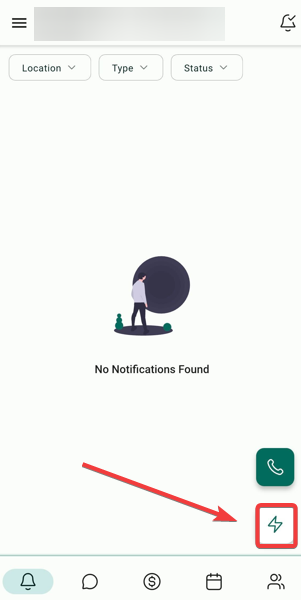
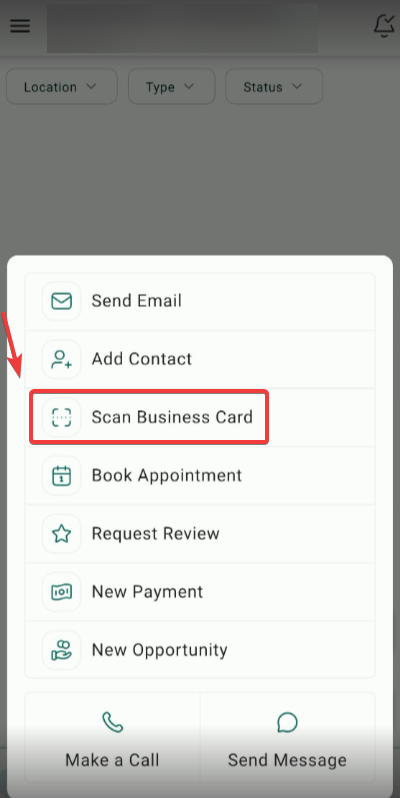
Scan the Business Card
- Use your phone camera to capture the front side of the card.
- Optionally, scan the back side if it includes more details.
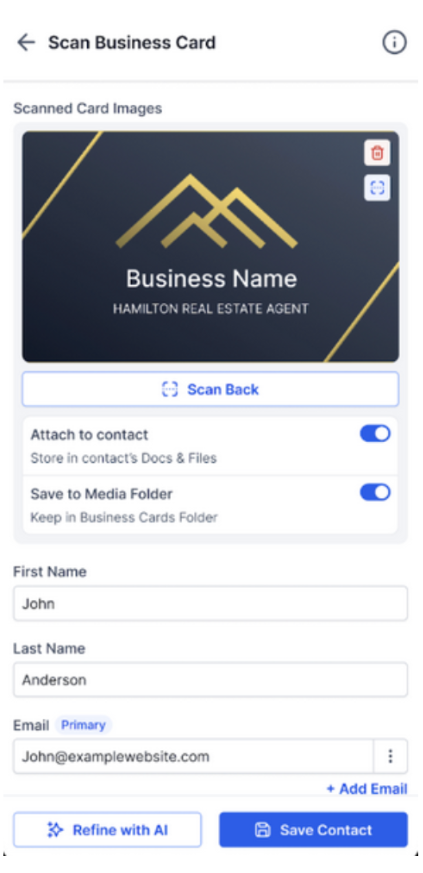
Review & Tag
- Verify that name, phone, email, and company details are correctly filled in.
- Add Tags to group contacts for automation, campaigns, or follow-ups.
Refine with AI (if needed)
- If something looks off, tap “Refine with AI” to automatically enhance the scan and update the fields.
Save & Store
- Toggle Save to Media Storage to store the scanned image.
- Toggle Add to Files & Folders to attach it to the contact’s profile.
- Tap Save Contact — and you’re done!
FAQS
Question: Do I need an internet connection to scan business cards? Answer: Yes, an active internet connection is required for AI processing and accurate data extraction.
Question: Where are scanned images stored? Answer: If enabled, images are saved in Media Storage and can be attached to the contact’s file section.
Question: Can I use this feature on all mobile devices? Answer: The feature is supported on both Android and iOS devices using compatible app versions.
Question: Is it possible to disable the image saving option? Answer: Yes, you can choose not to save the card image by toggling off the Media Storage and Files options before
Question: Will the scanner automatically detect duplicates? Answer: If enabled in your contact settings, the system can notify you of possible duplicates so you can merge or update existing records.
Question: Can I add tags while scanning a business card? Answer: Yes, you can add tags during contact creation to organize contacts or set up automated follow-ups.
Question: What should I do if the scanner doesn’t capture the information correctly?
Answer: You can use the “Refine with AI” feature. This instantly reprocesses the scan to clarify data and improve extraction accuracy if the initial result is unclear.