Statuses in Memberships
Statuses in Memberships
When creating a course, next to the Category, you will see a drop-down menu with 4 different statuses: Published, Draft, Locked, and Drip. In this article, you will learn the difference between these statuses.
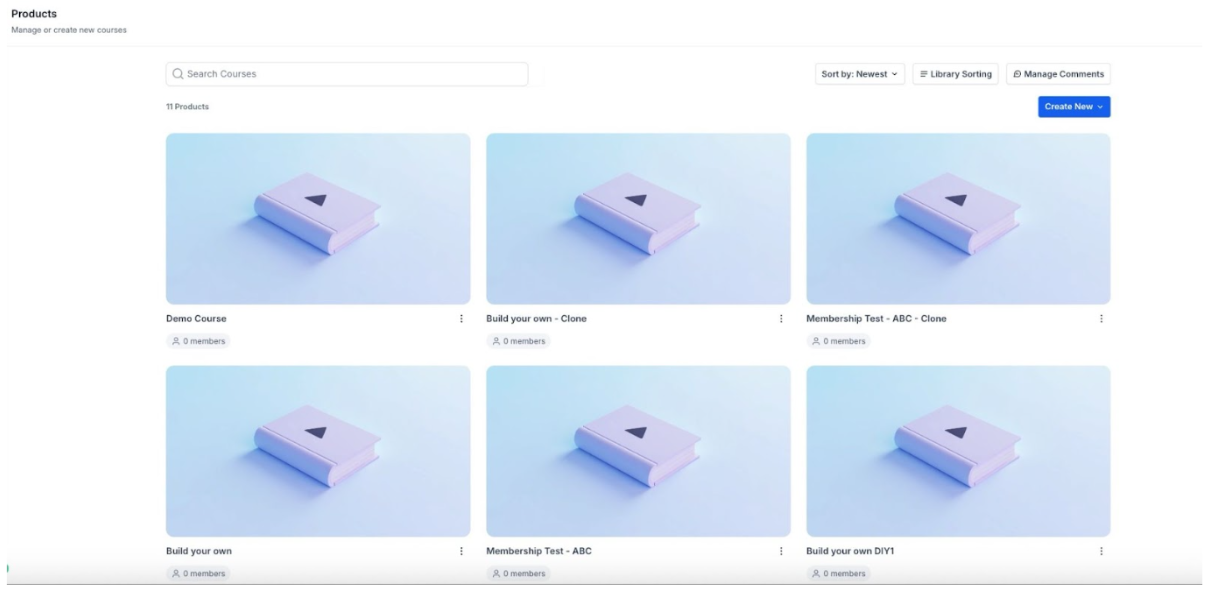
To access your courses, navigate to Memberships on the left > Courses at the top > From the dropdown select Products

Part 1: Published Status
Section titled “Part 1: Published Status”Once your section has been completed and you are ready to share it with your members, you can use the published status. It will show this section to all the members of your course.
Part 2: Draft Status
Section titled “Part 2: Draft Status”By default, when you create a new category, it will show with the Draft status. This is to prevent it from going live while you are still editing the lessons. You can use this status until the section is ready to be shown, or if you no longer want to show this category and the content inside it.
Part 3: Locked Status
Section titled “Part 3: Locked Status ”This status is useful when you want your members to go through a specific lesson or a module, or both
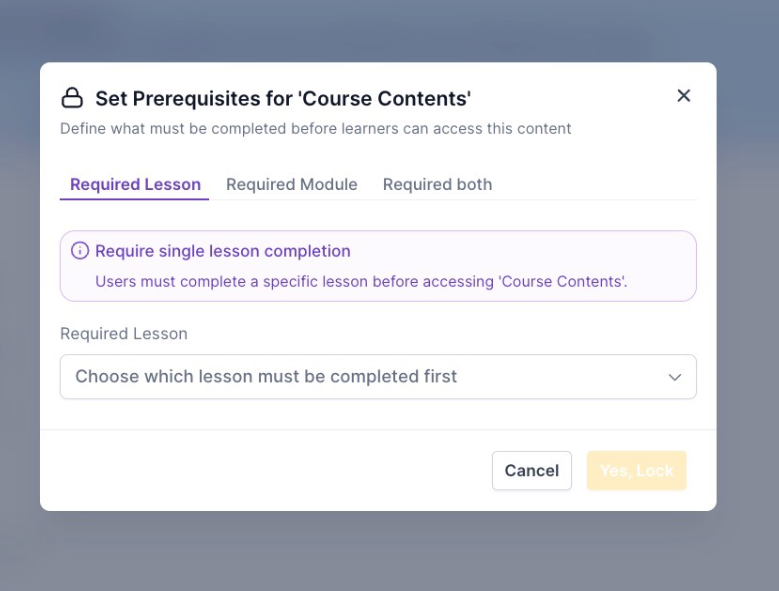
Once they have finished seeing all the content in the lesson or the category, the new category will be available for them.
Please Note: If you select a Category, it will lock the entire category, so keep this in mind if you are only locking one post in the same category as other posts. In other words, do not select a category for isolating a single post.
Part 4: Drip Status
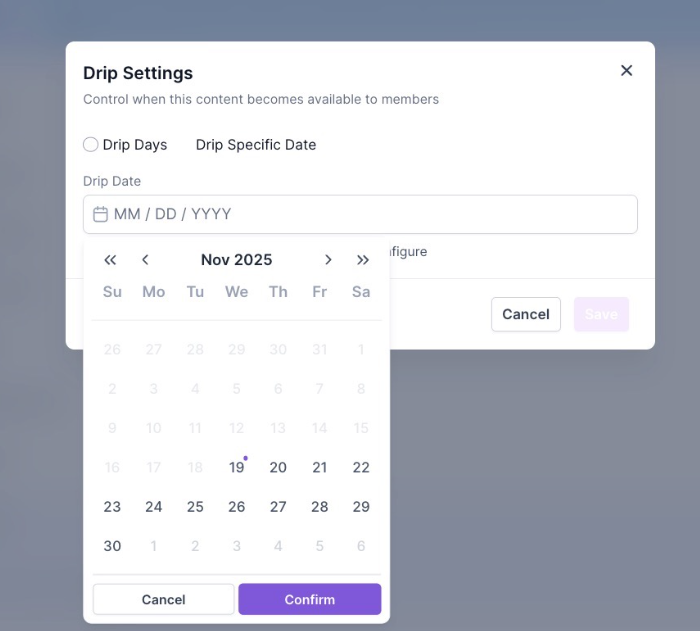
Section titled “Part 4: Drip Status”The feature will allow you to enable content after X number of days have passed. The drip days will count based on when the member logged in first. You also have the option to schedule drips on specific days.
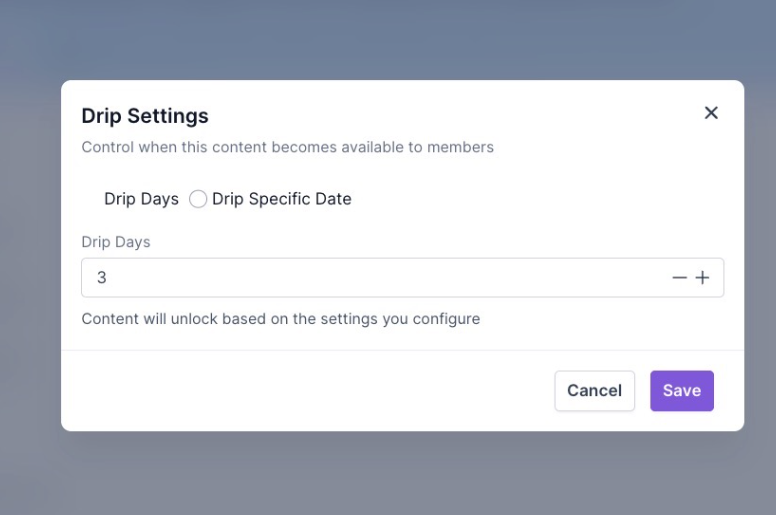
So, in the example below, section 2 has a 7-drip delay, and section 3 has a 14-drip delay. This means that after the member logs in for the first time, after 14 days, section 3 will be available.
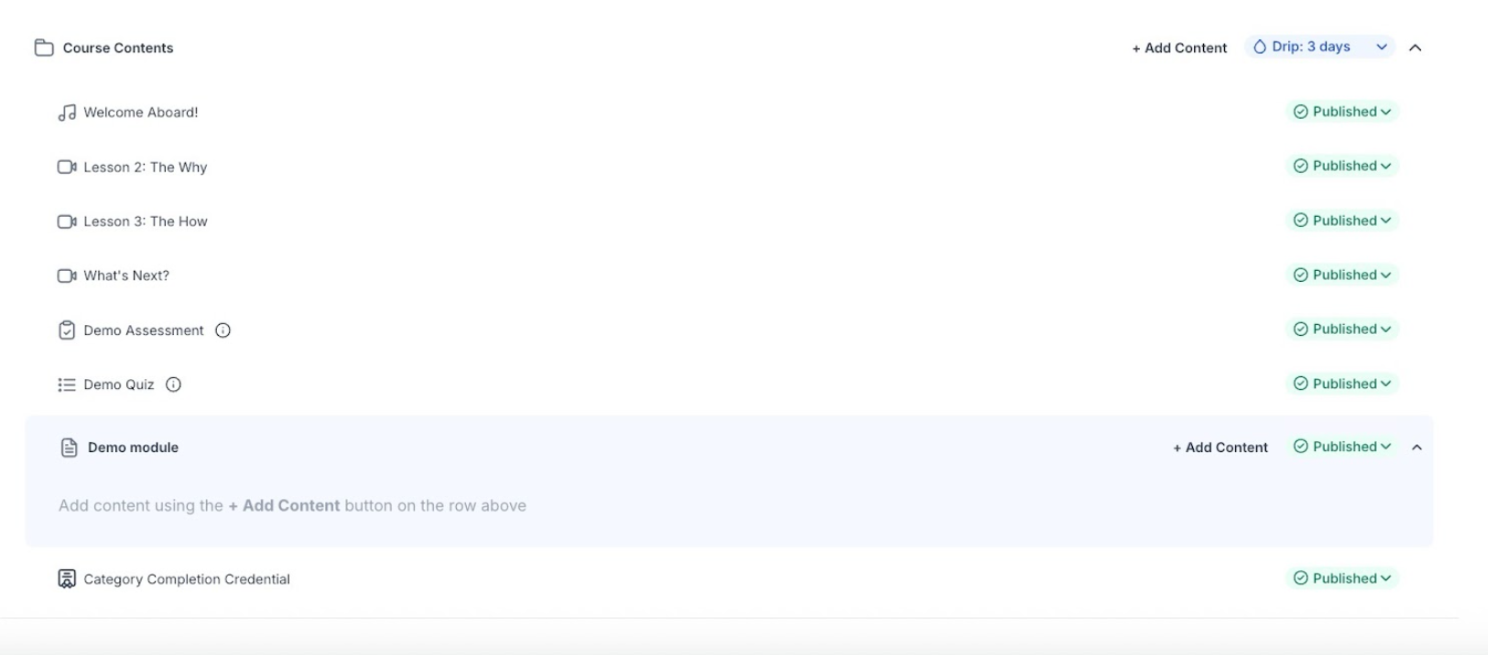
If you had to say as an example, in both sections, 7 days, then they will be shown after 7 days from the first time the member logged in.
Statuses in Lessons
Section titled “Statuses in Lessons”In addition to the statuses shown next to the category, there’s also the option to add a status next to the “Lesson.”

The only difference is that drip mode is unavailable for Lessons, and there’s also the Delete option (which is not a status).
Statuses in SubCategories
Section titled “Statuses in SubCategories”You can update the statuses in subcategories similarly to categories. The statuses included are also the same:

Question: What does the Published status do for my course sections? Answer: The Published status makes the section visible to all members of your course, indicating that it is ready and available for viewing.
Question: When should I use the Draft status? Answer: Use the Draft status when you are still working on a section and do not want it to be visible to members. This status helps prevent incomplete or unready content from going live.
Question: How does the Locked status work? Answer: The Locked status restricts access to a section or category until specific content is completed. You can lock content by individual posts/lessons or entire categories, making it accessible only after members have completed prerequisite materials.
Question: What is the Drip status, and how does it function? Answer: The Drip status releases content after a set number of days from the member’s initial login. For example, if a section has a 7-day drip delay, it will be available 7 days after the member first logs in. This feature helps manage content delivery over time.
Question: Can I combine Locked and Drip statuses? Answer: Locked and Drip statuses serve different purposes. Locked requires completion of prerequisites, while Drip releases content based on time. They are applied separately depending on your content strategy.
Question: Can I set a specific calendar date for Drip content instead of “number of days”?
Answer: Yes! Within the Drip settings, you have the option to release content based on a specific number of days or by choosing a specific date on the calendar. This is ideal for “Live” courses where everyone should see the content on the same day.