Membership Assessments and Quizzes
Membership Assessments and Quizzes
Membership assessments and quizzes can be a great way to check the progress of your members as they work through your course.
Creating an Assessment
Section titled “Creating an Assessment”Follow along to learn how to create and manage Membership Assessments.
Step 1: Choose the Product
Section titled “Step 1: Choose the Product”- Navigate to Memberships on the left > Courses at the top > From the dropdown select Products to create an assessment for your Members. (You must already have a product created to add an assessment.)
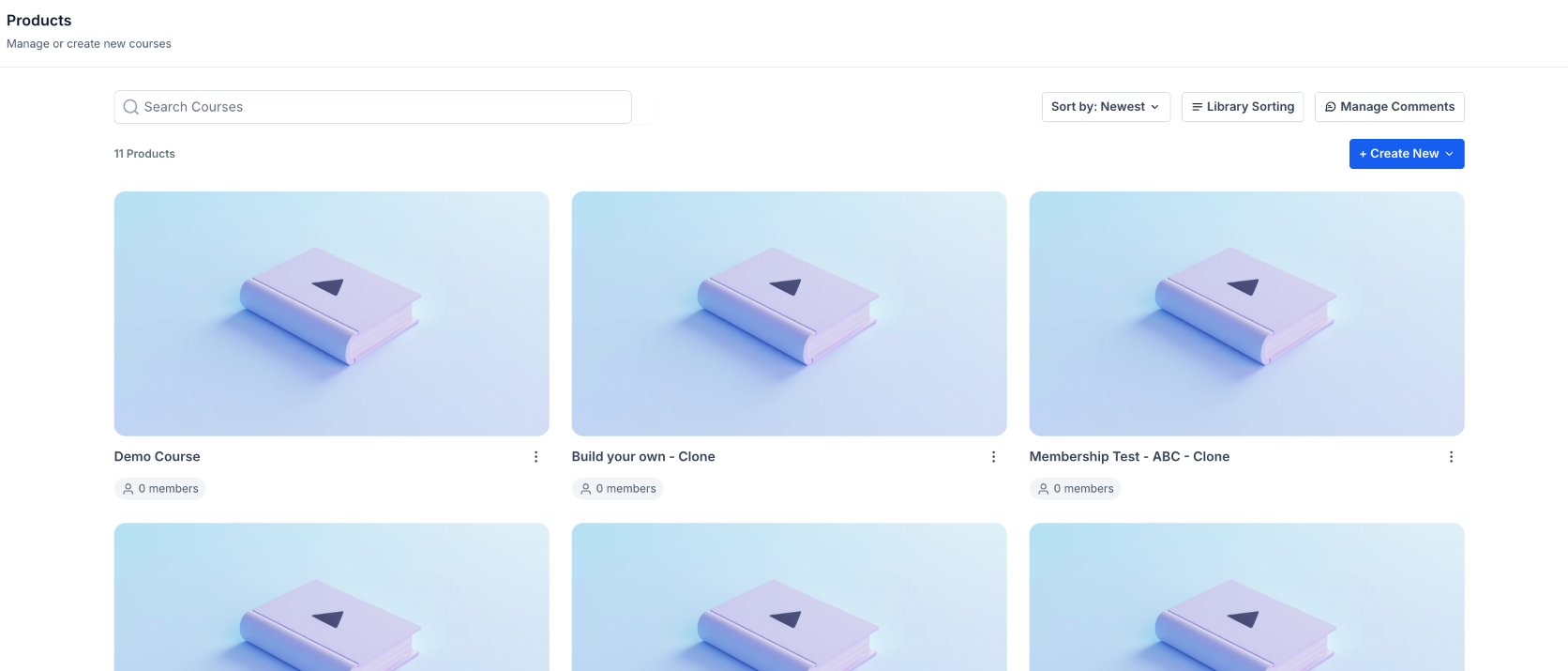
- Select the Product you would like to add an assessment to.
- Next to the title of the Section, click the plus sign and Select “Add Assessment”.
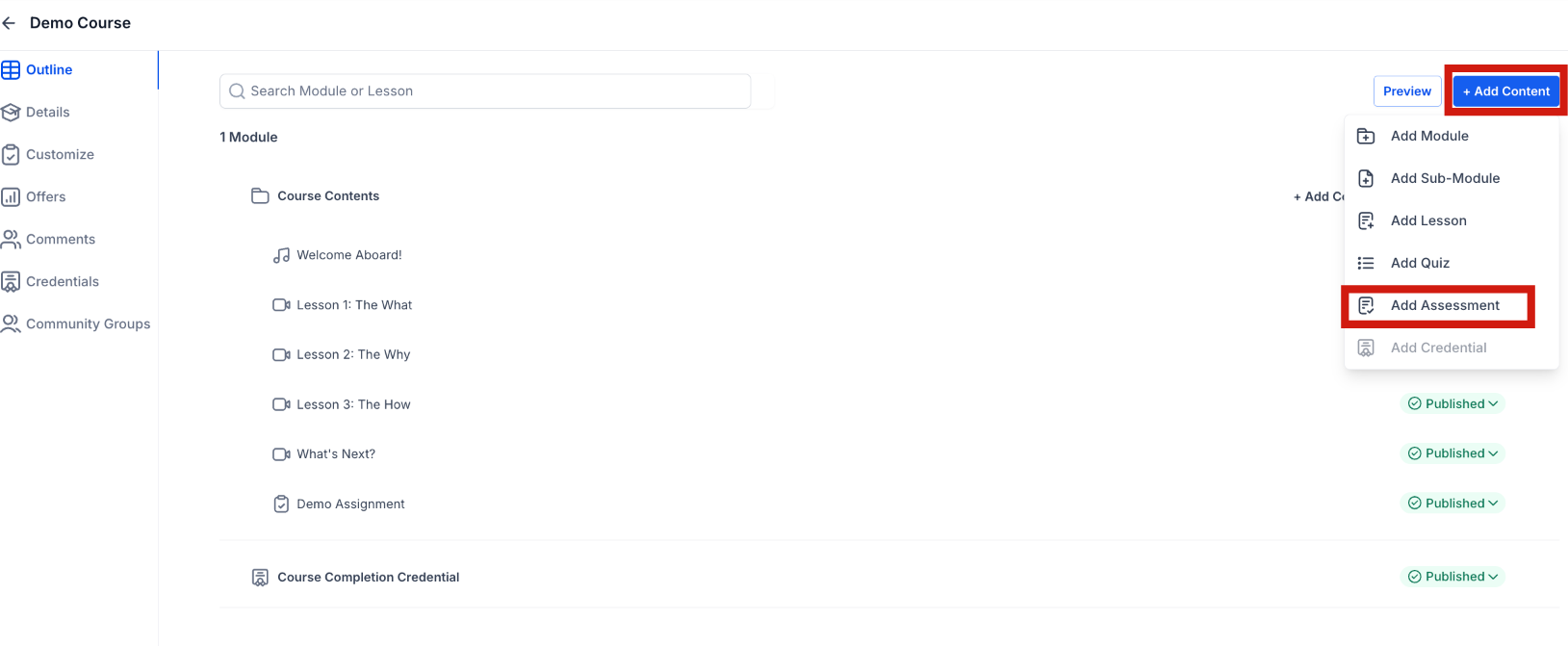
Step 2: Create Assessment
Section titled “Step 2: Create Assessment”- In the “Add Assessment” pop-up, you must provide a Title and choose between two types: Assignment or Quiz.
- Choose Module to test knowledge with auto-graded questions.
- Choose Module for file uploads or open-ended tasks. Click Create Assignment
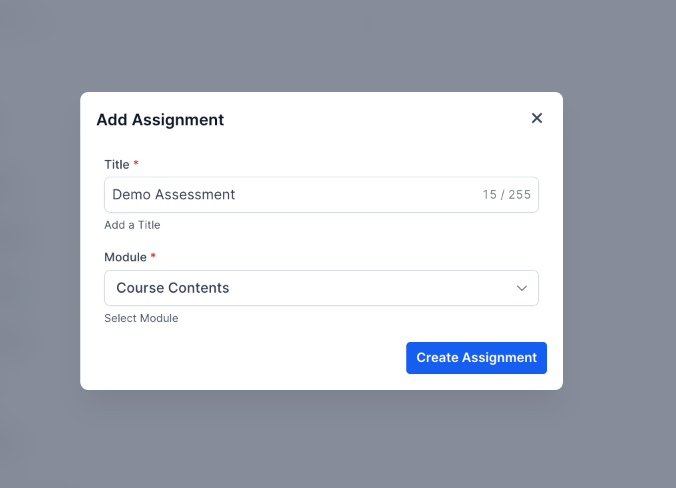
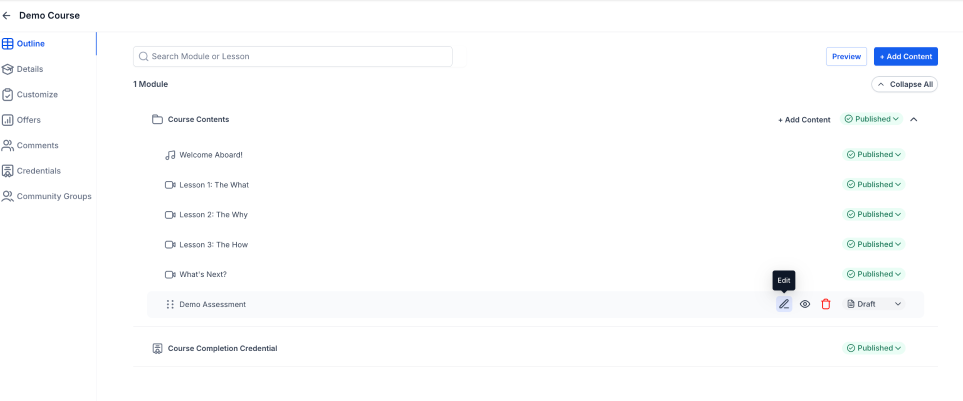
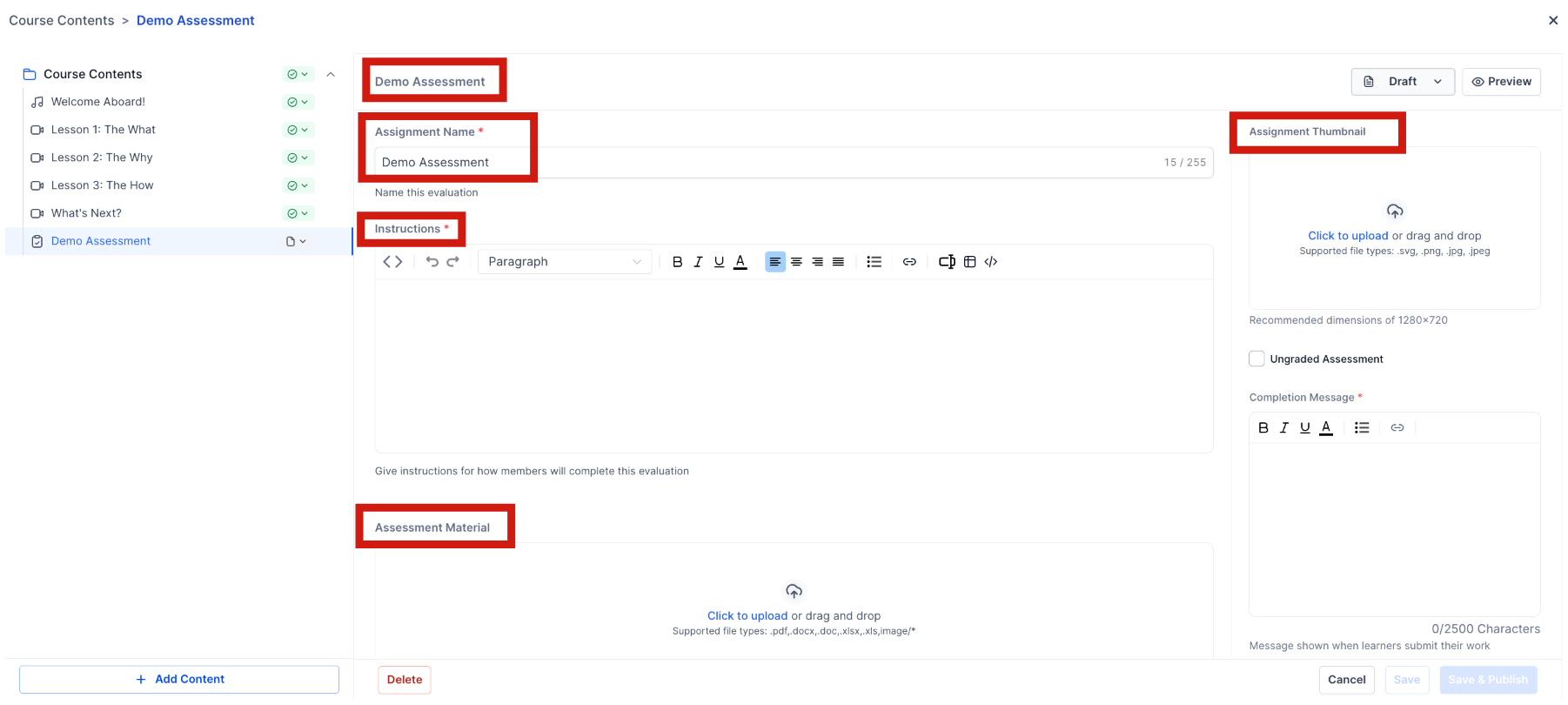
- Click on the assessment, and you will see where to add instructions, upload a template or another document they can use, and send the confirmation message. They will see this message when the document has been submitted.
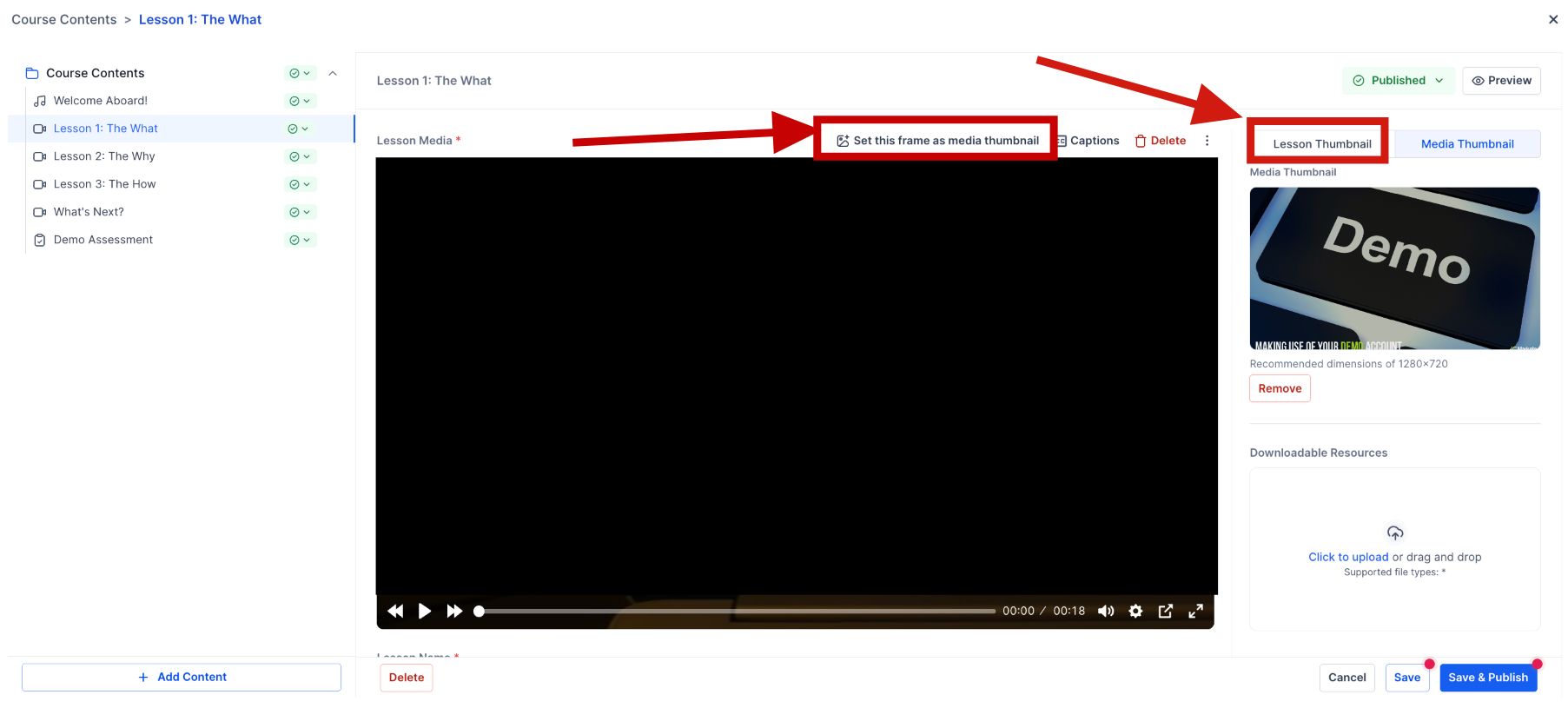
NOTE: Users can click on the “Set this frame as media thumbnail” button to capture and use the exact frame they want as the video thumbnail. This is integrated into the video player. This feature simplifies the process of selecting thumbnails from uploaded videos for lessons.
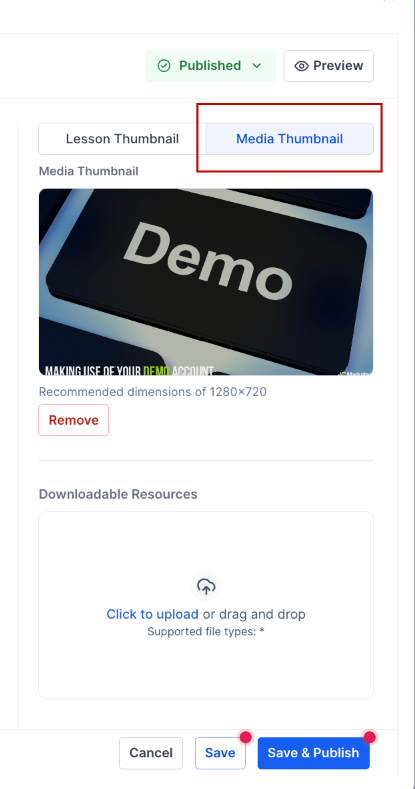
Additionally, with custom thumbnails, you can upload an image that best represents your video, ensuring it attracts viewers and highlights key content. To use, simply select or upload your desired image while editing the video, ensuring it meets the recommended dimensions for optimal quality.
Step 3: Publish the Assessment to Make it Live
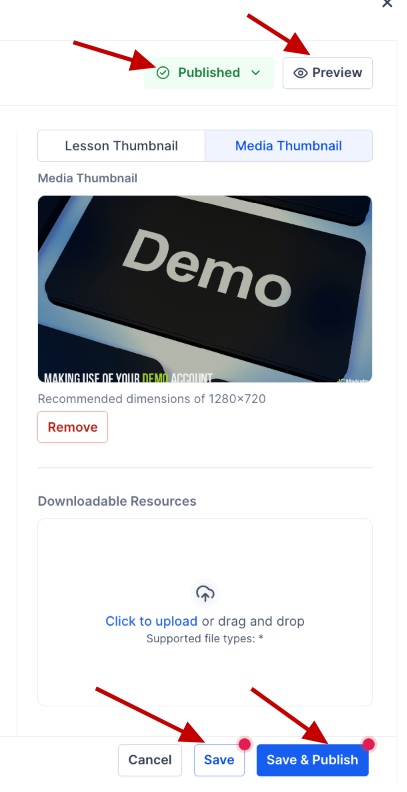
Section titled “Step 3: Publish the Assessment to Make it Live”- Once ready, turn to publish mode and save
- You can save and publish
- You can preview the assignment
Creating a Quiz
Section titled “Creating a Quiz”Follow along to learn how to create and manage Membership Assessments.
Step 1: Choose the Product
Section titled “Step 1: Choose the Product”- To create a quiz for your Members, navigate to Memberships > Courses > Products.
- Select the Product you would like to add an assessment to.
- Next to the title of the Section, click the plus sign and select “Add Quiz”.
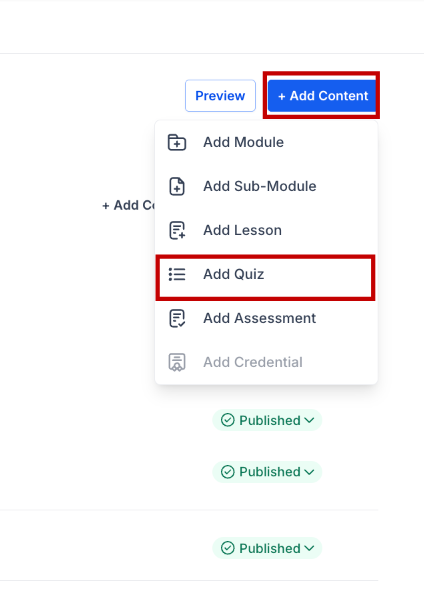
Step 2: Create the Quiz
Section titled “Step 2: Create the Quiz”- Add a Title to the Quiz, select the Module, and click Create.
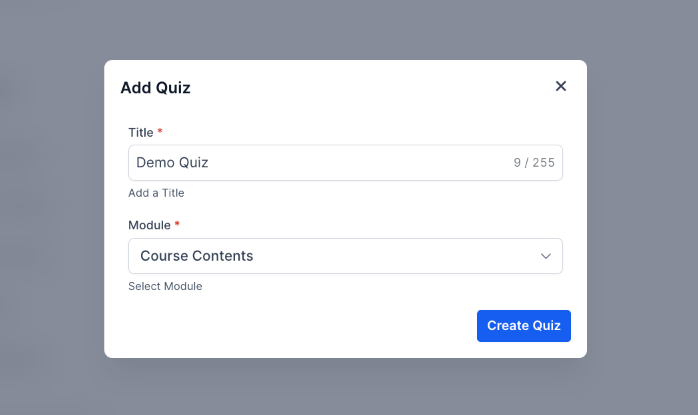
- Edit the Quiz to make the changes or customize.
.png)
- Click on Import Questions to upload quiz questions in bulk via CSV directly inside the quiz editor.
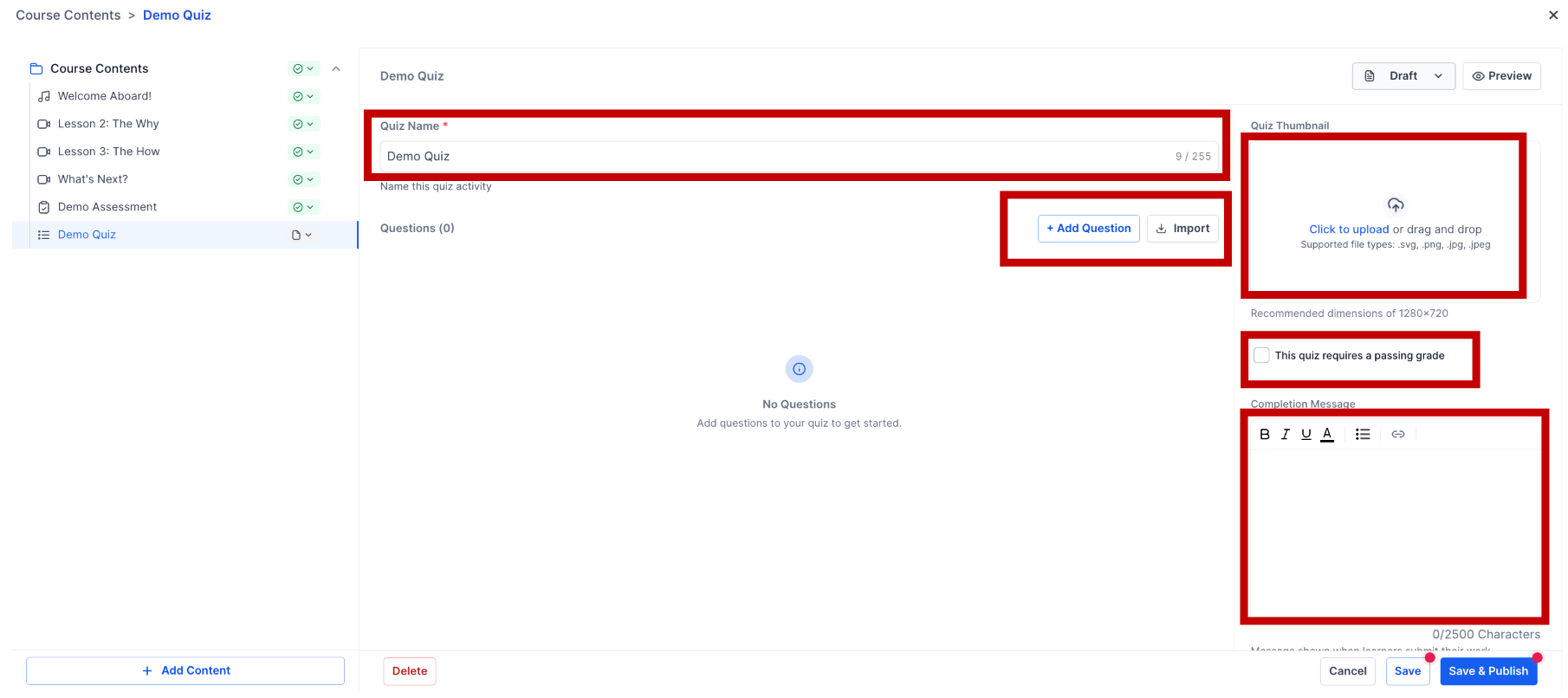
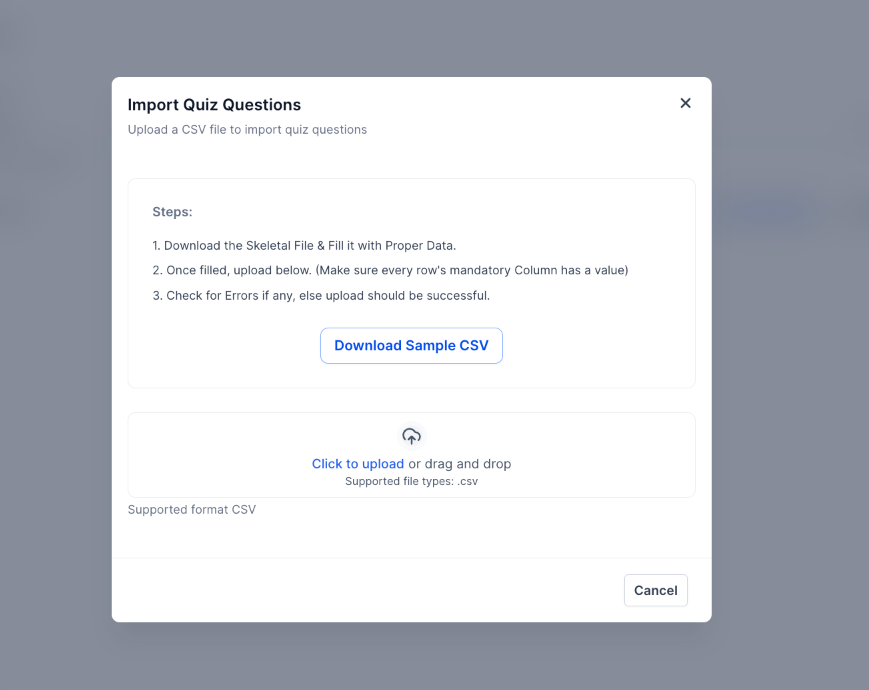
- At the bottom, you can see where to add your questions, which can be multiple-choice or a single question.
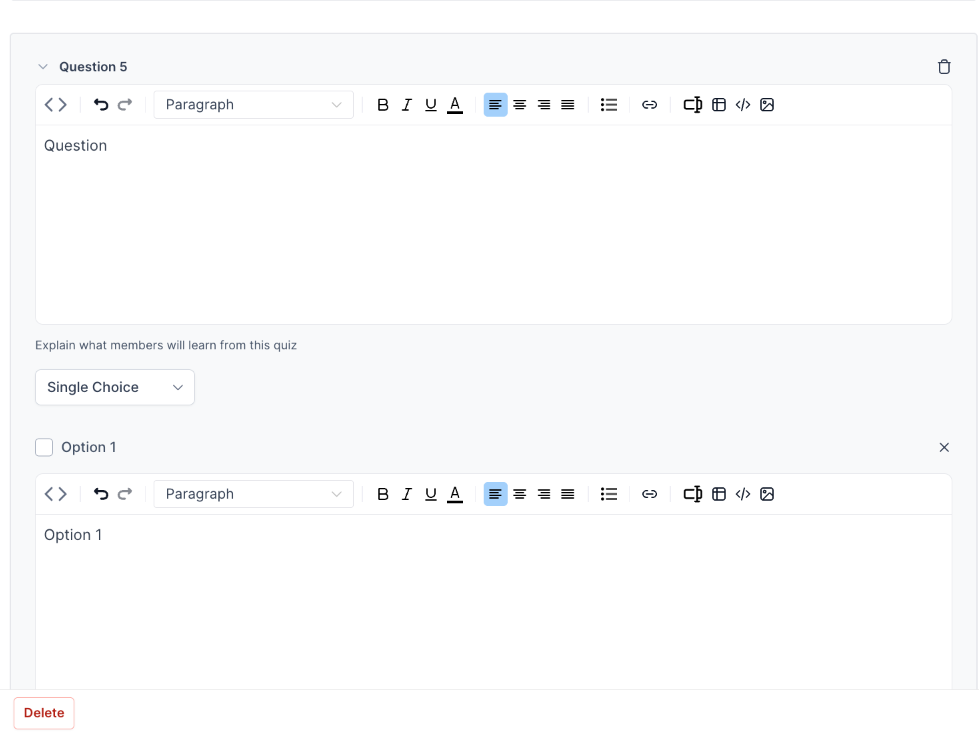
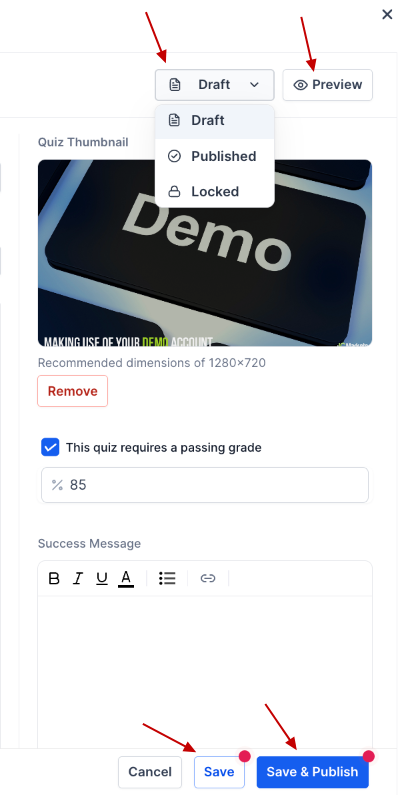
- After making all the changes, you can publish and save
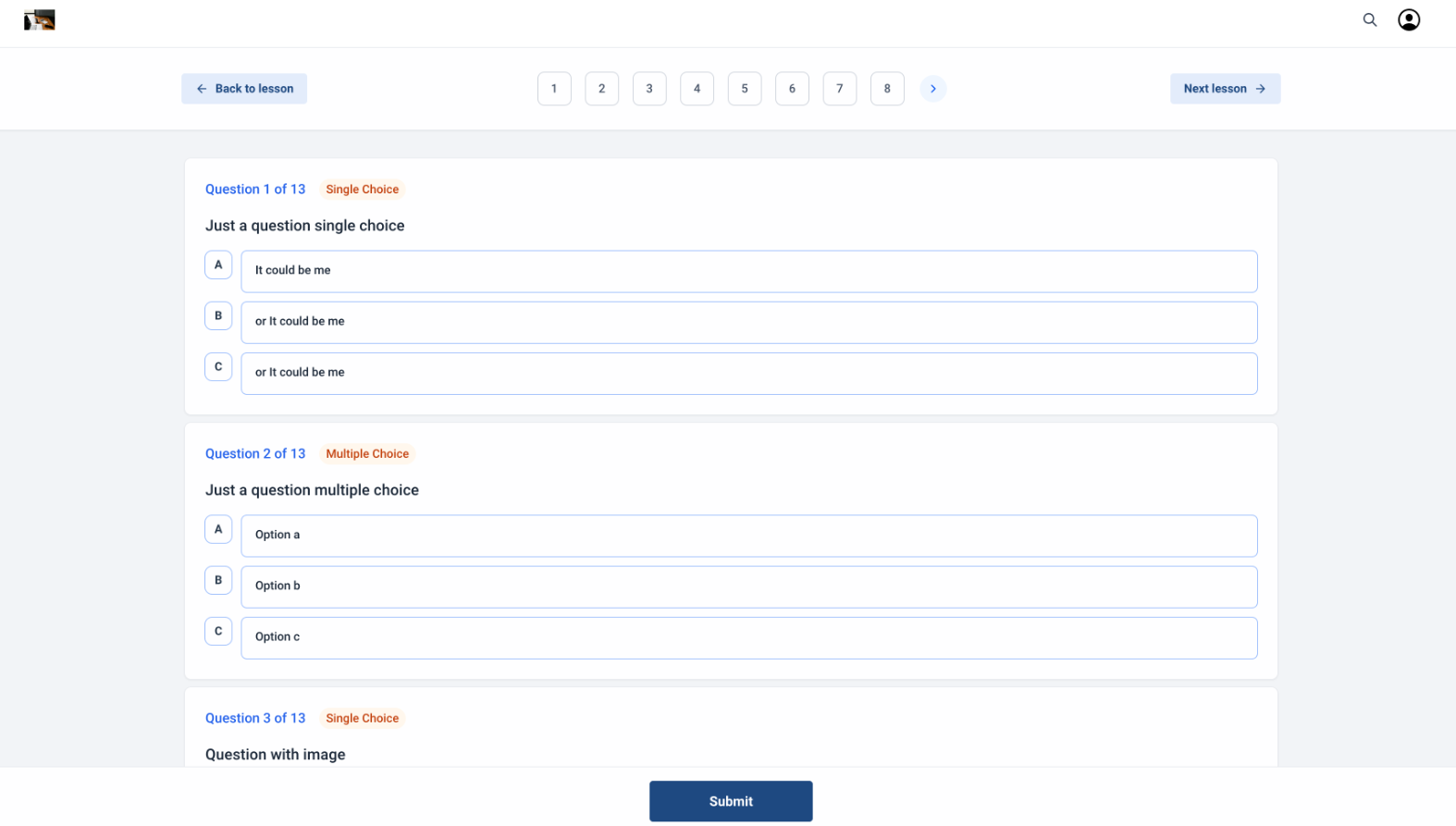
- You can also preview your quiz
Increased File Support
Section titled “Increased File Support”- Multiple File Support in Lesson Attachments: Attach multiple files to lesson posts, making it easier to share comprehensive materials. Supported formats include .svg+xml, .png, .webp, .jpg, .jpeg, .mp4, .webm, .mov, .quicktime, .pdf, .doc, .docx, .ppt, .pptx, .xlsx, .zip, .mp3, .csv, .gif, .txt, font files, audio files, and other image types.
What happens when someone submits an assessment?
Section titled “What happens when someone submits an assessment?”When an individual completes an assessment requiring a passing score, their results are immediately displayed, indicating which answers were right or wrong. However, the correct answers themselves are not revealed unless the assessment does not have a passing grade requirement.
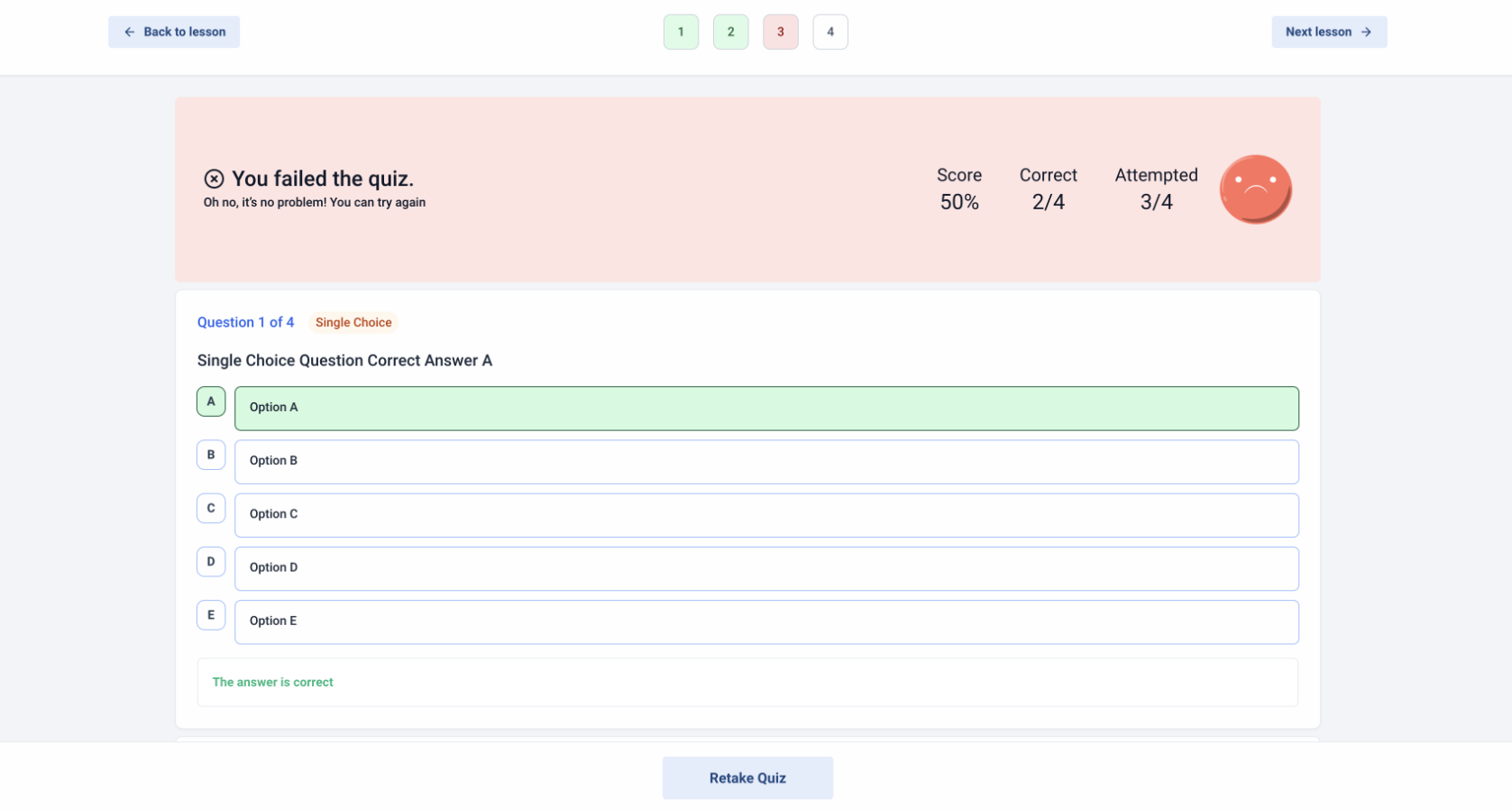
In cases where no passing grade is specified, the correct answer for each question is shown along with any explanations provided for why this option is correct or why other options are incorrect.
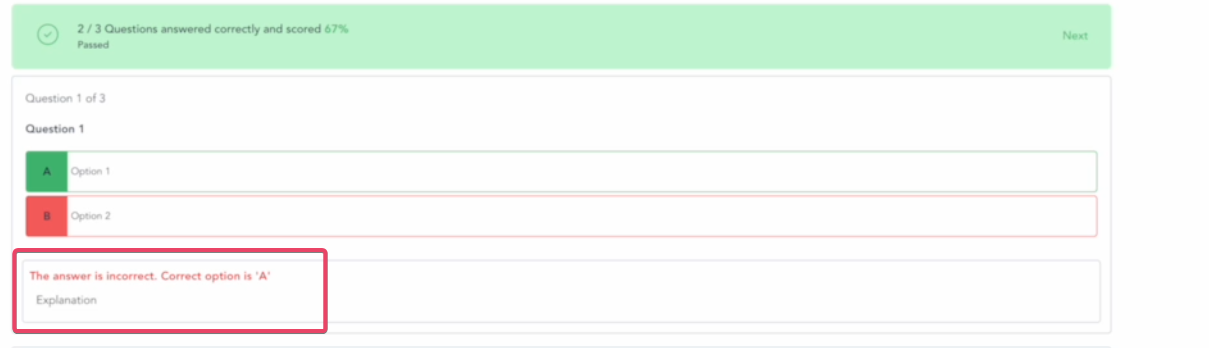
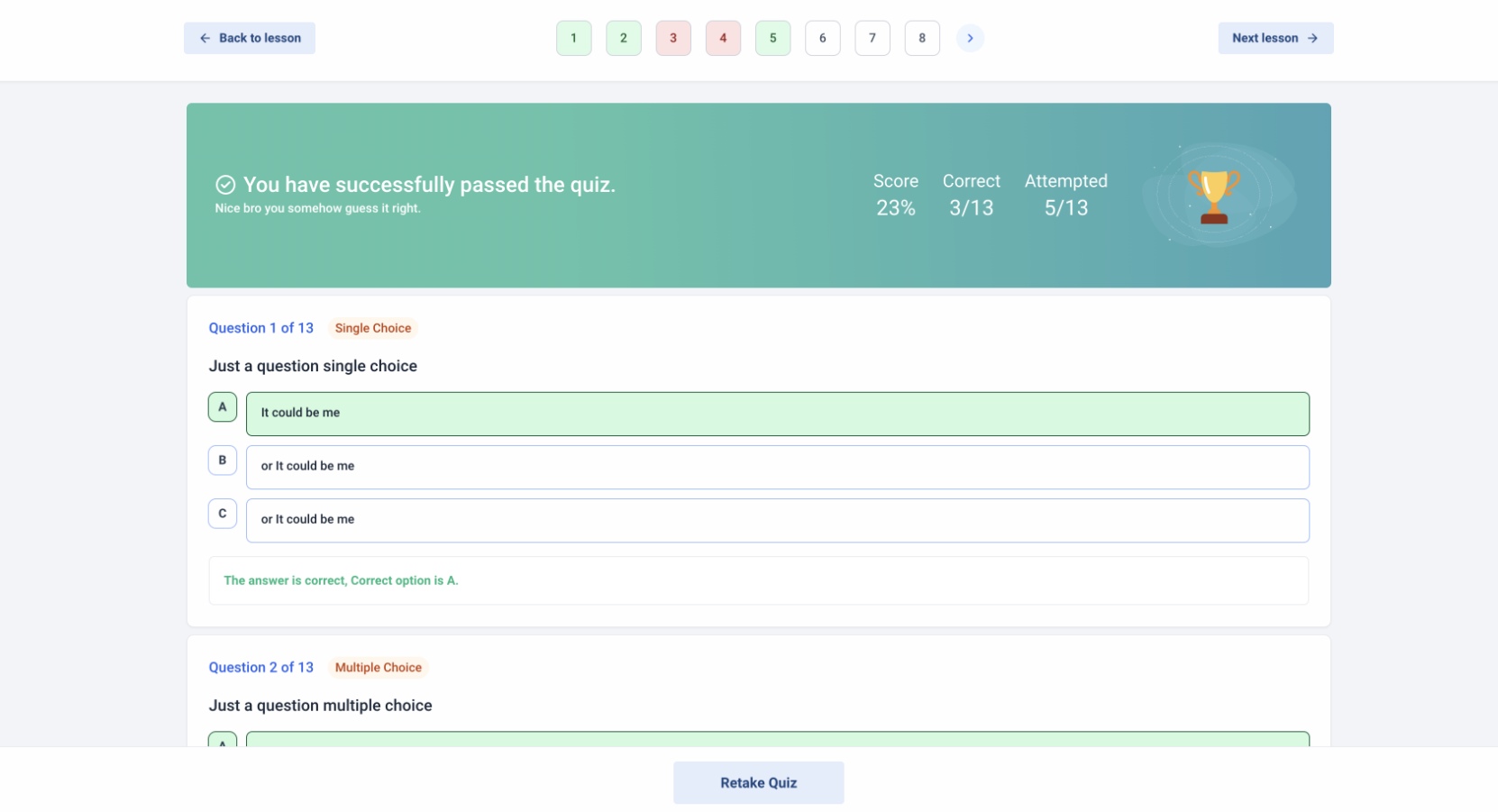
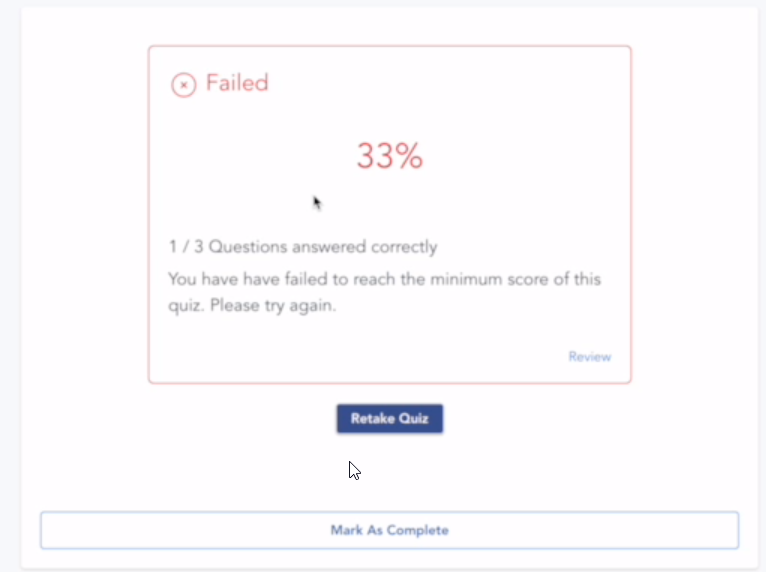
If a participant attempts the quiz again using the same login credentials from the course, they will see their most recent score and have the opportunity to retake the quiz.
Learners can retake quizzes as many times as needed to improve their score. This encourages knowledge retention and helps learners correct mistakes.
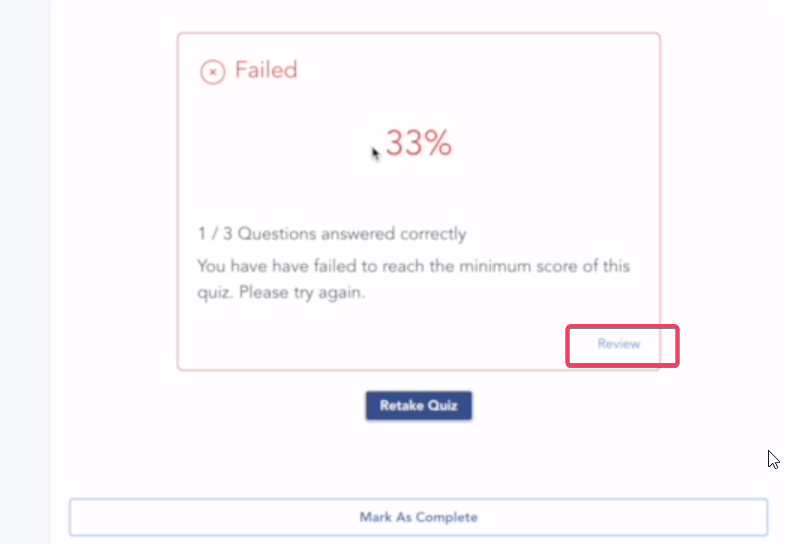
By selecting the Review button for their last attempt, participants can view their previous responses, identifying which were correct and which were not.
Note: You can also view the analytics of each assignment and quiz.Enhanced Status Pages for Quizzes & Assignments: Status pages display results like “In Review,” “Pass,” or “Fail,” along with instructor notes for additional guidance.
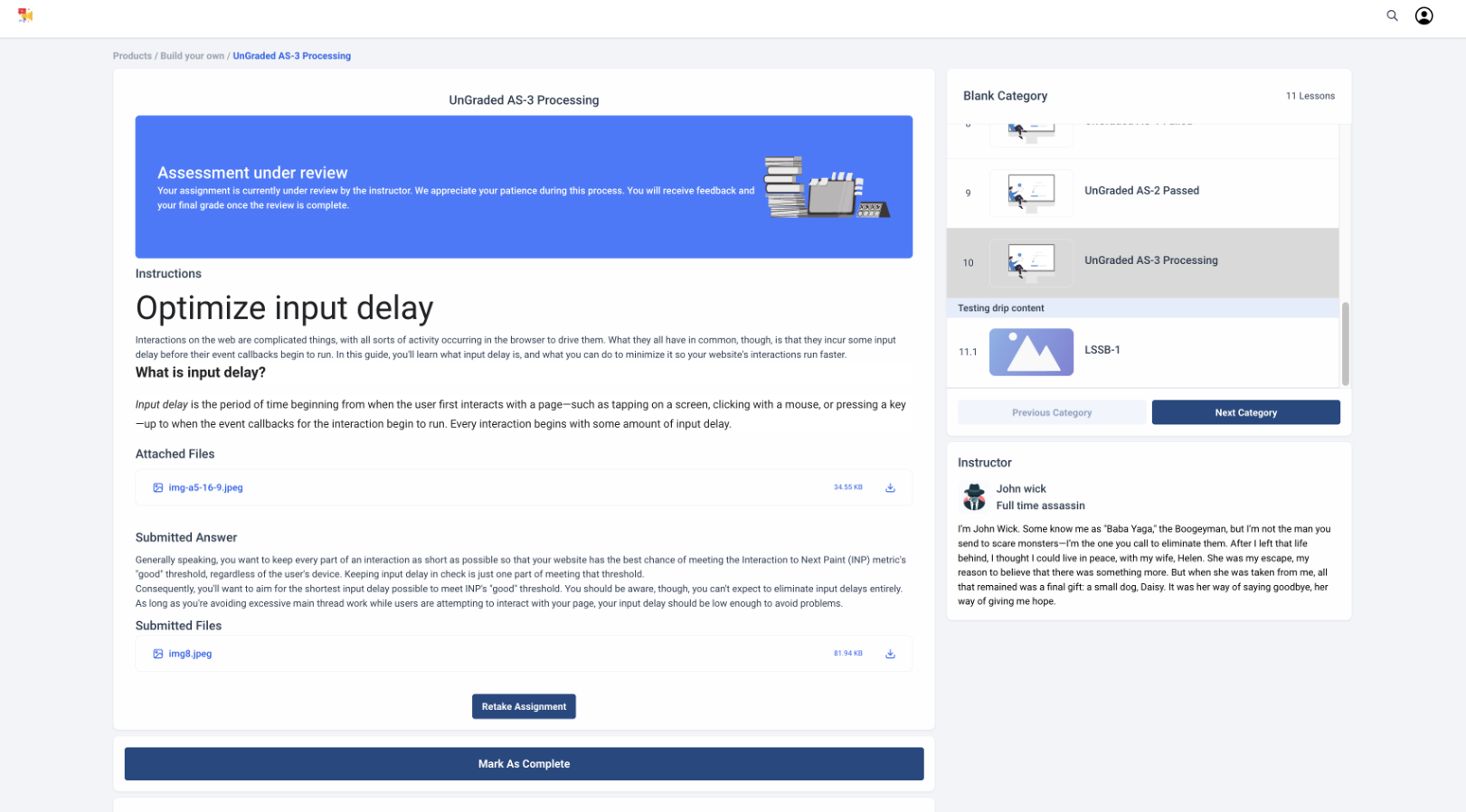
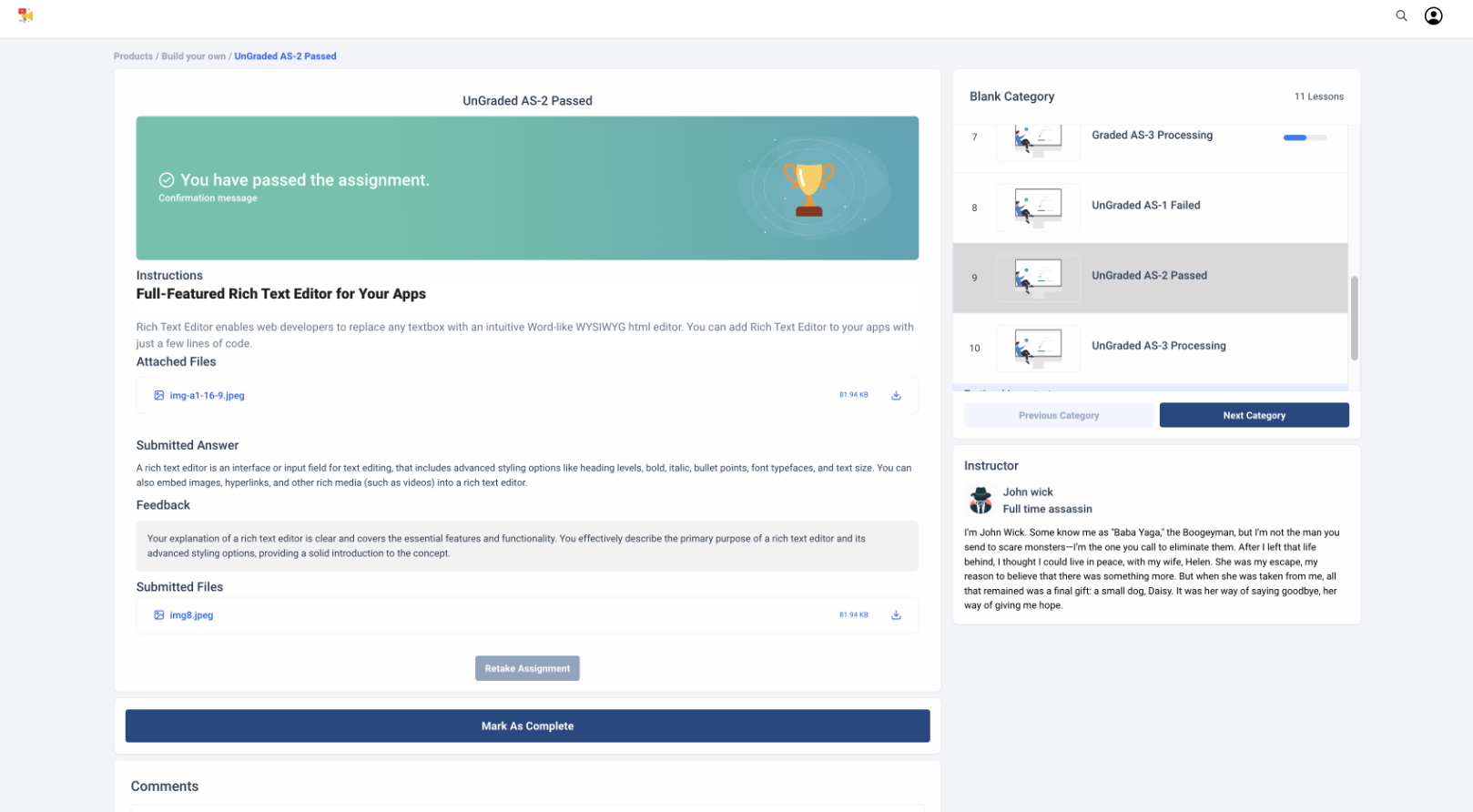
Assessments Analytics:
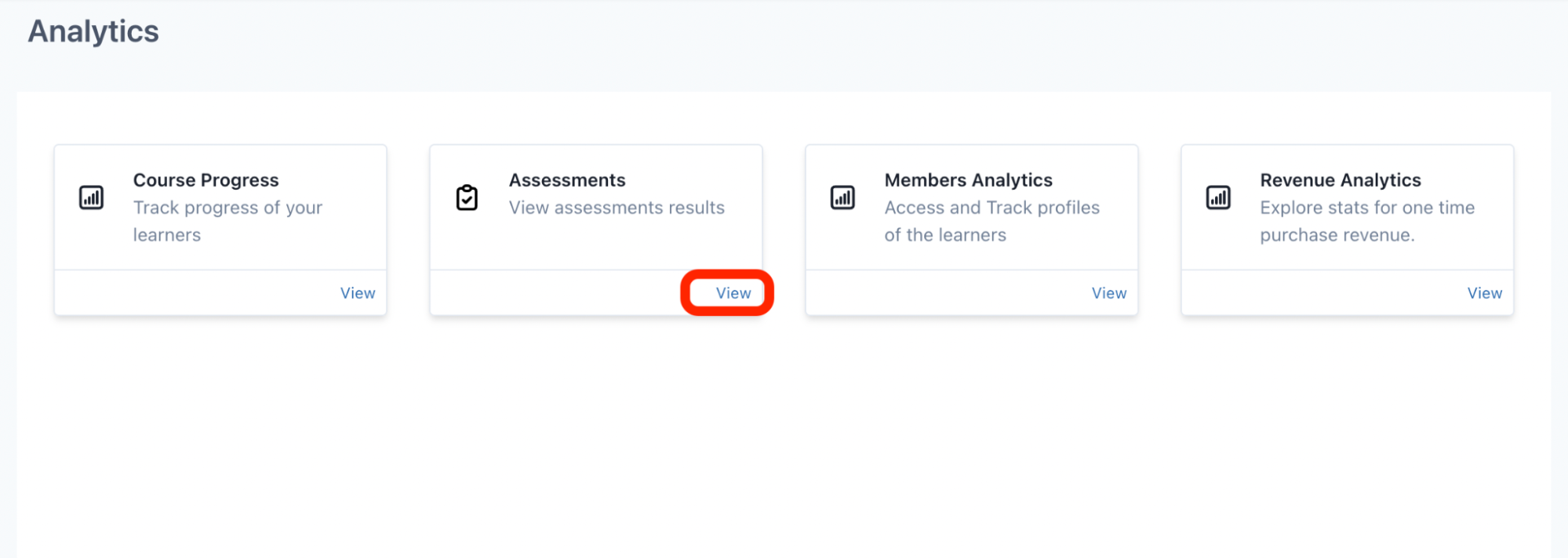
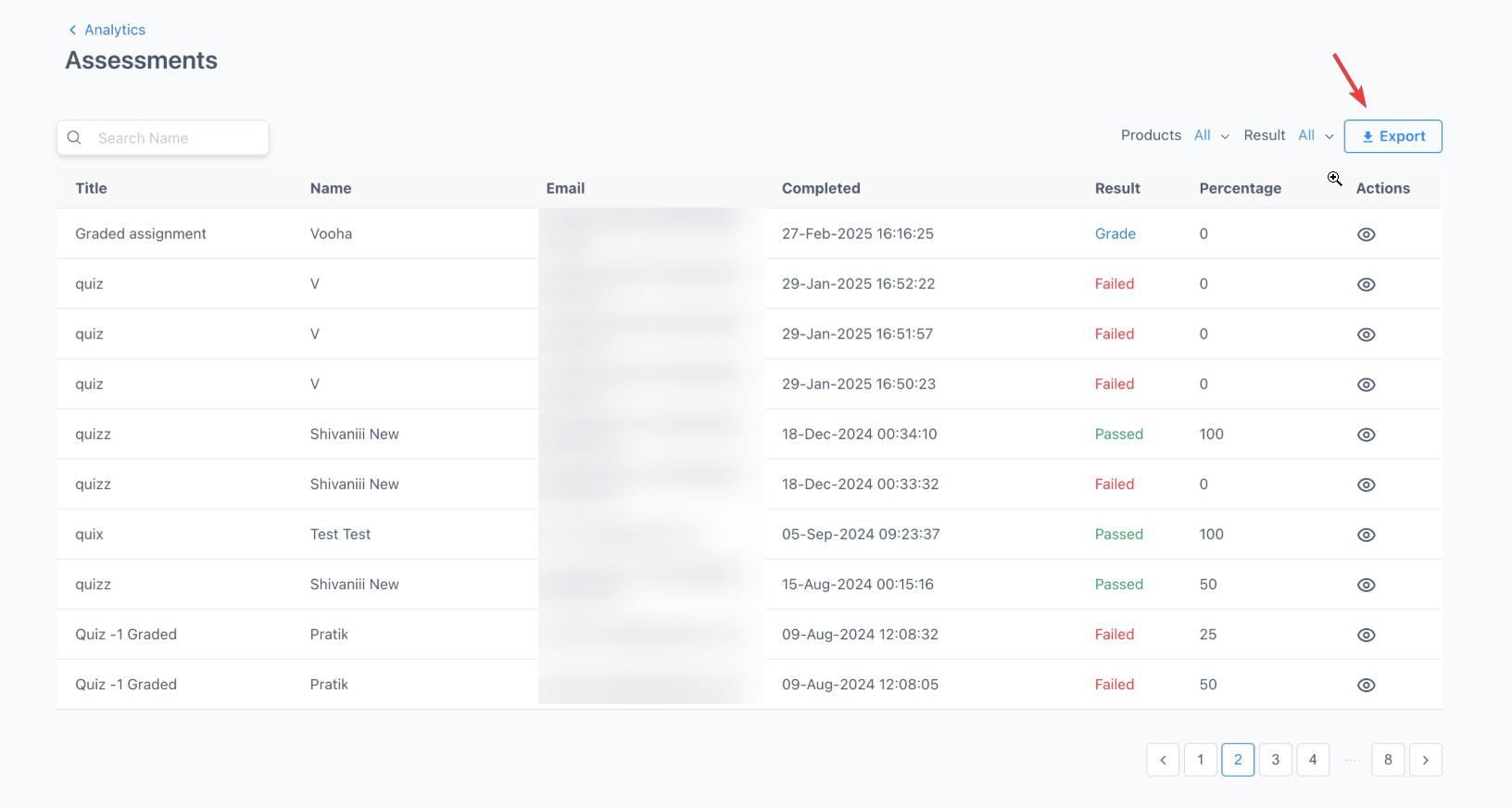
Section titled “Assessments Analytics:”To examine the performance of each person who took your assessment, navigate to Memberships > Analytics. From there, select Assessments to access data on all submissions across your assessments.
To focus on assessments from a particular product, use the dropdown menu next to Products at the top right to filter the analytics. Additionally, you can filter the analytics by Results to refine your data review further.
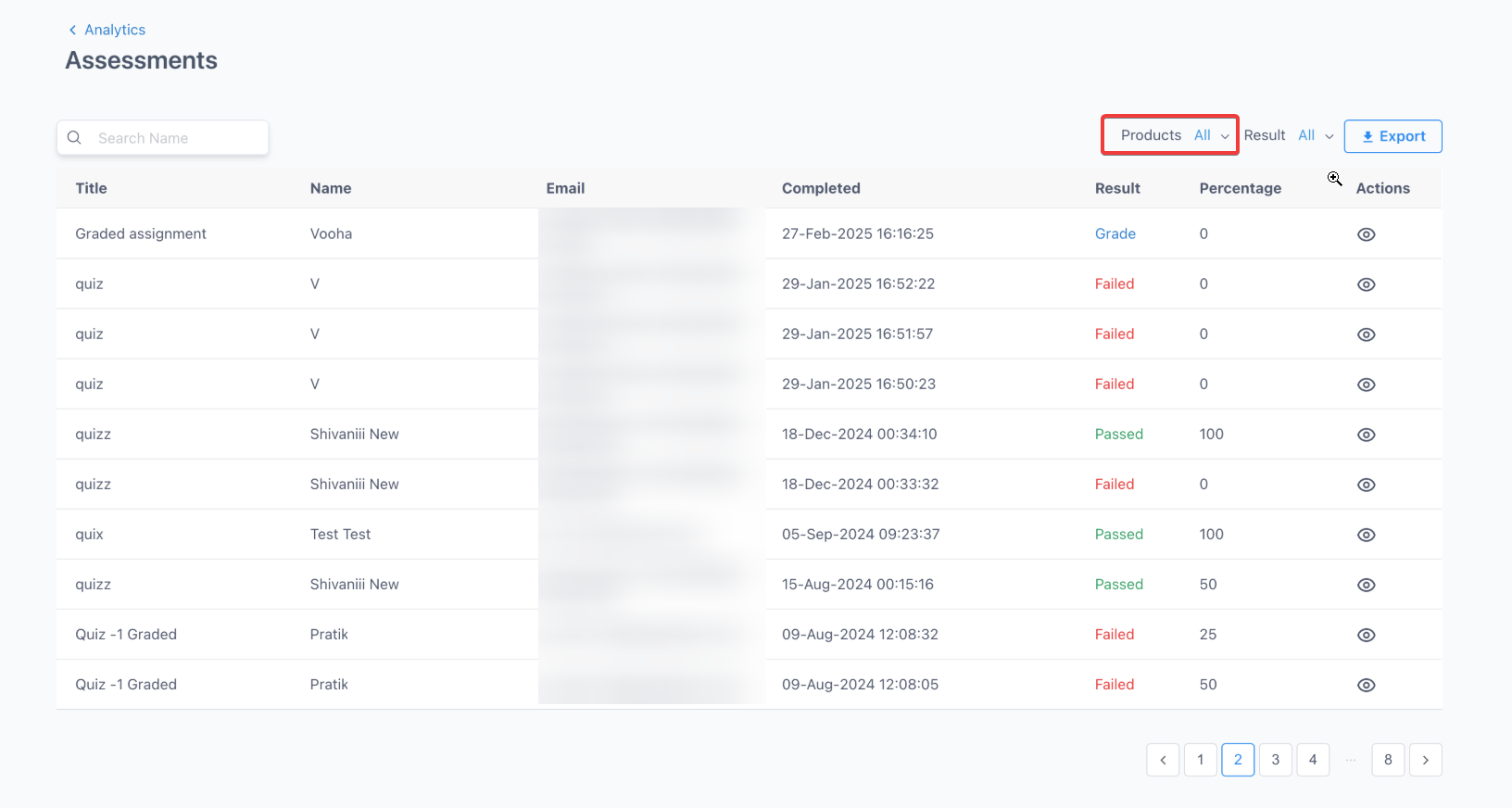
Click on the Export button to export assessment results directly.
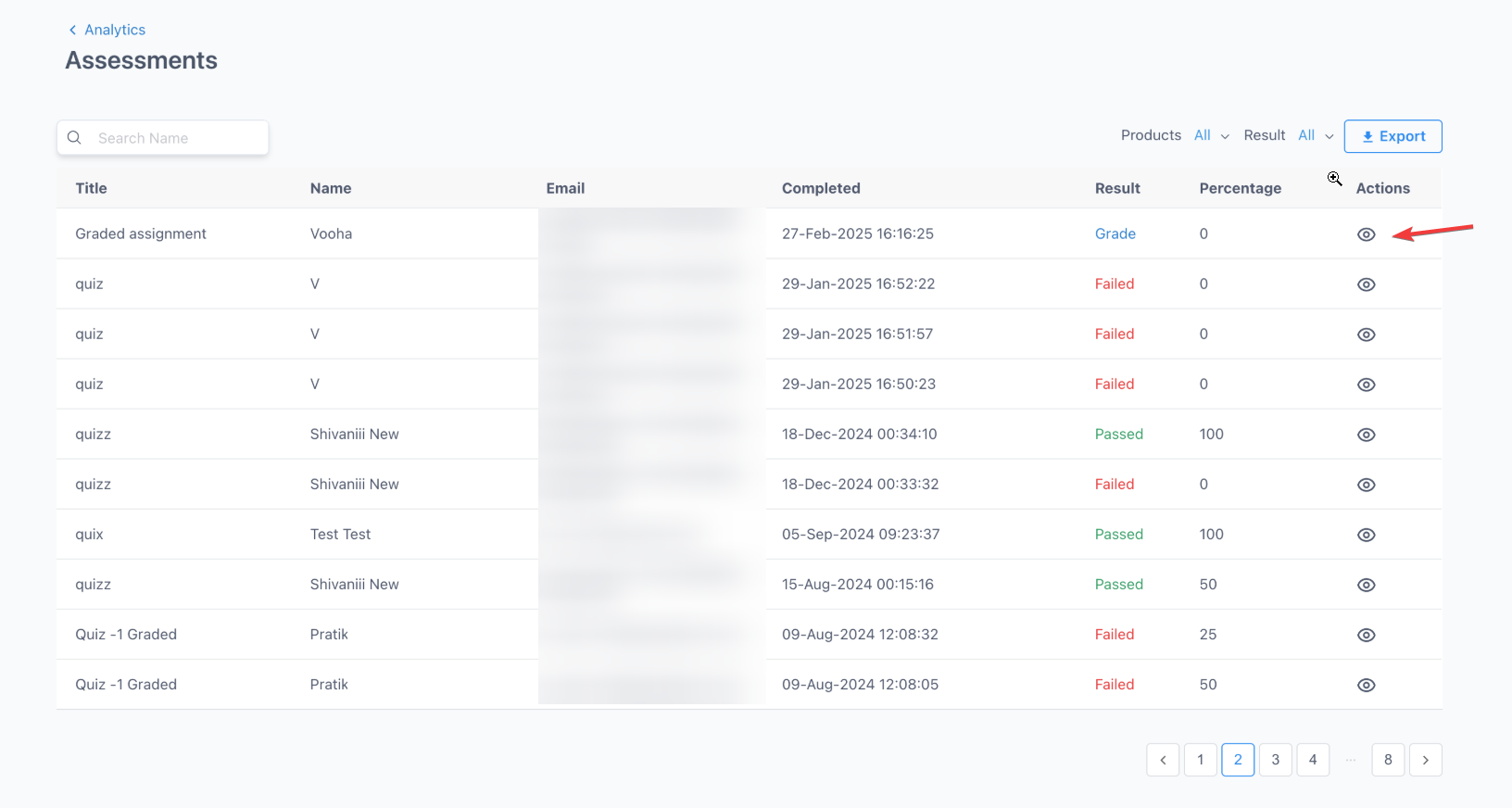
To view an individual’s submission, including their specific answers, simply click on the eye icon adjacent to their submission entry.
Filter by Results and ProductYou can filter analytics by product and results (e.g., Passed/Failed) to refine your data review further.
Question: How do I create an assessment in the Membership area? Answer: To create an assessment, navigate to Memberships > Courses > Products. Select the product, click on the plus sign next to the section title, and choose “Add Assessment.” Provide a title, select the assignment type, and save your assessment. Add instructions or any necessary documents, then publish to make it live.
Question: How can I add a quiz to my course? Answer: To add a quiz, go to Memberships > Courses > Products. Choose the product, click the plus sign next to the section title, and select “Add Assessment.” Choose quiz as the type, add your questions, configure the passing grade requirements, and publish when ready.
Question: Can I upload multiple files as attachments to lessons? Answer: Yes, you can attach multiple files to lesson posts. Supported formats include images, videos, documents, audio files, and more, such as .png, .jpg, .pdf, .mp4, .docx, .zip, and others.
Question: What happens when a user submits an assessment with a passing grade requirement? Answer: If an assessment requires a passing grade, users will immediately see their results indicating which answers were correct or incorrect, but the correct answers themselves will not be displayed. If no passing grade is required, the correct answers and explanations are shown.
Question: How can I view the analytics for assessments and quizzes? Answer: To view analytics, go to Memberships > Analytics and select Assessments. You can filter by product or results using the dropdown menu at the top right. Click the eye icon next to a submission to see specific answers and performance details for individual submissions, and click Export to export the assessment results.
Question: Can users retake quizzes, and how are previous attempts managed? Answer: Yes, users can retake quizzes if allowed. They will see their most recent score and have the option to review their past responses. The Review button allows them to view previous answers and identify which were correct or incorrect, based on the assessment’s requirements.
Question: How do I enable the option for video thumbnails in assessments? Answer: The “Use Current Frame as Thumbnail” feature is integrated into the video player. Users can click this button to capture and use the desired frame from their uploaded video as the thumbnail, simplifying the process of selecting thumbnails for lessons.
Question: What are the design enhancements for editing quizzes and assignments? Answer: The edit page for quizzes and assignments features a modern and intuitive design, with an in-house editor replacing the previous editor to provide a streamlined editing experience tailored specifically for our platform.
Question: What should I do if comments management needs to be adjusted across my courses and products? Answer: Use the comments management pages (Manage Comments and Product Comments) to handle feedback at both the location and product levels. Enhanced features and the Tip-Tap Editor integration ensure consistent management and formatting of comments in line with UI.
Question: How can I manage assessments or quizzes that require multiple file types in attachments? Answer: When creating or editing an assessment or quiz, you can attach multiple files in various supported formats like images, documents, videos, and audio. This flexibility allows you to provide comprehensive materials for your members to access within their course modules.
Question: What assessment result statuses will I see in analytics? Answer: Status labels include Pass, Fail, and In Review, depending on assessment configuration and instructor evaluation.
Question: Can I use a video as part of a quiz question?
Answer: While the quiz question itself is text-based, you can place the quiz immediately after a video lesson. You can also use the “Set frame as media thumbnail” feature to make sure the video at the top of your quiz looks professional and relevant to the topic.
Question: Can I upload my quiz questions in bulk instead of adding them one by one?
Answer: Yes. Within the quiz editor, you can use the “Import Questions” feature to upload your quiz questions in bulk via a CSV file.
Question: Can I export the assessment and quiz results of my members to a external file? Answer: Yes, you can. Navigate to the Memberships > Analytics > Assessments section. After filtering for the specific product or results you wish to review, you can click the Export button to download the assessment results directly.