GoKollab for Communities
has introduced the GoKollab Marketplace, a powerful featured designed to make it easier for communities to gain visibility and connect with new members. By activating your community on the marketplace, you can reach a larger audience, attract new members, and grow your community effortlessly. This guide walks you through GoKollab’s key features, benefits, and how to set it up, so you can start making the most of this exciting feature today.
Key Features and Benefits
- Effortless Community Discovery: With a single click, your community becomes visible on the GoKollab Marketplace, allowing you to reach thousands of users searching for both free and paid communities.
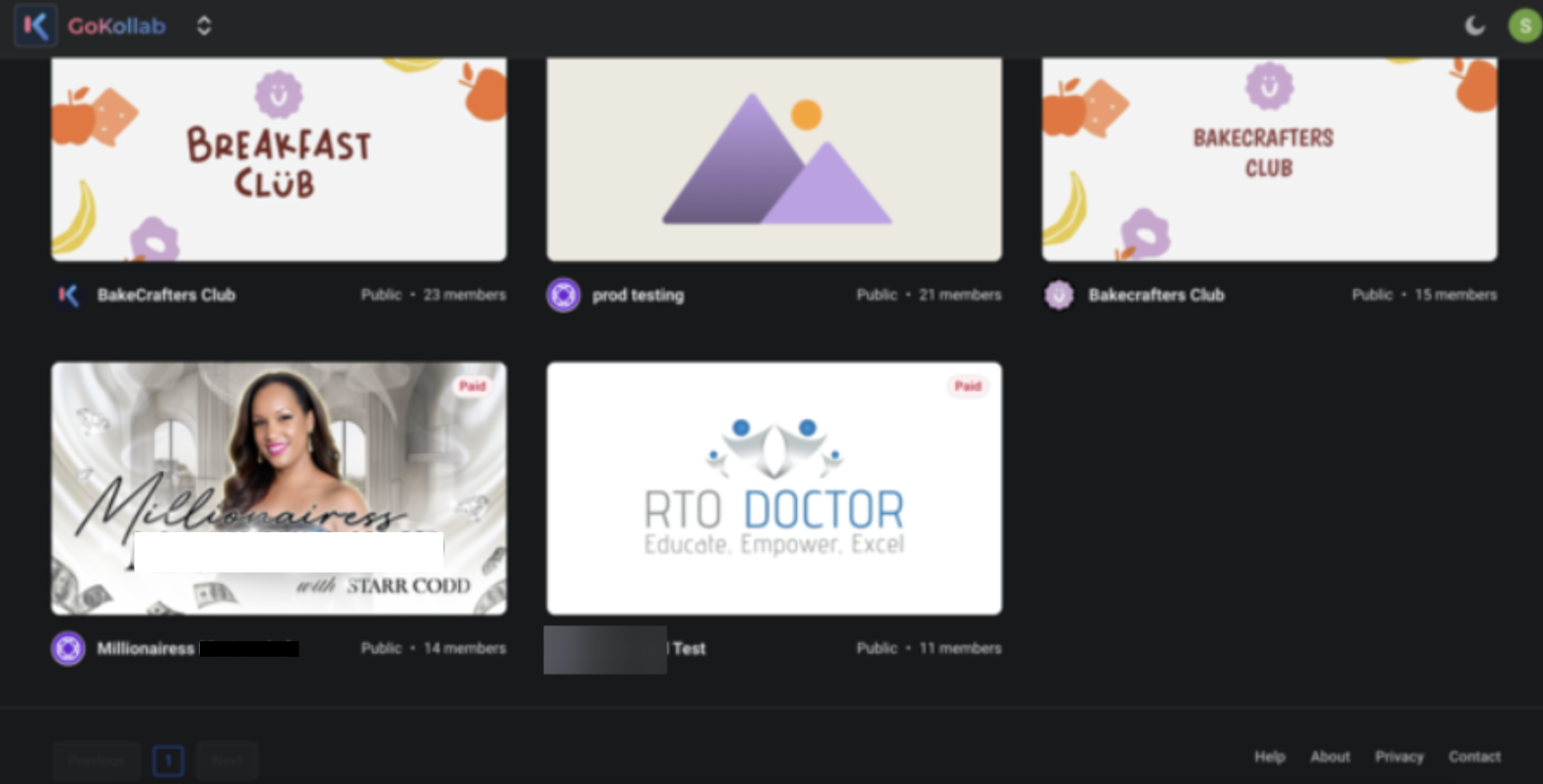
- Visibility Control: Handpick which of your groups are featured on the Discover page. Groups must have at least 10 members to appear, ensuring that they’re well-established and active.
- Enhanced Member Engagement: Potential members can easily browse, learn about, and join communities of interest, helping you attract users who are more likely to be engaged.
- User-Friendly Group Creation: Starting a new group is quick and simple. Customize it with multimedia content to make it more inviting and attractive to potential members.
- Easy Management and Customization: Easily update group settings, customize your URL, and make your group page more appealing by adding visuals and descriptions.
- Marketplace Course Visibility: Membership courses can be listed on the GoKollab Marketplace, allowing creators to increase visibility, set pricing models, and expand their reach.
How to Set Up and Activate GoKollab Marketplace
Section titled “How to Set Up and Activate GoKollab Marketplace”Activate Your Community:
Section titled “Activate Your Community:”- Go to Memberships > Kollab Marketplace.
- Click the “Activate Now” button to instantly make your community discoverable on GoKollab Marketplace.

Managing Groups
Section titled “Managing Groups”1- Select Groups for Visibility:
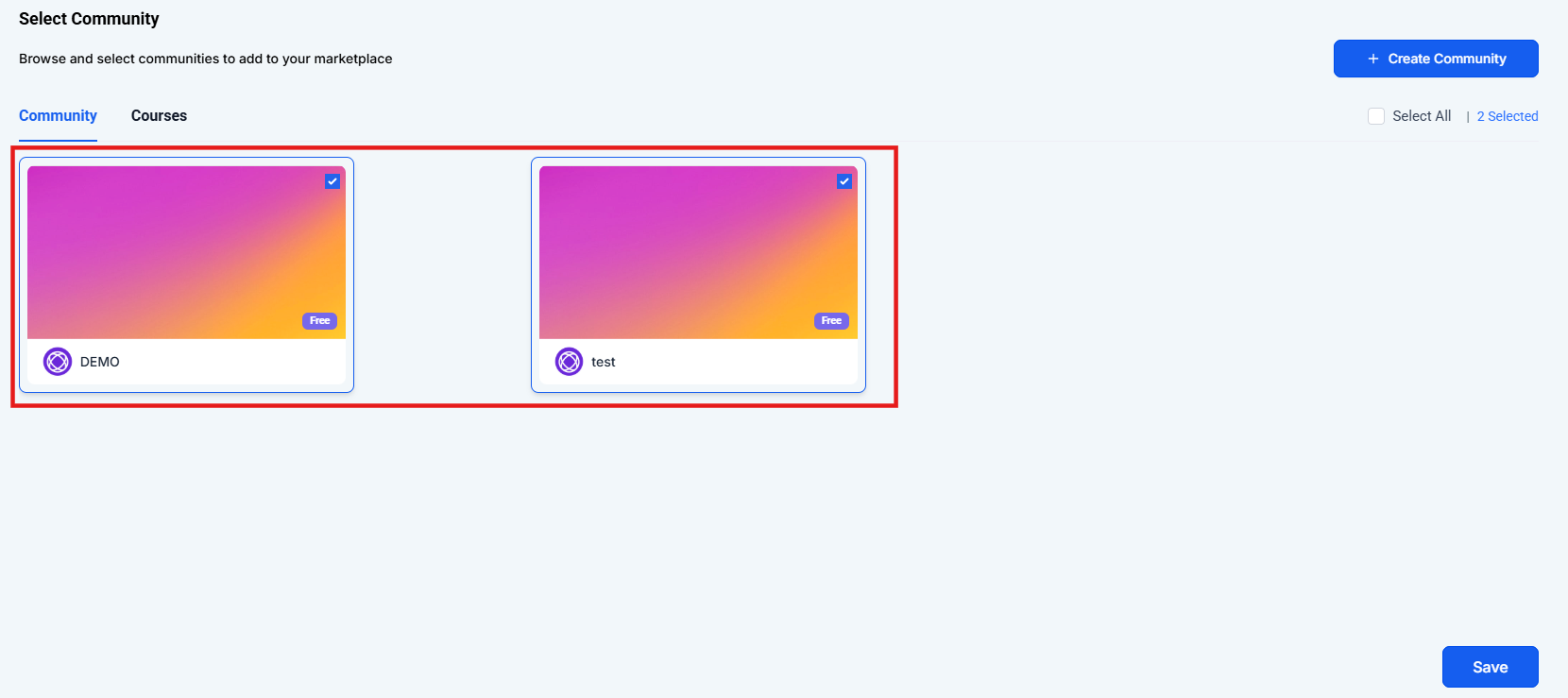
- Select the groups you want to showcase or click +Create Group to start a new group. Only groups with 10+ members will be visible on the Discover page.
2- Manage Group Settings:
- Navigate to the Memberships tab on the left and from the Communities dropdown select Groups.
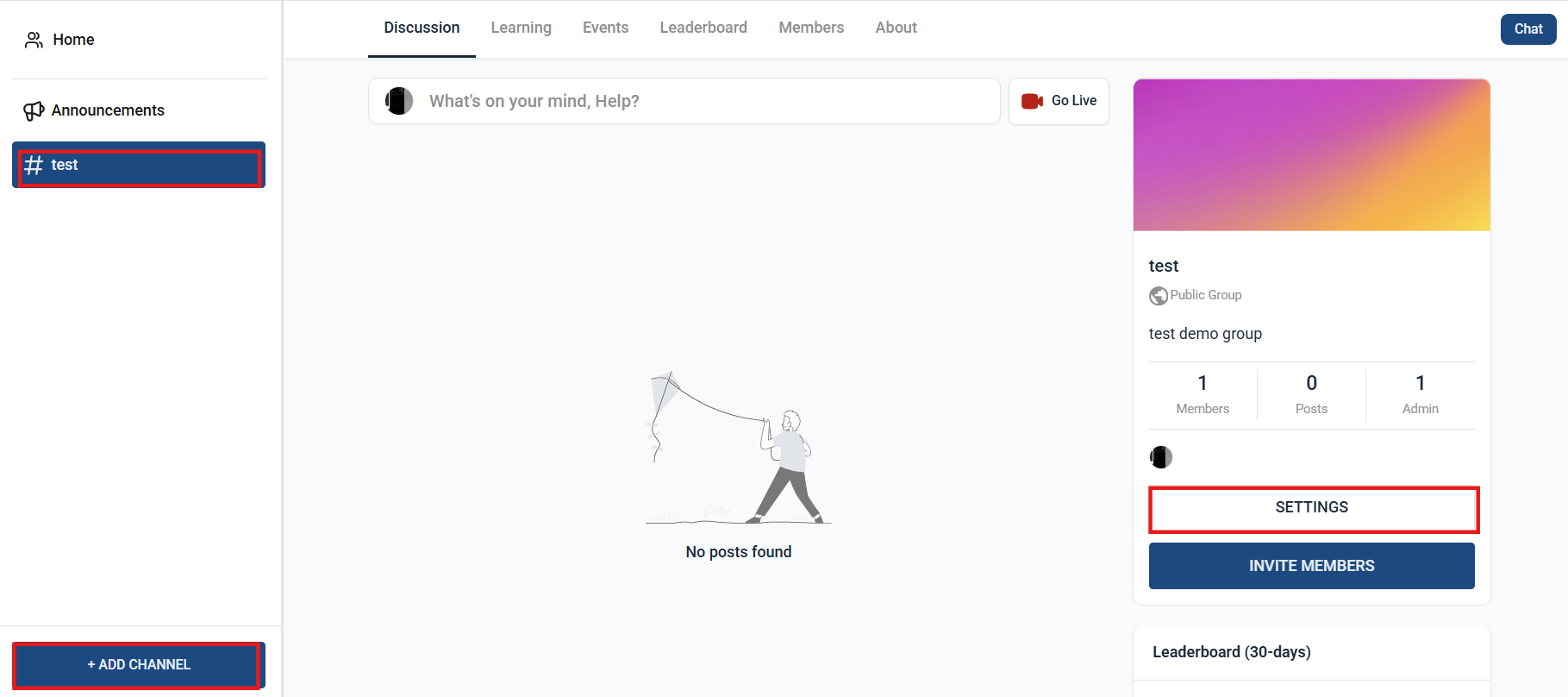
- Log in to your Group, select the channel or create a new channel and click on Settings.

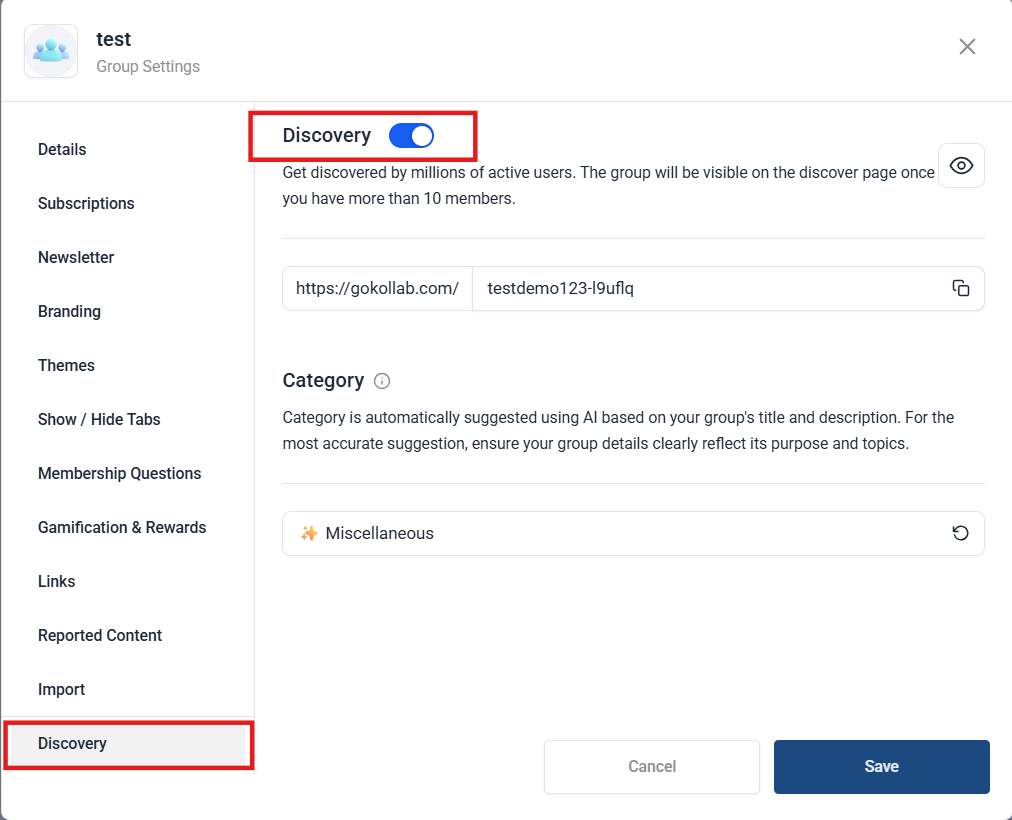
- Go to Discovery and enable the Discovery toggle to confirm the group’s availability on the GoKollab Marketplace.
3- Create a New Group within GoKollab:
- To start a new group within GoKollab, click on Create Your FreeCommunity. You will then be directed to create your account within GoKollab.


- Enter details such as the group name, description, and add images or videos to set up a compelling About Page.

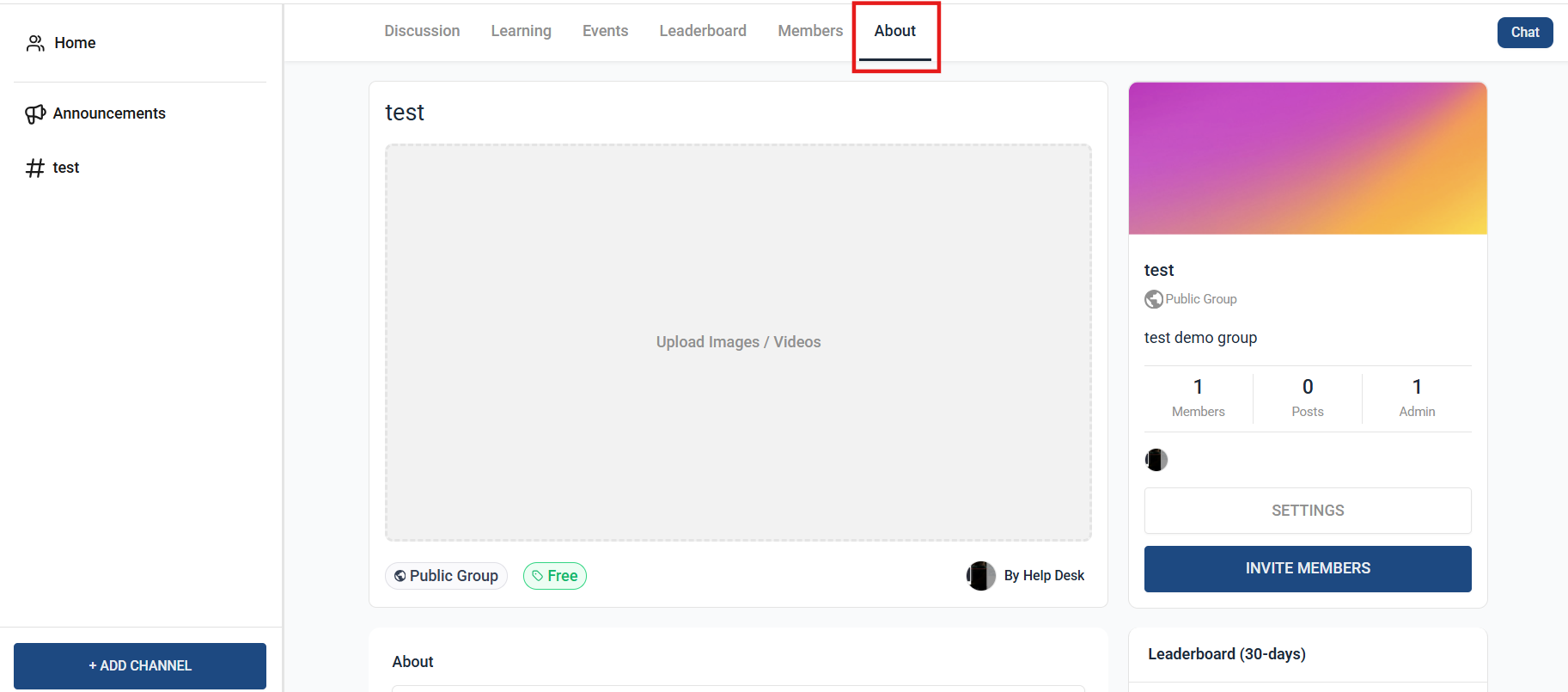
- GoKollab auto-assigns a category tag to every course and community using AI. For best results, keep your title, description, and about section clear and focused — that’s how the AI knows what your group is about!
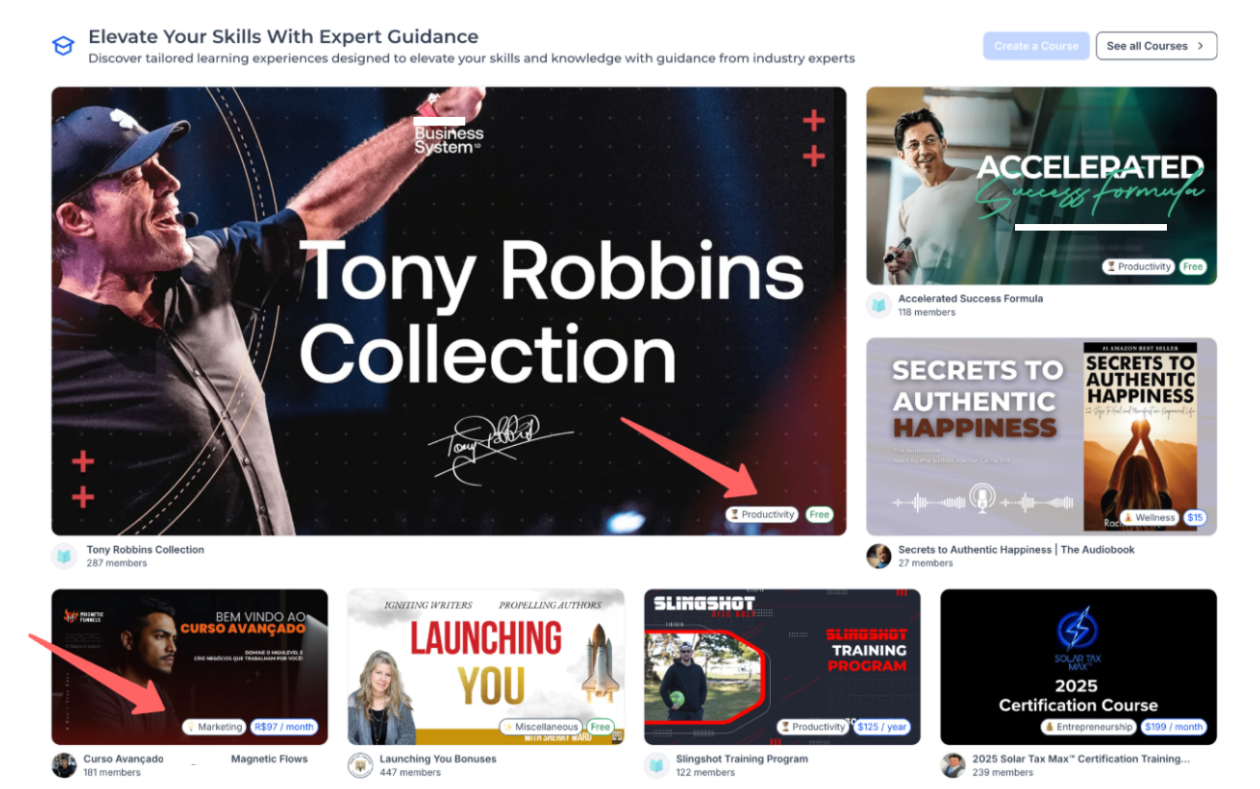
Managing Membership Courses
Section titled “Managing Membership Courses”1- How to List a Course on the Marketplace:
- Navigate to Memberships >> GoKollab Marketplace.
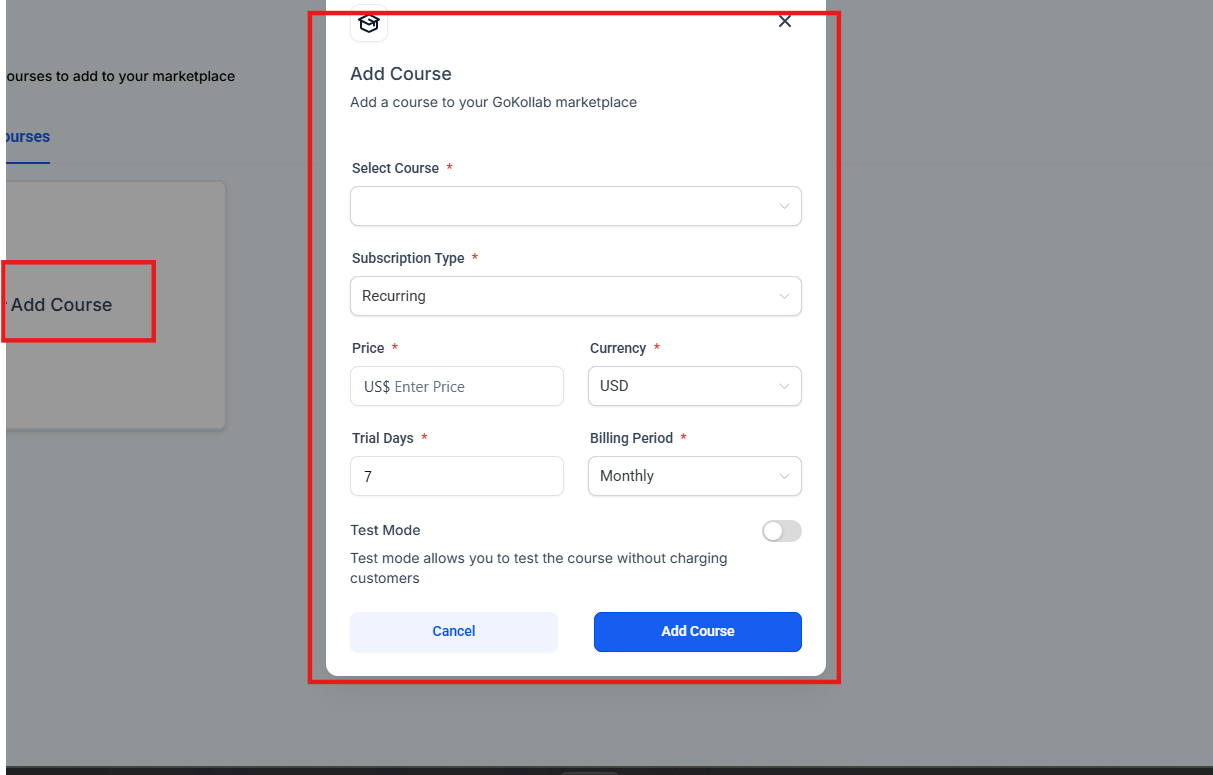
- Open the Courses tab and click the + Add Course button.
- Choose an existing course from the dropdown menu.
- Select a pricing model and set subscription details.
- Click Add Course to make it publicly discoverable.
2- How to Manage Discoverable Courses
- Use the same Courses tab mentioned above to select/unselect multiple courses for listing or removal from the Marketplace.
3- How to View Enrolled Courses
- Locate the “My Courses” icon in the Group Switcher.

- Alternatively, access all enrolled courses through https://gokollab.com/courses/my-courses.
In-App Notifications
Section titled “In-App Notifications”In-app notifications for community interactions allow users to stay updated on mentions, replies, likes, and other community activity within the app. Users can access notifications from both the general interface and within specific community sections, making it easier to stay connected.
- Click on the notification icon in the top right corner of the app.
- View updates related to mentions, replies and likes within your communities.
- Mark notifications as read directly within the app.

Integrate Stripe with Gokollab
Section titled “Integrate Stripe with Gokollab”The integration of Stripe with Gokollab enables group owners to collect payments and manage paid groups within the platform. The payment integration page is protected by a security code that grants access for one hour once entered.
- Access the payment integration page by clicking on your profile picture and selecting the payment icon under your profile card.

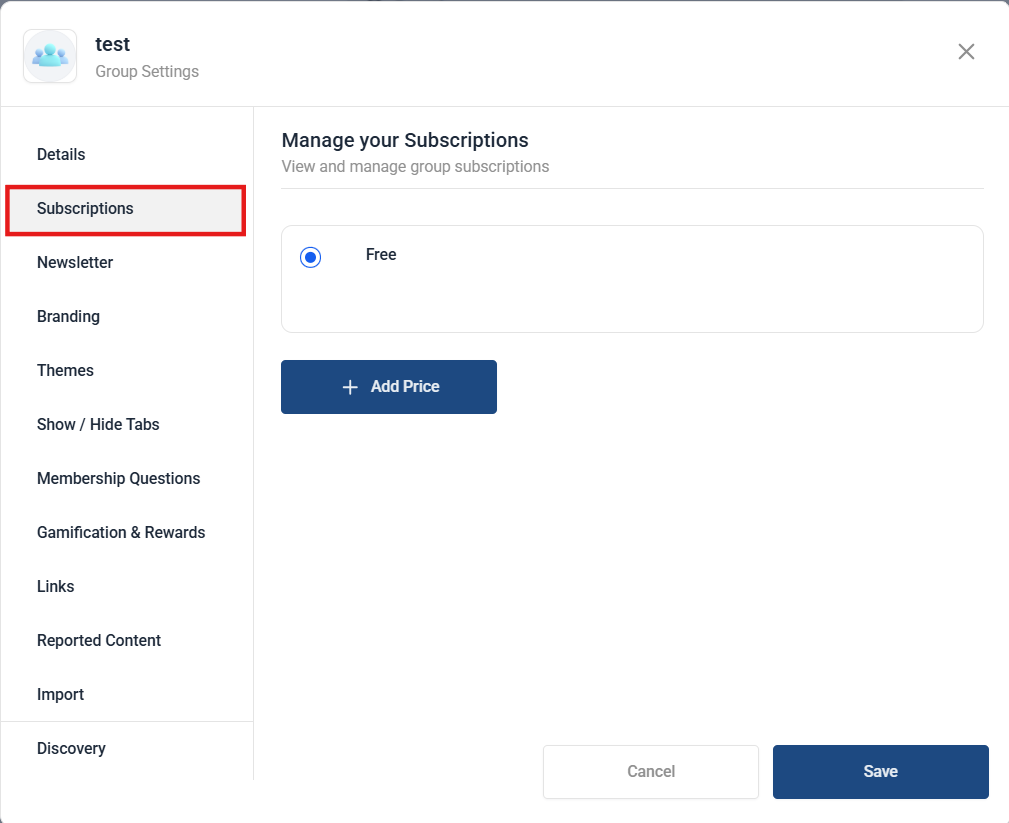
- Group owners can find the payment integration option under the Subscriptions tab in Group Settings.
Using the GoKollab Chat Feature:
Section titled “Using the GoKollab Chat Feature:”With the in-platform messaging feature, you can easily chat with other members within your shared community. Whether you want to collaborate, connect, or follow up, starting a conversation is quick and straightforward.
How to Use It:
- Start a Conversation: Simply go to the community discussion page and message any member you share a group with.

- Organized Interface: All your conversations are housed in one clean, easy-to-navigate view, making it simple to find and manage your chats.
- Instant Notifications: Members will receive a notification when they have a new message, ensuring no important conversation is missed.

Pro Tips
- Use Multimedia to Attract Members: Engaging visuals and videos make your group’s About Page stand out and encourage people to join.
- Promote Active Groups: Featuring groups with active discussions and high engagement will attract more like-minded members.
- Update Regularly: Make sure to keep your About Page and group settings up-to-date to maintain interest and relevancy.
- Leverage Custom URLs: Share your custom group URL easily on other platforms or in campaigns to drive traffic directly to your community.
FAQs
Question: How can I ensure my group is visible on the Discover page?
Answer: Only groups with at least 10 members will appear on the Discover page. Make sure the Discovery toggle is enabled in your group settings located in Memberships > Communities (Dropdown) > Groups > (Your particular group)
Question: Can I control which groups are listed on GoKollab? Answer: Yes, you can select which groups to feature on GoKollab by managing your group visibility in the Memberships section.
Question: Are both free and paid groups supported on GoKollab?
Answer: Absolutely! Both free and paid groups can be listed on GoKollab Marketplace, offering diverse options for users to explore.
Question: How do I update my group’s About Page?
Answer: Go to the group settings, select the About Page, and add or edit descriptions, images, and videos to keep your page engaging.
Question: What if my group has fewer than 10 members?
Answer: Groups with fewer than 10 members will not appear on the Discover page. Consider promoting your group to build up membership.
Question: Are all membership courses automatically discoverable? Answer: No, courses need to be manually listed to appear on the Marketplace.
Question: How can I manage notifications for community interactions?
Answer: Users can view mentions, replies, likes, and other updates by clicking the notification icon in the top-right corner of the app. Notifications can be marked as read directly within the app.
Question: Can I customize my GoKollab group URL?
Answer: Yes. You can edit and personalize your group URL within your group settings, making it easier to share on social media or marketing campaigns.
Question: Why do I need a security code to access the Stripe integration page?
Answer: Because this page handles sensitive financial data and payout settings, we require a One-Time Password (OTP) sent to your email. Once entered, the session is active for one hour, allowing you to safely manage your subscription models.