Canva Integration In Media Storage
The purpose of this article is to introduce the integration between your media storage environment and external graphic design services. This functionality allows users to manage, edit, and import creative assets directly within their media library, eliminating the need to switch between multiple browser tabs or perform manual file downloads. By centralizing these creative tools, organizations can maintain a more efficient and cohesive content production pipeline.
Key Features and Benefits
Section titled “Key Features and Benefits”- Centralized Asset Management: Access your entire external design library without leaving your primary workspace, ensuring all branding materials are in one place.
- Direct Editing Capabilities: Open and modify designs within the integrated interface, with the ability to re-import updated versions instantly.
- Reduced Friction: Eliminate the manual process of downloading files to a local drive and re-uploading them to your media storage.
- Smart Version Control: Update existing media files without creating unnecessary duplicates, keeping your library organized and clutter-free.
- Team Accessibility: Allow all authorized users within a specific location to view, search, and utilize shared creative assets.
How to Use the Design Integration
Section titled “How to Use the Design Integration”Connecting the Service
Section titled “Connecting the Service”- Navigate to the Media Storage section within your account.
- Locate and select the designated tab for the external design service.
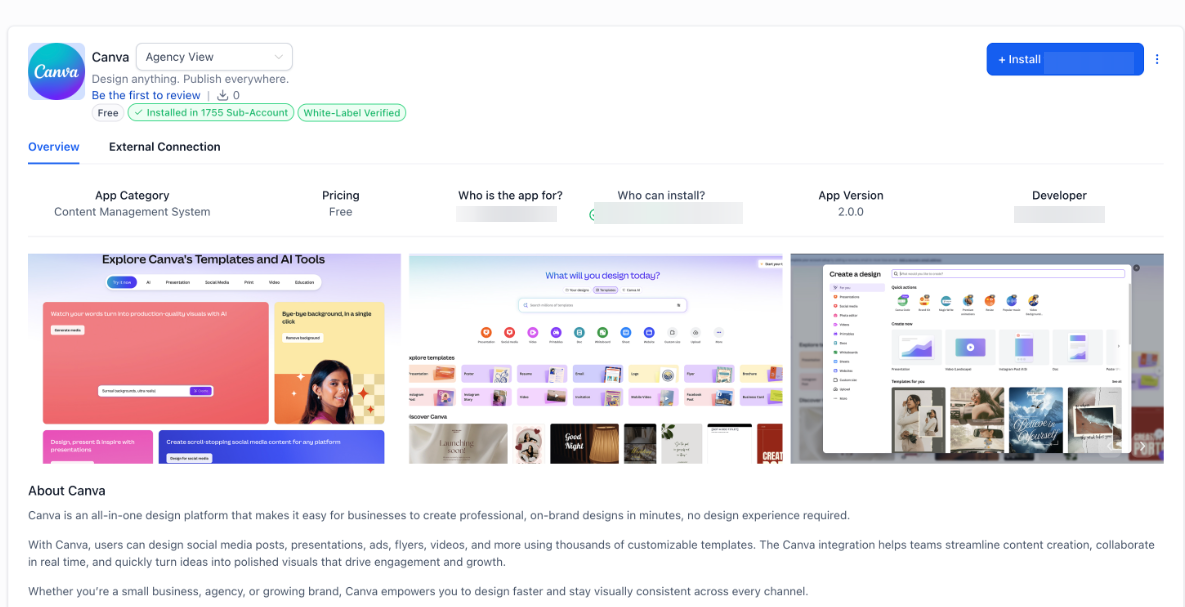
- Click the Connect button or navigate to the App Marketplace to install the specific design application.
- Complete the secure authorization (OAuth) process. Once finalized, your designs will automatically populate within the storage tab.
Editing Assets from the Design Tab
Section titled “Editing Assets from the Design Tab”- Open the specific design service tab within your media library.
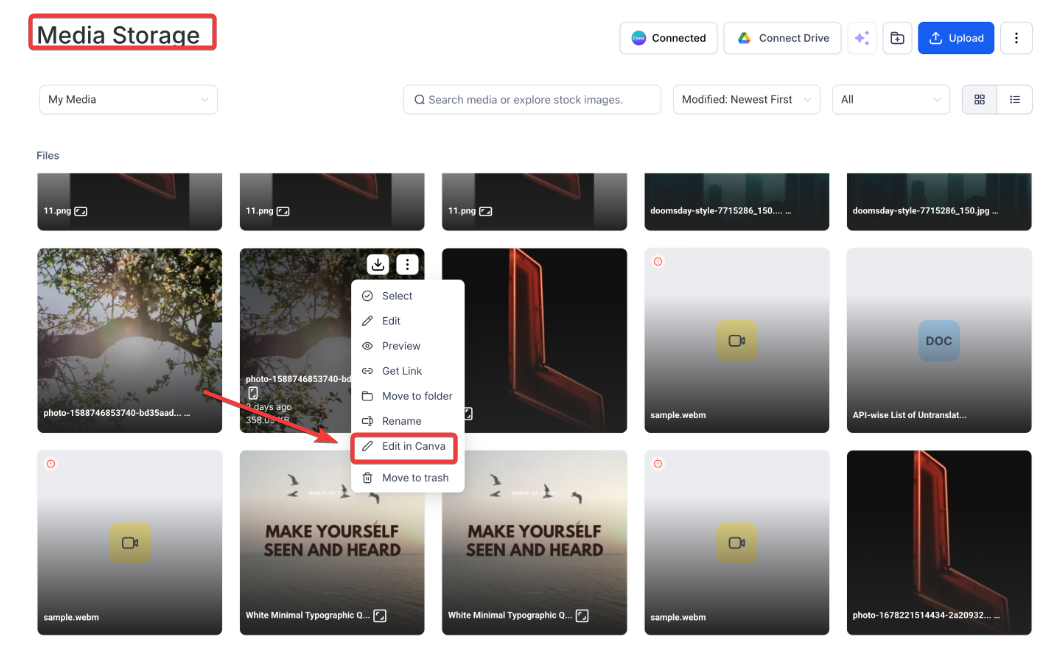
- Click on the three-dot menu associated with the design you wish to modify.
- Select Edit in Design Tool. Once your changes are complete, follow the prompts to import the updated version back into your media storage.
Updating Files from My Media
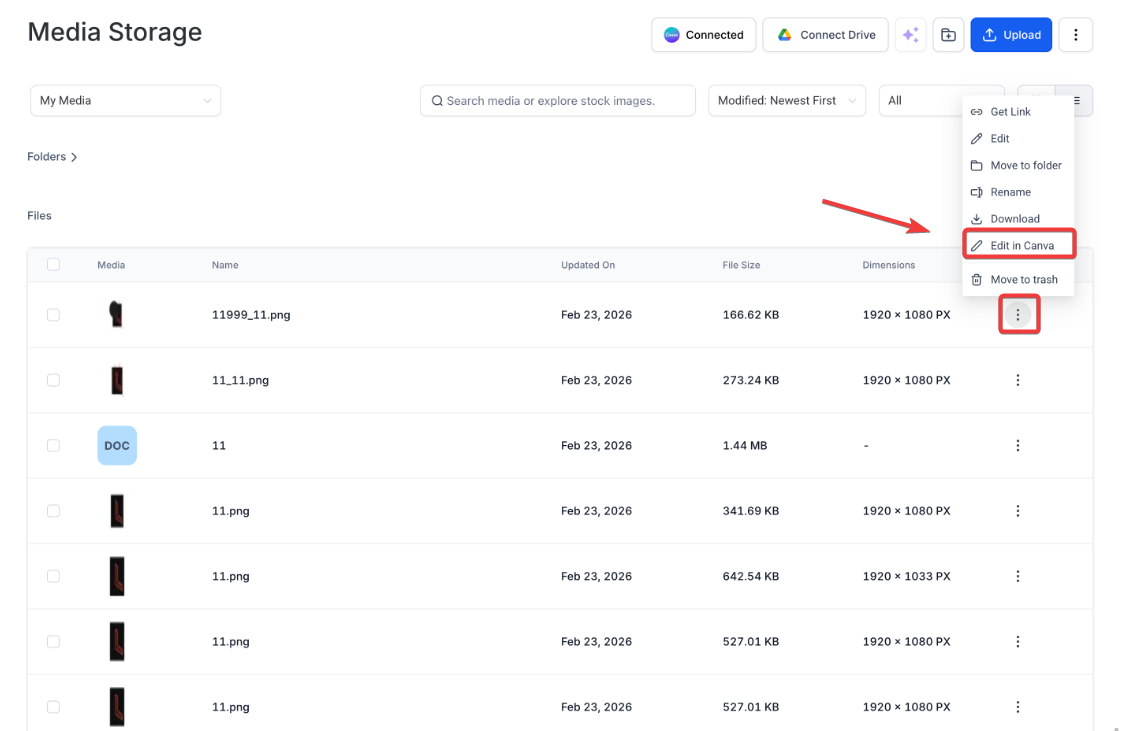
Section titled “Updating Files from My Media”- In your My Media library, select an image file (supported formats include PNG, JPG, and JPEG).
- Click the option to Edit via the design tool.
- After making modifications, the system will allow you to re-import the file, replacing the old version to ensure you are always using the most current asset.
Pro Tips
Section titled “Pro Tips ”- Import Before Use: Remember that designs must be imported into your “My Media” library before they can be selected for use in website funnels, email campaigns, or social media posts.
- One Connection Limit: Only one account from the design service can be connected per location. Ensure the connected account contains the primary folders and assets your team requires.
- Maintain Original Files: If you uninstall the integration through the App Marketplace, any files you have already imported into your media storage will remain safe and accessible.
- Check File Permissions: If you are unable to edit a file, verify if it was marked as “Private” within the design tool itself. Private files can be viewed, but typically cannot be edited through the integration.
Question: Why do I see a “View-Only” message when I try to edit a design? Answer: This occurs if you were not the user who originally performed the installation and authorization. To make changes, you can either import the asset into your own storage or request the administrator to grant the necessary permissions.
Question: Can I connect more than one design account to a single or location? Answer: No. To maintain data integrity and security, the system allows only one OAuth connection per installation.
Question: Will my existing media be deleted if I disconnect the design tool? Answer: No. Disconnecting or uninstalling the application only removes the bridge between the design tool and . Any files previously imported into your media library will remain unaffected.
Question: Does the integration support video editing? Answer: The current direct-edit functionality from the “My Media” tab is optimized for static image formats such as PNG, JPG, and JPEG. Other file types can still be browsed and imported from the primary design tab.
Question: How does the system prevent duplicate files when I edit an image? Answer: The system uses smart tracking to recognize when an existing file is being modified. When you re-import an edited asset, it updates the current version in your library rather than creating a second, identical copy.