Setting Up Replies in Mailgun
Setting Up Replies in Mailgun
If you are using Mailgun and replies are bouncing (not arriving in your account), follow these steps to set up replies within your Mailgun account. Before starting, ensure that you are at least on the “Foundation” plan, as you can only use reply routing in Mailgun with a paid Mailgun plan.
Step 1: Check Receiving Routes in Mailgun
Section titled “Step 1: Check Receiving Routes in Mailgun”- Once you log on to Mailgun, click on the Receiving tab and see if the webhook matches the screenshot below:
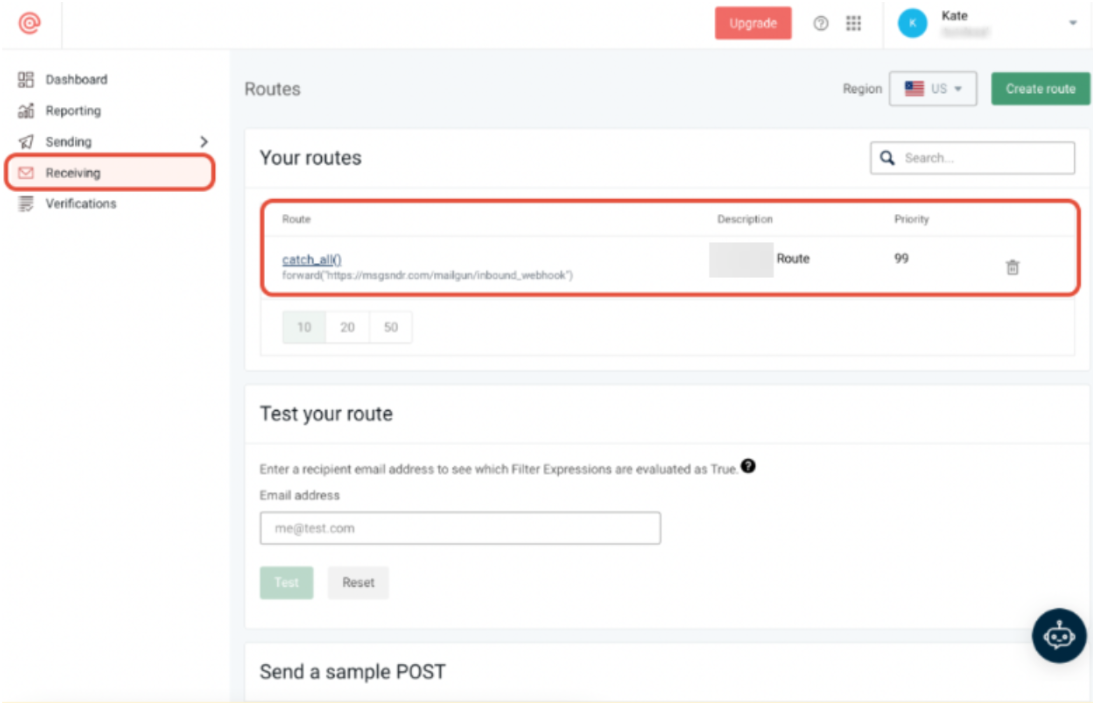
- If there are other webhooks that do not match the one in the screenshot, try removing them and see if it fixes the issue.
Step 2: Setting up the Receiving Route in Mailgun
Section titled “Step 2: Setting up the Receiving Route in Mailgun”- Navigate to the Receiving tab.
- Click “Create Route” in the top right.
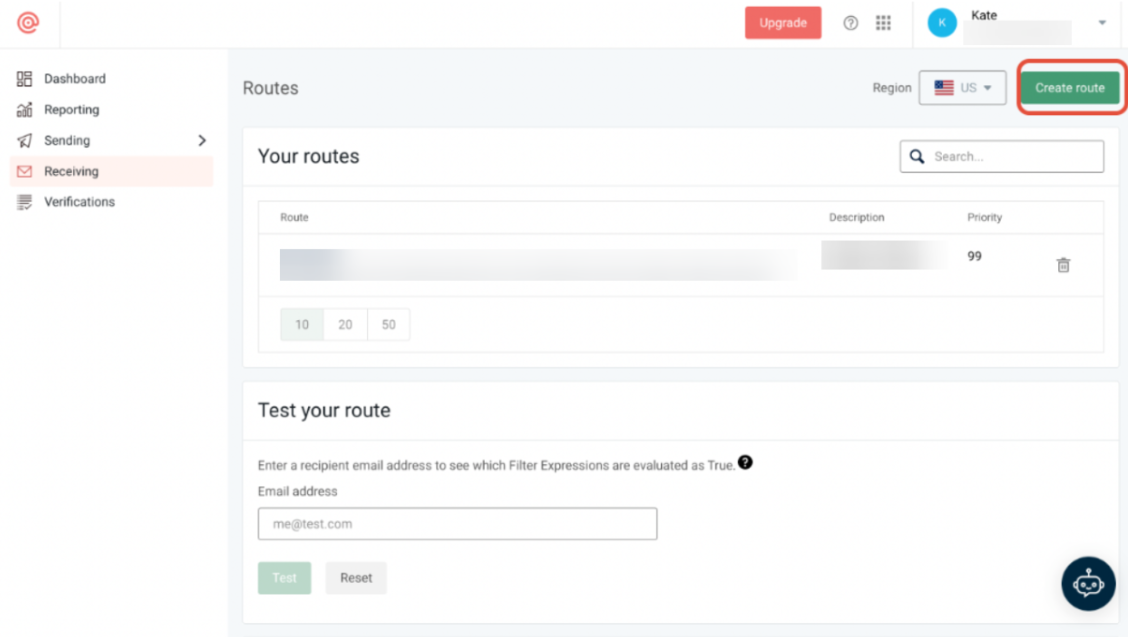
- Under “Create New Route,” set up the following:
- Expression Type: Catch All
- Forward: Check the checkbox to activate forwarding, then paste https://msgsndr.com/mailgun/inbound_webhook in the field
- Priority: 99
- Description: you can enter whatever you like here. We recommend something like “MG Receiving Route.”
- Click “Create Route” to save your changes.
What You’ll See in Mailgun once the Receiving Route is Set:
catch_all() Priority: 99
forward(“https://msgsndr.com/mailgun/inbound_webhook”)
Mailgun replies not working when using WIX as the domain provider
Section titled “Mailgun replies not working when using WIX as the domain provider”This is because the MX record can’t be added. Please follow the next steps to be able to receive replies:
- Transfer your domain to CloudFlare to be able to manage all the records. Please, check the article called, “How to Transfer a Domain to Cloudflare”.
- Add all the records to the DNS settings, including the MX record. Check the article “Connecting Mailgun to Your DNS Manager “
Pro Tips:
Section titled “Pro Tips:”- Double-Check Webhook Configuration: Ensure that the webhook URL in your Receiving Routes exactly matches the one provided. Any discrepancies could cause issues with receiving replies.
- Monitor Priority Settings: Setting the priority to 99 ensures that your route is processed correctly. If you have multiple routes, confirm that this priority does not conflict with others.
FAQs
Question: What should I do if my Mailgun replies are not arriving? Answer: First, verify that your receiving routes are correctly set up in Mailgun. Ensure the webhook matches the provided configuration. If issues persist, check your domain’s DNS settings and consider using Cloudflare if necessary.
Question: How do I set up a receiving route in Mailgun? Answer: Log in to Mailgun, navigate to the Receiving tab, and click “Create Route.” Set the Expression Type to “Catch All,” activate forwarding, paste the provided URL, set the priority to 99, and click “Create Route.”
Question: Can I use reply routing with a Mailgun plan other than the Foundation plan? Answer: Reply routing is only available on the paid Mailgun plans, starting with the “Foundation” plan. Ensure you are on at least this plan to utilize reply routing features.
Question: What is the correct priority setting for the route, and why does it matter? Answer: The recommended priority is 99. This ensures your route is processed correctly and does not conflict with other routes. Lower or higher priority values may cause Mailgun to skip or misroute incoming emails.
Question: Why might Mailgun replies not work when using WIX as the domain provider? Answer: WIX does not allow adding MX records, which prevents Mailgun from receiving replies. To fix this:
- Transfer your domain to Cloudflare.
- Add all required DNS records, including MX records, following Mailgun’s setup instructions.
Question: Does this setup affect outbound email delivery? Answer: No. Receiving routes only affect inbound replies. Outbound email delivery is controlled by your sending domain and SMTP configuration.
Question: What exactly should I enter as the “Expression Type” when creating a new route?
Answer: You should set the Expression Type to “Catch All”. This ensures that any email sent to your Mailgun domain, regardless of the specific prefix, is captured and forwarded correctly.
Question: What is the specific webhook URL I need to use for the forwarding route?
Answer: You must paste https://msgsndr.com/mailgun/inbound\_webhook into the forwarding field. It is critical that this URL matches exactly to ensure your replies are successfully routed to your account.