Mapping Facebook Form Fields
When you’re running Facebook lead ad forms, you want to ensure the Facebook form fields are mapped correctly to merge into .
NOTE: If your Facebook lead form is not mapped correctly or not mapped at all, your leads will not get synced into . Please make sure your Facebook lead forms are mapped.
Step 1: Integrate Your Facebook Page and Set up a Facebook Lead Ad Form
Section titled “Step 1: Integrate Your Facebook Page and Set up a Facebook Lead Ad Form”- To use this, you need to ensure you have a Facebook page integrated.
- Navigate to Settings > Integrations to connect your Facebook page (Check out our other tutorials if you need further assistance).
Step 2: Set Up Your Field Mapping
Section titled “Step 2: Set Up Your Field Mapping”- Navigate to Settings > Integrations > Facebook Form Fields Mapping
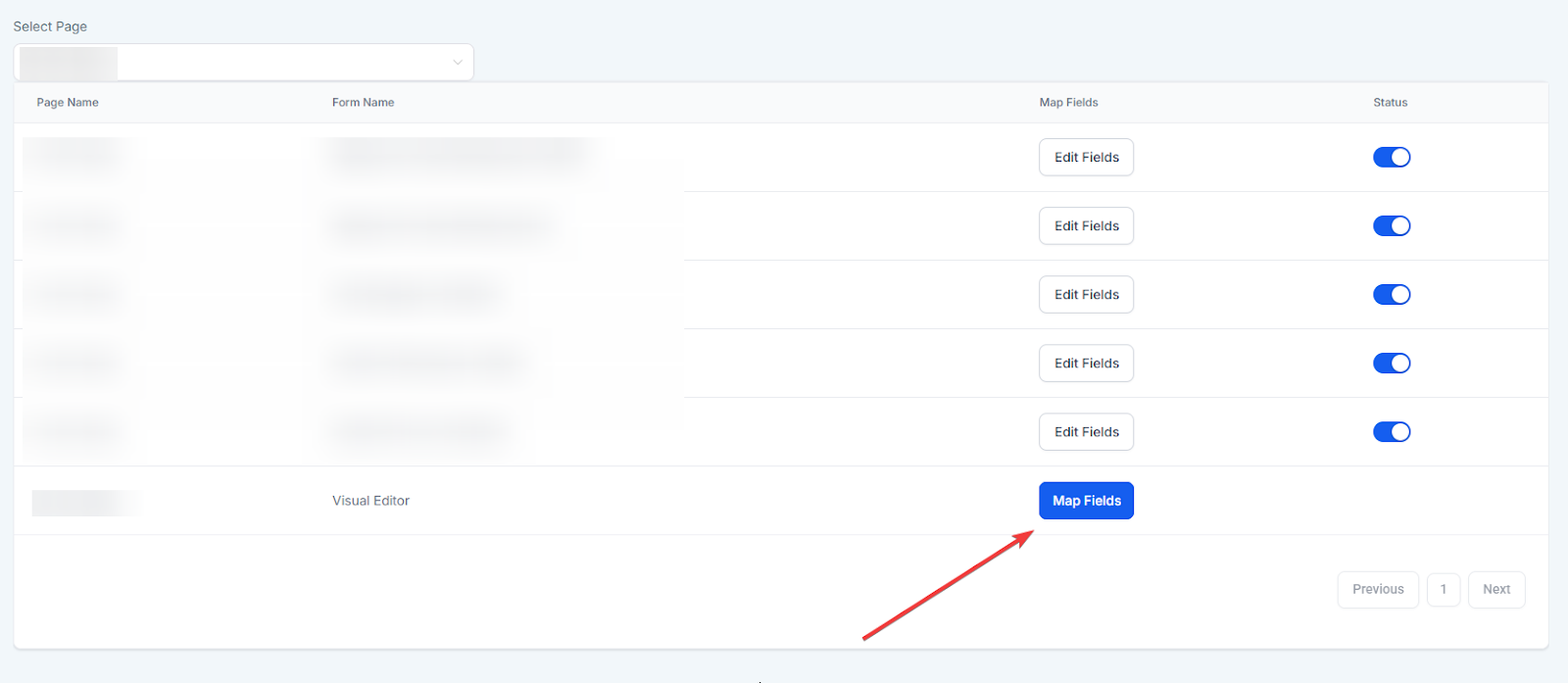
- You’ll see a list of any Facebook forms you have.
- Click “Map Fields” next to the form you wish to update.
- Map the fields - you’ll see the Facebook form fields on the left, and fields on the right. By default, is smart enough to automatically map fields like “First Name”, “Last Name”, etc. If you have a custom field, or another field not recognized (i.e., if your Facebook field for email address is “E-MaiL AddResS”) you may need to select “Email” from the dropdown.
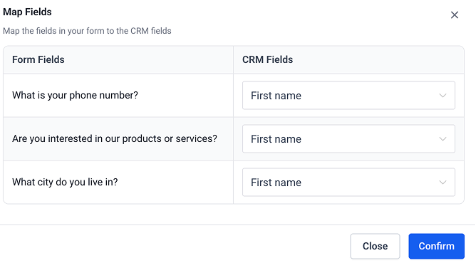
- Click “Confirm” to save your changes.
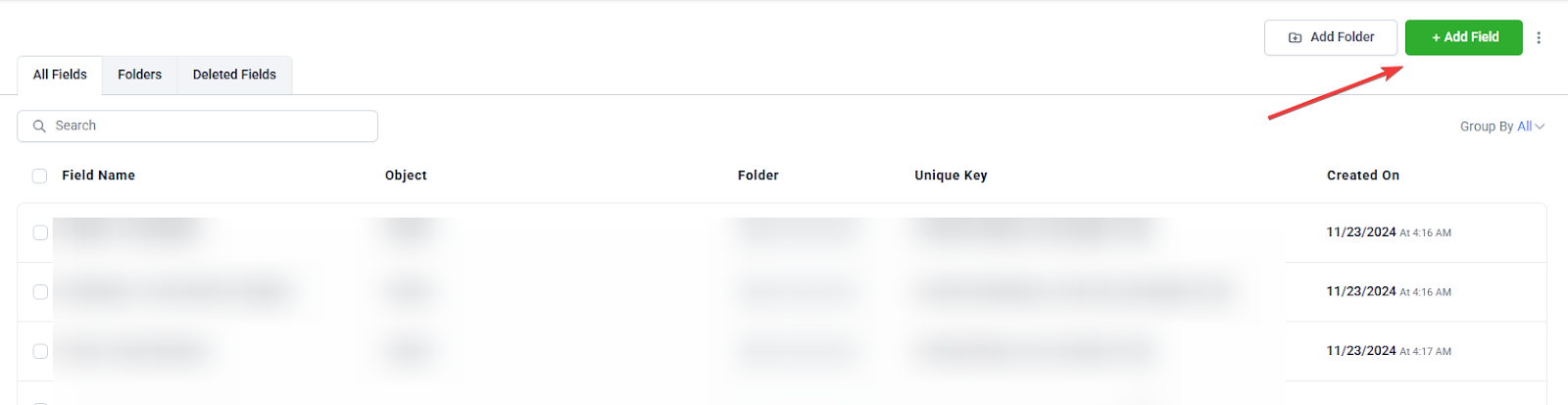
NOTE: If you are using non-standard fields, ensure to have a Custom Field created in , so that you can select it from the dropdown when mapping fields. Standard fields include typical contact information such as first name, last name, email, phone number, and company. Custom fields include more business-specific information, such as favorite food, income, favorite color, and more.
Pro Tips for Efficient Facebook Lead Form Field Mapping:
- Pre-Map Fields for New Campaigns: Always map your fields ahead of time for new forms to avoid issues with data syncing and ensure leads are captured correctly.
- Double-Check Custom Fields: Before mapping, verify that all custom fields are created in your system. This ensures smooth data integration and prevents mismatched information.
- Use Predefined Templates: For recurring Facebook lead forms, create templates for field mapping to save time and ensure consistency across campaigns.
- Regularly Review Field Mappings: Periodically review your Facebook form field mappings to ensure they stay up to date with any changes or additions to your Facebook forms.
Question: Why is it important to map Facebook lead ad form fields correctly? Answer: Mapping your Facebook form fields correctly ensures that the information captured through your Facebook lead ads is accurately merged into . Proper mapping allows for seamless data integration, reducing errors and ensuring that lead details are stored in the correct fields within your system.
Question: How do I integrate my Facebook page to use lead ad forms? Answer: To integrate your Facebook page, navigate to Settings > Integrations in your account and connect your Facebook page. If you need more detailed steps, check out the relevant tutorials for further assistance.
Question: Where do I go to map my Facebook form fields? Answer: You can map your Facebook form fields by going to Settings > Integrations > Facebook Form Fields Mapping. From there, you’ll see a list of your existing Facebook forms, and you can click “Map Fields” next to the form you want to update.
Question: How does the field mapping process work? Answer: In the mapping screen, Facebook form fields appear on the left, and fields appear on the right. Standard fields like “First Name” and “Last Name” are usually mapped automatically, but you can manually select corresponding fields from the dropdown if needed, especially for custom or non-standard fields.
Question: What happens if I don’t map a field at all? Answer: Any unmapped fields will not be imported into . This means you could lose valuable lead data. Always review and confirm your mappings for every form.
Question: Can I map custom fields from Facebook forms? Answer: Yes. Make sure that a corresponding Custom Field exists in . This allows you to select it during mapping for smooth data integration.
Question: How can I ensure that non-standard fields, such as custom fields, are mapped correctly?
Answer: For non-standard or custom fields, ensure that you have created the corresponding Custom Field in . This allows you to select it from the dropdown during the mapping process, ensuring that the custom data is synced correctly into your system.
Question: If I create a new Facebook Lead Form, will it be mapped automatically? Answer: While the system attempts to auto-map standard fields like “Full Name” and “Email,” it is a Best Practice to manually visit the mapping settings every time you launch a new campaign. If the mapping is not confirmed, the leads may fail to sync entirely.
Question: What is the difference between a “Standard” field and a “Custom” field in this context?
Answer: Standard fields include typical contact info like name, email, phone, and company. Custom fields are for business-specific data such as “Favorite Food” or “Income Level.” You must create these specific custom fields in your system before you attempt to map them.