How to Integrate and Use Paypal
By integrating PayPal as a merchant processing application to , you’ll be able to process payments for products and services right within . This will help you manage your business and allow you to track transactions right within the Payments tab. Follow these steps below to learn how to integrate PayPal:
Key Features and Benefits
Section titled “Key Features and Benefits”- Keyless PayPal OAuth Integration: Streamline setup with a credential-free connection that removes the need for manual API keys. This integration immediately unlocks Venmo support and enables faster access to upcoming features like Apple Pay and direct card processing.
- Flexible Payment Options with PayPal and PayLater Integration: PayPal and PayLater can be used for payments across forms, invoices, payment links, order forms, and e-commerce stores, streamlining the payment process and enhancing transaction convenience.
- Multiple Payment Options: PayPal allows businesses to accept payments from customers worldwide, offering both direct PayPal transactions and credit/debit card payments.
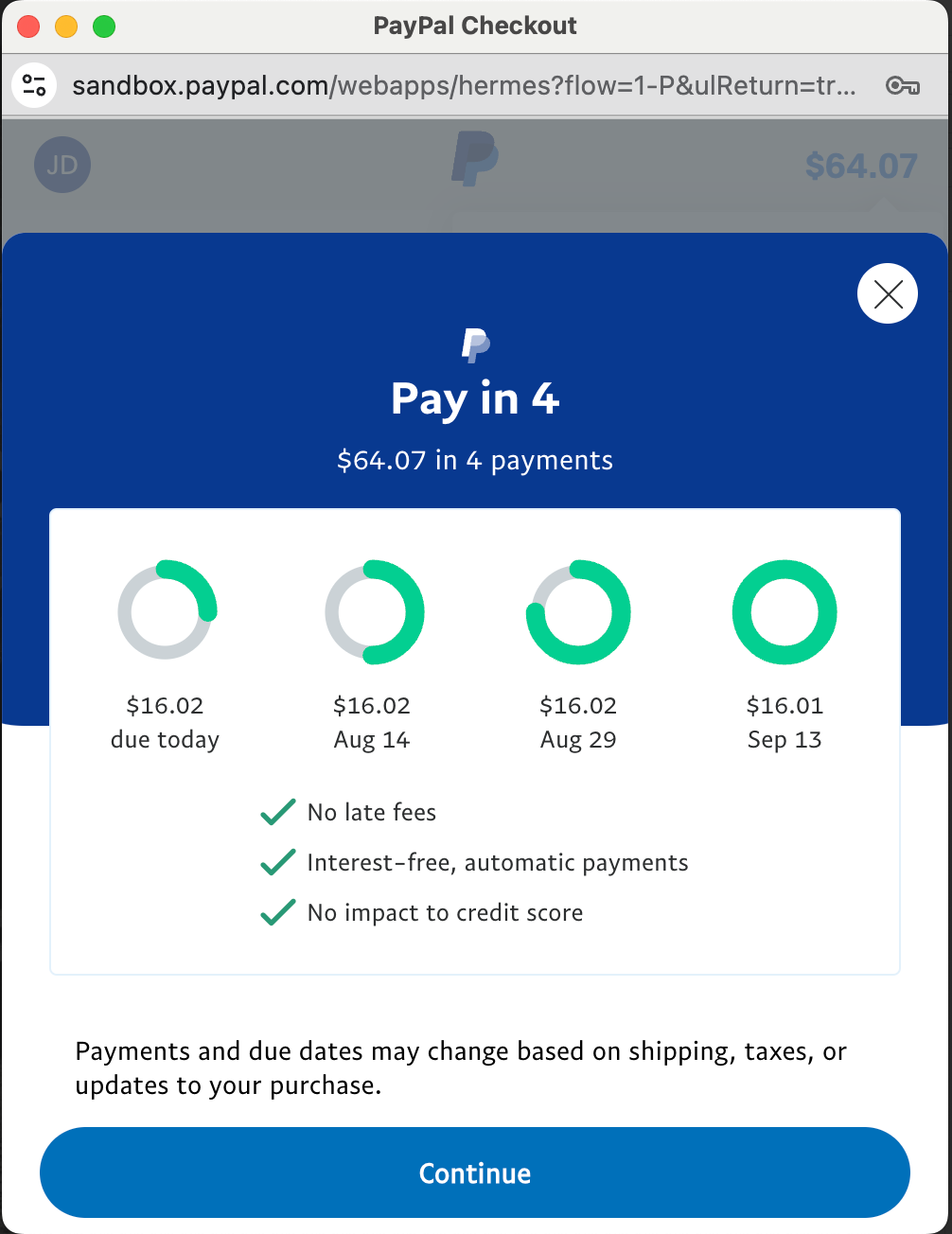
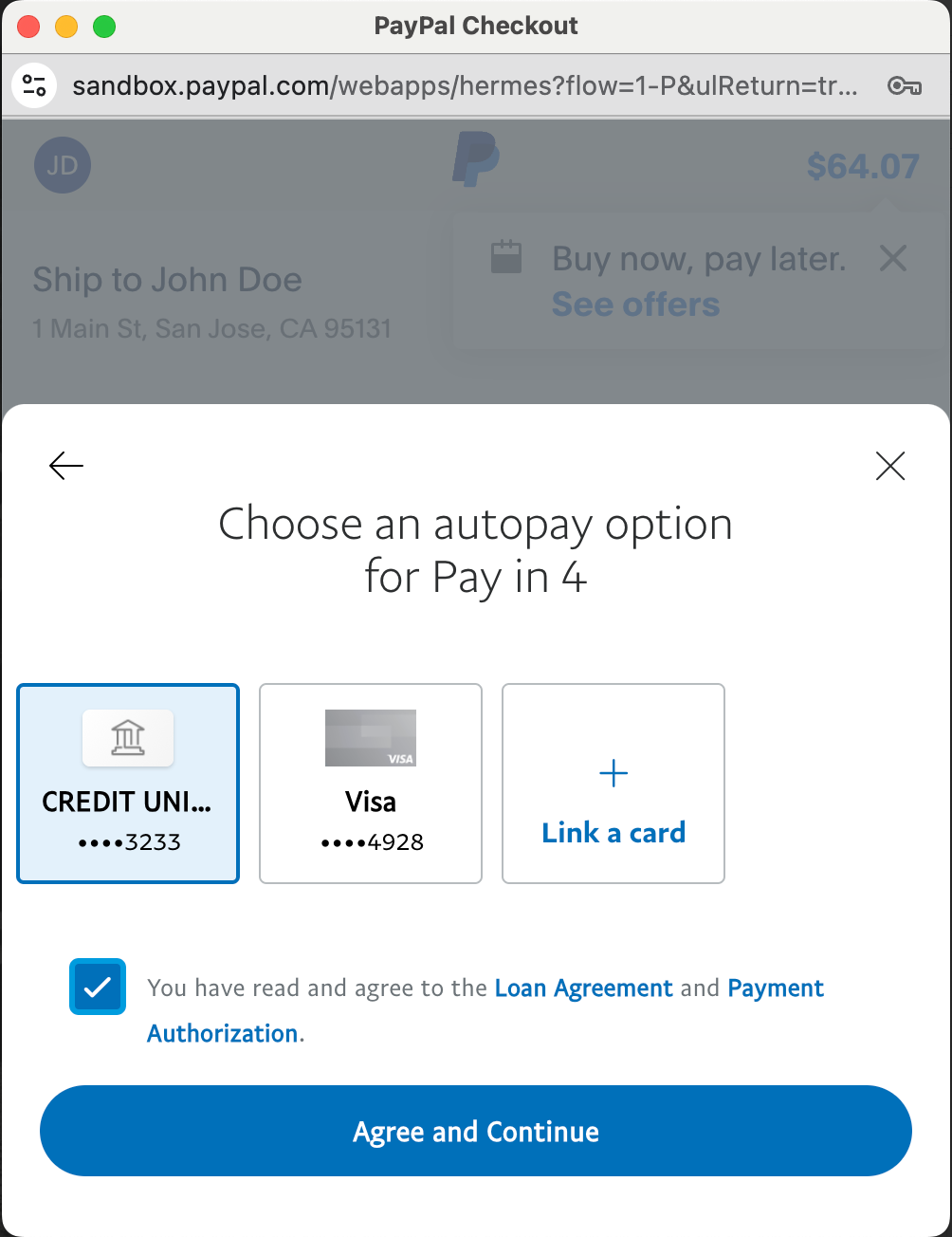
- PayPal Pay Later: This feature enables customers to split their purchases into manageable payments, increasing the likelihood of conversions.
- Secure Transactions: PayPal’s robust security measures protect both businesses and customers, reducing the risk of fraud.
- User-Friendly Interface: The integration process is straightforward, ensuring businesses can quickly set up and start accepting payments.
- Dual Payment Providers Visibility: If you have both PayPal and another payment provider connected, customers will be able to choose between PayPal and the other provider during checkout. This flexibility improves the customer experience by offering multiple payment options.
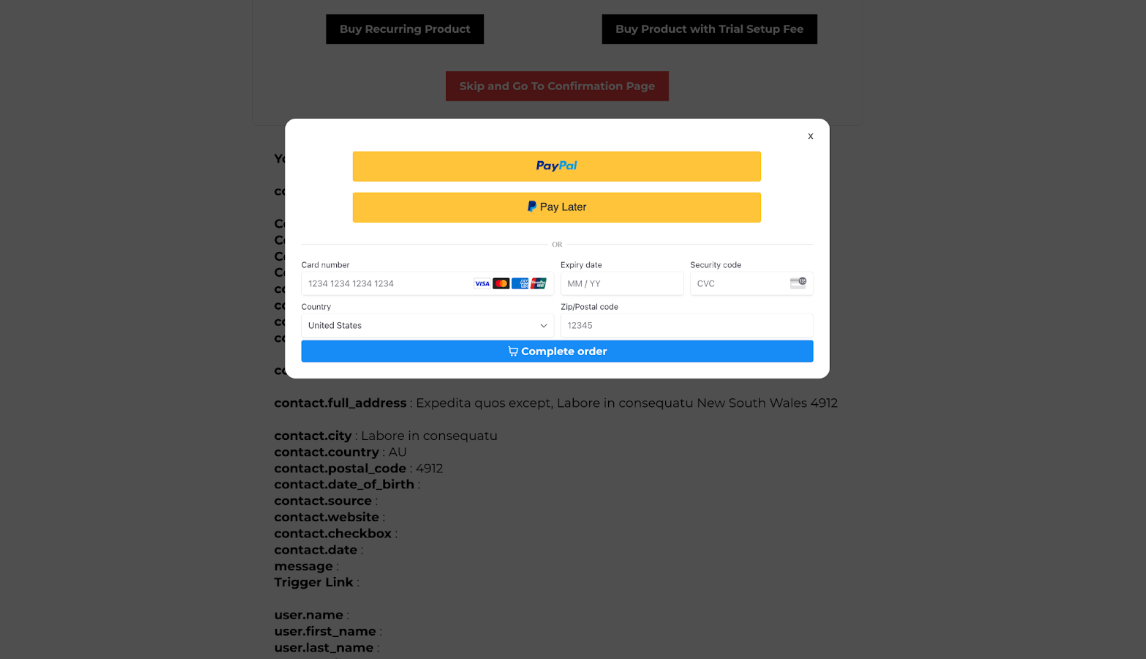
- PayPal-Only Integration: If PayPal is the sole payment provider integrated, customers will only see options offered by PayPal, such as PayPal and PayLater buttons.
How to Integrate PayPal
Section titled “How to Integrate PayPal”Step 1: Create and Access Your PayPal Account
Section titled “Step 1: Create and Access Your PayPal Account”- Visit developer.paypal.com to create or log in to your PayPal account.
- Once logged in, navigate to your PayPal Dashboard.

3. Click My Apps & Credentials.
4. Choose the Live app option.
NOTE: Be sure you have selected the Live app option, vs. Sandbox. The Sandbox option and credentials are used to test PayPal. You will need to create a Live app and use Live credentials actually to process payments.
TIP: You can skip the manual API key process! See the Keyless Integration method in Step 2 for a faster setup.
5. Click the Create App button.
6. Choose an app name and click Create App.
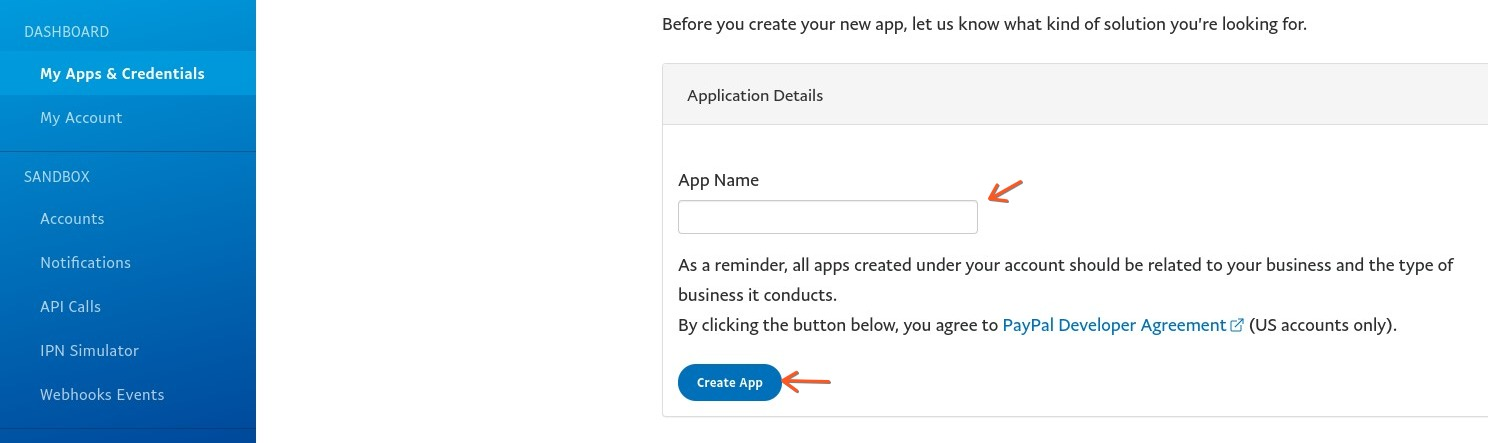
7. You’ll be able to view your Client ID and Secret ID. (The Secret ID may be hidden - you may need to click “Show” for it to display on the page.) Copy both the Client ID and Secret ID, as you’ll need to paste them into momentarily to complete the integration.
Step 2: Integrate PayPal to
Section titled “Step 2: Integrate PayPal to”- Navigate to Payments > Integrations.
- Add your Client ID and Secret ID from your PayPal account that you copied in Step 1.
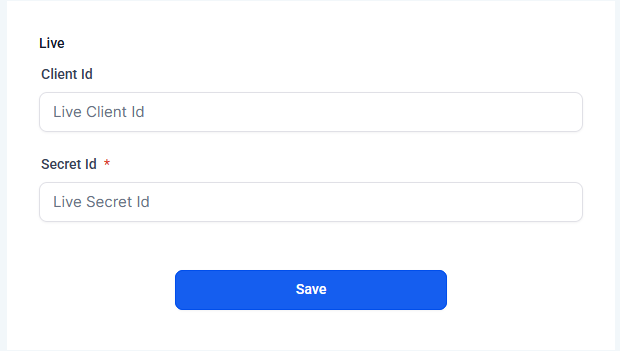
- Click Save to confirm the integration.
Once connected, customers will see PayPal and PayLater as payment options when making payments via invoices, order forms, or payment links.
If multiple payment providers are connected, customers can choose between PayPal and the other available options.
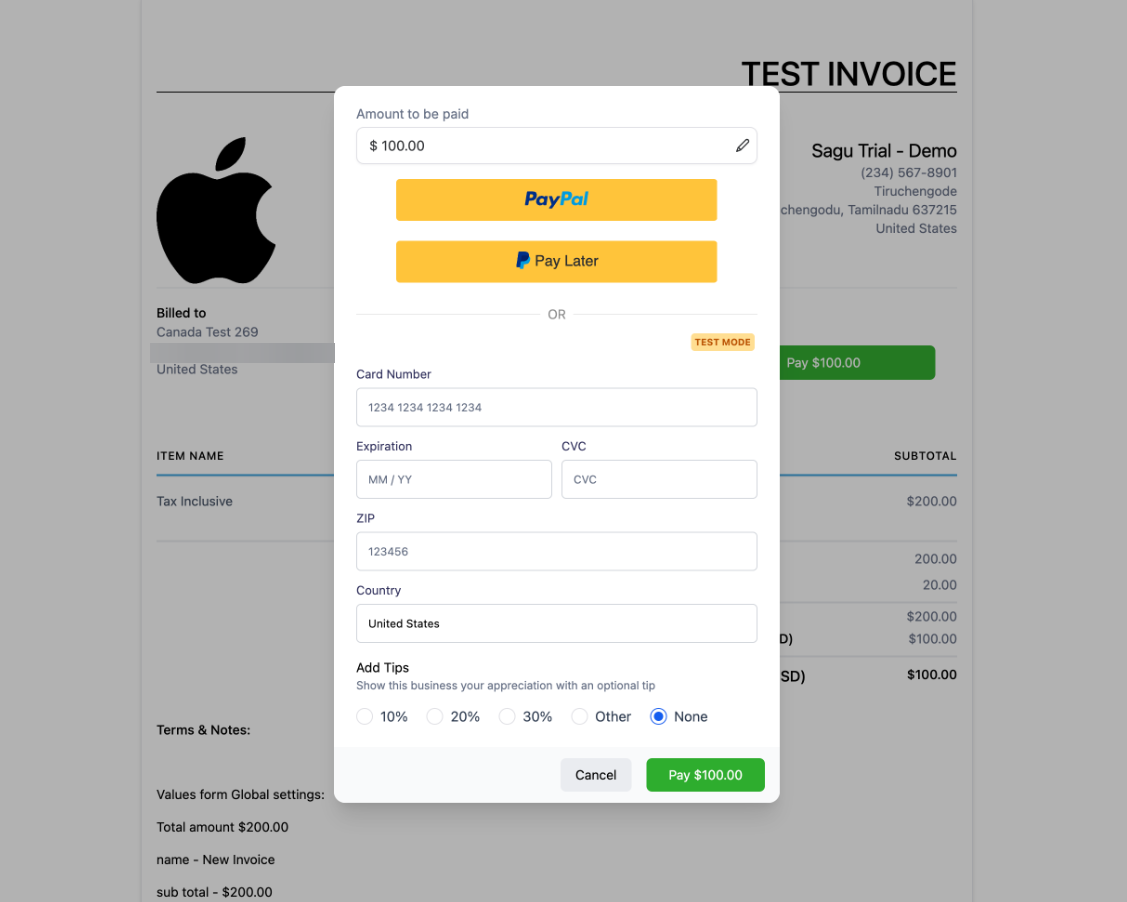
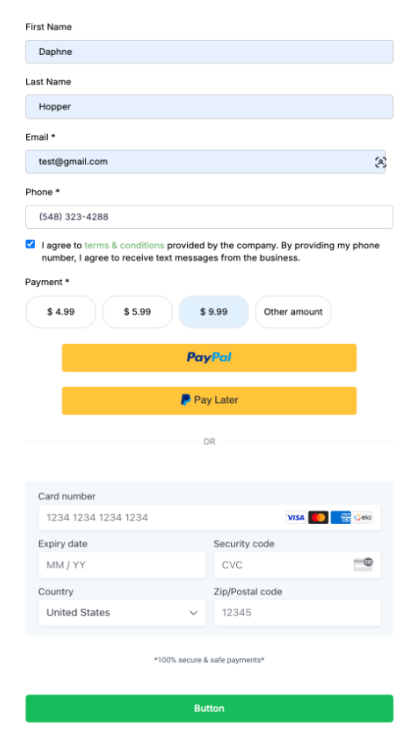
Multiple Payment Providers: If multiple payment providers are connected, customers can choose between PayPal and the other available options.
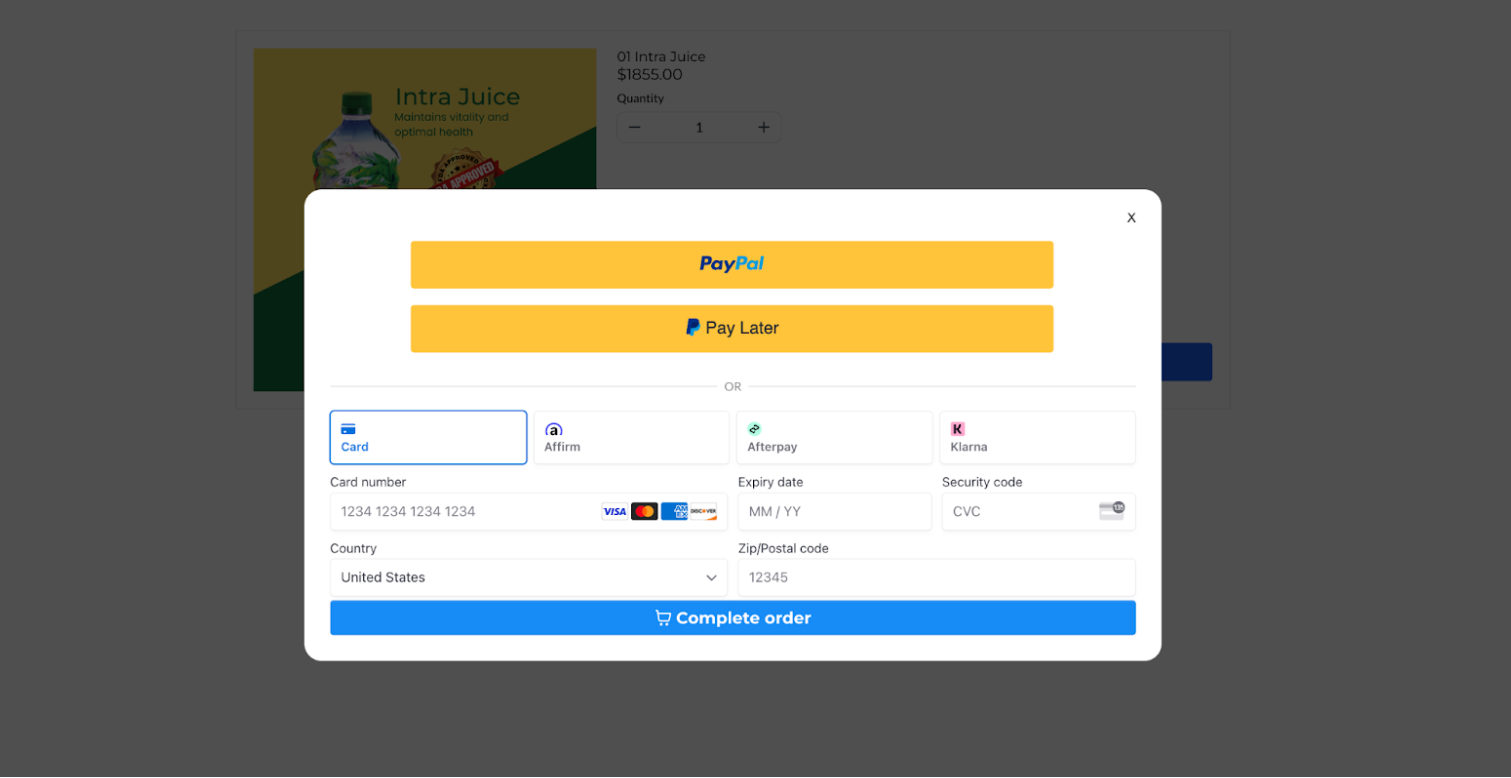
PayPal-Only Integration: If PayPal is the only provider connected, only the PayPal and PayLater buttons will be visible for customers at checkout.
Using PayPal Pay Later
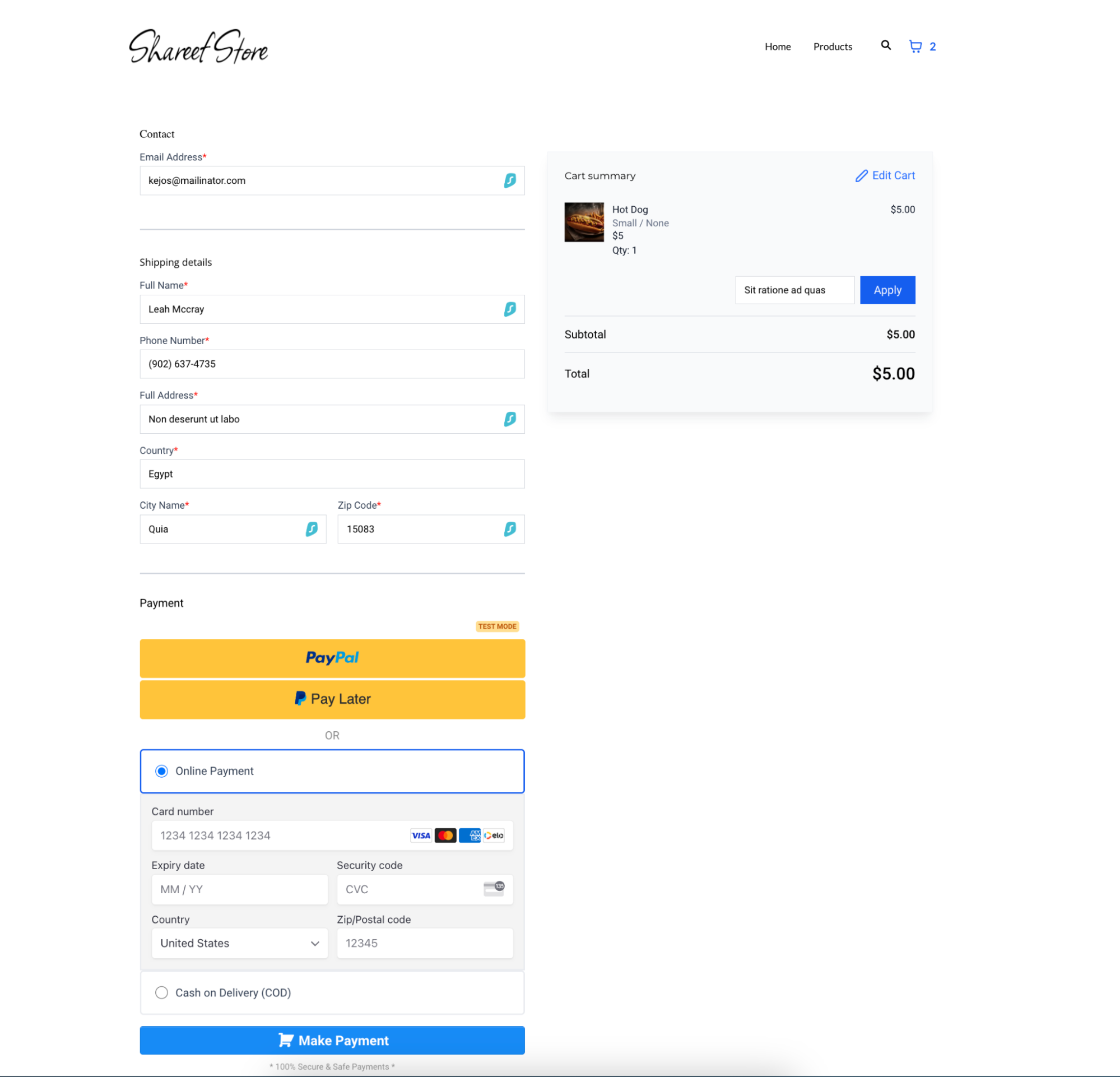
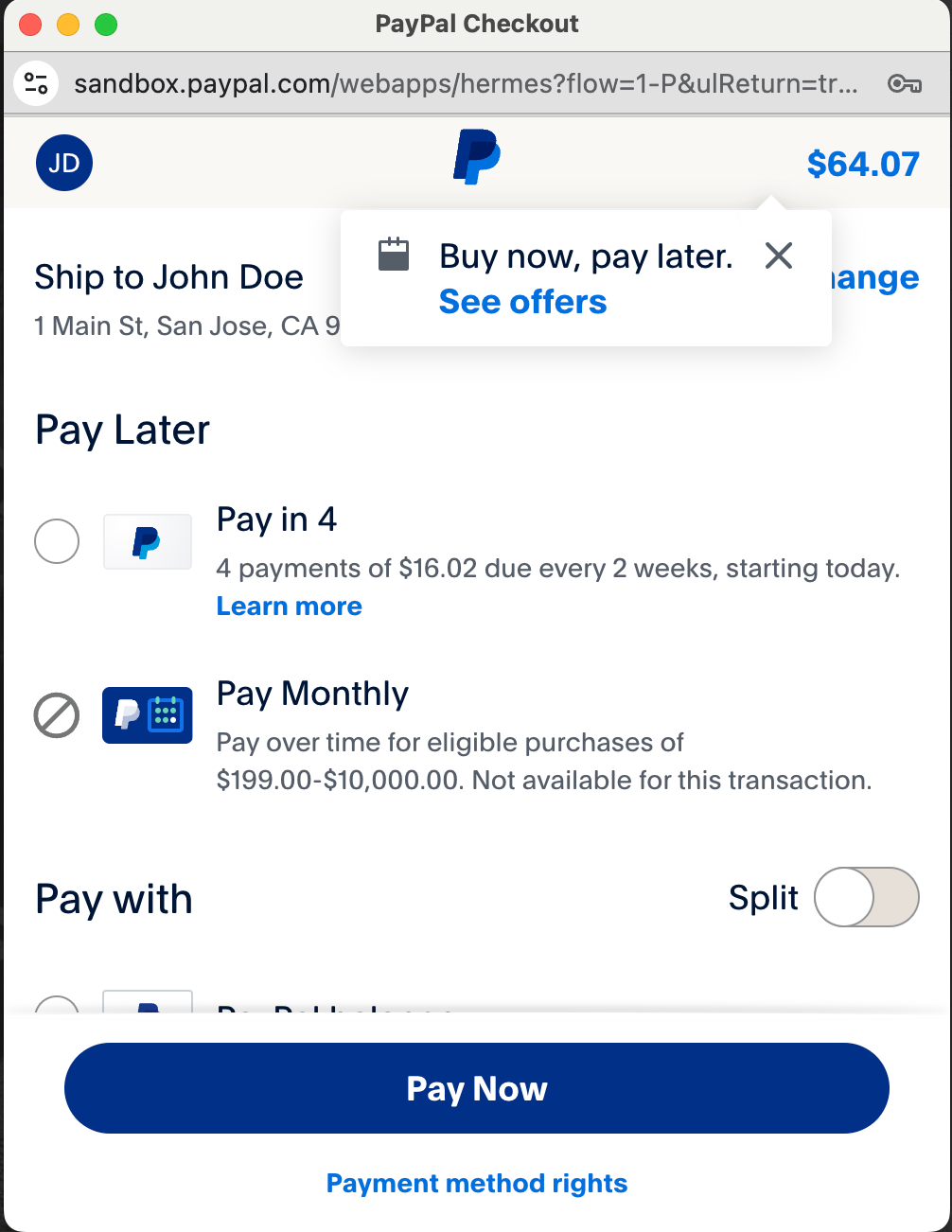
Section titled “Using PayPal Pay Later”Businesses can offer PayPal Pay Later as a payment method, which is applicable for one-time purchases on both 1-step and 2-step order forms and upsell purchases. This feature appears below the PayPal button during checkout, encouraging customers to complete their purchases by providing a flexible payment option.
VIEW IN ORDER FORMS:

VIEW IN ONLINE STORES:
VIEW IN SADNBOX:
PayPal Keyless OAuth Integration
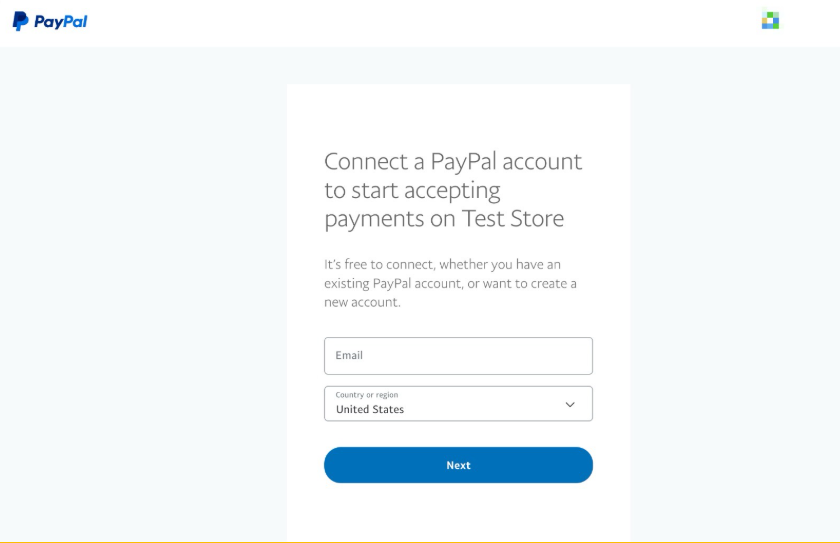
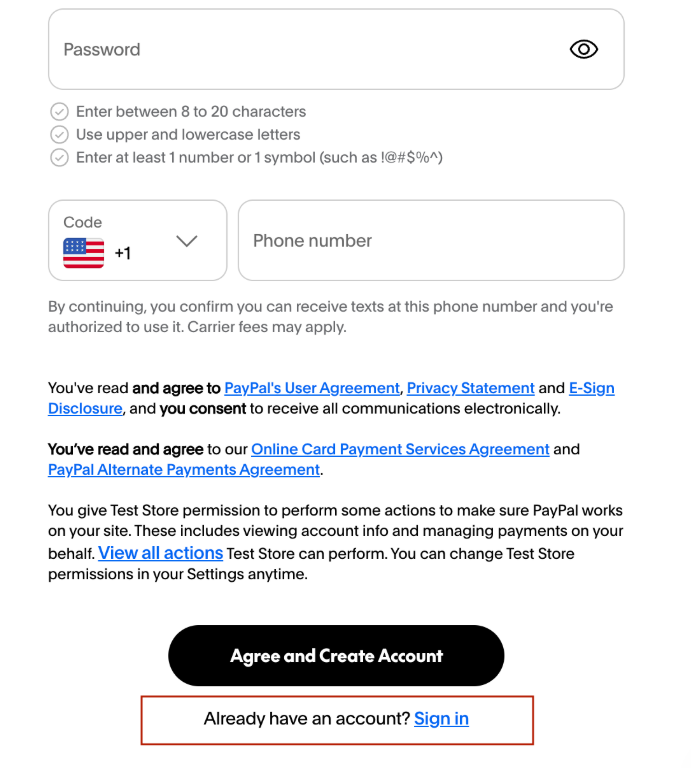
Section titled “PayPal Keyless OAuth Integration”PayPal connections have transitioned to an OAuth-based SDK, removing the requirement for manual API keys and credentials. This integration enables a faster setup process and introduces support for Venmo at checkout.
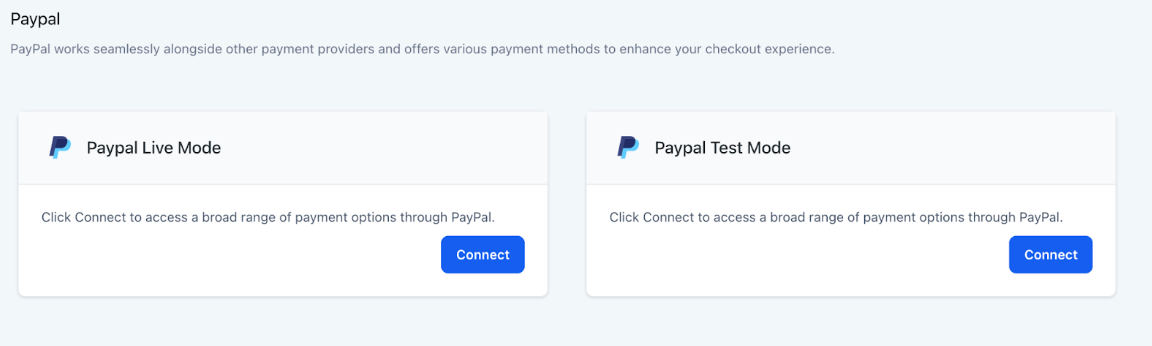
- New Accounts: Use the default integration option provided.
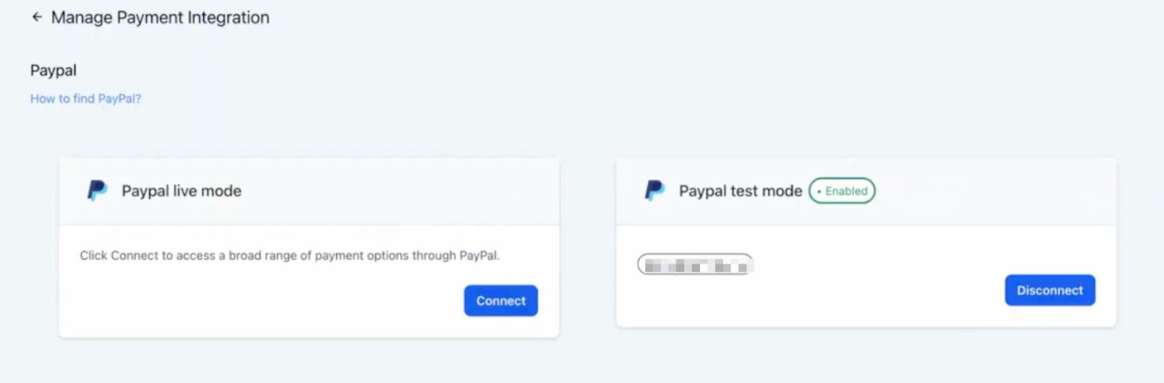
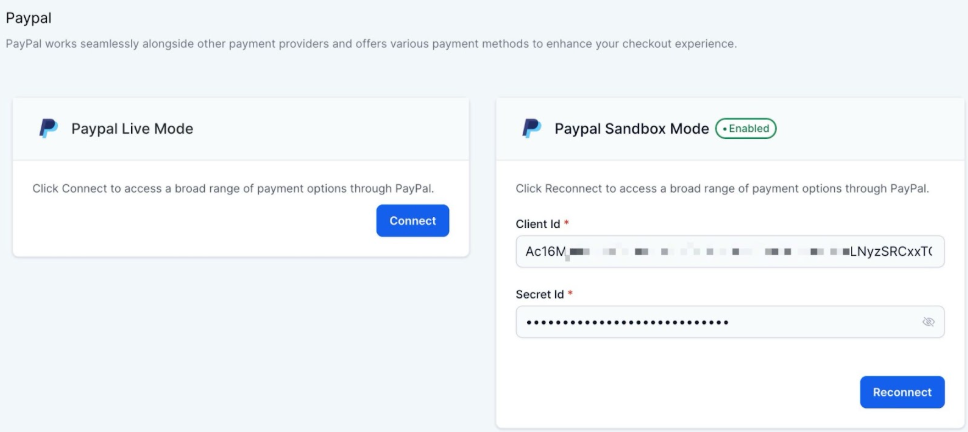
- Existing Accounts: Navigate to the PayPal ‘Manage’ section and select Reconnect to authorize the keyless flow.
Note this is the reconnection option for existing accounts:
Multiple Payment Providers Integration
Section titled “Multiple Payment Providers Integration”If you connect both PayPal and other payment providers, customers can choose their preferred method during checkout. The PayPal and other payment options will be displayed, allowing flexibility.
Pro Tips
Section titled “Pro Tips”- Test Transactions: Before going live, perform a few test transactions to ensure that the integration works smoothly and that payments are processed correctly.
- Customer Communication: Inform your customers about the availability of PayPal Pay Later and how it can benefit them, possibly increasing your conversion rates.
- Monitor Transactions: Regularly check your transaction history to ensure everything is functioning correctly and to quickly address any issues that arise.
Question: What are the new updates to the PayPal integration?
Answer: We’ve enhanced our PayPal integration with real-time subscription tracking, detailed transaction history, automated sales receipts, improved subscription management, workflow automation, and sales tax support.
Question: How does the Accurate Subscription Tracking feature work?
Answer: Subscription status updates made within PayPal are instantly reflected in software, ensuring your records are always current and accurate.
Question: What benefits does the Detailed Transaction History provide?
Answer: This feature displays all subsequent transactions for a subscription directly on the subscription details page, giving you a clear and comprehensive view of all financial activity related to that subscription.
Question: How are Automated Sales Receipts generated?
Answer: Sales receipts are automatically created for every transaction processed through PayPal. You can also set up triggers for actions like order submission and payment receipt, making your sales process more efficient.
Question: What improvements have been made in Subscription Management? Answer: Businesses can cancel subscriptions directly through the platform and offer coupon codes for both one-time and recurring products, giving you more control and flexibility in managing customer subscriptions.
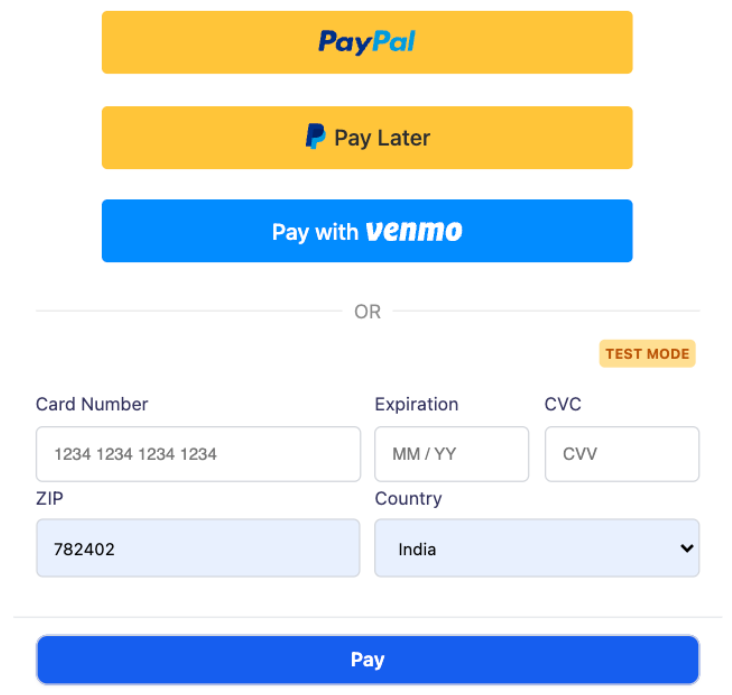
Question: What is the purpose of adding Venmo as a payment option?
Answer: The addition of Venmo enhances payment flexibility, allowing customers to complete transactions using a familiar and mobile-friendly platform.
Question: How does Workflow Automation integrate with the new PayPal features? Answer: Subscription triggers can be used within workflows, allowing you to automate processes based on changes in PayPal subscription statuses. This streamlines your business operations by reducing manual tasks.
Question: Is Sales Tax Support available for PayPal transactions?
Answer: Yes, you can include either manual or automatic sales tax calculations in PayPal transactions, ensuring compliance with tax regulations and making it easier to manage your finances.
Question: How will these updates affect my current PayPal integration?
Answer: These updates are designed to enhance your existing PayPal integration, offering more tools and automation capabilities. Your current setup will continue to work as before, with the added benefits of these new features.
Question: What happens if I only have PayPal integrated? Answer: If PayPal is the only payment provider integrated, customers will only see the PayPal and PayLater buttons during checkout. If additional payment providers are connected, customers will be able to choose between PayPal and the other provider.
Question: How do I ensure my PayPal integration is working smoothly before going live? Answer: Before going live, it’s recommended to perform a few test transactions to confirm that the integration is working smoothly and payments are processed correctly. This will help ensure there are no issues when your customers start making payments.
Question: I already have PayPal connected using API keys; do I need to do anything to get features like Venmo support?
Answer: Yes. To unlock Venmo and move to the faster OAuth-based system, existing accounts should navigate to the PayPal “Manage” section within their settings and select the “Reconnect” option. This authorizes the keyless flow without requiring you to manually enter new API credentials.
Question: How does “PayPal Pay Later” benefit my business?
Answer: Pay Later allows customers to split their purchase into smaller installments while you, the merchant, receive the full payment upfront (minus standard processing fees). This flexibility often leads to higher conversion rates and larger average order values because it reduces the immediate financial burden on the customer.