Order Upsell in Forms and Surveys
In modern online sales processes, increasing the average order value while maintaining a smooth checkout experience is essential. The ability to offer additional products directly within forms and surveys simplifies this process. This article explains how to implement order upsells in forms and surveys, highlighting key features, benefits, and practical steps for setup.
Key Features and Benefits
Section titled “Key Features and Benefits”- Seamless Upsell Integration: Add an extra product offer directly within the same form or survey, eliminating the need for separate pages or repeated customer input.
- One-Click Acceptance: Customers can accept the upsell offer with a single click, simplifying the buying process.
- Supports Multiple Product Types: Works with both standard products and bump offers, providing flexibility for various sales strategies.
- Native Funnel Compatibility: Upsells function smoothly with forms and surveys used as native elements in sales funnels.
- Checkout Experience: Keeps the process quick and frictionless, which can lead to higher conversion rates and increased revenue.
How to Use Order Upsells
Section titled “How to Use Order Upsells”Step 1: Build the Form
- Open the Form or Survey Builder.
- Drag and drop a Sell Product element into your form.
- Configure the product details, including price and product ID.
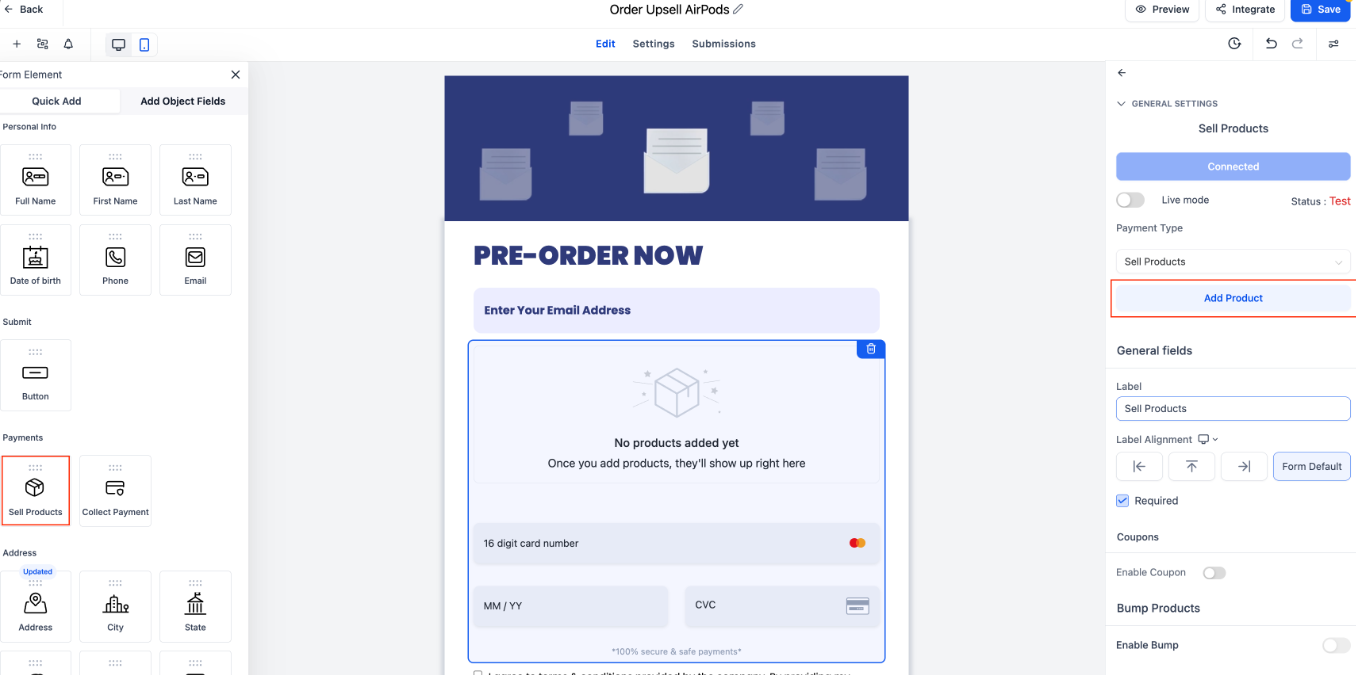
- Save the form.
Step 2: Integrate the Form into a Funnel
- Open or create a funnel.
- Navigate to the desired funnel step.
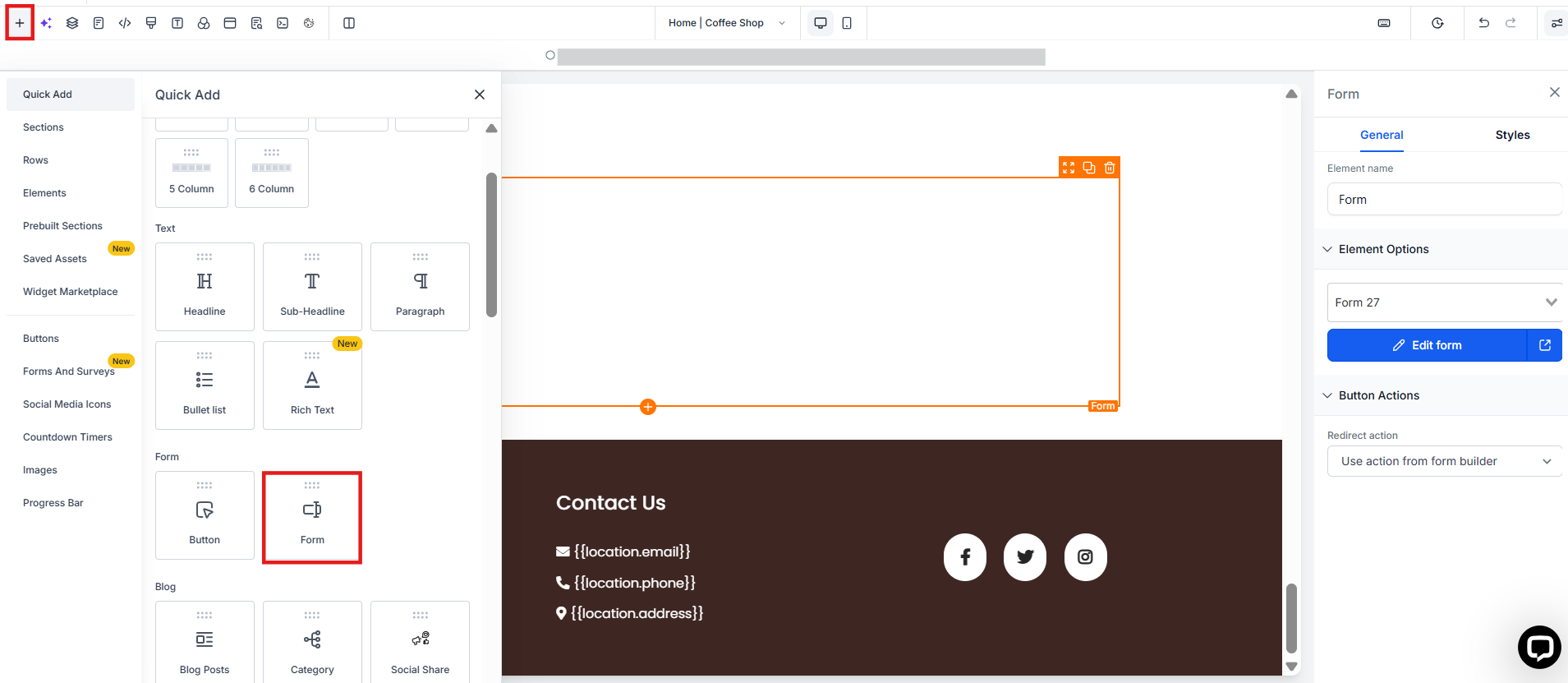
- Add the saved form as a Native Form element (do not embed it externally).
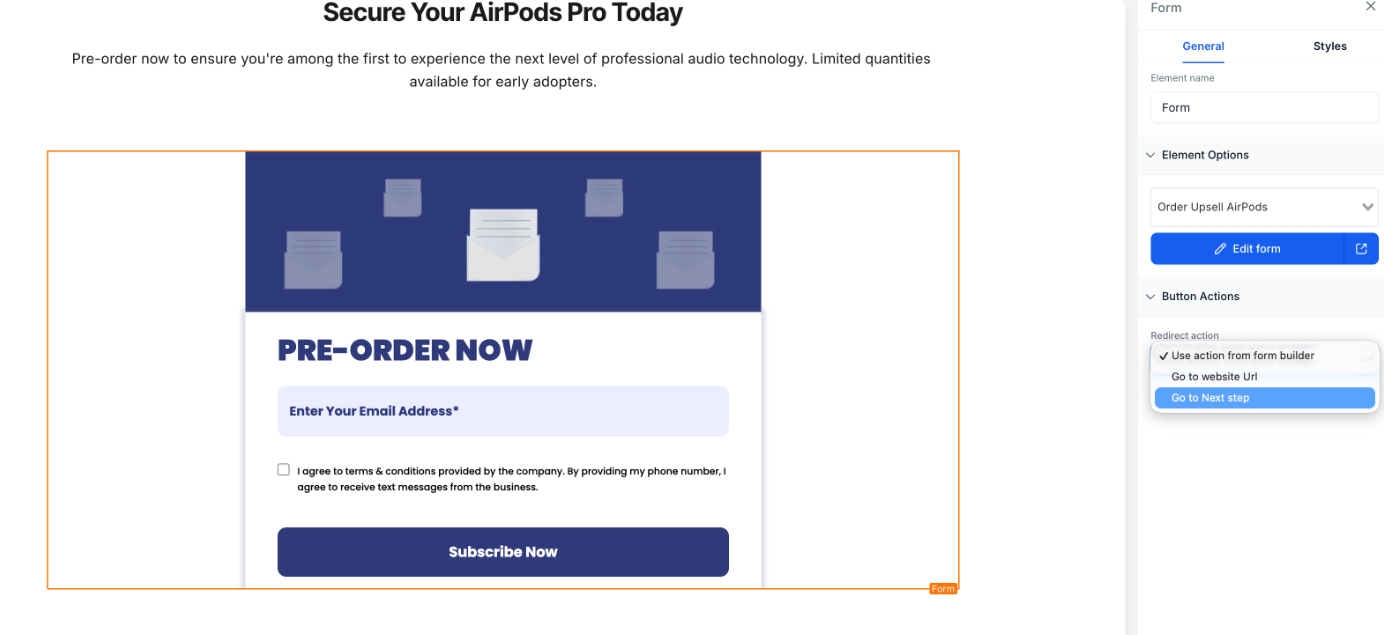
Step 3: Add the Upsell Button
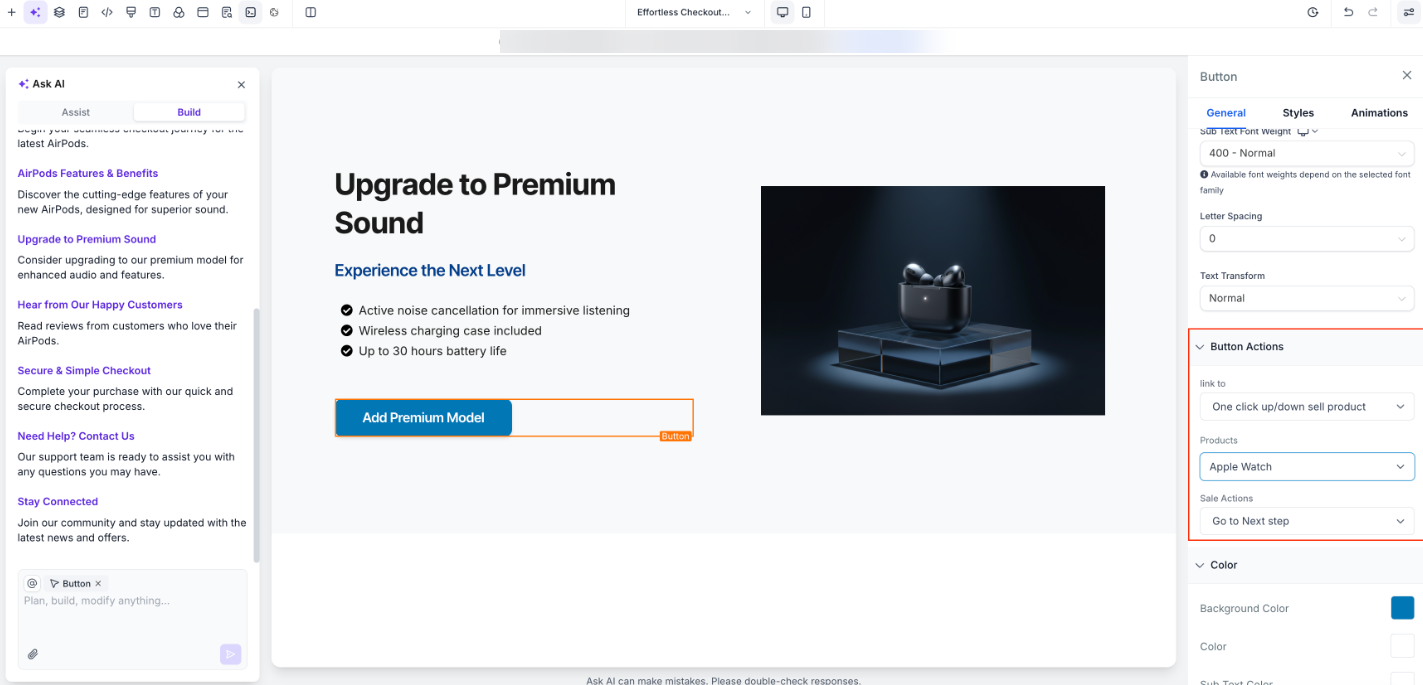
- In the next funnel step, drag a Button element.
- Set the button action to Upsell Product.
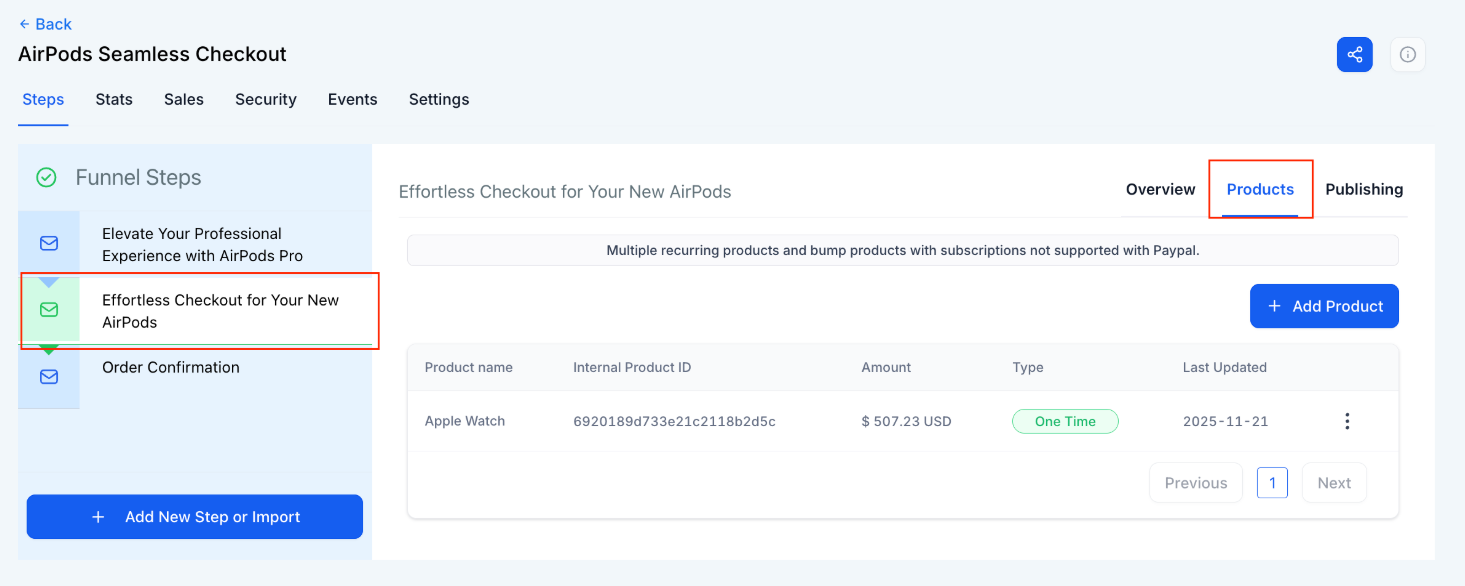
- Select the upsell product you wish to offer.
Step 4: Include an Order Summary
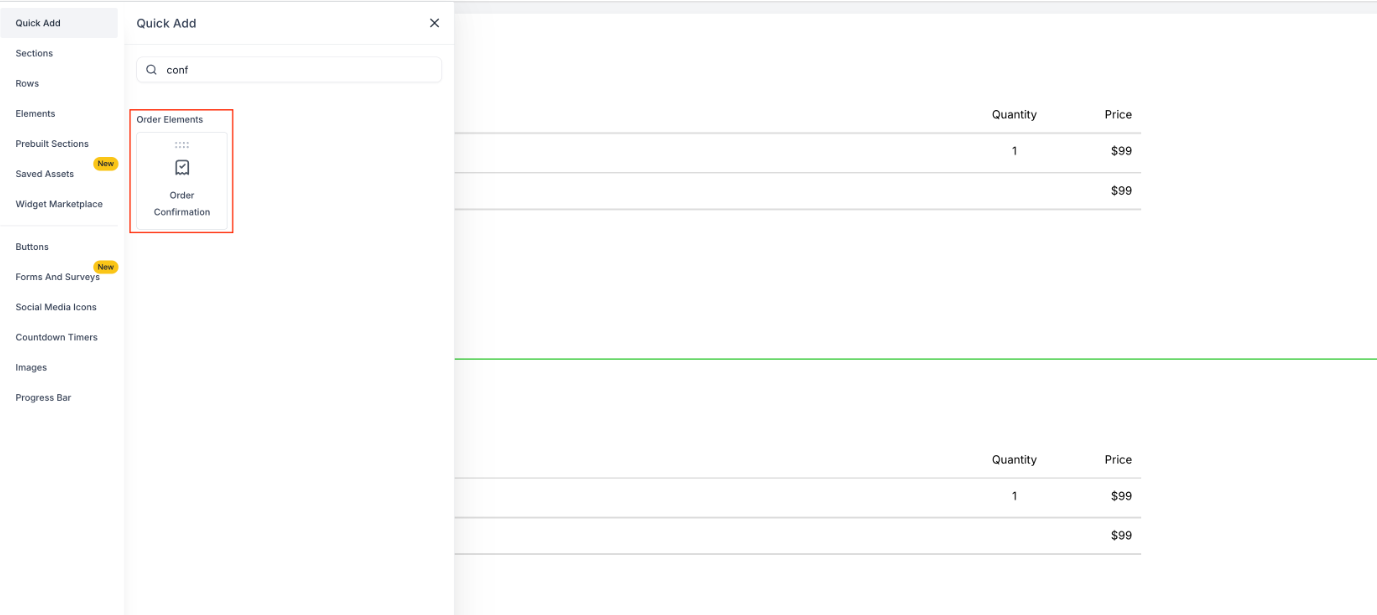
- Ensure the funnel contains an Order Summary element.
The summary should display both the initial product and any additional upsell product accepted by the customer.
Pro Tips
Section titled “Pro Tips”- Placement Matters: Position the upsell immediately after the initial product selection to maximize conversions.
- Keep Offers Relevant: Ensure the upsell product complements the primary purchase for a higher likelihood of acceptance.
- Test Different Products: Experiment with various upsell items to find which generate the most additional revenue.
- Monitor Funnel Performance: Track how many customers accept the upsell to adjust strategy and product selection.
Question: Can I offer multiple upsell products in the same form? Answer: Yes, multiple upsell products can be configured in the funnel steps. Each product can have its own button and acceptance logic.
Question: Does the customer need to re-enter their details to accept an upsell? Answer: No, customers can accept the upsell with one click, using the details already provided in the original form.
Question: Can upsells work with both standard and bump products? Answer: Yes, upsells are compatible with both normal product offers and bump products, providing flexibility in your sales strategy.
Question: Will the order summary reflect the upsell purchase automatically? Answer: Yes, when the funnel contains an Order Summary element, it will display both the initial product and the accepted upsell product.
Question: Is this feature compatible with surveys as well as forms? Answer: Yes, upsells can be used with surveys added as native elements in funnels, providing a consistent experience across multiple entry points.
Question: Do I need to embed the form using a code snippet for the upsell to work?
Answer: No. For the upsell feature to function correctly, the form or survey must be added as a Native Form element within the funnel, rather than being embedded externally.
Question: What information do I need to provide when adding a product to the form? Answer: When you drag and drop the “Sell Product” element into your form or survey, you must configure the specific product details, which include both the price and the product ID.