How to Test Payments in a Funnel or Website
In this article, we will show you how to switch your Funnel or Website into test mode. This way, you can test your products and automation associated to ensure they’re working properly.
Part 1: Putting the Funnel/Website into test mode.
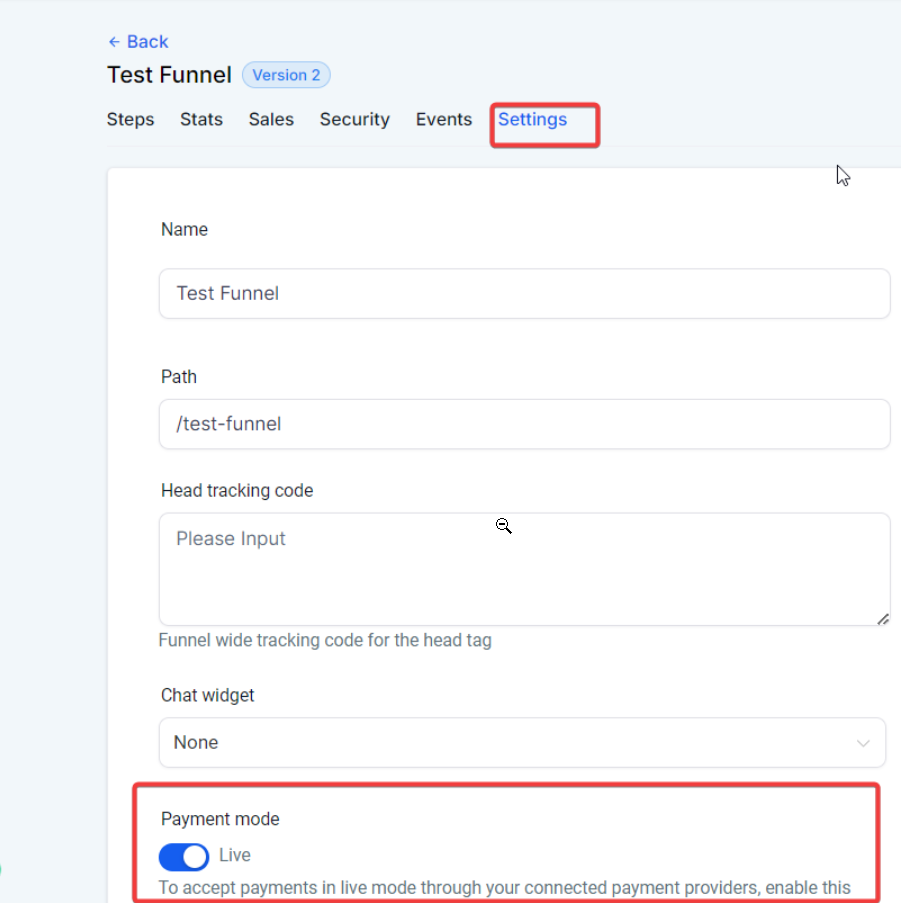
Section titled “Part 1: Putting the Funnel/Website into test mode. ”- First, navigate to your Sites and select the funnel on which you would like to test the payment mode.
- Go to Settings.
- Then, select the toggle button to switch to Test mode.
Part 2: Testing
Section titled “Part 2: Testing”- Now, navigate to your live page or the preview.
- Use any of the following cards to test your payments or automation by submitting your order form:
BRAND
NUMBER
CVC
DATE
Visa
4242424242424242
Any 3 digits / 123
Any future date/ 12/34
Visa (debit)
4000056655665556
Any 3 digits
Any future date
Mastercard
5555555555554444
Any 3 digits
Any future date
Mastercard (2-series)
2223003122003222
Any 3 digits
Any future date
Mastercard (debit)
5200828282828210
Any 3 digits
Any future date
Mastercard (prepaid)
5105105105105100
Any 3 digits
Any future date
American Express
378282246310005
Any 4 digits
Any future date
American Express
371449635398431
Any 4 digits
Any future date
Discover
6011111111111117
Any 3 digits
Any future date
Discover
6011000990139424
Any 3 digits
Any future date
Discover (debit)
6011981111111113
Any 3 digits
Any future date
Diners Club
3056930009020004
Any 3 digits
Any future date
Diners Club (14-digit card)
36227206271667
Any 3 digits
Any future date
JCB
3566002020360505
Any 3 digits
Any future date
UnionPay
6200000000000005
Any 3 digits
Any future date
Question: How do I switch my Funnel or Website into test mode?
Answer: Navigate to your Sites and select the funnel or website you want to test. Go to Settings and then toggle the switch to activate test mode.
Question: What should I do after putting my Funnel or Website into test mode?
Answer: Visit your live page or preview and use any of the provided test card details to submit an order form and verify that payments and automation are functioning correctly.
Question: Can I use real credit card information while testing?
Answer: No, for testing purposes, use only the provided test card details to ensure that your payment systems and automation are working correctly without processing actual transactions.
Question: What happens after I complete a test order using the test card details?
Answer: After submitting a test order using the provided test card details, you can verify if the payment processing and automation are working correctly. If any issues are found, you can troubleshoot and make adjustments as needed. The test orders are not real transactions, so no money will be charged.
Question: Can I use test mode on multiple funnels or websites at the same time?
Answer: Yes. Test mode is applied individually, so you can enable it on specific funnels or websites without affecting others.
Question: What happens if I forget to turn off Test Mode? Answer: If you leave Test Mode on, real customers will not be able to buy your products. Their real credit cards will be declined, and your business will not collect any payments. Always double-check that the toggle is OFF before driving traffic to your page.
Question: What specific CVC and Expiry Date should I use when entering test card information? Answer: For most test cards (like Visa or Mastercard), you can use any 3-digit number (such as 123) for the CVC and any future date (such as 12/34) for the Expiry Date. If you are testing an American Express card, you should use any 4-digit number for the CVC.