Converting Funnel Steps and Website Pages Within
Converting Funnel Steps and Website Pages Within
If you want to convert or import a funnel or website page into a new funnel or website you are building, you can do so using the import feature. This will save you time and allow you to work efficiently in your Funnel and Website builders, so you don’t have to start from scratch if you want to duplicate or copy information. Follow these steps to get started:
Step 1: Within the funnel or website section, click the “Add New Step” button to add a new page to your funnel or website.
Section titled “Step 1: Within the funnel or website section, click the “Add New Step” button to add a new page to your funnel or website.”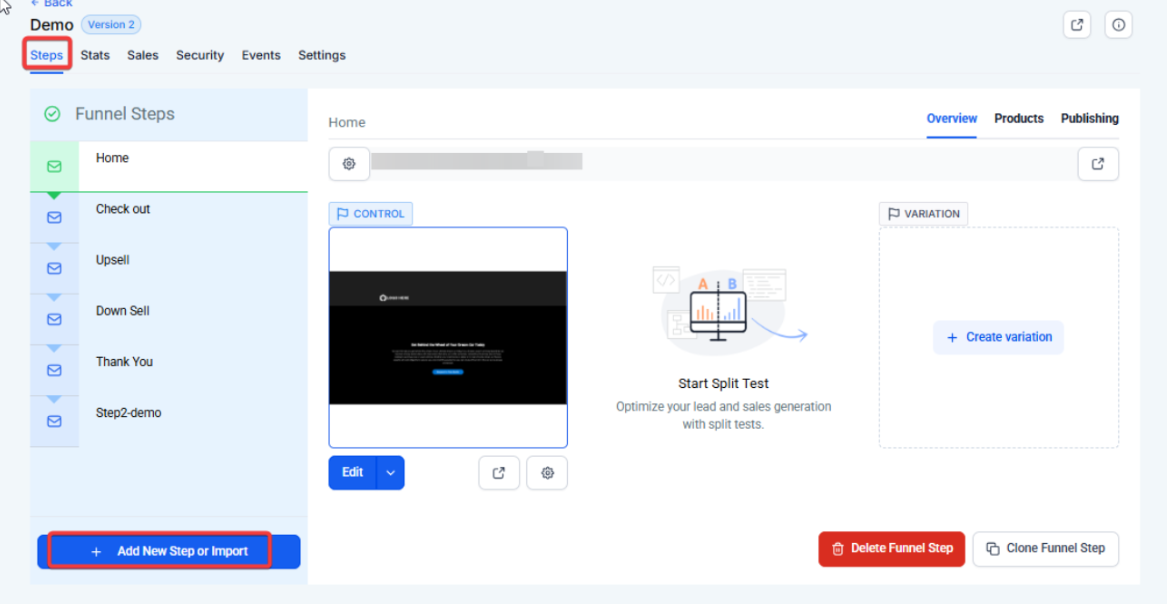
Step 2: In the popup, name the path and page.
Section titled “Step 2: In the popup, name the path and page.”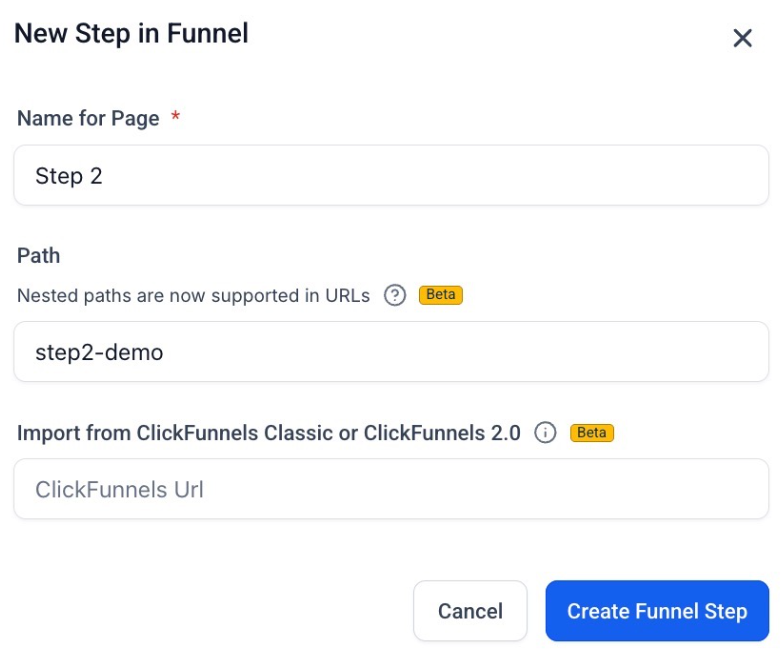
Step 3: Click “Create Funnel Step” to close the popup A. (A new window will appear in the funnel preview area.)
Section titled “Step 3: Click “Create Funnel Step” to close the popup A. (A new window will appear in the funnel preview area.)”Step 4: Click “Use Existing” to choose a funnel step or website page to import.
Section titled “Step 4: Click “Use Existing” to choose a funnel step or website page to import.”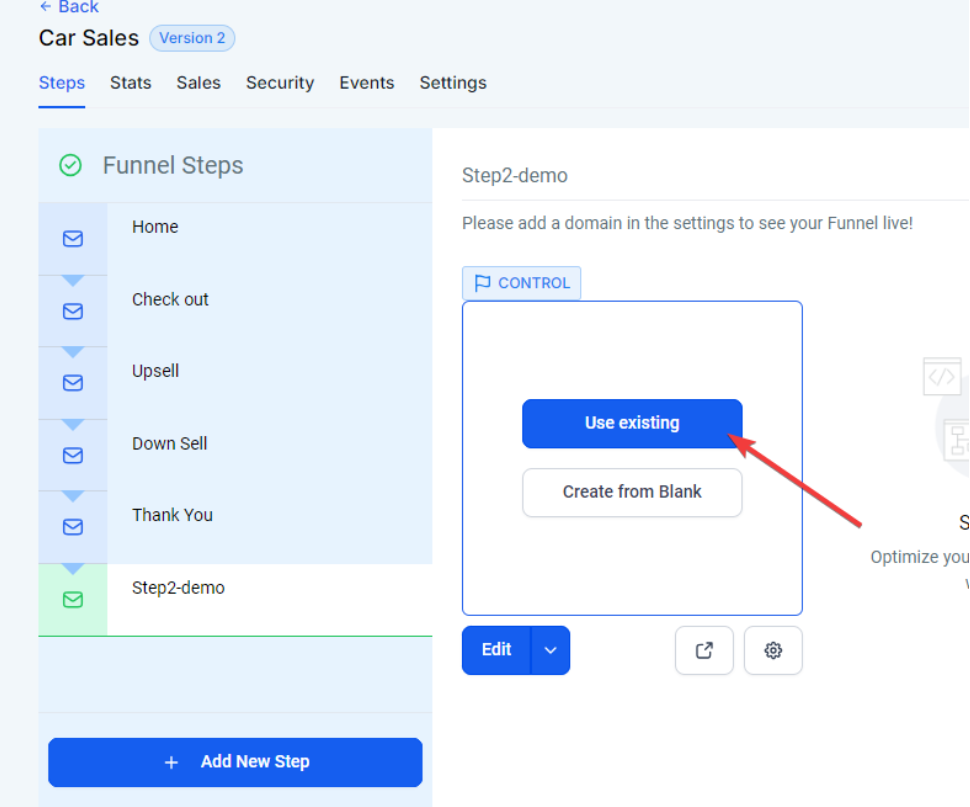
Step 5: In the popup, choose “Funnel” or “Website” then choose the funnel and step or the website and page, using the dropdown menus.
Section titled “Step 5: In the popup, choose “Funnel” or “Website” then choose the funnel and step or the website and page, using the dropdown menus.”(You can then choose if you want to use this as the control or variation page if you are doing split testing.)
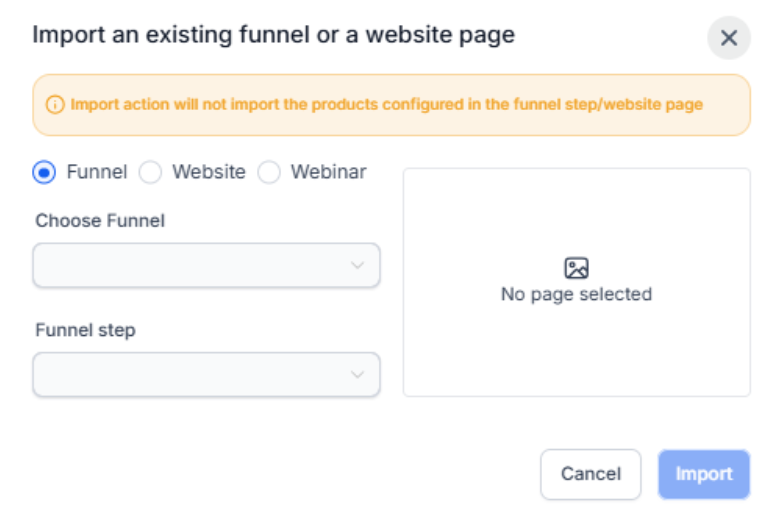
Step 6: Click “Import”.
Section titled “Step 6: Click “Import”.”Pro Tips:
- The Import Funnel/Website feature imports only a single funnel step or website page; not the entire funnel or website.
- This only works for funnels/websites within , not third-party providers
- NOTE: Check out our other tutorial on how to import from Clickfunnels.
- Changes to any imported step/page will not reflect back to the original step/page you imported/copied from.
- This feature will not import configured products or associated stats from the original funnel step used as the source. You will need to configure the product for the new step.
Question: How do I import a funnel step or website page into a new funnel or website in ? Answer: To import a funnel step or website page, click the “Add New Step” button within the funnel or website section, name the path and page in the popup, and click “Create Funnel Step.” Then, click “Use Existing,” select “Funnel” or “Website” from the popup, choose the specific funnel and step or website and page from the dropdown menus, and click “Import.”
Question: Can I import an entire funnel or website using the import feature? Answer: No, the Import Funnel/Website feature only allows you to import a single funnel step or website page at a time, not the entire funnel or website.
Question: Does the import feature work with third-party platforms? Answer: No, the import feature only works for funnels and websites within . For third-party imports, such as from Clickfunnels, please refer to our other tutorial on how to perform those imports.
Question: Will changes made to the imported funnel step or website page reflect on the original step/page? Answer: No, any changes made to the imported step or page will not reflect the original step or page that you imported or copied from.
Question: Does the import feature include configured products or associated stats from the original funnel step? Answer: No, the import feature does not import configured products or associated stats from the original funnel step. You will need to manually configure the products for the new step after importing.
Question: Can I rename an imported funnel step or page after import? Answer: Yes. You can rename the imported step or page anytime by opening its Settings and updating the Path and Page Name.
Question: Can I use the import feature to import a funnel step or website page from third-party providers like Clickfunnels? Answer: No, the import feature only works for funnels and websites within . For third-party providers like Clickfunnels, you will need to refer to our other tutorial on how to import from Clickfunnels.
Question: Can I use an imported page for A/B split testing?
Answer: Yes. When importing a page, the system allows you to choose whether you want to use the imported content as the control or the variation page if you are performing split testing.
Question: How do I select a specific page if my website has dozens of different steps?
Answer: The import popup provides dropdown menus. First, you choose the category (“Funnel” or “Website”), then you select the specific name of the funnel/site, and finally, you select the exact step or page from that project.