How To Submit Mock Data for Forms and Surveys
How To Submit Mock Data for Forms and Surveys
Submitting mock data for your survey or form will allow you to test the form/survey and see how the information looks in the contact profile. Mock data for your survey or form is essential to understanding how the information flows. Follow these 4 simple steps to input mock data for survey or form completion.
Step 1: Creating the Form/Survey
Section titled “Step 1: Creating the Form/Survey”To access and use the Form or Survey Builder, follow these steps:
- Navigate to the Builder:
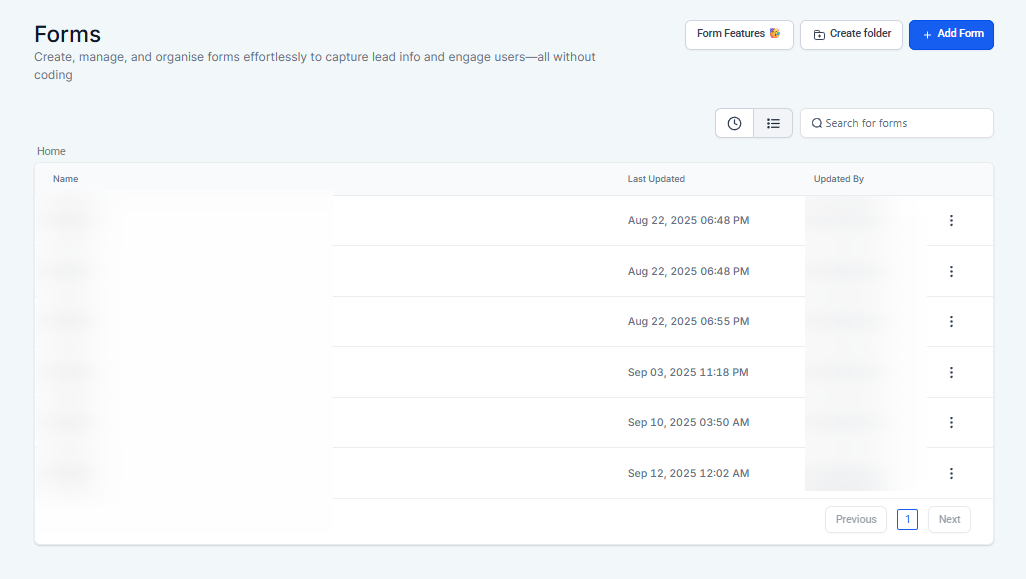
- Go to Sites > Forms/Surveys > Builder.
- Select Your Form or Survey:
- Choose the specific form or survey you want to work on.
- Add Fields and Customize:
- Left Panel: Use the left panel to add both standard and custom fields, giving you the flexibility to create mock data scenarios.
- Right Panel: Utilize the extensive style and design options on the right to tailor the appearance of your form or survey.
- Add Elements and Style:
- Incorporate the necessary elements into your form or survey and apply your preferred styles.
- Save Your Work:
- Once you’ve added and styled your elements, click Save to preserve your changes.
Step 2: Add the Form/Survey to your funnel
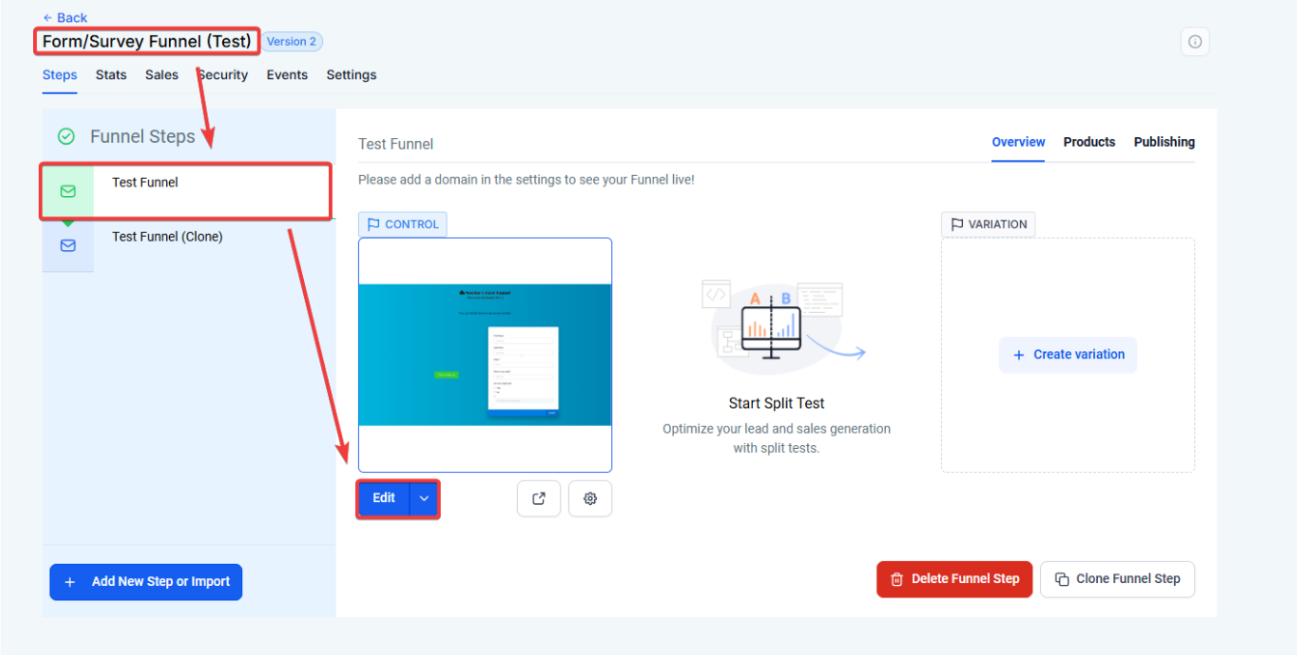
Section titled “Step 2: Add the Form/Survey to your funnel”- Go to the page editor where you want this form/survey to be
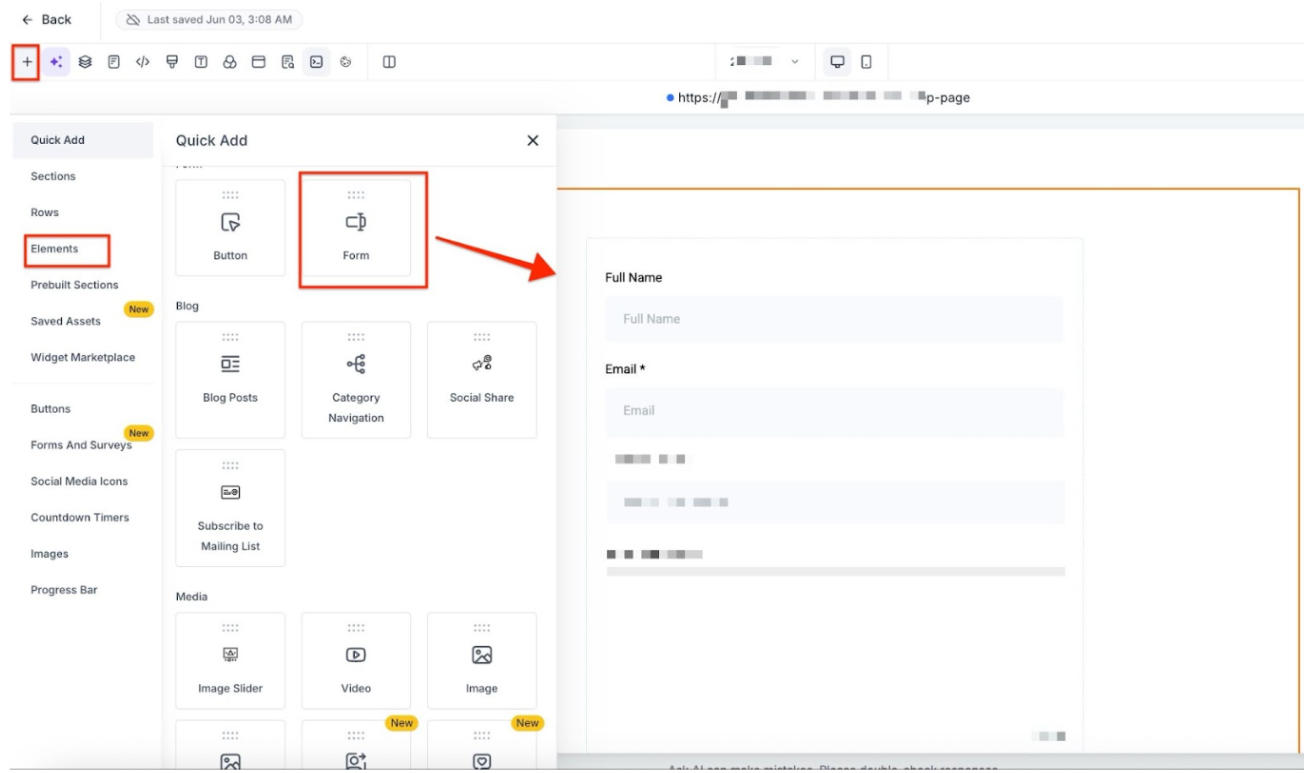
- Add the form element
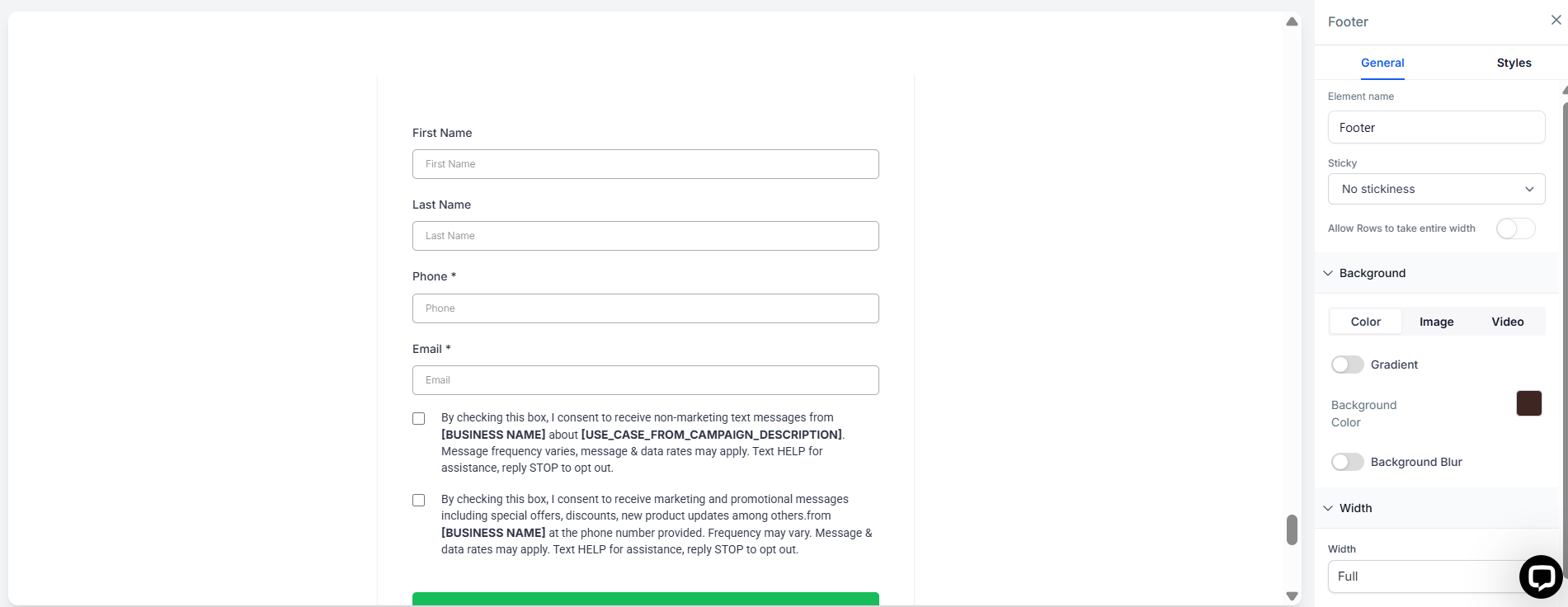
- Click on the form element to open the settings on the right, and edit your submit options as needed, then save.
Step 3: Submit Mock Data
Section titled “Step 3: Submit Mock Data”- Use the Eye icon to preview the funnel step containing the form.
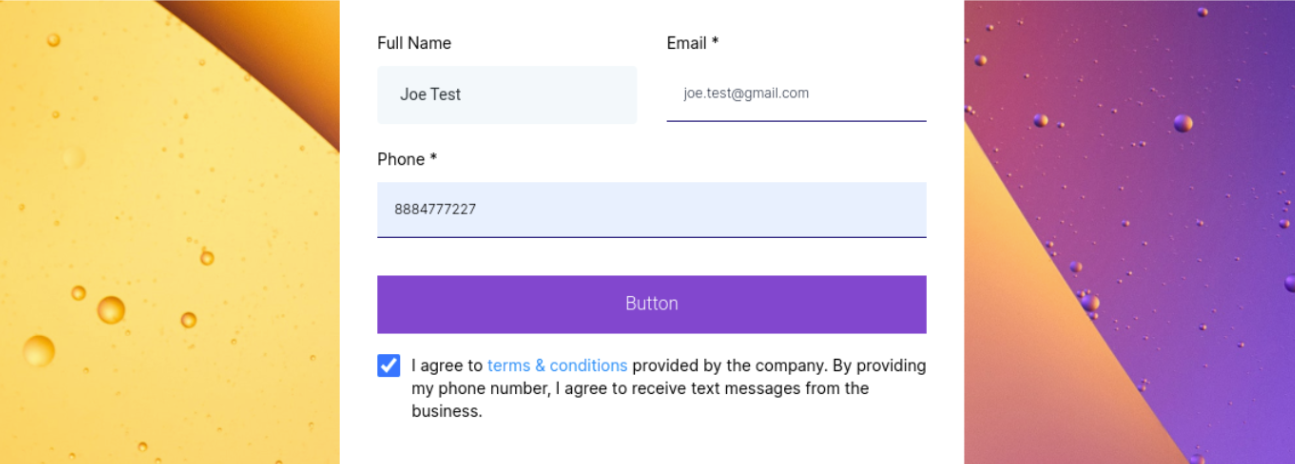
- Fill out the form as if you were a real user. Use dummy data (e.g., test@example.com) for testing.
Note: After submitting the form, will also create a contact within your contacts tab.
Step 4: See the results
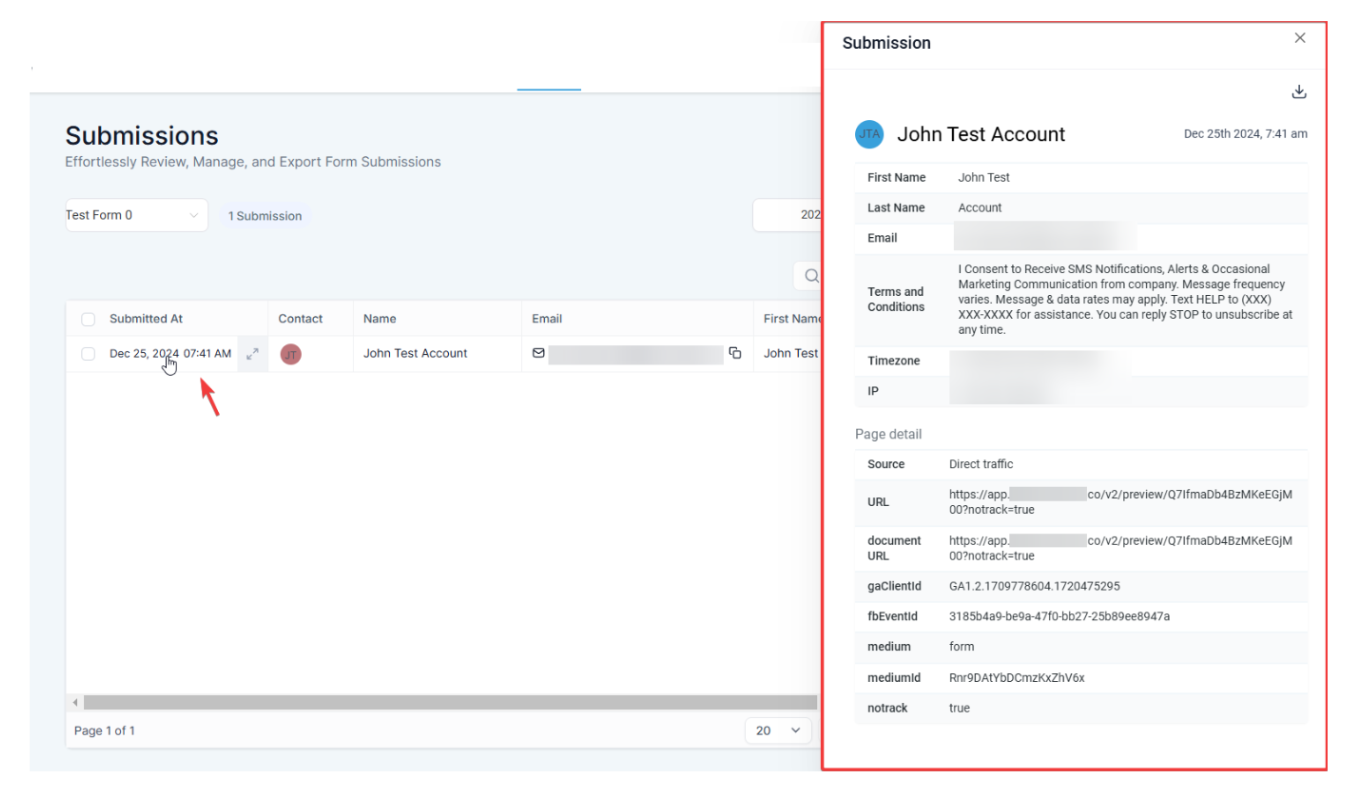
Section titled “Step 4: See the results”- Go to the Forms/Surveys - Submissions - Filter by the Forms/Surveys - Check your test.
- Click on the Submitted At to reveal detailed information on the submission on the right.
Question: Can I delete mock data after testing the form or survey? Answer: Yes, mock data can be deleted by locating the contact created in your contacts tab and removing it manually.
Question: Will submitting mock data affect live submissions? Answer: No, submitting mock data is only for testing purposes and does not impact live submissions.
Question: Can I test multiple forms or surveys simultaneously? Answer: Yes, you can test multiple forms or surveys by submitting mock data for each one separately.
Question: Do I need to publish the form or survey to test it with mock data? Answer: No, forms and surveys can be tested in the preview mode without publishing them.
Question: Can I use the same email address to test the form multiple times?
Answer: If you use the same email address, the system will usually update the existing test contact rather than creating a new one. If you want to see how a brand-new contact looks, use a different “dummy” email for each test.
Question: What is the fastest way to “act like a user” and submit test data?
Answer: The most effective way is to use the Eye icon in the builder or page editor to “Preview” the live step. This opens the page in a functional state where you can fill out the fields and click the submit button just as a real lead would.