How To Locate Survey and Form Answers
Surveys and forms are essential tools for connecting with leads and gaining insights into your company’s services. To analyze the collected data further, you can export the information to Google Sheets. Here’s how you can locate and export your survey and form answers:
Finding Survey and Form Answers
Section titled “Finding Survey and Form Answers”Option 1: Within Specific Contact Records
1. Navigate to Contact Page: Go to the specific contact record where the survey or form answers are stored.
2. Access Additional Information: Click on “Additional Information” and other folders on the left side of the contact page to view the stored answer
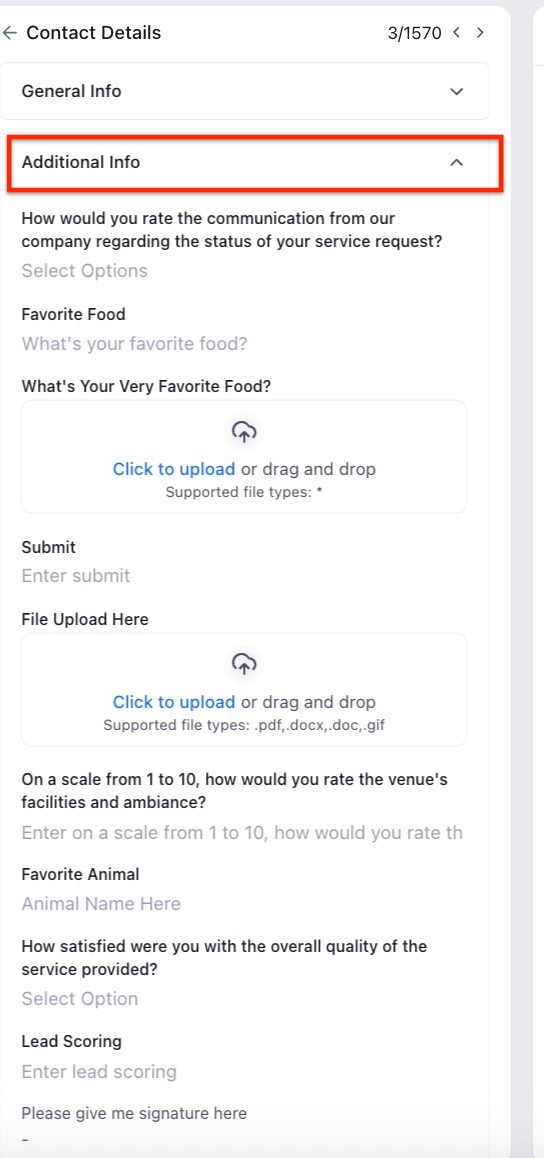
Option 2: Form Submissions Area
1. Go to Form Builder: Navigate to the Sites tab > Form Builder → Submissions.

2. View Submissions: Select “Submissions” to view all answers submitted through forms.
3. Search and Filter: You can search by contact or filter by date to find specific answers. Ensure you use the correct date range for accurate results.

4. Download CSV: Select the submission you want the CSV file for to get its contents in a ready-made CSV file.

Exporting to Google Sheets
Section titled “Exporting to Google Sheets”1. Export Data: To analyze the data in Google Sheets, export your form data to a CSV file.
- Select Contacts: Choose the contacts whose form data you want to export.
- Export Records: Click “Export Contacts” and confirm your selection to download the CSV file.
2. Upload to Google Sheets: Open Google Sheets and upload the CSV file for further analysis and breakdown of the data.

Pro Tips:
Section titled “Pro Tips:”- Automate Export to Google Sheets:
You can automate the export to Google Sheets by using a Workflow with the “Google Sheets” action. This sends data instantly as soon as a form or survey is submitted, removing the need for manual exports. - Filter by Form or Survey Name:
In the Submissions area, you can now filter by a specific Form or Survey name to narrow down your results before exporting, making it easier to find the exact data you need. - Exporting from the Contacts Tab:
The “Export Contacts” method in the Contacts tab only exports data currently stored in custom fields. If a contact has submitted a form multiple times, only the most recent answers will be reflected in that specific export. - Analyze Directly in the Builder:
Within the Form and Survey builders, there is a dedicated “Analyze” tab that provides visual charts and graphs of your responses natively within our software, allowing for better data analysis directly in the platform. - Create Custom Columns in Submissions View:
You can now create “Custom Columns” in the Submissions view to see specific field answers directly in the list without having to click into each record. This makes it easier to view and manage your form responses. - Export All Filtered Records at Once:
When downloading from the Submissions area, the system now allows you to export all filtered records at once into a single CSV, rather than just individual selections, streamlining the export process for larger datasets.
**Question:Can I export individual responses or only the entire dataset?
Answer: You can export the entire dataset to a CSV file, which can then be analyzed in Google Sheets. Individual responses are not exported separately.
**Question:How do I filter submissions by specific criteria?
Answer: In the Form Submissions area, you can filter by date, contact, or specific Form or Survey name to view specific submissions.
**Question:What if I need more detailed analytics than what Google Sheets offers?
Answer: For advanced analytics, consider integrating with dedicated data analysis tools or platforms that offer more robust features than Google Sheets.
**Question:Is there a limit to how many records I can export?
Answer: The export functionality typically handles a large number of records, but performance may vary based on file size and system capabilities.
**Question:Can I automate the export process to Google Sheets?
Answer: Yes, you can automate the export to Google Sheets by using a Workflow with the “Google Sheets” action, sending data instantly as soon as a form or survey is submitted.
**Question:What if I need more advanced analytics than what Google Sheets offers?
Answer: For deeper data analysis, consider using specialized analytics platforms or tools that provide advanced reporting and visualization features beyond Google Sheets.
Question: Where can I see a specific contact’s form answers without going to the Submissions area? Answer: You can find these within the individual Contact Record. Navigate to the contact and click on the “Additional Information” section (and associated folders) on the left side of the page to view their stored answers.
Question: Can I see which specific page of my website a form was submitted from?
Answer: Yes. When viewing submissions, the system often captures the “Source URL.” By creating a Custom Column in the Submissions view, you can display the source URL directly in your list to see exactly where your leads are converting.