Troubleshooting Guide: Connecting Your Domain
This article provides a comprehensive guide to resolving common errors when connecting your domain to your platform under . Proper domain connection ensures a consistent branded presence, uninterrupted website access, email authentication, and secure client-facing tools. Following these troubleshooting steps helps identify DNS conflicts, misconfigurations, or product conflicts and guides you to quickly resolve them.
Key Features and Benefits
Section titled “Key Features and Benefits”- Reliable Domain Connectivity: Ensures websites, emails, and other products remain functional.
- Conflict Resolution: Identifies and fixes DNS, AAAA, CAA, and product-related conflicts.
- Improved Email and SSL Security: Correct configurations prevent email delivery issues and allow SSL certificate issuance.
- Centralized Troubleshooting: Provides a structured, step-by-step approach to fixing errors.
- Wide Applicability: Steps are platform-agnostic and usable across multiple domain registrars.
Common Domain Connection Issues and Solutions
Section titled “Common Domain Connection Issues and Solutions”1- Record Conflicts: Multiple A Records
Section titled “1- Record Conflicts: Multiple A Records”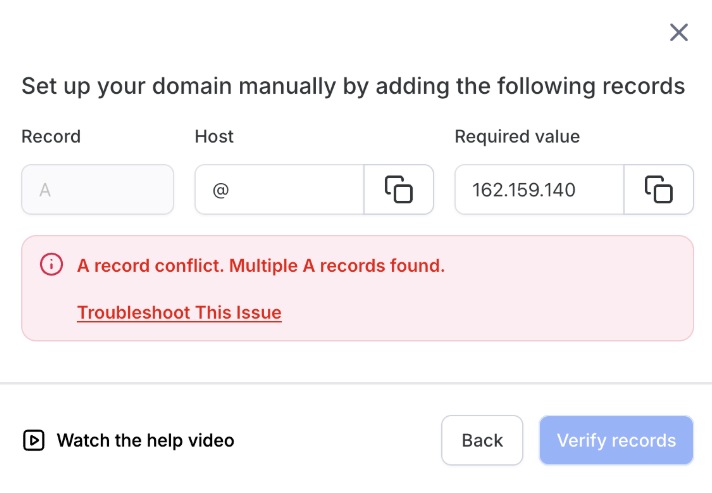
**What is an A Record?**An A record connects your domain name to a specific IP address, ensuring that visitors are directed to the correct server hosting your website.
**When This Happens:**If your domain contains multiple A records, the system may be uncertain which IP address to use, potentially causing problems with your website loading properly.
Solution:
- Log in to your domain registrar’s DNS settings.
- Identify A records for @ (root domain) or your subdomains (e.g., www).
- Delete any duplicate or conflicting records.
- Save changes and wait 1-2 minutes.
- Reconnect your domain to your platform.
2- AAAA Record Conflict
Section titled “2- AAAA Record Conflict”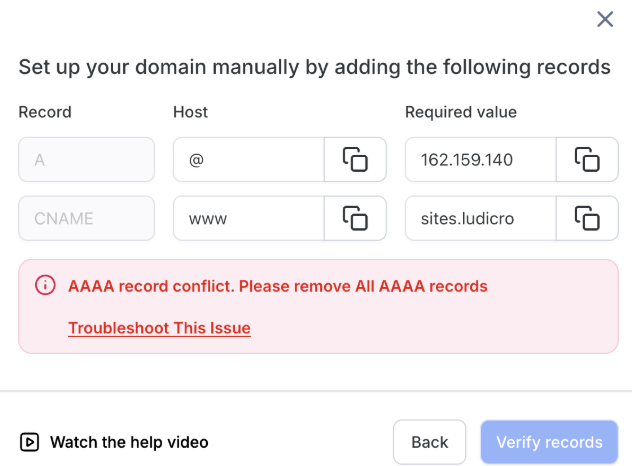
**What is an AAAA Record?**An AAAA record is similar to an A record but is used for IPv6 addresses, which are a newer version of IP addresses.
**When This Happens:**The platform detects an AAAA record for your domain.
- The system only allows IPv4 records. If an AAAA record (IPv6) is present, it conflicts with system requirements, preventing proper domain connection.
Solution:
- Log in to DNS settings.
- Locate and delete the AAAA record.
- Save changes and wait 1-2 minutes.
- Reconnect the domain.
Important Note (for GoDaddy Users): Disable DNS proxy or DNS protection to prevent automatic regeneration of AAAA records.
3- CAA Record Conflict
Section titled “3- CAA Record Conflict”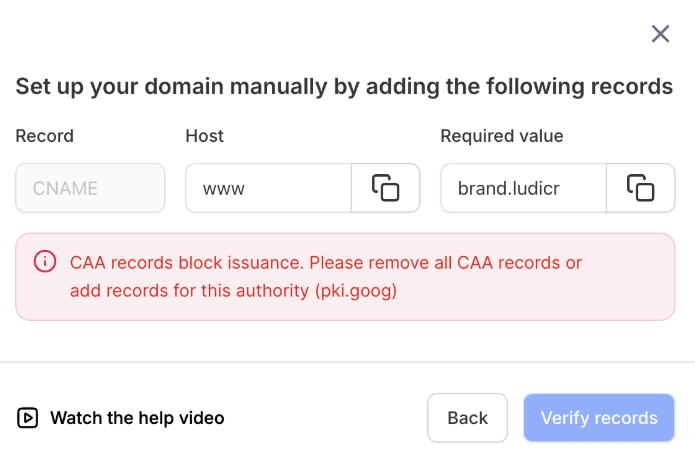
**What is a CAA Record?**A CAA record specifies which Certificate Authorities can issue SSL certificates for your domain.
**When This Happens:**A CAA record not including the required authority prevents SSL certificate issuance.
Solution:
- Recommended: Delete the CAA record, save changes, and reconnect the domain.
- Advanced: Modify the CAA record to include the required authority (e.g., pki.goog) while retaining other entries.
4- DNS Records Do Not Match
Section titled “4- DNS Records Do Not Match”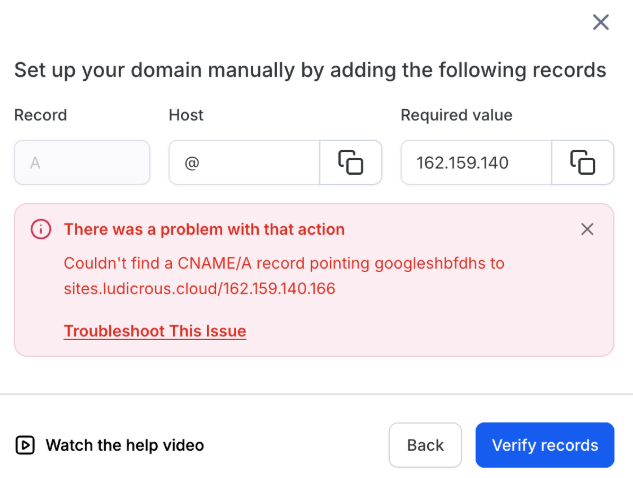
**What Does This Mean?**This error occurs when the DNS settings for your domain do not align with the platform’s requirements. This could be due to:
- Conflicting records
- Incorrect configurations
- Your domain being connected to another service
Solution:
- Verify DNS records using a DNS lookup tool.
- Remove conflicting A, AAAA, or CNAME records.
- Save changes and wait 1-2 minutes.
- Reconnect your domain.
**Important Note (for GoDaddy Users):**Ensure the domain is not parked, as this prevents external connections. Unpark the domain if necessary.
5- Product Conflict: Domain Already Connected to Another Product
Section titled “5- Product Conflict: Domain Already Connected to Another Product”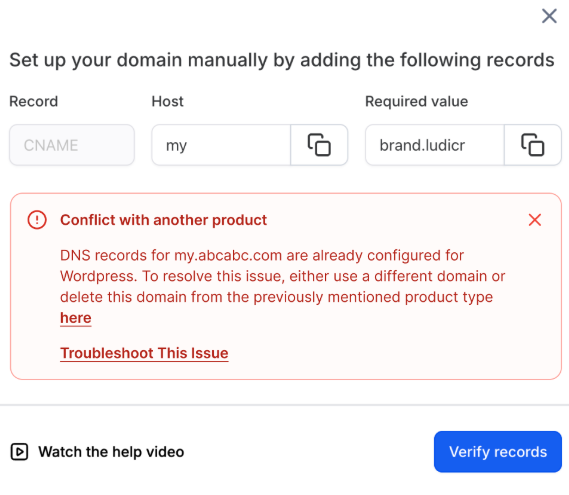
**What is a Product Conflict?**Occurs when a domain is already associated with a different product (e.g., WordPress, Funnel, Client Portal).
**When This Happens:**Trying to connect the same domain to another product causes an error.
Solution:
-
Use a different domain for the new product, or
-
Remove the domain from the existing product:
- Navigate to Domains > Manage Domain > Connected Products.
- Delete the domain association from the previous product.
Pro Tips
Section titled “Pro Tips”- Always back up your DNS records before making changes.
- Allow 1-24 hours for DNS propagation before retesting connectivity.
- Use subdomains to assign multiple products to the same domain.
- Monitor domain status regularly to ensure it remains connected.
- SSL certificates are automatically provisioned once DNS and domain configurations are correct.
Question: Why does my domain show multiple A records? Answer: Duplicate A records often remain from previous configurations or migration. Remove the extras to resolve the conflict.
Question: Can I leave AAAA records in place? Answer: No, if the platform does not support IPv6; they must be removed to connect the domain successfully.
Question: What happens if DNS records don’t match exactly? Answer: The platform may not detect the domain correctly, causing connection failures. Verify and correct all records.
Question: How do I resolve a product conflict? Answer: Remove the domain from the existing product or assign a separate domain for the new product.
Question: How long does it take for changes to reflect? Answer: DNS propagation typically takes 1-24 hours, depending on the registrar and record type.
Question: How do I find out which product is currently using my domain?
Answer: Navigate to Domains > Manage Domain > Connected Products. This section will show you exactly which product (e.g., WordPress or a specific Funnel) is currently associated with that domain so you can remove it if necessary.
Question: What does it mean if my domain is “parked,” and how does it affect my connection?
Answer: A “parked” domain is held by the registrar and often prevents external connections. If you are using GoDaddy, you must unpark the domain before it can successfully connect to the platform.