Domain Transfer-out to Cloudflare
This article explains the purpose, requirements, and complete process for transferring a domain from one account to another within a DNS and domain management service. The goal is to ensure a smooth, interruption-free transfer by preparing the domain correctly, validating records, and completing required approvals. The guidance is written to remain applicable over time and adaptable across different service providers under a white-label approach, such as .
Transferring a domain between accounts allows centralized management, ownership restructuring, or operational alignment without changing the domain itself. The process generally includes meeting prerequisites, preparing the destination account, and approving the transfer once initiated.
Key Features and Benefits
Section titled “Key Features and Benefits”- Centralized Management: Consolidates domain control under one account.
- No Downtime When Prepared Correctly: DNS continuity is maintained if records match.
- Flexible Plan Selection: Choose service levels based on current needs.
- Secure Transfer Approval: Final control remains with the destination account owner.
Prepare to Transfer
Section titled “Prepare to Transfer”Step 1: Add the Domain to the Destination Account and Select a Plan
Section titled “Step 1: Add the Domain to the Destination Account and Select a Plan”1- Log in to the destination account where the domain will be transferred.
2- Choose the option to add or connect a new domain.
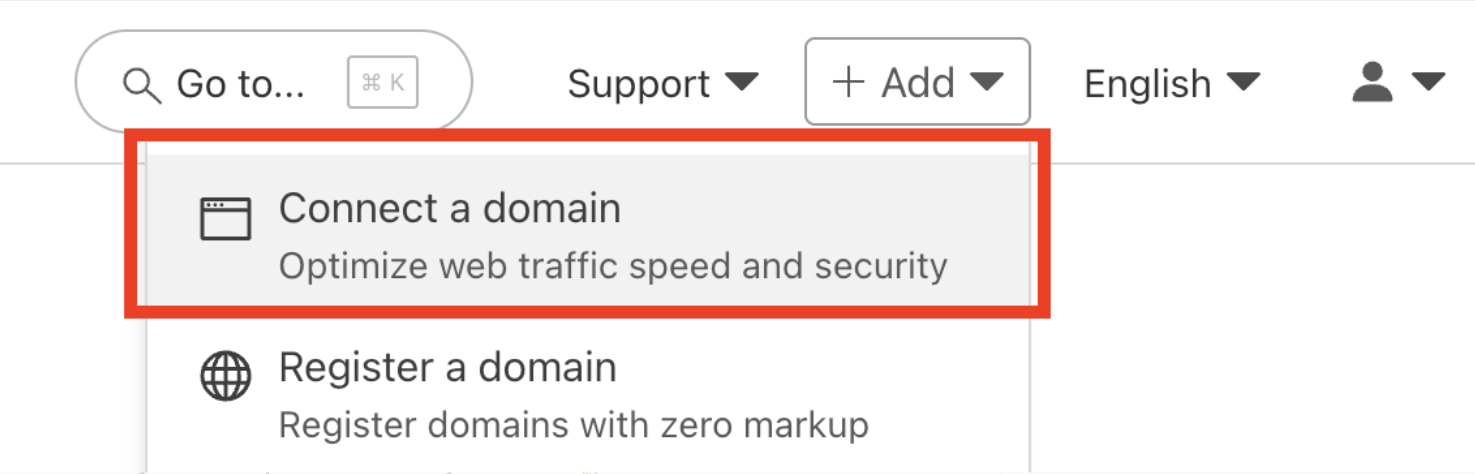
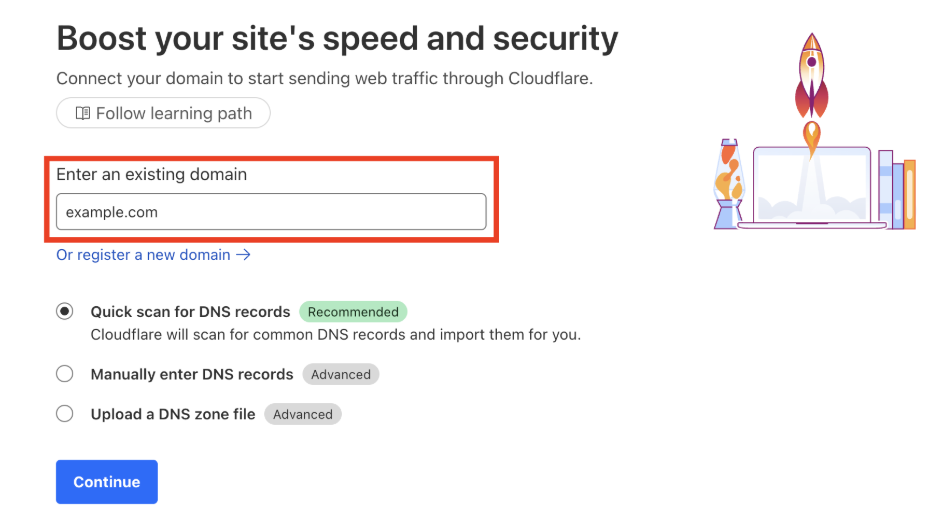
3- Enter the domain name and continue.
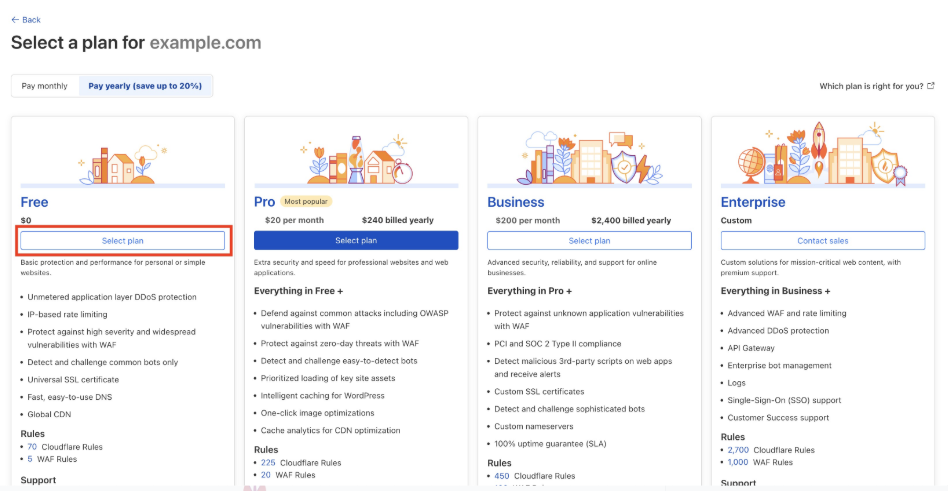
4- Select an appropriate service plan (free or paid, depending on requirements).
DNS Record Verification
- Cross-check your scanned DNS records with your current DNS records. You can find your current DNS records here:
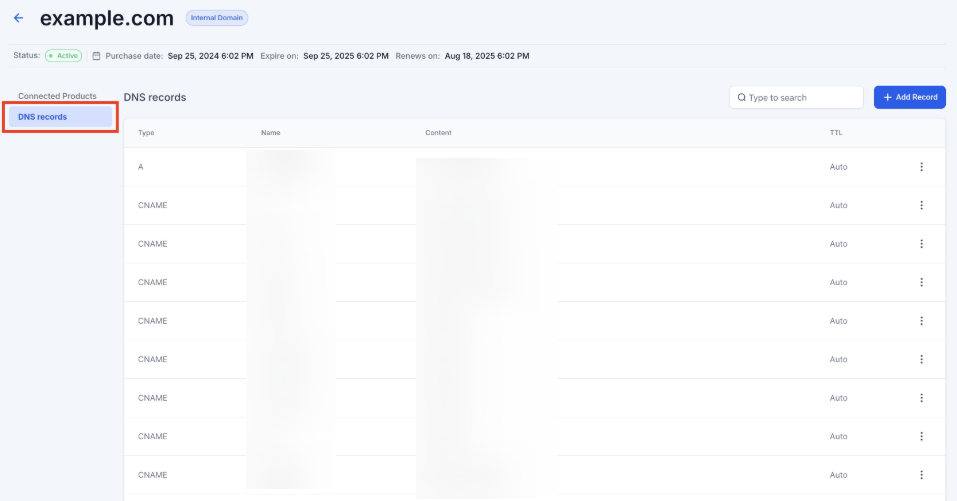
- Compare the scanned records with those currently in use.
- If differences exist, manually add, edit, or remove records so they match exactly.
- Proceed only after confirming all records are accurate.
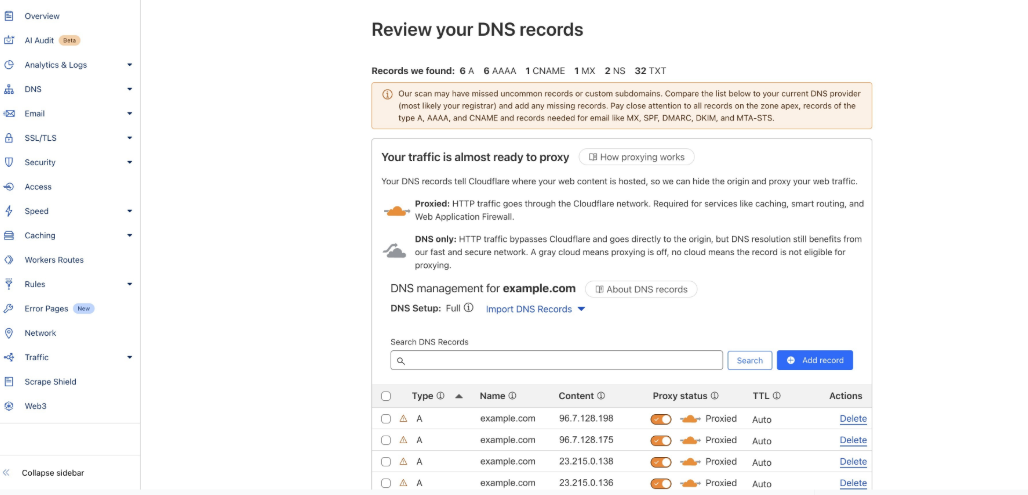
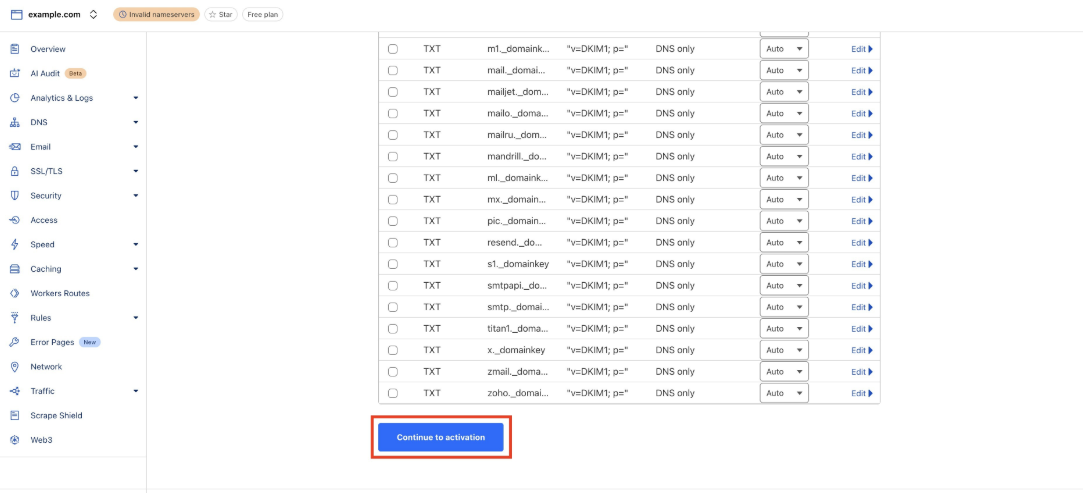
Note: Ensure that proxy or traffic-routing features are turned off for all DNS records during this stage.
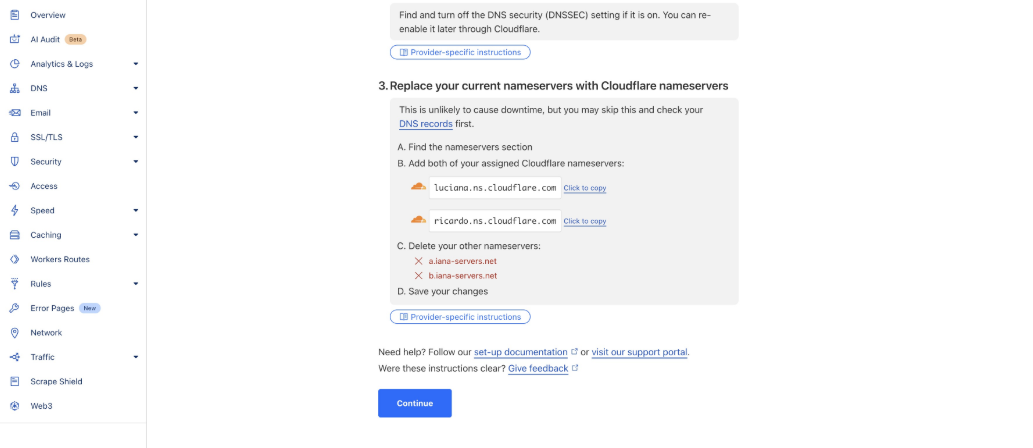
There is no need to update nameservers at this point.
Step 2: Obtain the Destination Account Identifier
Section titled “Step 2: Obtain the Destination Account Identifier”After adding the domain successfully:
1- Locate the account identifier within the account settings or dashboard.
2- This identifier is usually an alphanumeric value found in the account URL or profile section.
3- Share this identifier securely with the support or operations team responsible for initiating the transfer.

Transfer Process
Section titled “Transfer Process”Once the preparation steps are complete:
- The transfer is initiated from the source side.
- Within approximately 24 hours, a transfer request appears in the destination account.
- Navigate to domain management or registration settings.
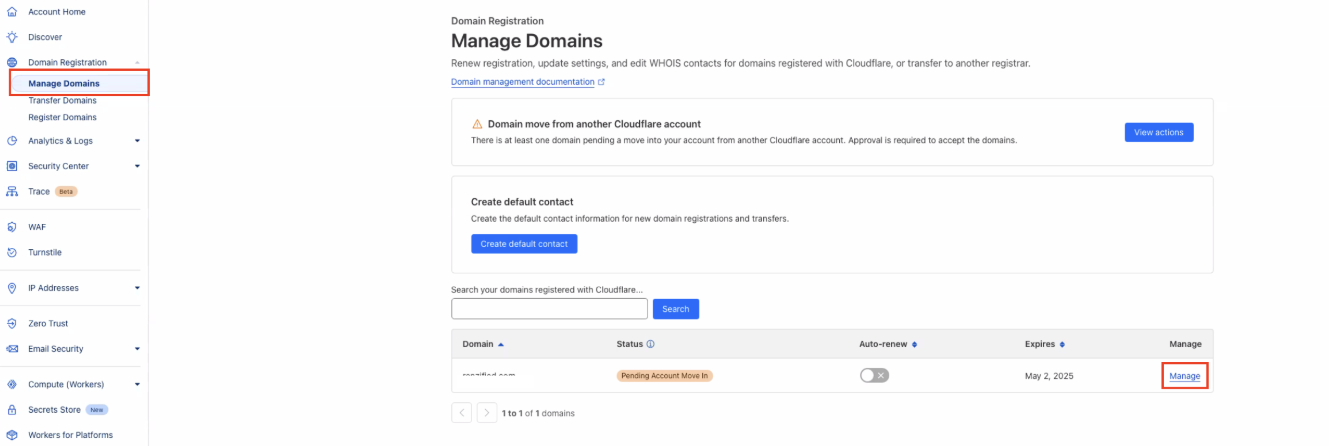
4. Locate the pending transfer and approve it.
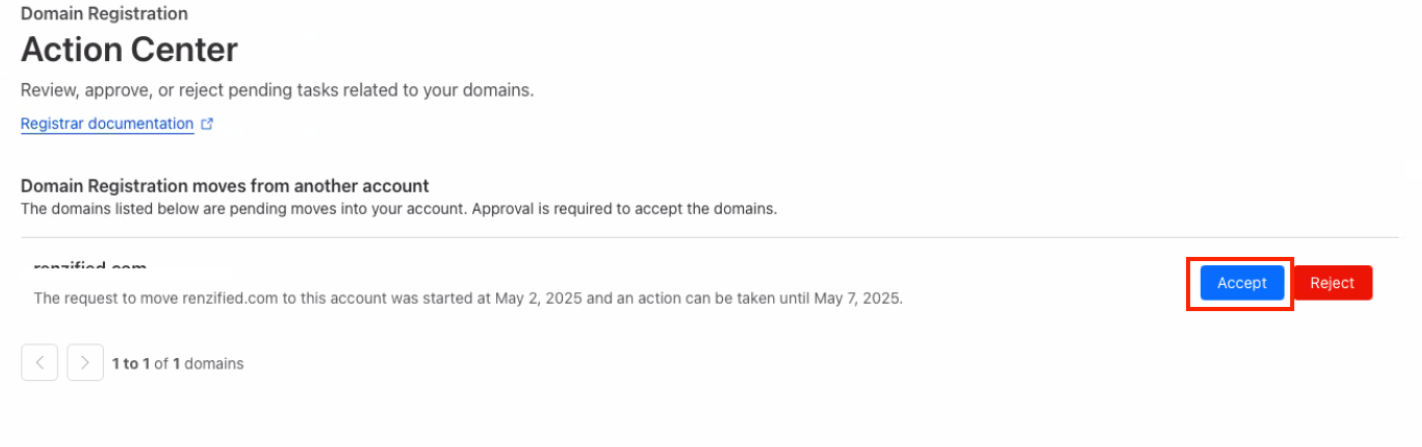
After approval, the transfer typically completes within another 24 hours.
When finished, the domain status updates to Active in the destination account.
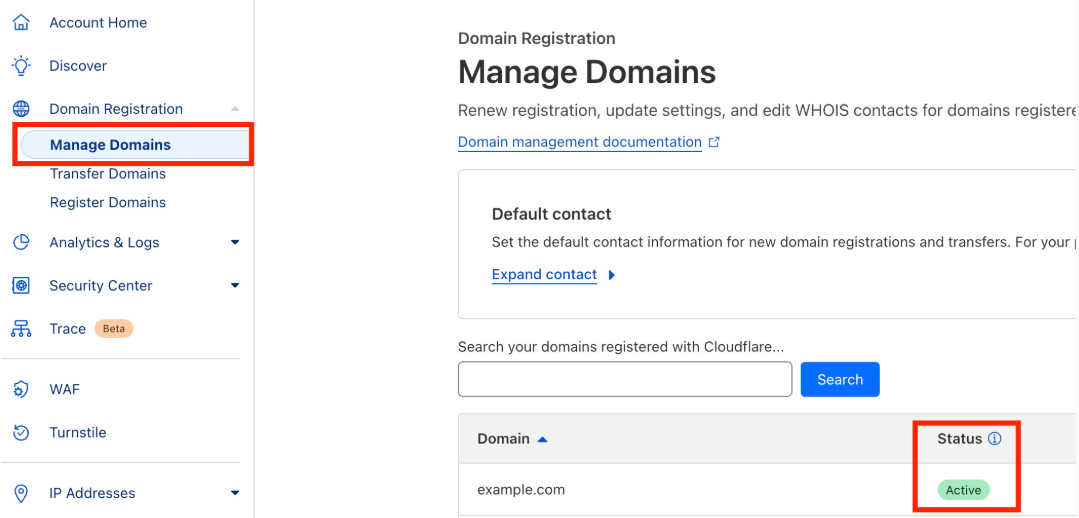
Note: “Invalid Nameservers” Status
Section titled “Note: “Invalid Nameservers” Status”After a successful transfer, the domain may temporarily show an “Invalid Nameservers” or similar status. This is usually a propagation delay. Wait a few hours and recheck the status before taking further action.
Pro Tips
Section titled “Pro Tips”- Perform the transfer during low-traffic hours to minimize risk perception.
- Keep a backup of all DNS records before starting.
- Avoid making DNS changes during the transfer window.
- Monitor domain status for at least 24 hours after completion to confirm stability.
Question: Will my website or email stop working during the transfer? Answer: If DNS records are verified and unchanged, services generally continue without interruption.
Question: Do I need to change nameservers immediately? Answer: No. Nameserver changes are not required during the preparation phase.
Question: How long does the entire transfer process take? Answer: Typically, 24 hours to initiate and another 24 hours after approval, though timing can vary.
Question: What should I do if I see an “Invalid Nameservers” status? Answer: Wait a few hours and refresh the status. This usually resolves automatically.
Question: Can I transfer multiple domains at once? Answer: Yes, but each domain must meet the prerequisites and be approved individually.
Question: What if the Account Identifier I was given is incorrect?
Answer: If the identifier is wrong, the transfer request will either go to the wrong account or fail to send. Always double-check the alphanumeric code from the destination account’s URL or profile section before starting the process.
Question: Should I keep proxy or traffic-routing features enabled during the record verification stage?
Answer: No. You should ensure that all proxy or traffic-routing features are turned off for your DNS records while you are verifying and matching them to ensure a smooth transition.