Domain Transfer-In Overview
Moving your digital assets should be a stress-free experience. This guide will walk you through the process of bringing your domain name into , ensuring all your tools are managed under one roof for better security and simplicity.
Moving Your Domain to
Section titled “Moving Your Domain to”When you “Transfer In” a domain, you are moving the management of that domain from another provider to our platform. Think of it as moving your home’s deed to a new filing cabinet where it’s easier to access.
Why Centralize Your Domain?
Section titled “Why Centralize Your Domain?”- One Dashboard: Manage your website, billing, and security settings in a single location.
- No More Surprises: Avoid missed renewal dates by having all notifications come from one source.
- Better Support: Our team can assist you more effectively when your domain is managed directly within .
Before You Begin: The Pre-Checklist
Section titled “Before You Begin: The Pre-Checklist”To ensure a smooth transition without any “hiccups,” please verify the following:
- Age Requirement: The domain must be at least 60 days old.
- Access: You must be able to log into your current registrar (where you originally bought the domain).
- Unlock Ready: You have the authority to “unlock” the domain and disable privacy settings.
Step-by-Step Guide to Transferring Your Domain
Section titled “Step-by-Step Guide to Transferring Your Domain”Step 1: Start the Request
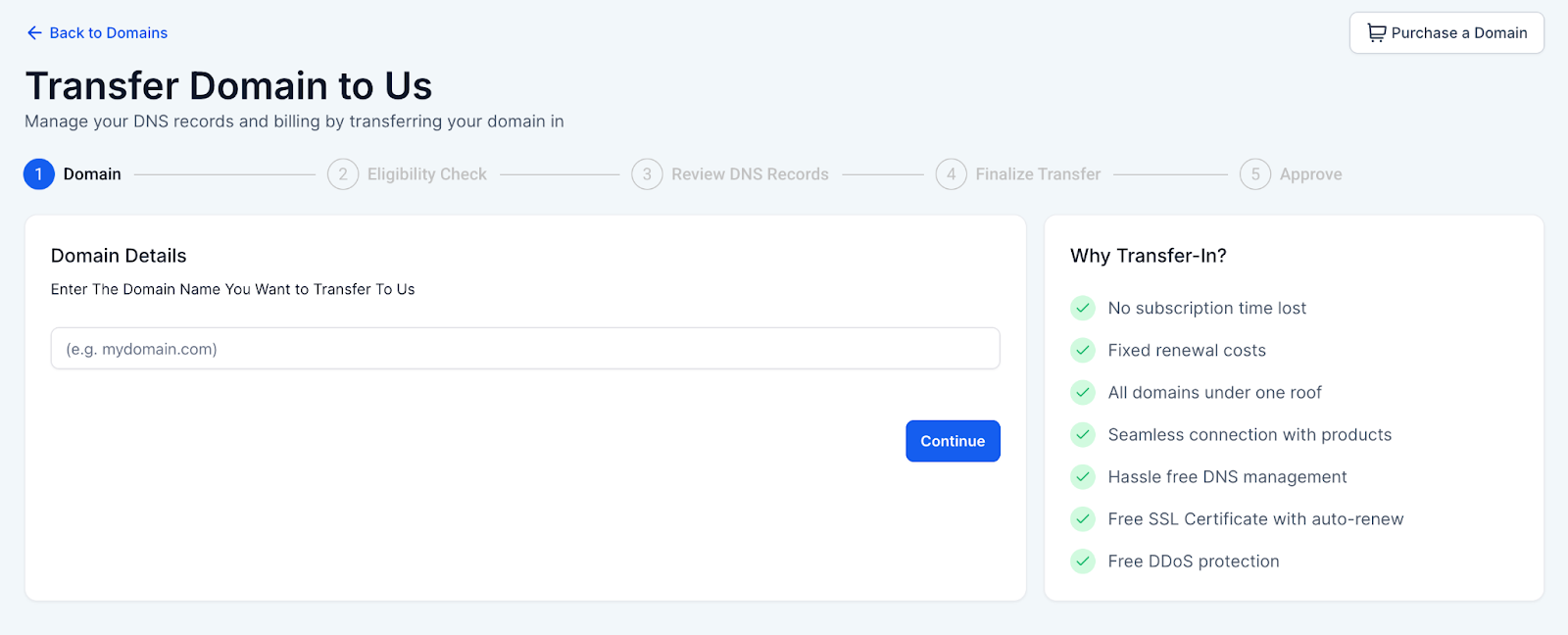
Section titled “Step 1: Start the Request”In your dashboard, navigate to Settings > Domains & URL Redirects > Transfer-In Domain.
- Type in your domain name (e.g., yourbusiness.com).
- Click Continue.
Step 2: Eligibility Check
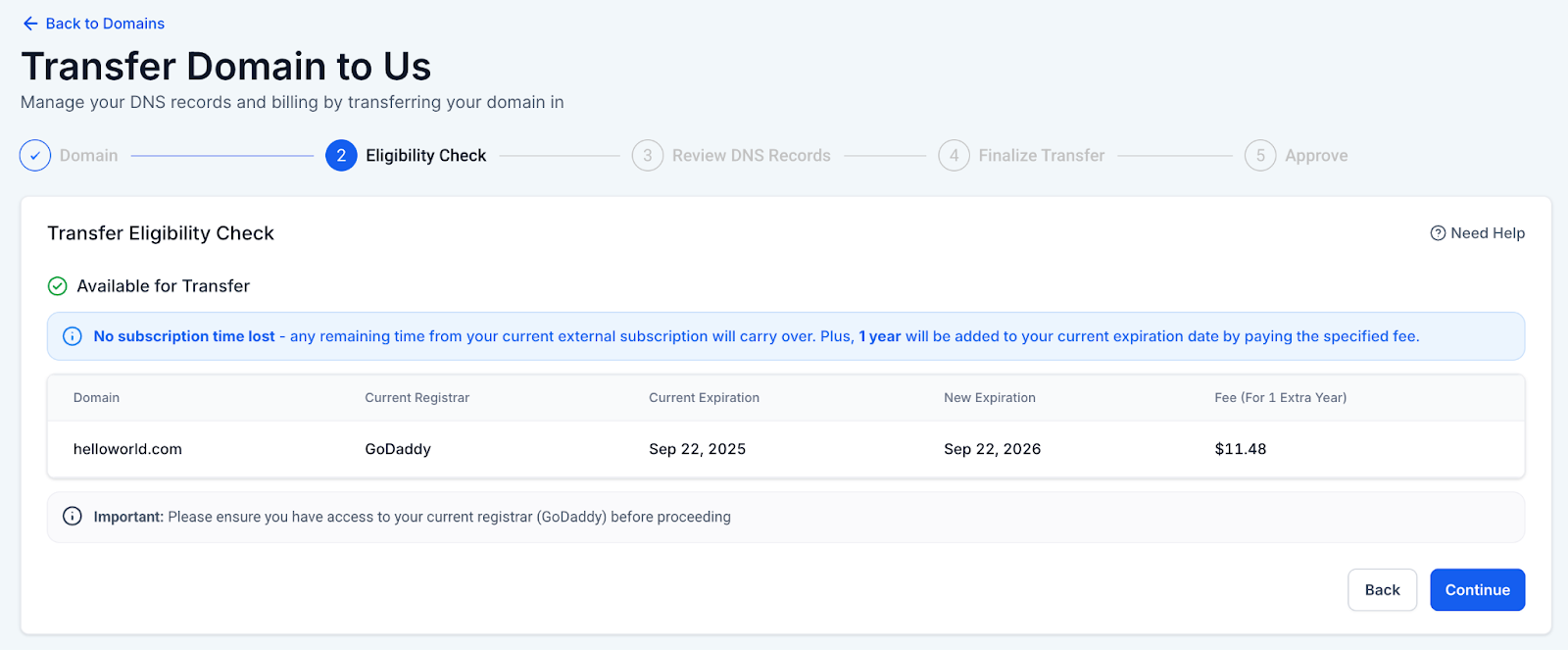
We will automatically scan your domain to see if it’s ready to move.
- What we look for: We check if the domain is locked, if it’s too new, or if there are any legal holds.
- Outcome: If eligible, you will see the transfer fee. This fee typically includes a one-year extension on your current expiration date!
Step 3: Review DNS Records (Critical Step)
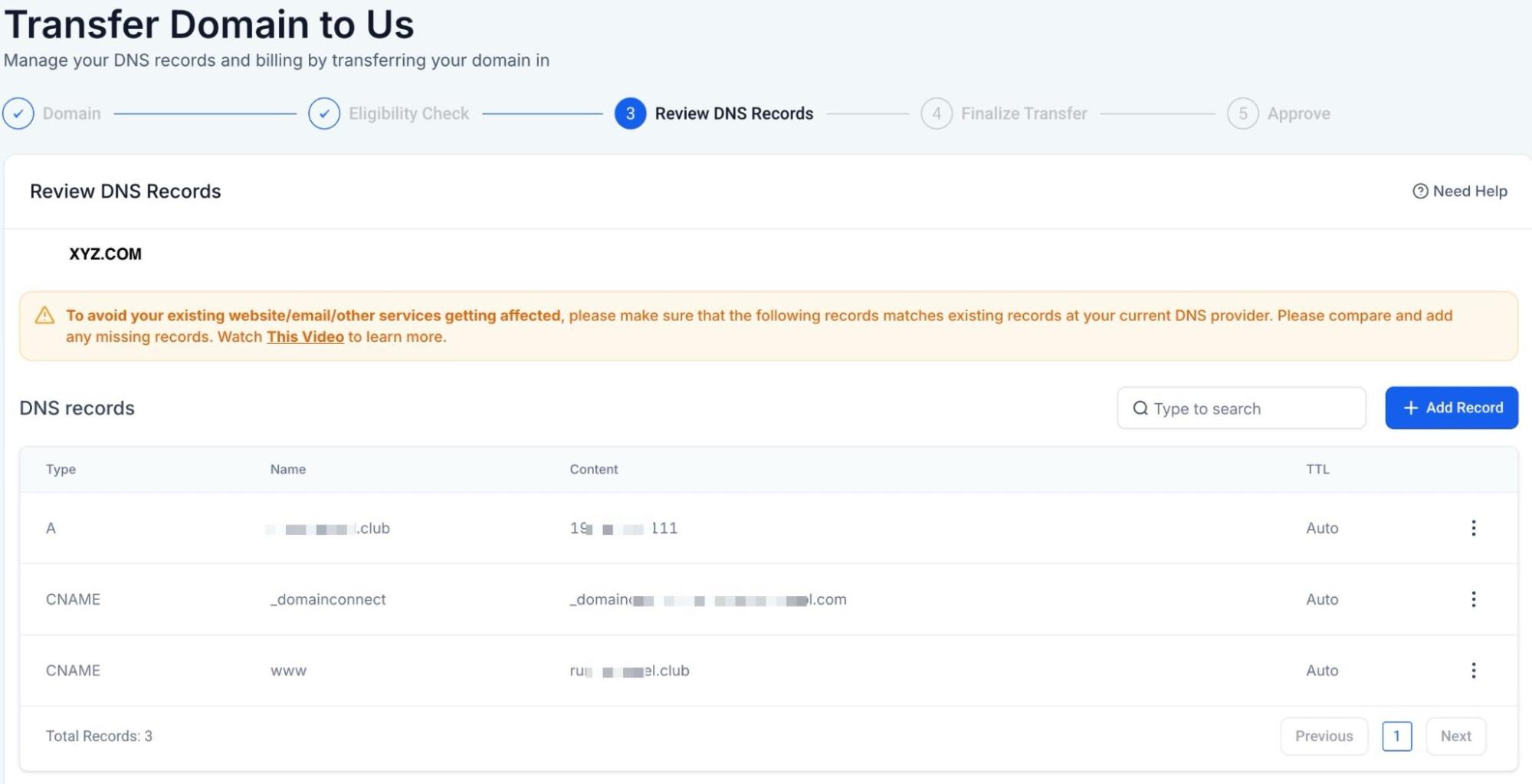
Domain transfers do not include DNS record migration. To maintain service continuity for your web and email platforms, verify that all essential records are configured at your new provider.
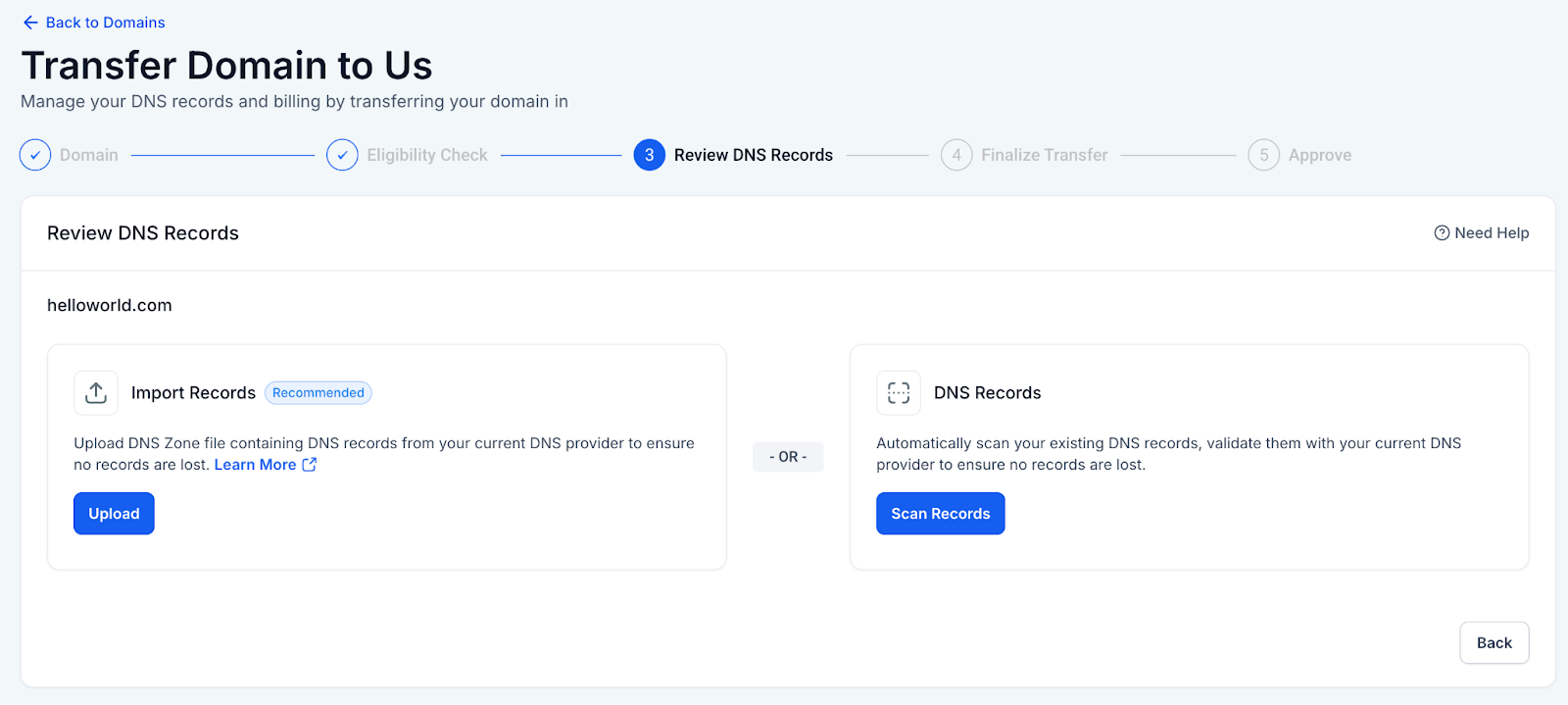
Option A: Upload a Zone File (Highly Recommended)
- Log into your current DNS provider.
- Look for an “Export” or “Download Zone File” option.
- Upload that file into our platform. This ensures every setting is copied exactly.
Option B: Auto-Scan
- Select “Scan Records.”
- Double-check the list: Ensure your “A” records (for your website) and “MX” records (for your email) are present.
Step 4: Finalize and Authorize
Now, you need to give the “green light” for the move.
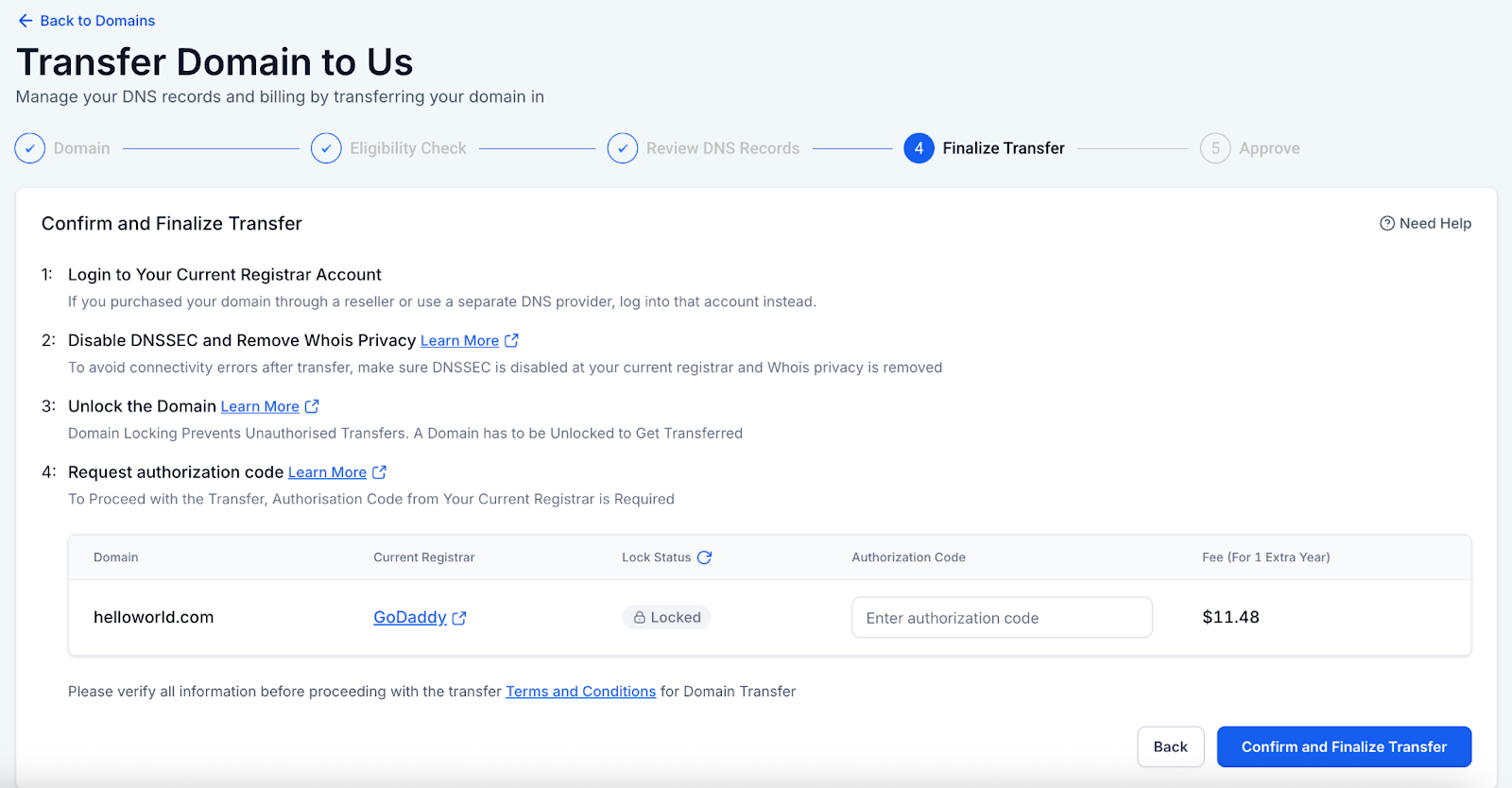
Disable Privacy: Turn off “Whois Privacy” at your current registrar.
Unlock: Toggle the “Domain Lock” to Off.
Get the Auth Code: Copy the EPP/Authorization Code provided by your current registrar.
Submit: Paste that code into the transfer screen and complete the payment.
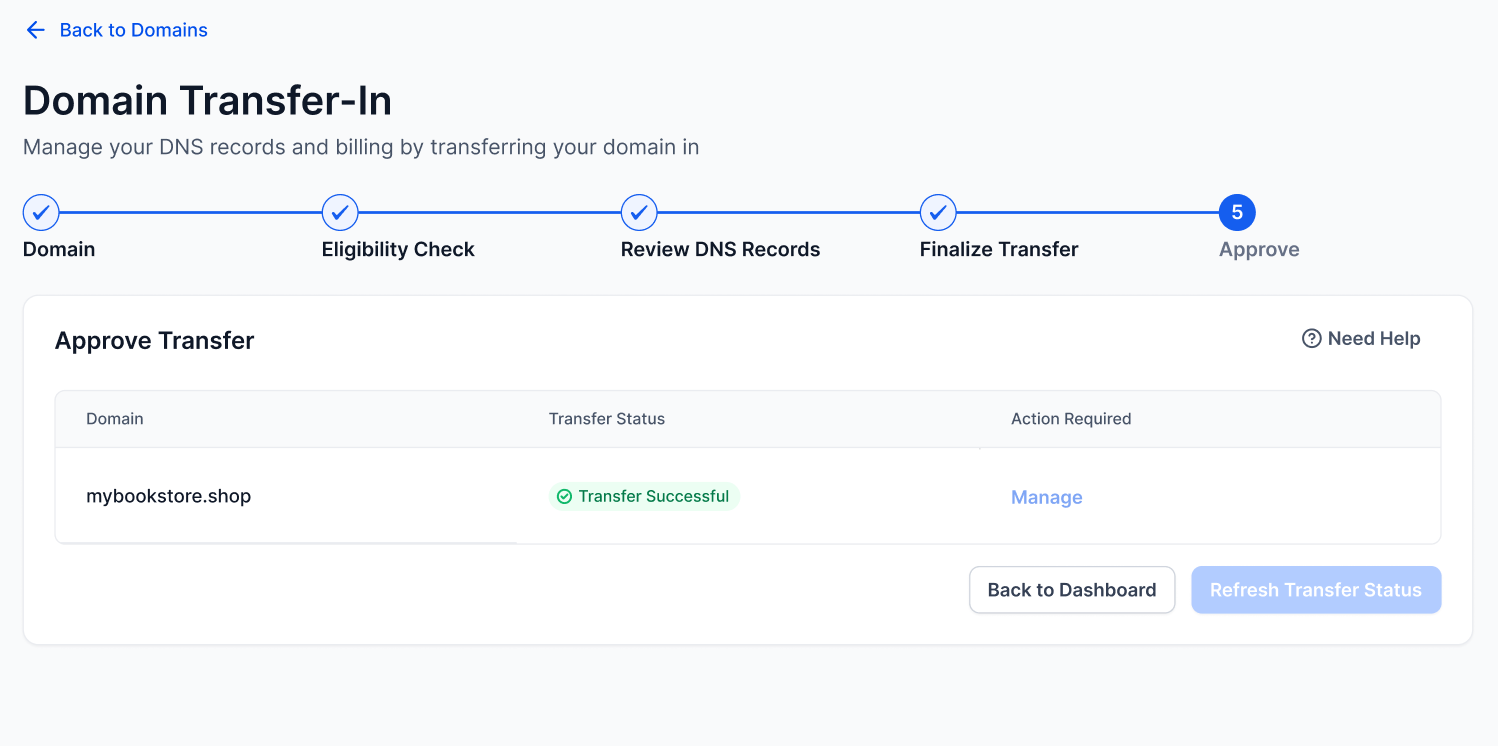
Step 5: Final Approval
Section titled “Step 5: Final Approval”Your old registrar will likely send you an email asking, “Are you sure you want to leave?”
- Open that email.
- Click Approve or Confirm.
Timeframe: Once approved, the transfer usually completes in 1 to 5 days.
Interactive Learning: Quick Knowledge Check
Scenario: You transferred your domain, but now your professional email isn’t receiving messages. What is the most likely cause?
- A) The domain is still locked.
- B) You forgot to copy the MX records during Step 3.
- C) The transfer fee was too low.
(Correct Answer: B. Always double-check your DNS records during the transfer to keep services active!)
FAQs
Question: Will my website go down during the transfer?
Answer: Not if your DNS records are reviewed correctly in Step 3! As long as the records in match your old ones, your visitors won’t notice a thing.
Question: Why is my domain “Ineligible”?
Answer: This usually happens if the domain was purchased or transferred in the last 60 days, or if it has a specific “Registry Hold” placed on it by your current provider.
Question: Do I lose the time I already paid for at my old registrar?
Answer: No! The one-year extension you pay for during the transfer is added on top of your existing remaining time.
Question: Where do I find my EPP/Auth Code?
Answer: It is usually located in the “Transfer” or “Security” settings of your current registrar’s dashboard. Some providers may email it to you for extra security.
Question: Can I cancel a transfer?
Answer: Yes, as long as it hasn’t been finalized. You can usually cancel the request from either your old registrar’s dashboard or within .
Question: Does the transfer fee include a domain extension?
Answer: Yes! When you pay the transfer fee, it typically includes a one-year extension on your domain’s current expiration date, ensuring you don’t lose any time you’ve already paid for.