How to Create a New Dashboard Using Templates
Creating a dashboard using pre-existing templates is a quick and efficient way to maintain consistency and save time. This guide provides step-by-step instructions to help you navigate the process seamlessly.
Why Use Templates for Dashboards?
Section titled “Why Use Templates for Dashboards?”Templates simplify the creation of dashboards by providing a pre-built structure. They help ensure uniformity across accounts, save time, and make it easy to replicate designs for different clients or purposes.
Step-by-Step Guide to Creating a New Dashboard Using Templates
Section titled “Step-by-Step Guide to Creating a New Dashboard Using Templates”Step 1: Navigate to the Dashboard Page
Section titled “Step 1: Navigate to the Dashboard Page”Go to the dashboard section of your account. This is where you can manage all your dashboards.
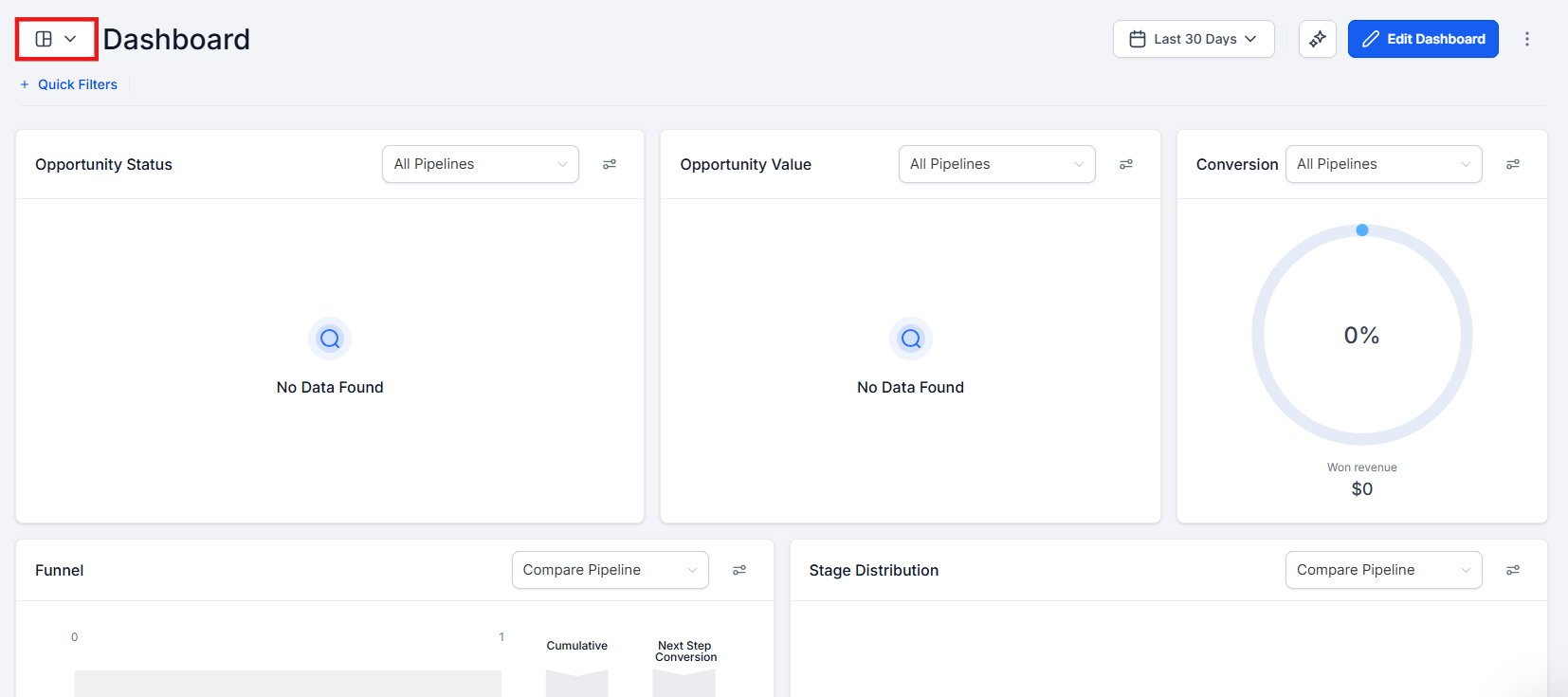
Step 2: Click on Add Dashboard
Section titled “Step 2: Click on Add Dashboard”Locate the blue dashboard icon and click on it. From the dropdown menu, select Add Dashboard to begin the creation process.
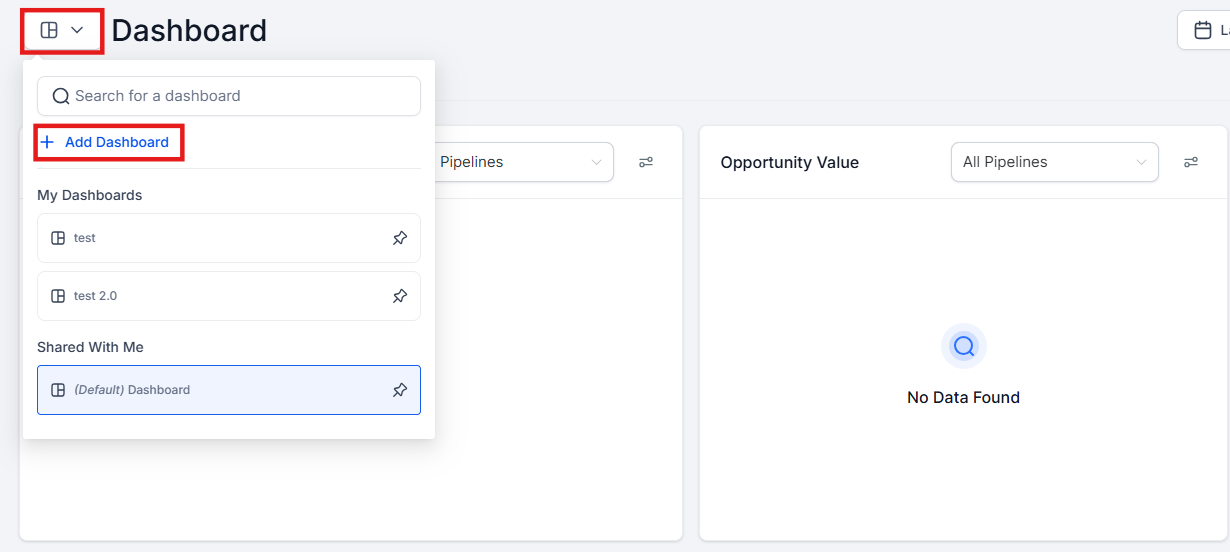
Step 3: Select From Template Library
Section titled “Step 3: Select From Template Library”In the options presented, choose From Template Library. This will allow you to access a library of pre-designed dashboard templates.

Step 4: Choose the Template
Section titled “Step 4: Choose the Template”Browse through the available templates in the library. Select the one that best suits your needs and click Continue.
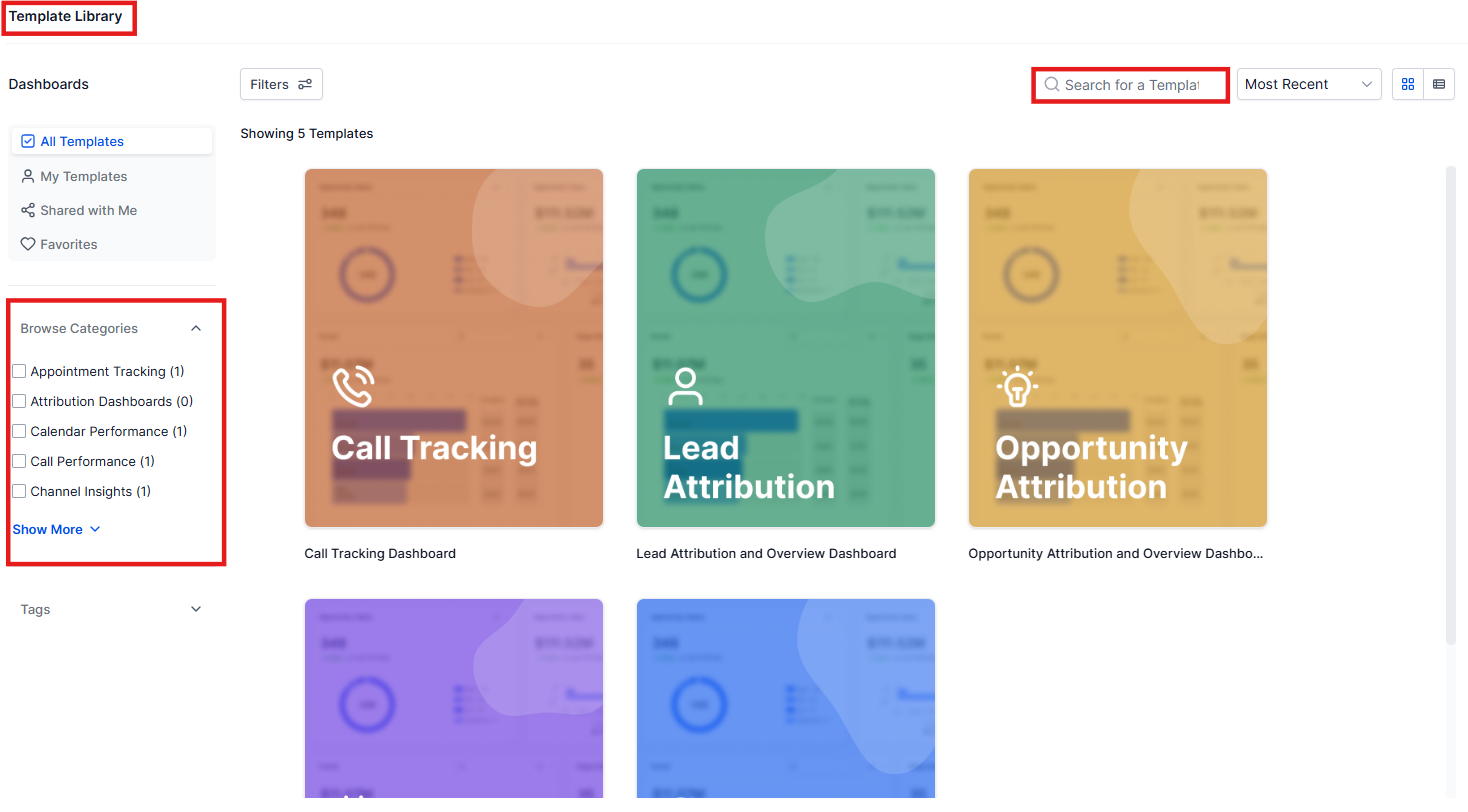

Step 5: Save the Dashboard
Section titled “Step 5: Save the Dashboard”Review and customize the dashboard as needed. Once satisfied, click Save to finalize your new dashboard.
Pro Tips
Section titled “Pro Tips”- Customize Before Saving: While templates provide a strong starting point, adjust the layout, widgets, or design elements to suit your specific requirements.
- Tag and Organize Dashboards: Use clear naming conventions or tags to make dashboards easier to find later.
- Preview the Template: Before making extensive changes, preview the template to ensure it aligns with your needs.
Use Cases
Section titled “Use Cases”- Client Onboarding: Create uniform dashboards for new clients using pre-existing templates.
- Project Tracking: Quickly set up project monitoring dashboards with standardized metrics.
- Performance Reporting: Use templates to generate dashboards for team performance and key analytics.
Question: Can I modify a template after creating the dashboard?
Answer: Yes, you can customize the dashboard after applying the template to suit your requirements.
Question: Are templates reusable across multiple accounts?
Answer: Yes, templates are designed to be reusable and can be applied to various accounts or projects.
Question: What if I don’t find a template that fits my needs?
Answer: You can create a new template by customizing an existing dashboard and saving it to the Template Library.
Question: Is there a limit to how many templates I can use?
Answer: No, you can use as many templates as needed to create your dashboards.
Question: Can I create a dashboard without using a template?
Answer: Yes, dashboards can be created from scratch if a template is not required.
Question: Should I customize templates before saving?
Answer: Yes, preview and adjust the template as needed before saving to ensure it aligns perfectly with your goals and metrics.
Question: Do templates include pre-configured data sources?
Answer: Templates may include predefined widgets and metrics, but data sources can usually be adjusted or reconnected based on your account setup
Question: What should I do before committing to a template and making extensive changes?
Answer: You should preview the template first to ensure its basic structure and layout align with your specific goals before you begin the customization process.