Customise Contacts Labels in Email Builder
Customise Contacts Labels in Email Builder
The ability to customize contact labels in your platform’s Email Builder opens up a new level of flexibility, making your more adaptable to your business needs. This allows you to rename standard objects like “Contacts” to any term you prefer, ensuring that the system aligns better with the specific language and processes used by your team. Whether you’re working with clients, leads, or members, this customization makes the platform truly your own.
Key Features and Benefits
Section titled “Key Features and Benefits”- Customizable Object Labels: You can rename the Contacts object to any name that fits your business needs, whether it’s Client, Lead, Member, or something else entirely.
- Supports Single and Paired Labels: This supports both singular and plural labels, allowing for even more precise terminology customization.
- Exact Display: The custom names you enter will be displayed exactly as you type them, with no automatic translation or changes, giving you full control over the wording.
How to Use
Section titled “How to Use”- Go to Settings: Navigate to the settings panel at the location level, typically found at the bottom of the side panel.
- Click on Objects: Look for the “Objects” option in the settings menu.
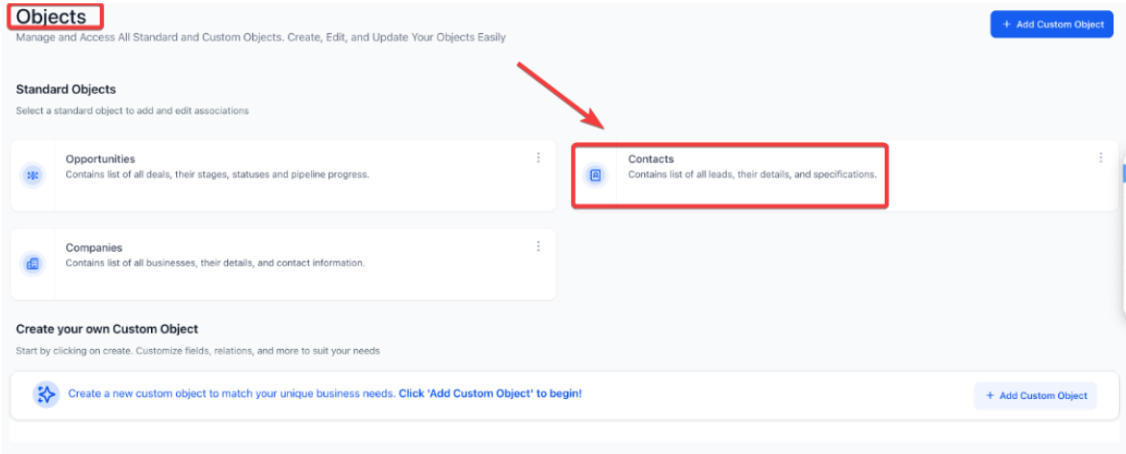
3. Open Contacts: Select the “Contacts” object from the list.
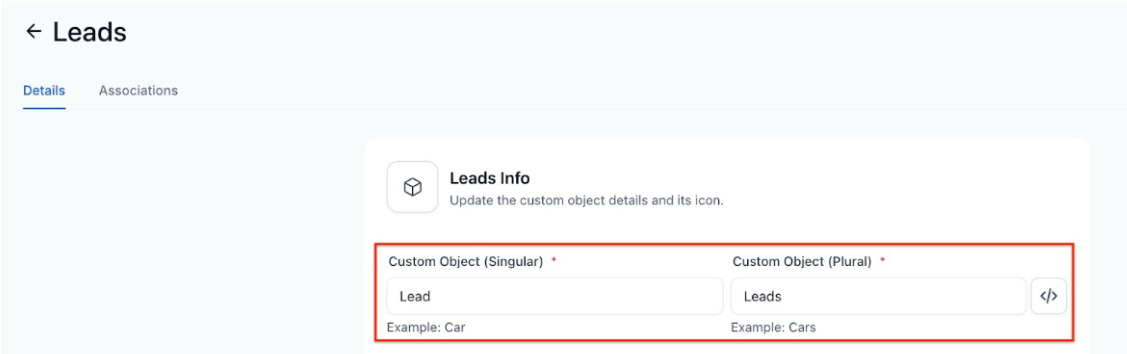
4. Add Custom Names: Enter your custom label in both singular and plural forms (e.g., “Client” and “Clients”).
5. Save Changes: Once you’ve added your custom names, click “Save” to apply the changes.
Question: Can I revert the custom labels back to their default names? Answer: Yes, you can always return to the default “Contacts” label by simply editing the custom names in the settings panel.
Question: Do the custom labels affect any automated workflows or tags? Answer: No, the custom labels only affect the display name of the objects. They do not impact any existing workflows or automated processes.
Question: Can I add multiple custom labels for different use cases? Answer: You can only apply one set of custom labels for the “Contacts” object at a time, but you can edit them whenever necessary.
Question: Is there a character limit for custom labels? Answer: While there is no strict character limit, it’s recommended to keep labels concise and easy to understand for better user experience.
Question: Will this customization be visible to clients? Answer: No, the custom labels are internal and will only be visible to your team when interacting with the system. Clients will still see the standard terms used in client-facing communications.
Question: Will API fields or integrations be affected by the label change? Answer: No. API objects and integration fields remain the same. The customization only affects the visual wording shown inside the interface.
Question: Does the system automatically capitalize my custom labels or fix my spelling? Answer: No. The custom names you enter are displayed exactly as you type them. The system does not provide automatic translation or changes, giving you complete control over the wording and casing.
Question: How long does it take for the new labels to appear in the system? Answer: Once you enter the custom names in the singular and plural fields and click Save, the changes are applied to the interface immediately.
Question: Will my team see “Clients” in the Email Builder if I change the label? Answer: Yes. One of the key benefits of this feature is that the custom labels carry over into the Email Builder, making the platform feel more personalized and intuitive for your team’s specific workflow