Custom Object Case Study: Real Estate
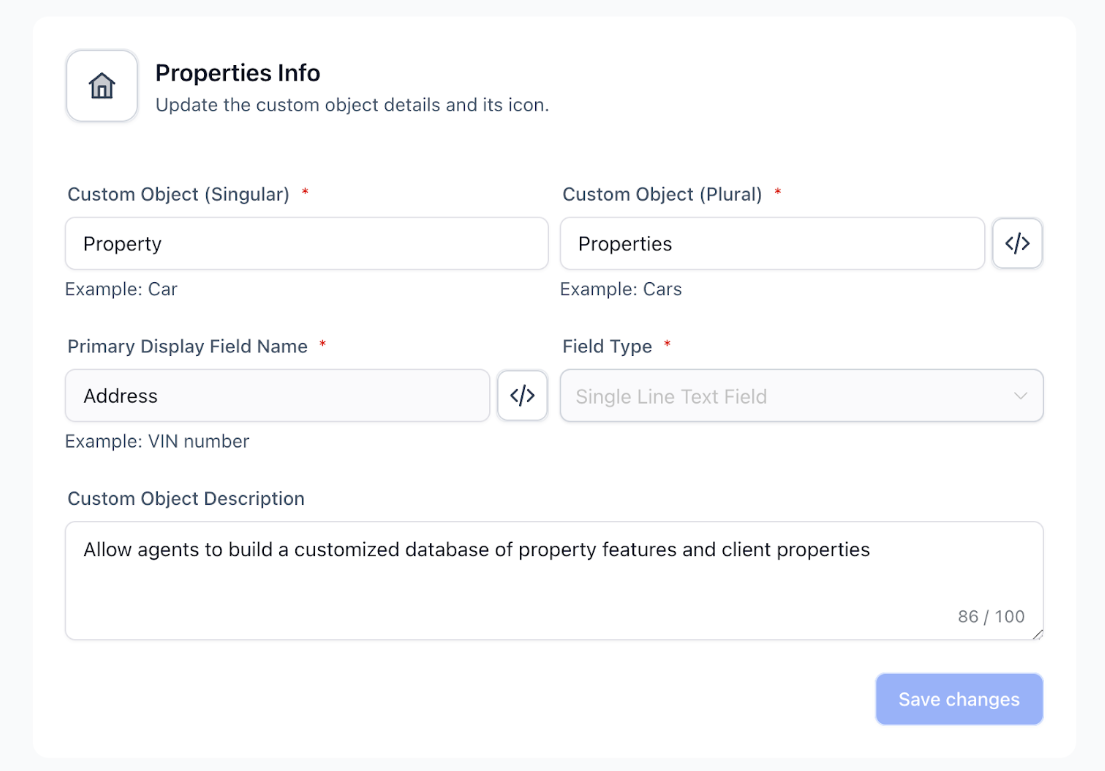
Real Estate businesses can use Custom Objects to track unique property details, associate properties with clients and vendors, manage maintenance schedules, and organize transaction records. These Custom Objects allow agents to build a customized database of property features and client preferences, enabling targeted matching and improved relationship management.
Feature Applications
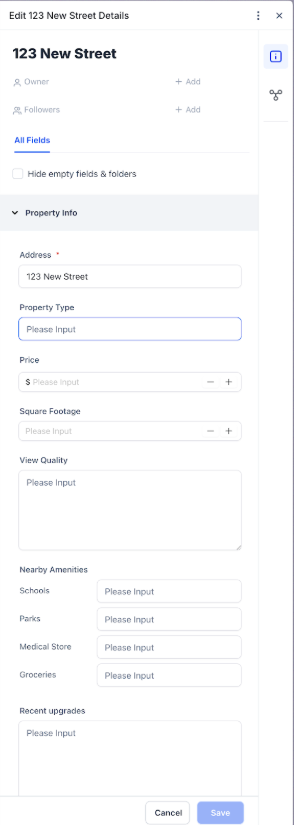
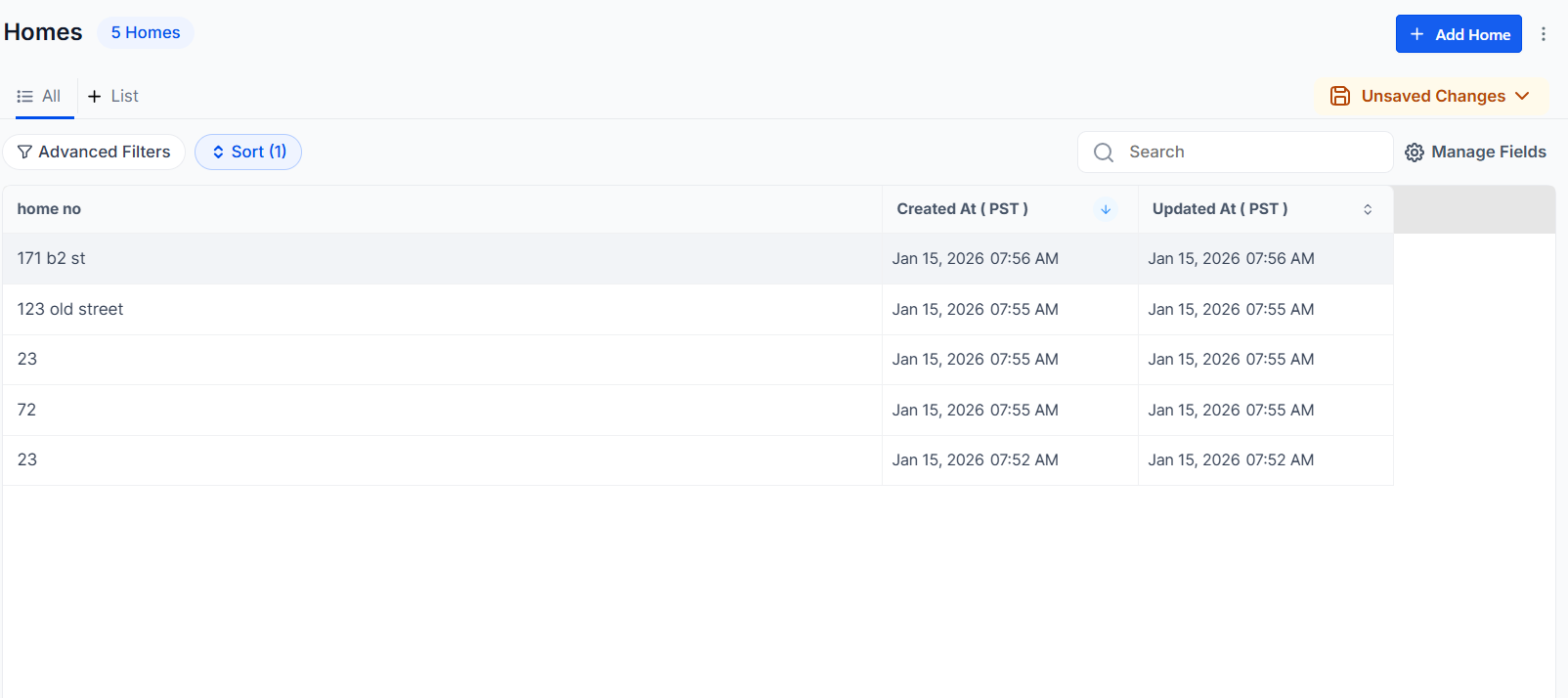
Section titled “Feature Applications”**1- Creating and Managing Property Records:**Each property can be added as a Custom Object record, with specific fields like location, property type, price, and square footage. Custom fields allow agents to capture unique property attributes, such as view quality, nearby amenities, and recent upgrades.
Note: You can access Custom Objects by navigating to Settings > Objects
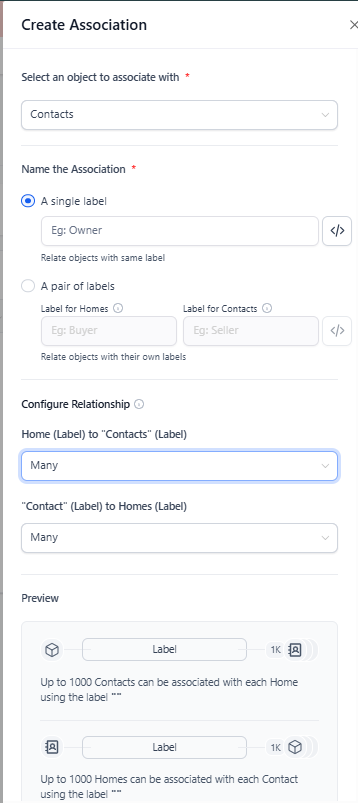
2- Associating Properties with Clients and Vendors:
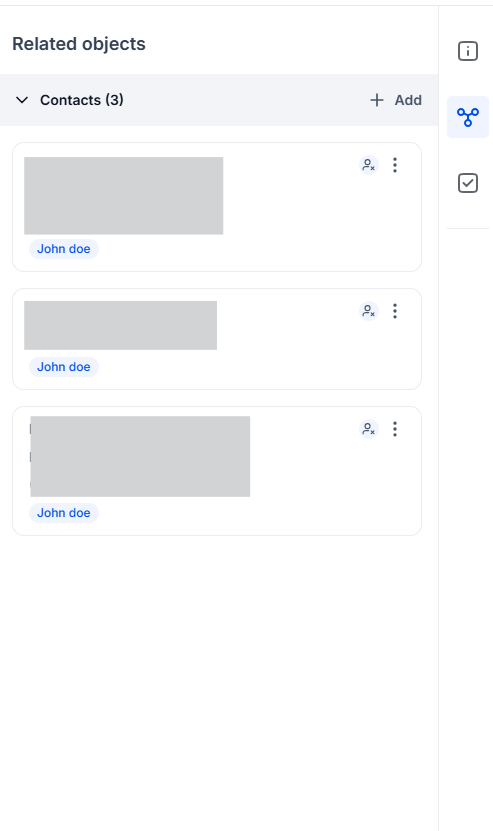
Using association labels, agents can link properties to clients, tracking properties clients have shown interest in or have scheduled for viewings. Vendors such as contractors or inspectors can also be linked to properties, helping manage tasks related to property maintenance and inspection.
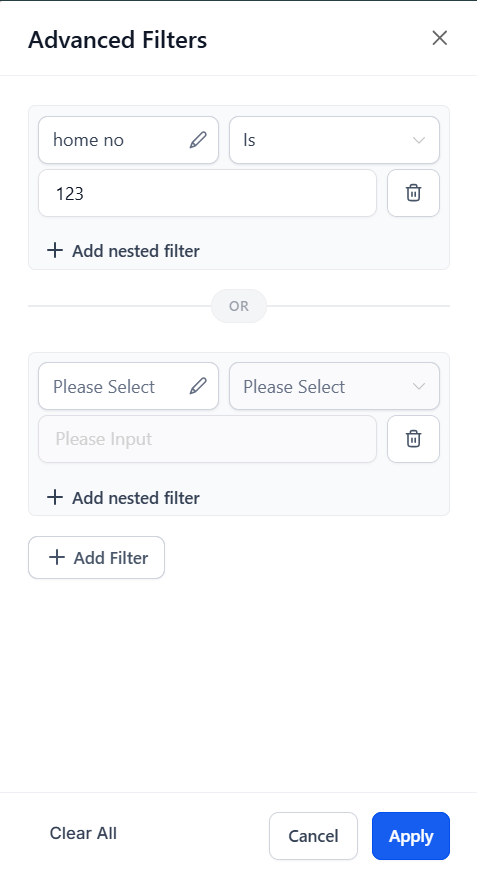
**3- Filtering and List Views for Efficient Tracking:**Applying filters in the list view enables agents to quickly locate properties based on specific criteria, such as location, price range, or property type. This can speed up the matching process when working with clients who have particular requirements.
Expected Outcomes
Section titled “Expected Outcomes”- Enhanced Client-Property Matching: With detailed property records and the ability to filter properties by client preferences, agents can better match clients to properties, increasing the likelihood of sales.
- Streamlined Maintenance Management: By linking properties with associated vendors and maintenance schedules, agents can efficiently track property upkeep, enhancing property value and client satisfaction.
- Improved Organizational Efficiency: Custom Objects allow real estate firms to streamline their workflows by creating a centralized database that is easily accessible and customizable to their needs.
Question: How can Custom Objects help me track properties? Answer: Custom Objects allow you to create detailed property records and associate them with clients and vendors. This makes it easier to manage properties, maintenance tasks, and client interactions.
Question: How do I filter properties by specific criteria? Answer: You can apply filters in the list view based on property attributes like Location, Price, and Square Footage to quickly find properties that match a client’s needs.
Question: Can I associate a property with multiple vendors? Answer: Yes, you can link a property to multiple vendors by using association labels, helping you track maintenance and inspection tasks effectively.
Question: How do I create associations between properties and clients? Answer: Open the property record, go to the Associations tab, and set up labels like “Owner” and “Property” to link a client to a property.
Question: Are there any limitations to creating Custom Objects? Answer: You can create up to 3 Custom Objects per location. This allows you to manage various aspects of your real estate business while keeping everything organized.
Question: How can Custom Objects improve relationship management with clients? Answer: Custom Objects allow you to track client preferences and associate them with specific property details. This enables you to offer personalized property recommendations, improving client satisfaction and strengthening relationships.
Question: If I delete a Contact, does the associated Property record also get deleted? Answer: No. Custom Objects are independent records. Deleting a contact will simply “unlink” them from the property, but the property data, its history, and its associations with other vendors or past owners will remain intact.
Question: Can I import my existing property list from an Excel or CSV file? Answer: Yes. Just like importing Contacts, you can bulk-upload property data directly into your Custom Object. Navigate to Settings > Objects, select your “Property” object, and use the Import button. Ensure your spreadsheet columns match your custom field names (e.g., “Year Built,” “Zoning,” etc.).