Conversation AI - Auto Followup
The Auto Follow-Up allows your Conversation AI bot to automatically send outbound messages to re-engage contacts who have gone inactive, dropped off, or requested a follow-up. This eliminates the need for manual intervention, enabling smoother and more timely communication. The system intelligently decides when to follow up based on conversation history, user responses, and predefined scenarios, ensuring engagement without over-messaging.
Key Features and Benefits
Section titled “Key Features and Benefits”- Automatic Detection: The bot identifies situations like user inactivity, being busy, or requesting a specific follow-up time.
- Customizable Follow-Ups: Set personalized messages or allow AI-generated responses that align with the conversation context.
- Scheduled Messaging: Configure follow-up cadences, including multiple reminders at defined intervals.
- Dynamic Channel Switching: If a contact becomes inactive on one channel, the bot can switch to another, ensuring the conversation continues.
- Working Hours Compliance: Follow-ups can be restricted to your active business hours, avoiding late-night or off-hour messaging.
- Trigger Workflows: Integrate workflows to add tags, assign conversations, or notify users during follow-ups (without triggering another bot to maintain logic consistency).
- Flow-Based Builder: Maintains conversation continuity by allowing the system to resume exactly where a contact left off, preventing the loss of lead momentum.
How to Use Auto Follow-Up
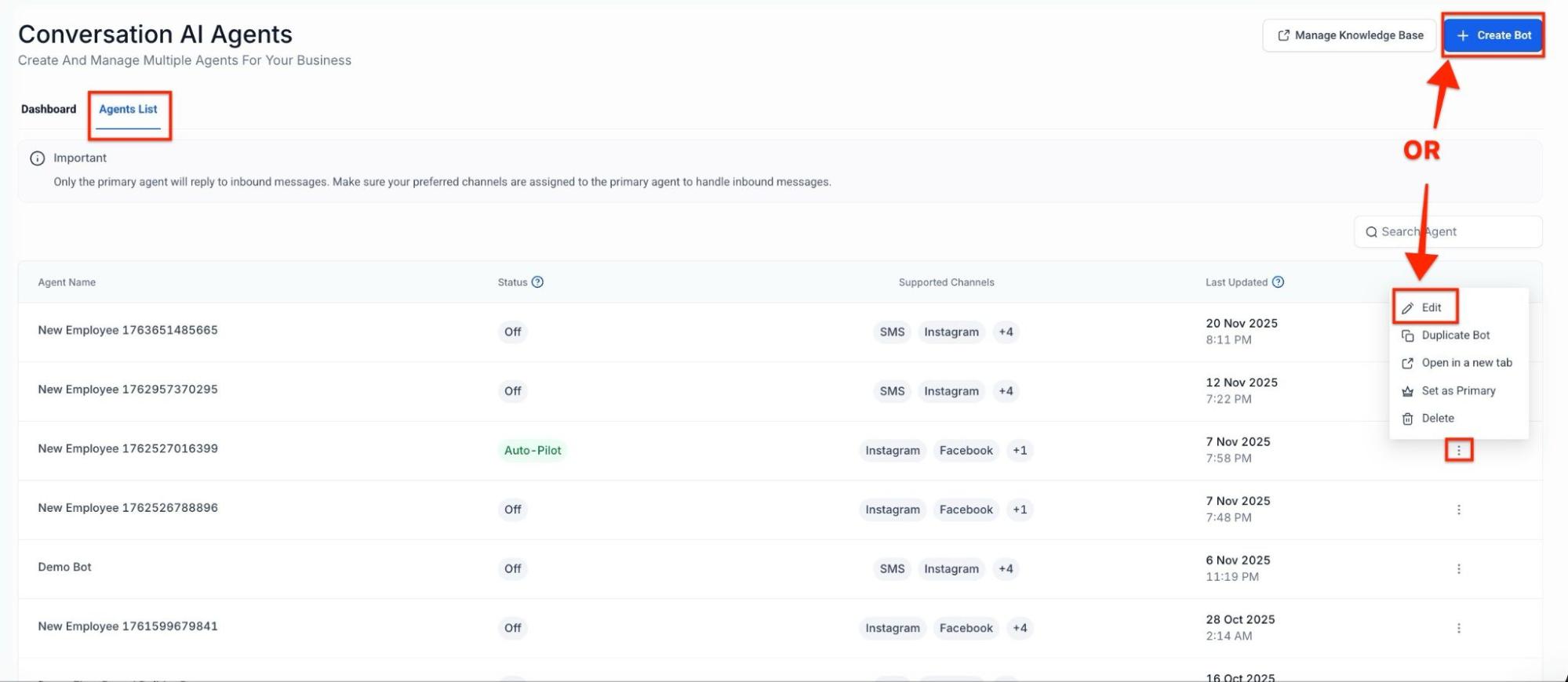
Section titled “How to Use Auto Follow-Up”Step 1: Navigate to AI Agents > Conversation AI. In the Agent List > Edit the existing or create a New Bot > Bot Goals tab.
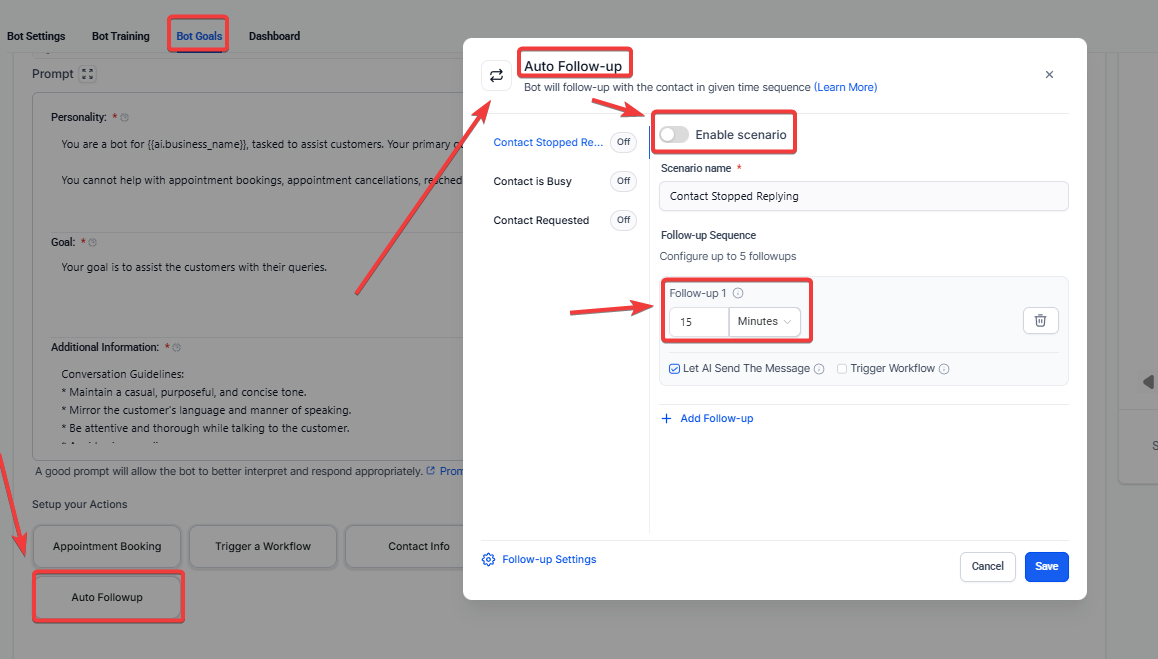
Step 2: Enable Predefined ScenariosChoose from common drop-off scenarios:
- Contact stopped replying
- Contact is busy
- Contact requested a specific follow-up time
For each scenario:
- Turn on the scenario
- Set follow-up cadence (e.g., First follow-up after 5 minutes, second after 15 minutes)
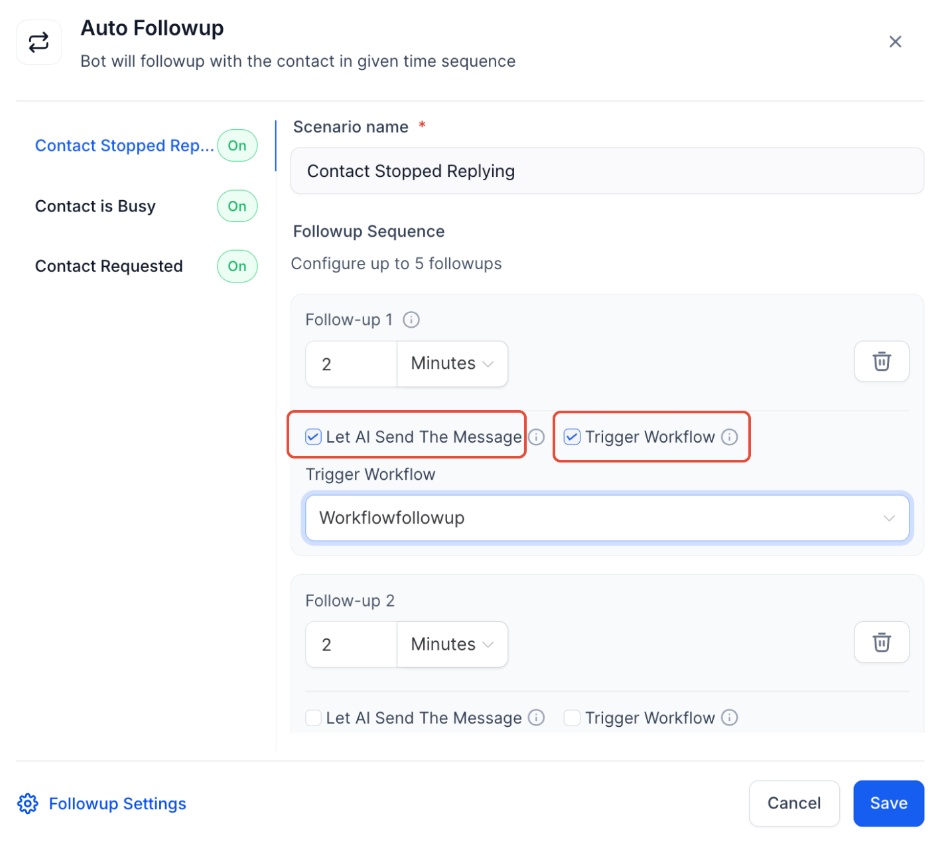
Step 3: Customize Follow-Up Messages and Workflows
- Use AI-generated messages automatically
- Or send a custom message
- Optionally trigger a workflow for tagging or notifications (avoid triggering other bots)
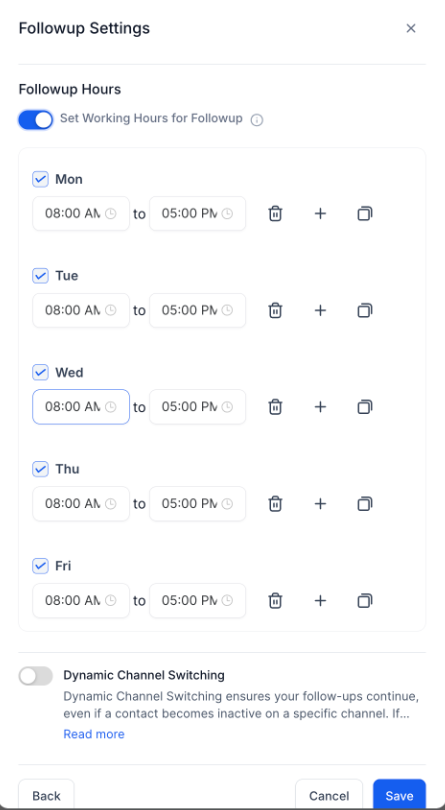
**Step 4: Set Active Working Hours (Optional)**Ensure follow-ups occur only during business hours. Messages scheduled outside these hours are deferred to the next active period.
Step 5: Track Follow-Up ActivityMonitor scheduled follow-ups in the Response Info panel for each contact. This panel shows the timing and triggers for every message.
Question: How does Auto Follow-Up know when to send messages? Answer: It analyzes conversation history, last inbound messages, and predefined scenarios like inactivity, being busy, or requested follow-up times.
Question: Can I use my own follow-up messages? Answer: Yes, you can enable custom messages or allow AI-generated responses based on the conversation context.
Question: Will follow-ups be sent outside working hours? Answer: Only if you haven’t configured active working hours. Otherwise, messages are deferred to the next active period.
Question: Can the bot switch communication channels automatically? Answer: Yes, the bot can switch channels if the contact stops responding, but this feature can be disabled if not required.
Question: What happens if a contact responds during a follow-up sequence? Answer: The follow-up logic resets automatically, preventing unnecessary messages once the contact engages again.
Question: How customizable are the follow-up cadences? Answer: You can define multiple follow-up reminders at specific intervals for each scenario, giving full control over the timing and frequency of messages.