Workflow Action: Conversation AI
Conversation AI refers to the use of artificial intelligence to manage and streamline conversations between a bot and users, providing automated, intelligent responses that mimic human interactions. This technology enhances customer service by handling queries, collecting information, and guiding users through processes efficiently.
The Conversation AI workflow action includes a Skip Action option. This enhancement allows the bot to skip asking a question if the answer already exists in the conversation history, ensuring smoother and more natural interactions. The article will discuss the following features in detail:
- Skip Action Option: The bot will not ask a question if the answer is already present in the conversation history.
- Automatic Branching: The contact will be pushed to the relevant branch/condition based on the existing answer.
- Conversation Summary & Transcripts: Automatically generate session-based summaries and full transcripts for every interaction.
How to Use
Section titled “How to Use”- Access Workflow Actions
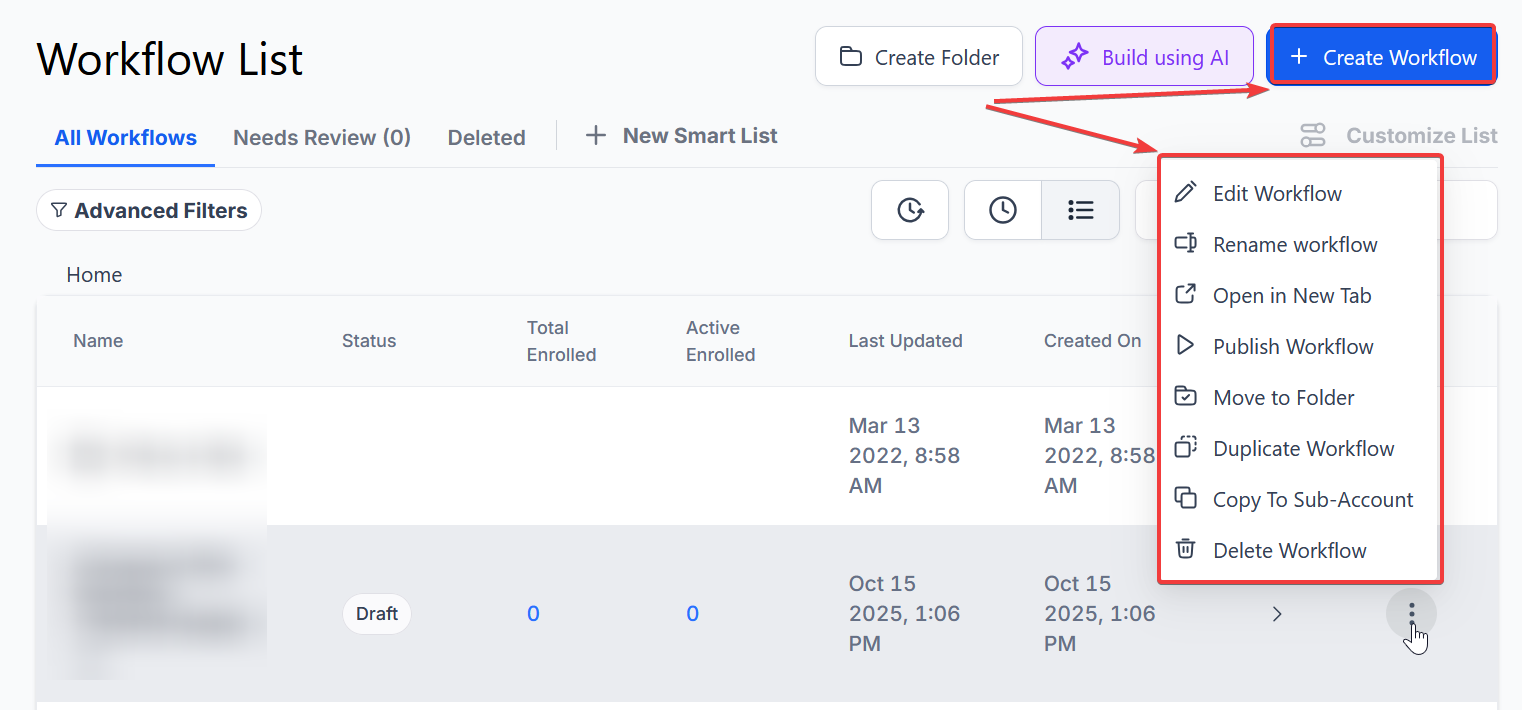
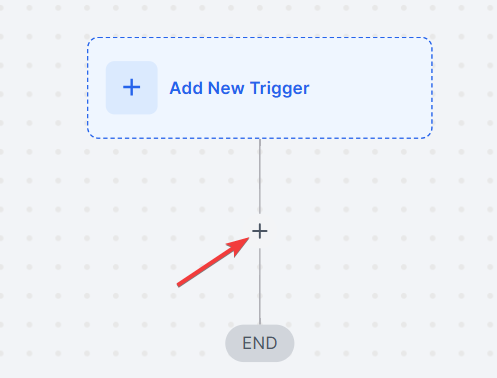
Navigate to Automation > Workflows, create a new workflow, or edit an existing one, and then search for the Conversation AI workflow actions in the workflow builder.
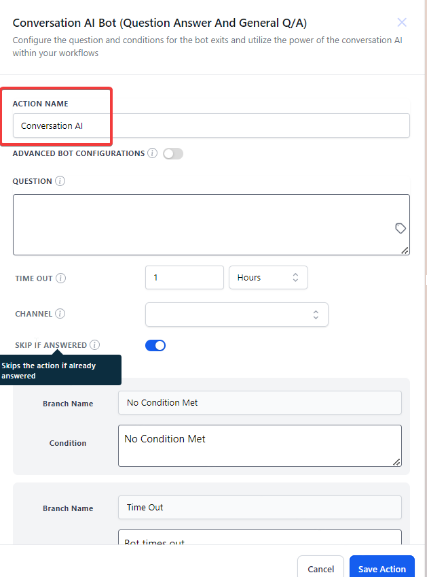
- Selecting a channel from dropdown
You can select from SMS, Facebook, Instagram, Whatsapp, and Live Chat channels when configuring your workflows. This allows for more dynamic and real-time interactions, enabling you to seamlessly integrate these into your automated processes for enhanced communication and efficiency.
To integrate WhatsApp, link your account with WhatsApp, configure it in your workflows, and employ conversation AI for personalized responses. Ensure compliance with WhatsApp’s guidelines to activate.


- Enable Skip Action (Optional)
- Locate the question in your workflow.
- Toggle the “Skip if Answered” option to On.

Bot Wait Time Before Responding in Workflows
The Bot Response Wait Time setting allows users to customize how long an AI bot waits before responding in workflows. This flexibility ensures tailored interactions, enhancing user experiences for various use cases, from quick appointment bookings to more relaxed, conversational engagements.
How to Use:
- Open the workflow and select the AI Bot configuration.
- Locate the “Wait Time” or “Wait Time Before Responding” setting, enter the desired wait time in seconds, and save the changes.

Special Requirements/Limitations: The wait time can range from 10 to 300 seconds, with a default value of 10 seconds.

Conversation Summary & Transcripts
Section titled “Conversation Summary & Transcripts”To provide better insights and audit capabilities, you can enable session-based summaries.
- Enable the Feature: Navigate to AI Agents > Conversation AI. Select your bot and go to the Bot Goals tab to toggle on “Enable Conversation Summary.” (Note: This must first be enabled in your agency-level lab settings).
- Configure Generation Triggers: Summaries are generated based on:
- Inactivity: A set duration (e.g., 15 minutes) where no messages are sent.
- Bot Sleep Events: Such as reaching message limits, human handover, or a “Stop Bot” condition.
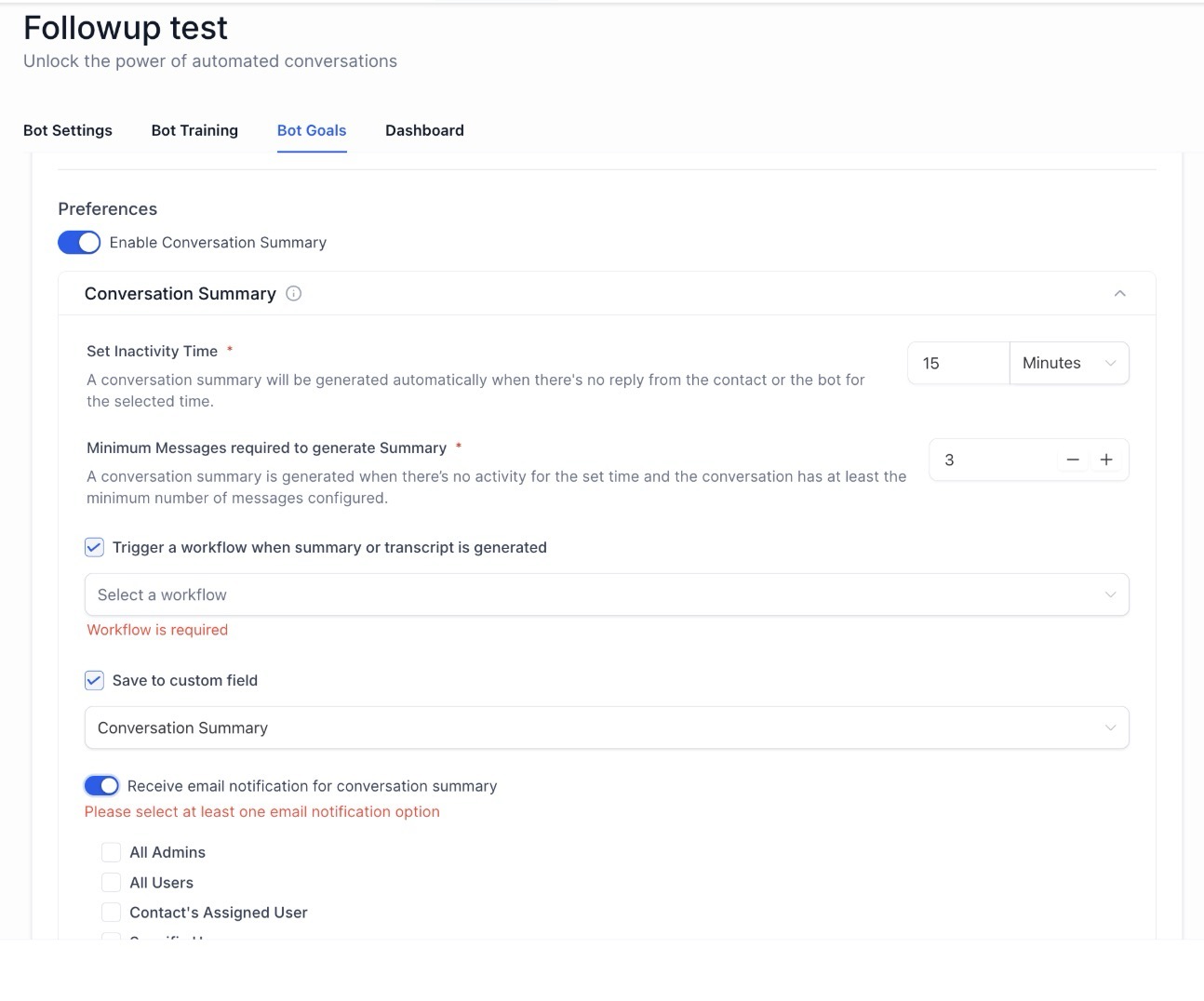
- Automated Actions: * Save to Field: Automatically save the latest summary to a specific contact field (replaces the previous summary).
- Trigger Workflows: Use a “Summary Generated” event to trigger internal automations.
- Notifications: Send summaries via email to admins, assigned users, or custom addresses.
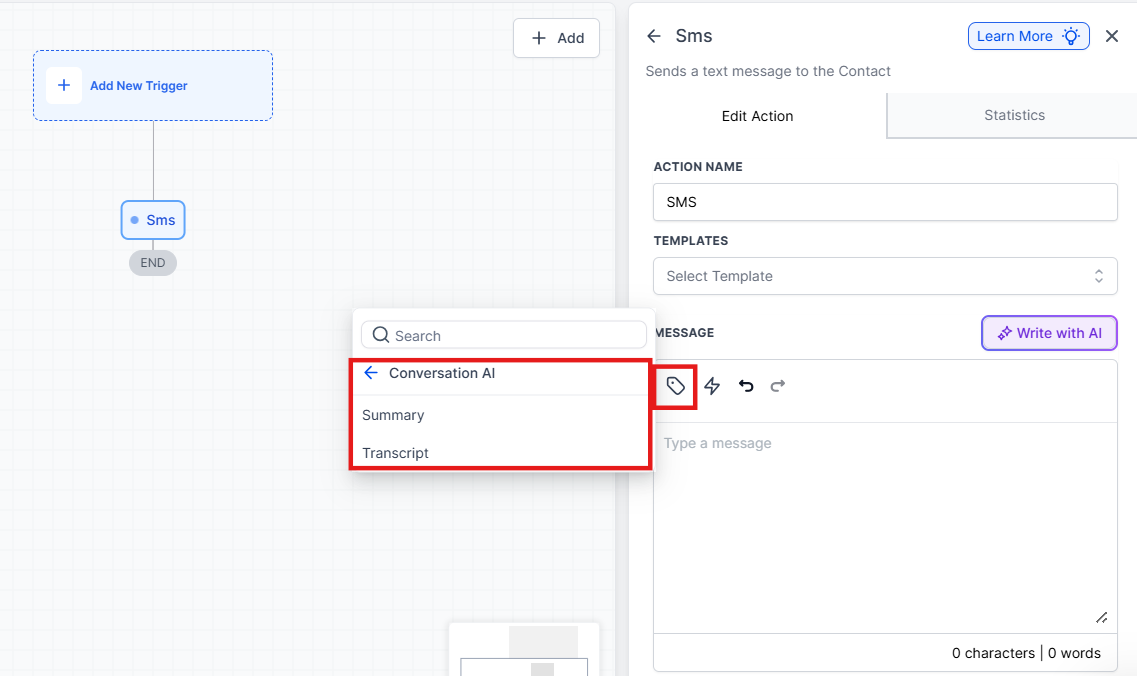
- Configure Branches:
- Set up the relevant branches/conditions that the bot should follow if the answer is already known.
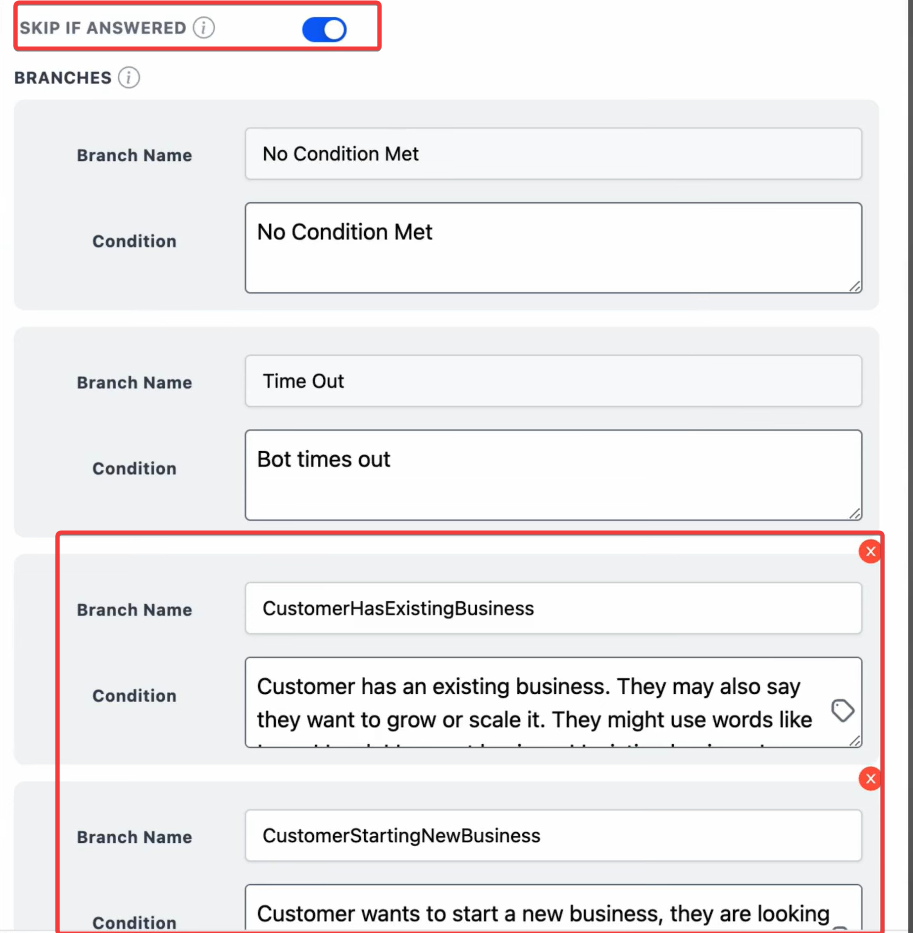
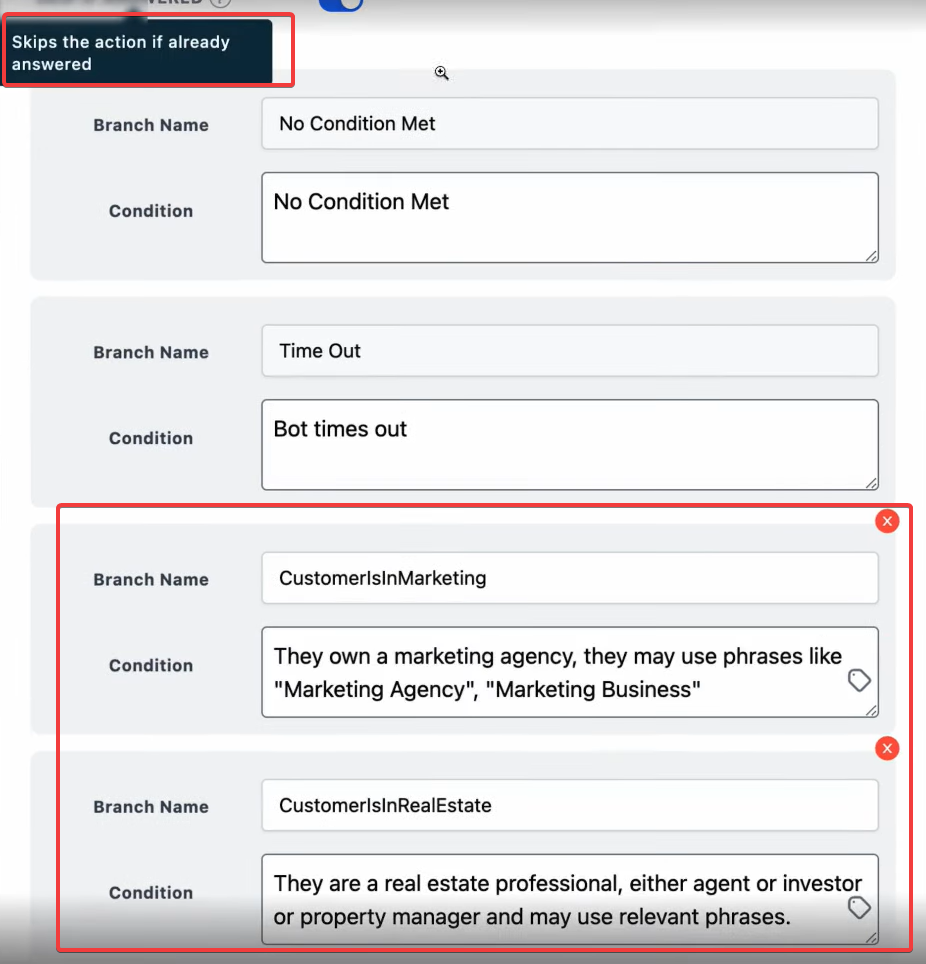
- Save and Test:
Save your workflow and test it to ensure the bot behaves as expected.
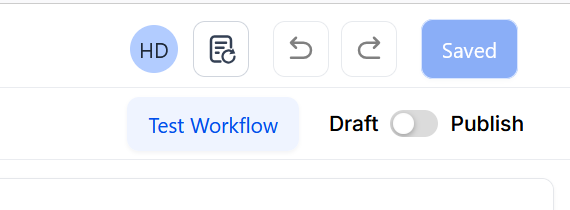
Example Use Case
Section titled “Example Use Case”- Favorite Color Question: If a user has previously answered “What is your favorite color?” with “blue,” the bot will not ask this question again and will proceed to the next relevant question or action.
- Audit Review: An admin can review an automatically generated transcript to identify common customer questions and improve the bot’s training data without manually reading through every chat log.
To maximize the effectiveness of the Skip Action option, regularly review and update your workflows to ensure they align with common conversation patterns and user behaviors. This will help maintain a natural flow and improve the overall user experience.
Question: What happens if the answer is not found in the conversation history?
Answer: If the answer does not exist, the bot will proceed to ask the question as usual.
Question: Can I toggle the Skip Action option off?
Answer: Yes, the Skip Action option can be toggled off if you prefer the bot to ask the question regardless of previous answers.
Question: How does this feature impact branching conditions?
Answer: The bot will automatically push the contact to the relevant branch/condition based on the existing answer, streamlining the workflow.
Question: What triggers a conversation summary to be generated?
Answer: A summary is created when a configured inactivity timer expires or when the bot is put to “sleep” due to human handover, message limits, or manual intervention.
Question: Does the summary include the entire history of the contact?
Answer: No. Each new summary replaces the previous one and only includes messages sent after the last summary was generated within that specific session.
Question: What types of actions can be automated using WhatsApp? Answer: You can automate actions like appointment booking, sales Q&A responses, and follow-up messages, similar to other communication channels.
Question: Do I need special permissions or accounts to use WhatsApp for workflows? Answer: Yes, an active and compliant WhatsApp business account is typically required to integrate and use this feature.
Question: How can I set up this feature? Answer: Access the workflow automation tools in your account, select the WhatsApp channel as an action, and configure it as part of your automated process.
Question: Are there any limitations to using WhatsApp as a workflow channel? Answer: Some restrictions may apply, such as message types, templates, or compliance with WhatsApp’s guidelines for business communication.
Question: Can I use WhatsApp for live conversations in addition to workflows? Answer: Yes, WhatsApp can typically be used for live chat and automated workflows, offering flexibility in customer engagement.
Question: Any tips for using Skip Action effectively? Answer: Regularly review and update workflows to reflect common conversation patterns, ensuring a natural flow and improved user experience.
Question: What happens if the stored answer is no longer valid or has changed? Answer: The “Skip Action” relies on the data currently saved in the contact’s fields. If a user needs to update their information, you can build a separate “Update Info” workflow or have a human agent intervene. The bot prioritizes efficiency by assuming the existing data is correct.