Conversation AI: Multiple Calendars Support for Appointment Booking Action
Efficient scheduling is a cornerstone of smooth business operations. Whether managing a growing team or organizing client-facing services, the ability to handle appointments seamlessly can make or break productivity. To make scheduling even more intelligent and user-friendly, a powerful new feature has been introduced: Multiple Calendars Support for Appointment Booking via Prompt-Based Bots.
This enhancement allows bots to dynamically detect, select, and book appointments across several calendars automatically. This means less manual work, fewer scheduling errors, and a smoother experience for both businesses and their clients.
Key Features and Benefits
Section titled “Key Features and Benefits”Smart Calendar Detection
Section titled “Smart Calendar Detection”Bots automatically detect the correct calendar for each appointment request, eliminating the need for manual calendar selection. This intelligent routing ensures the right resource or team member is scheduled every time..
Flexible Routing Logic
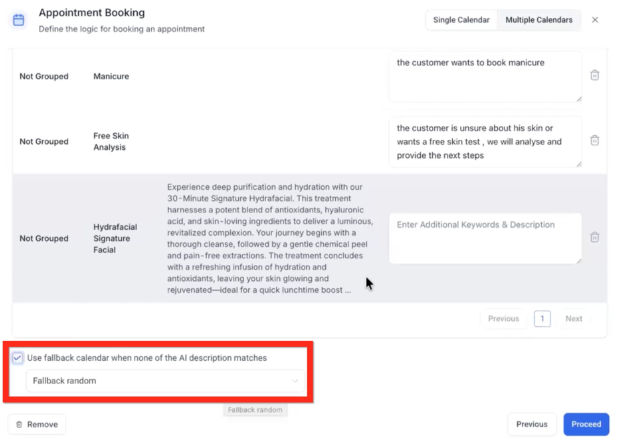
Section titled “Flexible Routing Logic”Custom routing logic can be applied to align with specific business needs. For example, different calendars can be used for different service types, departments, or team members, all based on user inputs or intent detection by the bot.
Fallback Calendar Option
Section titled “Fallback Calendar Option”If an appointment request doesn’t match any of the predefined conditions, a fallback calendar can handle the booking. This ensures that no appointment is missed, even if logic conditions fail or are incomplete.
Clear Tracking and Transparency
Section titled “Clear Tracking and Transparency”From the Response Info Side Drawer, users can clearly see which calendar was selected for each appointment. This provides full visibility for troubleshooting, audits, or operational oversight.
Automatic Calendar Details Fetching
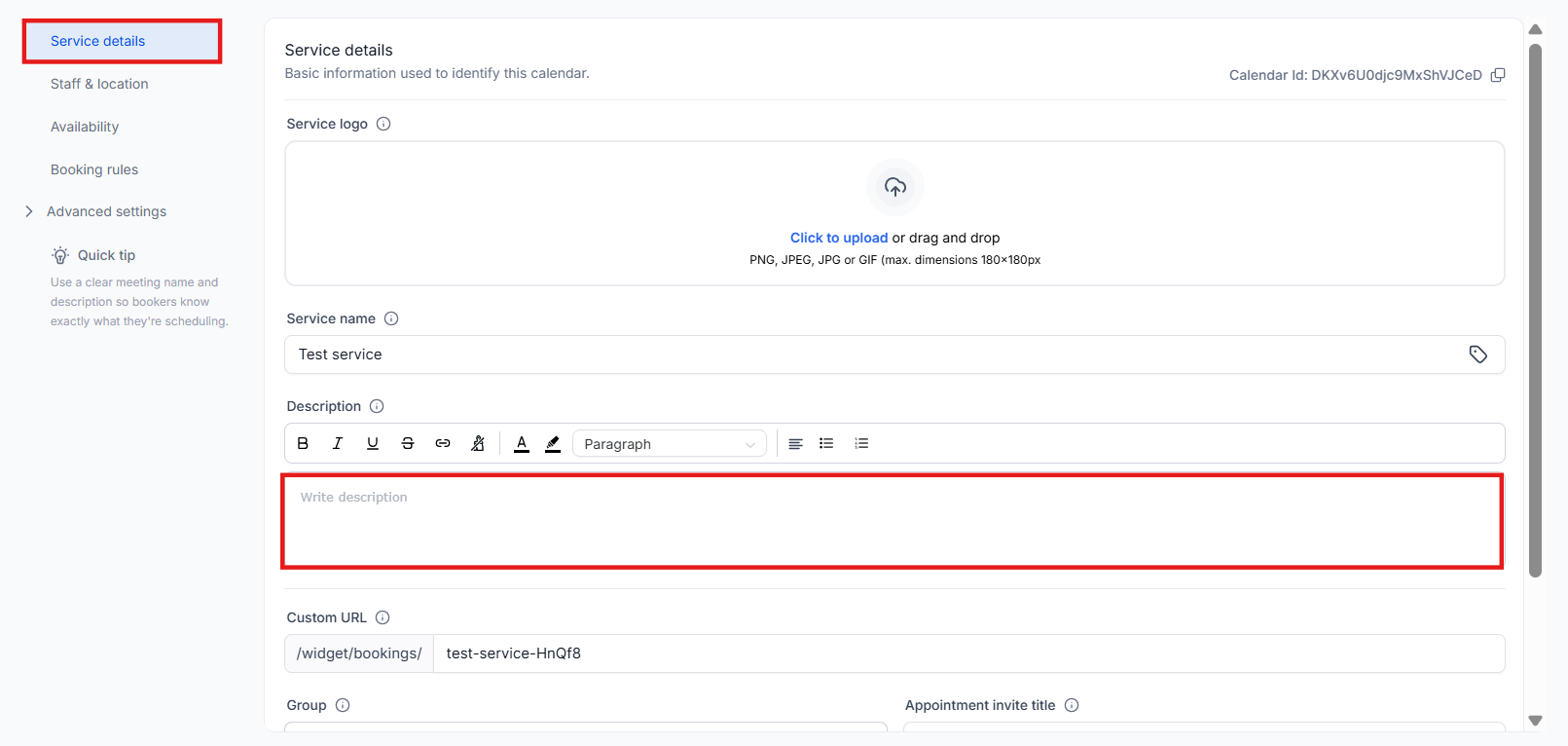
Section titled “Automatic Calendar Details Fetching”Once a calendar is selected, the system automatically pulls in its name and description. Additional context or custom notes can also be added as needed, reducing setup time.
How to Use
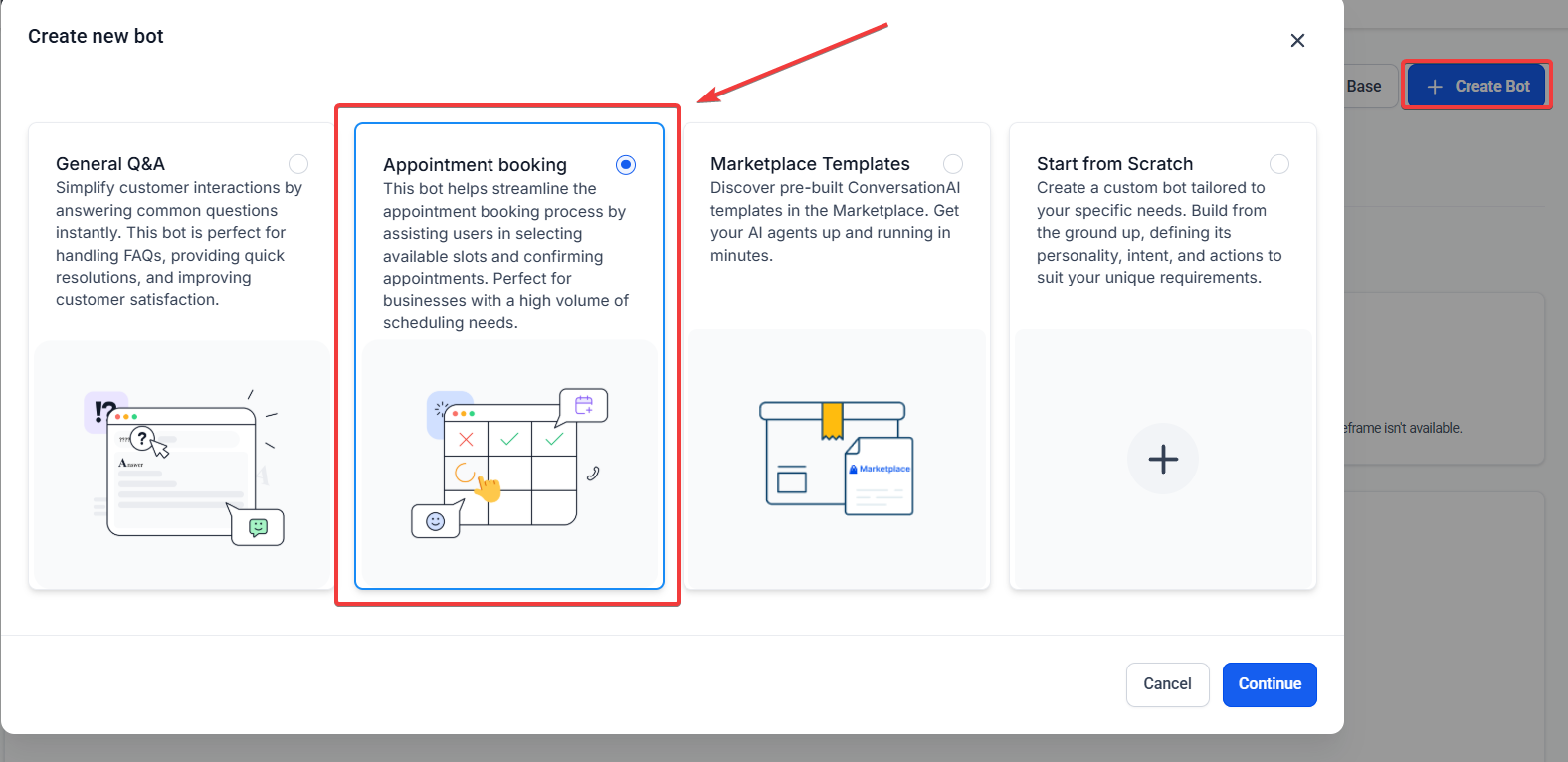
Section titled “How to Use”1- Navigate to AI Agents → Conversation AI → Bot Goals and select Appointment Booking.
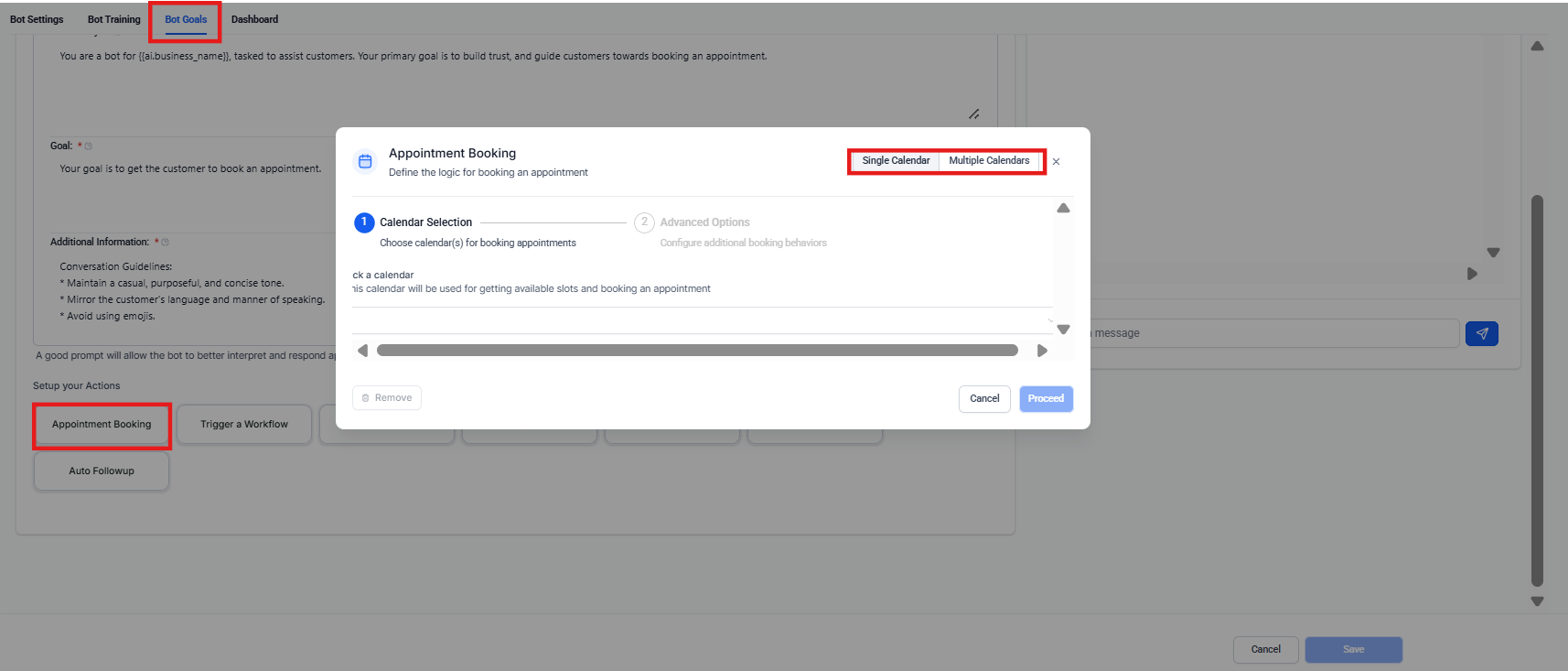
2- Enable Multiple Calendar SupportEnsure your system is configured to support multiple calendars within your appointment booking workflows or bot flows.
3- Set Calendar Selection LogicDefine logic conditions or rules that the system will use to route appointments to the correct calendars (e.g., based on service type, user selection, region).
4- Configure a Fallback CalendarAssign a default calendar to handle any unmatched bookings, ensuring nothing slips through.
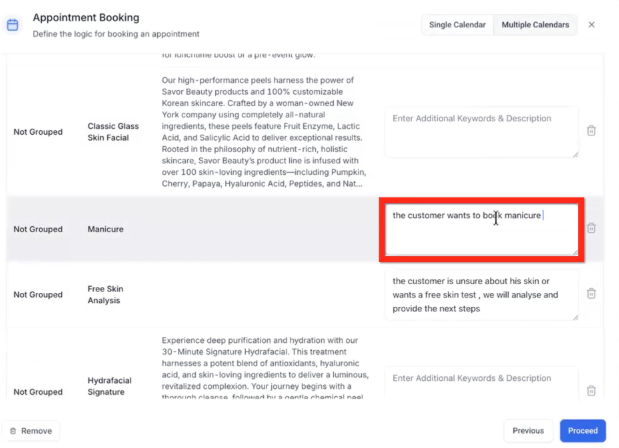
5- Test Booking FlowSimulate a few booking scenarios to confirm that appointments are correctly routed and that fallback logic works as intended.
6- Monitor via Side DrawerAfter a booking is made, use the Response Info Side Drawer to verify which calendar was used and confirm details.
Question: Can I still use a single calendar if I don’t need multiple? Answer: Absolutely. If you prefer a simple setup, you can continue using a single calendar. The multi-calendar support is optional and only active when configured.
Question: What happens if none of my routing conditions are met? Answer: The system will use the fallback calendar you set up, ensuring the appointment is still booked and not lost.
Question: Do I need to update my existing appointment workflows? Answer: Not necessarily. Existing workflows will continue to function. However, you may want to update them to align with new logic or to reflect bookings from different calendars.
Question: Is calendar selection visible after booking? Answer: Yes. You can see exactly which calendar was used in the Response Info Side Drawer, offering complete transparency.
Question: Can the bot differentiate between service types automatically? Answer: Yes, if your logic is designed to parse inputs like service types, durations, or keywords, the bot can automatically route to the appropriate calendar.
Question: Can I add custom notes or details to calendars? Answer: Yes. Once a calendar is selected, the system fetches its name and description automatically, and you can add custom notes or context as needed.