Conversation AI - Human Handover
With the Human Handover feature for Conversation AI, your AI bot can seamlessly transfer conversations to a human when it detects that it is no longer the best option to assist. Whether the request is complex, the bot has failed multiple times, or the user directly requests a human, the bot ensures your customers are not left frustrated.
Benefits:
Section titled “Benefits:”- Improved customer experience with smooth transitions from AI to human agents.
- Faster resolution for complex issues.
- Enhanced efficiency in managing conversations.
How to Enable and Use Human Handover
Section titled “How to Enable and Use Human Handover”Step 1: Enable Human Handover
- From the left sidebar, go to AI Agents > Conversation AI, then select the bot from the Agent List
- Go to Bot Goals and click Human Handover.
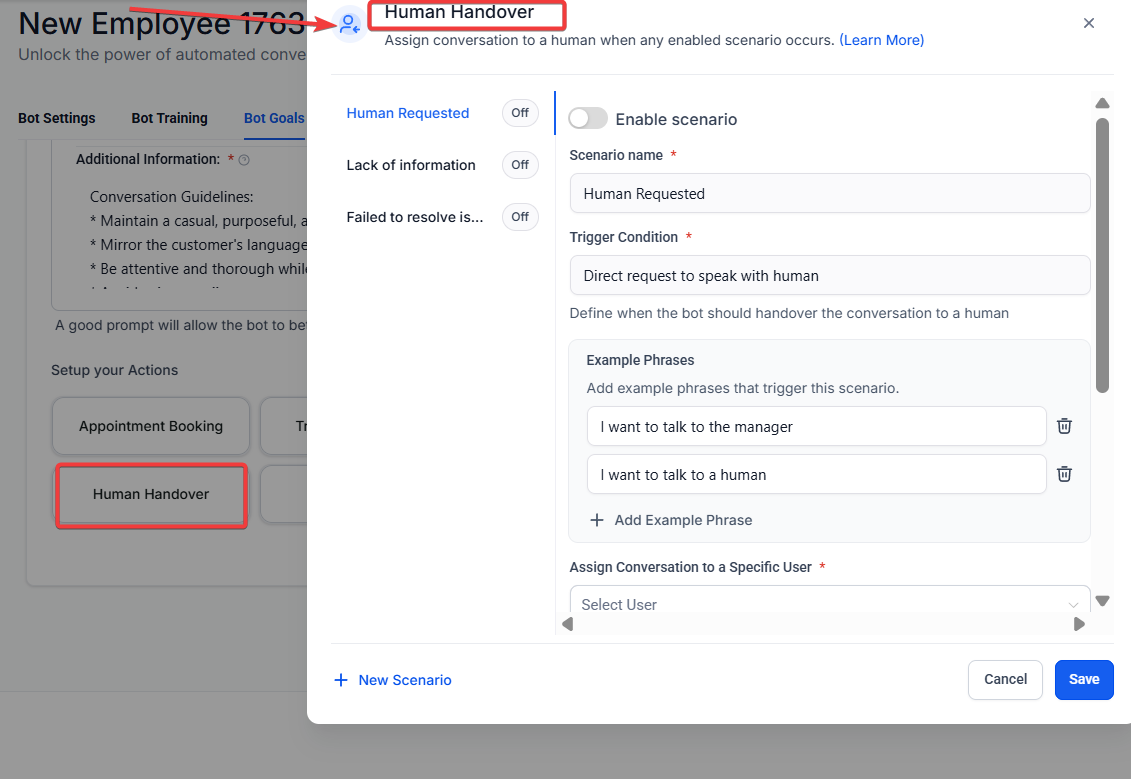
Step 2: Choose the Trigger for Handover
- Contact Request: The user directly asks for a human (e.g., “Can I talk to a human?” or “I need help from a real person”).
- Lack of Information: The AI doesn’t know how to answer the user’s query.
- Failed to Resolve Issue: After 2 unsuccessful attempts by the AI to help, the handover is triggered.

Step 3: Configure the Next Actions
- Assign Conversation to a User: Choose a staff member or set the system to auto-assign based on existing rules.
- Create a Task: You can check the box to automatically create a task with the description “Will be created by AI,” due in 24 hours.
- Send a Closing Message: The default message is, “Thank you! Someone from the team will get back to you.”
- Pause the Bot: Temporarily disable AI messages for a specific time.
- Create Tags: Use the default tag human_handover to track the transition.

Step 4: Manage Notifications for Human Agents
- Go to Settings > My Staff and select the relevant user.
- Enable notifications:
- When a conversation is assigned.
- When a task is assigned.

Key Notes:
Section titled “Key Notes:”- You can configure up to 6 handover actions per bot.
- Smart session memory ensures that if you close the editor or leave the page, your progress will be saved and you can pick up where you left off.
Question: What triggers the Human Handover? Answer: Human Handover is triggered when the AI fails to resolve an issue, the user asks for a human, or the AI lacks the information to help.
Question: How many actions can be set for the Human Handover? Answer: You can configure up to 6 handover actions per bot.
Question: Can I customize the message when the handover occurs? Answer: Yes, you can customize the closing message when handing over to a human agent.
Question: Do I need to manually assign tasks after the handover? Answer: No, the task can be auto-created as part of the handover workflow.
Question: What happens if the handover action fails? Answer: The bot will ensure the task is handed over to the next available human agent for resolution.
Question: Can I temporarily stop the AI from responding once a human has been requested?
Answer: Yes, you can use the “Pause the Bot” action to temporarily disable AI messages for a specific period during the transition.
Question: Does the system save my progress if I accidentally close the page while setting up Human Handover?
Answer: Yes. The feature includes “Smart session memory,” which ensures that your progress is saved if you leave the page or close the editor, allowing you to pick up exactly where you left off.
Question: If the AI bot fails to resolve a customer’s issue, exactly how many unsuccessful attempts will it make before triggering a human handover?
Answer: The handover is automatically triggered after 2 unsuccessful attempts by the AI to assist the user.