How to Bulk Import and Update Company Records
Overview:
The Bulk Import tool allows you to bring large lists of business data into quickly. Instead of entering every company manually, you can upload a structured file to build your database in minutes.
Practical Use Case:
If you are moving from an old system or have a new list of local businesses to target, you can use this feature to upload hundreds of company profiles simultaneously. This ensures your team has the data they need to start outreach immediately.
Instructions (Step-by-Step):
Step 1: Start the Import
- To navigate to your company list, click Contacts > Companies.
- To begin the process, click the Import Companies button.
- To upload your data, click Upload File and select your CSV file from your computer. Click Next.
- To match your spreadsheet columns to CRM fields, use the Map screen. Ensure your “Company Name” or “Company ID” columns match the fields in .
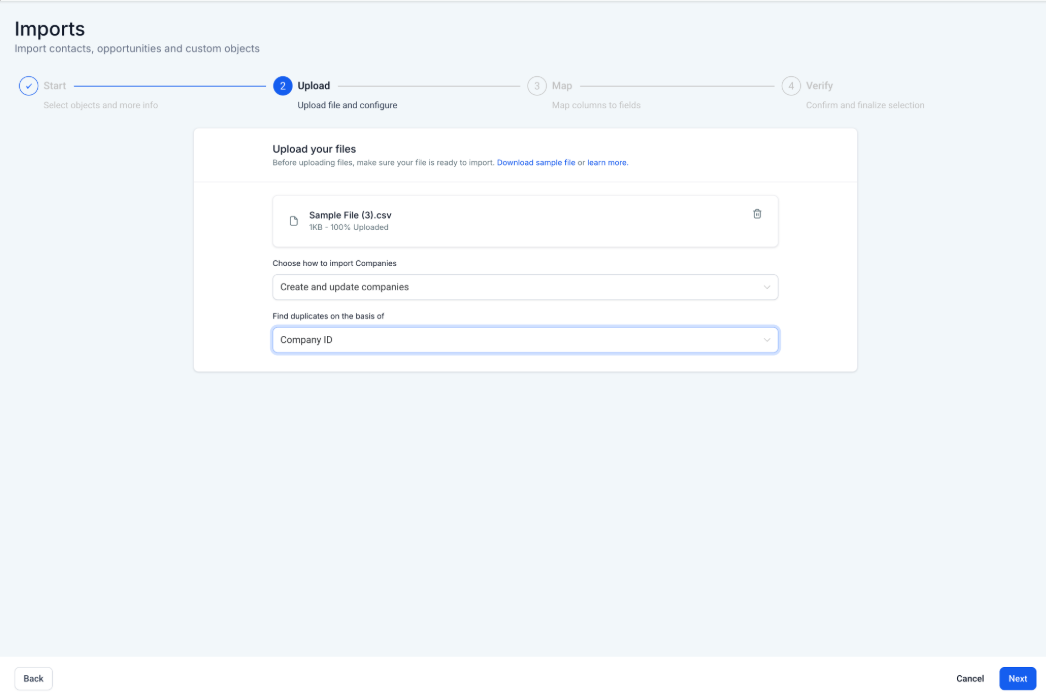
5. To prevent losing existing data, toggle the option to Skip empty values if you do not want blank cells in your CSV to overwrite current information.
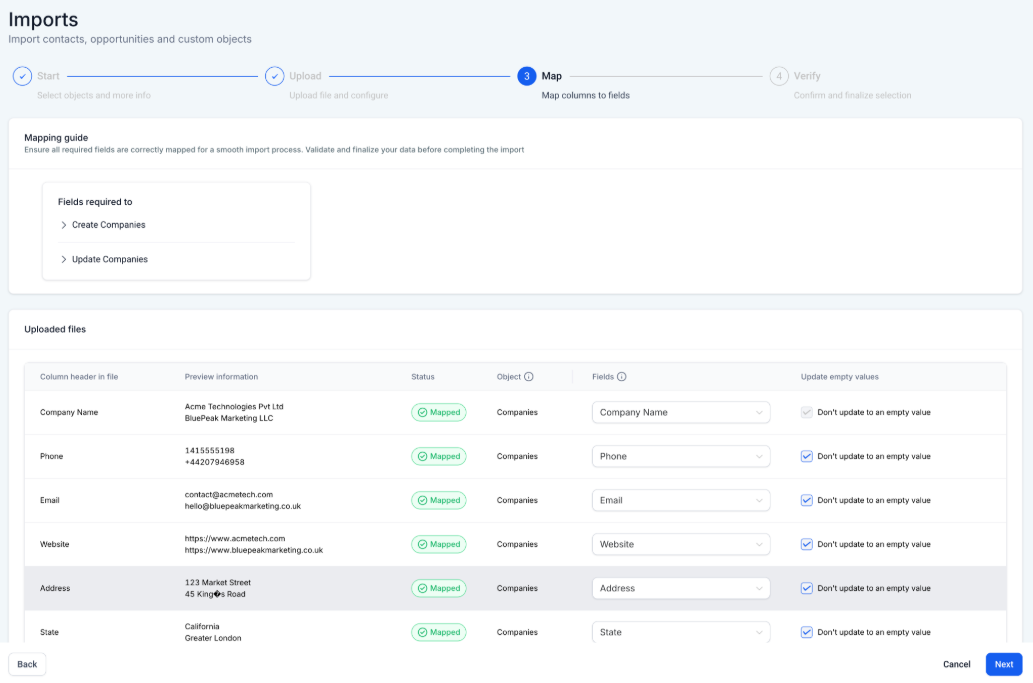
6. To check for errors, review the Verify screen for any mapping conflicts or data issues.
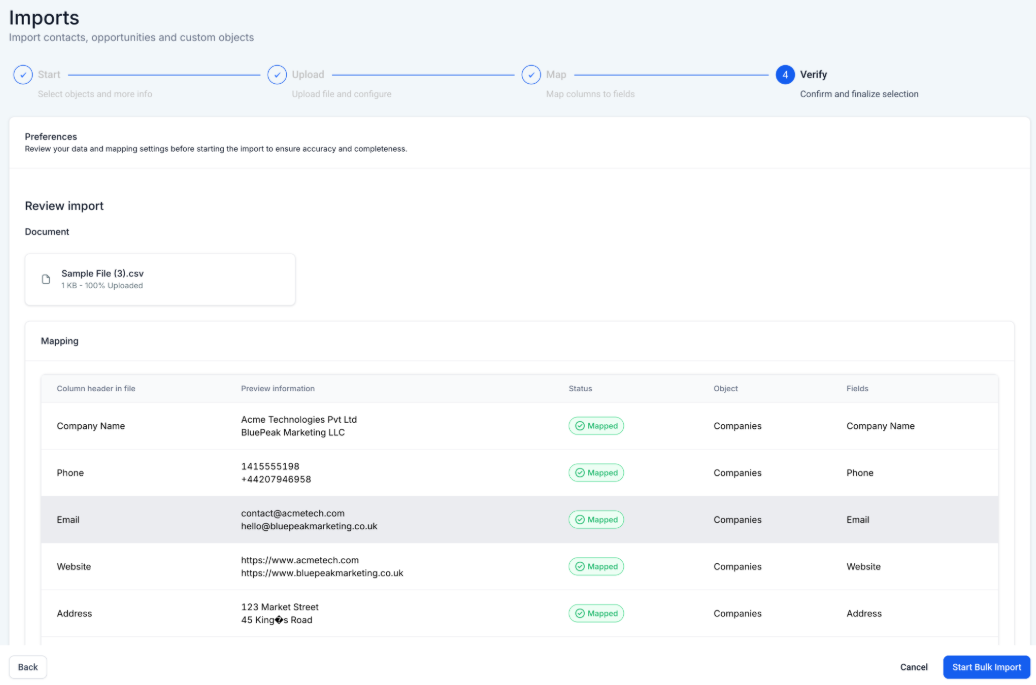
7. To finish the process, click Submit.
Tracking Your Import Results
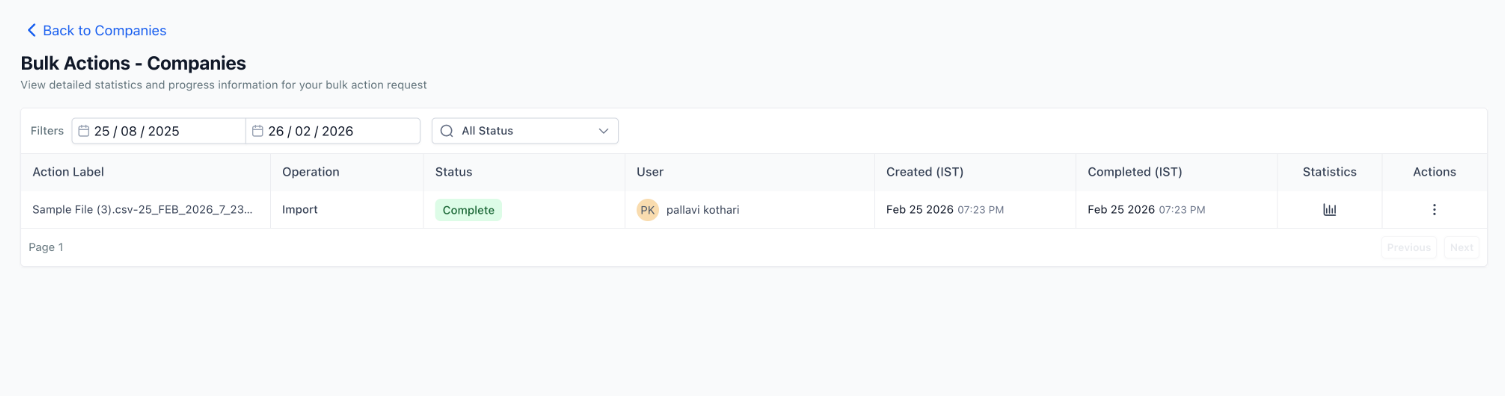
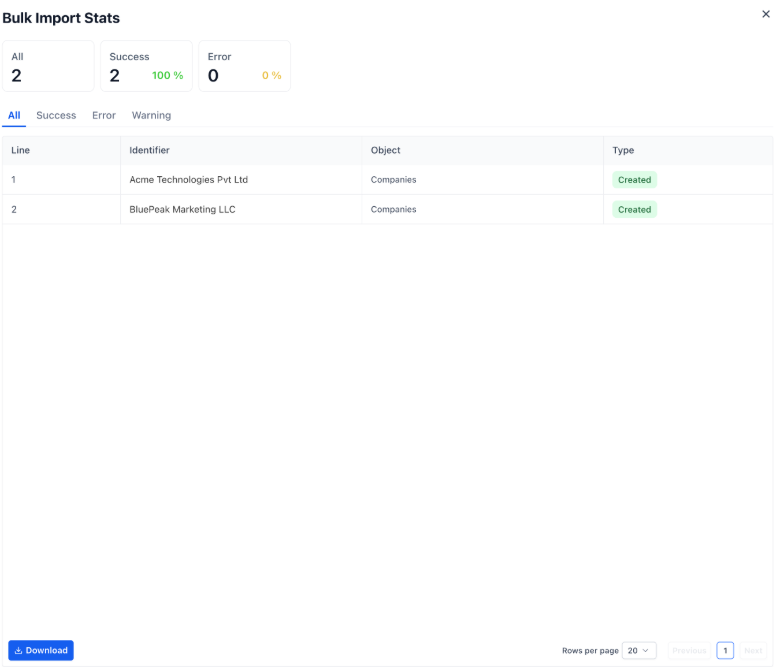
Section titled “Tracking Your Import Results”After you submit an import, you can monitor its progress and review the results to ensure your data is clean.
- To view the status of your uploads, navigate to Bulk Actions > Companies.
- To see how many records were processed, check the Success, Errors, and Warnings columns.
- To audit your data or troubleshoot failures, click Download Report to see a detailed breakdown of every row in your file.
FAQs:
Question: What file format do I need to use for imports?
Answer: You must use a structured CSV file for the import to work correctly.
Question: How does the system know if a company already exists?
**Answer:The system uses the Company ID to detect duplicates and decide whether to create a new record or update an existing one.
Question: Can I update existing companies without creating new ones?
Answer: Yes. During the upload flow, you can choose to “Update existing companies only.”
Question: What happens if a field in my CSV is empty?
Answer: You can choose to protect your existing data by selecting the option to not overwrite fields with empty values.
Question: Where can I see a history of my previous imports?
Answer: All import history is located in the Bulk Actions menu under the Companies tab.
Question: Why don’t I see the Import Companies button?
Answer: Ensure you have enabled the feature in the Labs section of your Settings.
Question: Can I see which specific rows failed to import?
**Answer: Yes, you can download a detailed import report that lists every success, error, and warning.