Contact-to-Contact Association
The Contact-to-Contact Association feature empowers users to link multiple contacts using custom labels, enabling them to define and manage personal or professional relationships, such as “Parent-Child,” “Spouse,” or “Business Partner.” This functionality is essential for users looking to keep track of complex connections within their contact lists, streamlining relationship management and improving organizational efficiency.
Key Features and Benefits
- Custom Contact Associations: Users can assign custom labels to define relationships, such as “Manager-Employee” or “Husband-Wife.” This flexibility allows contacts to be linked in meaningful ways, aligning with various professional and personal structures.
- Multiple Associations per Contact: Each contact can hold up to 10 unique relationships, providing the capacity to manage various connections seamlessly.
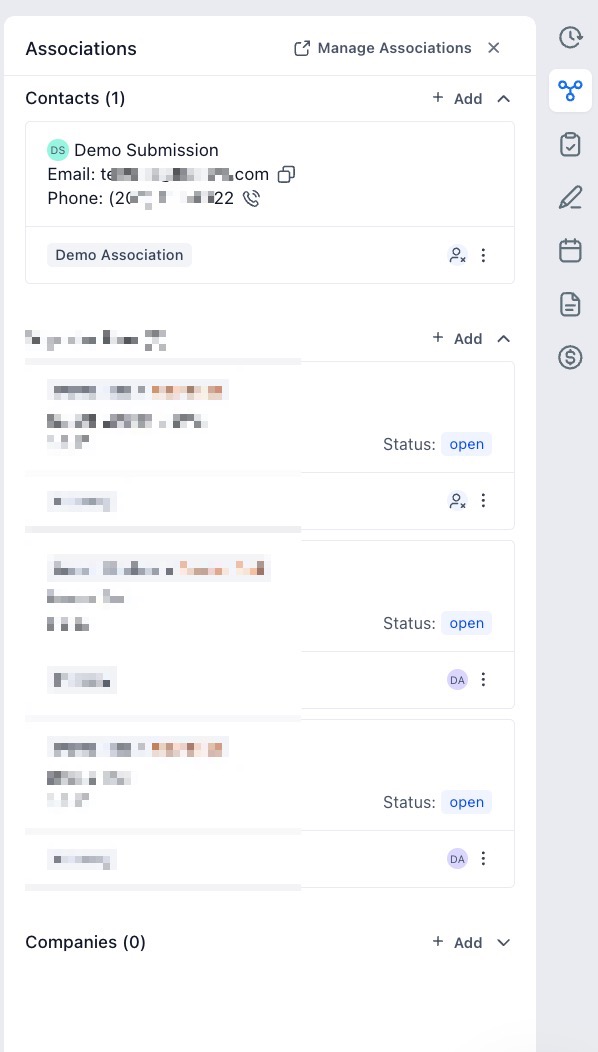
- Enhanced Contact View: The “Associations” section in contact details offers a clear view of related contacts, grouped by their custom labels, giving users an instant overview of all associated contacts.
- Complete Management of Association Labels: Admins can create, edit, and delete custom labels with ease, ensuring associations remain relevant and organized.
How to Use Contact-to-Contact Association
- Creating Associations
- Navigate to Settings(Located in the bottom left corner) > Objects > Contacts and click on + Create Association.
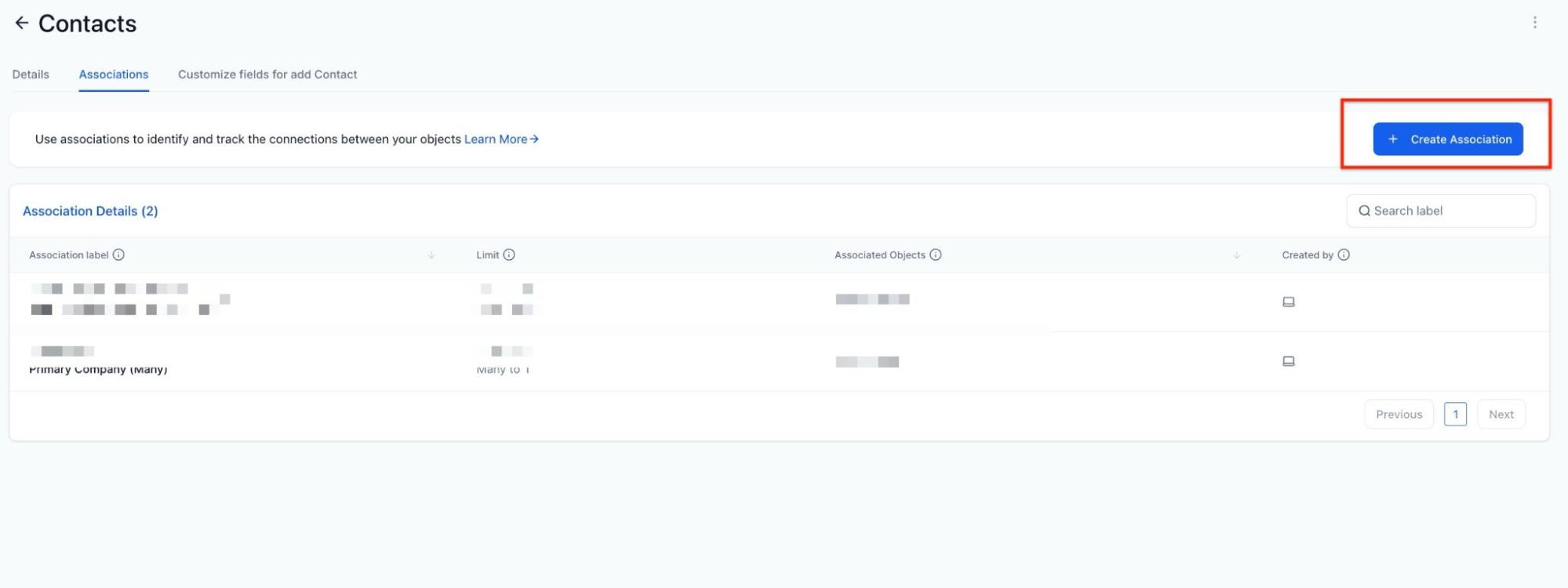
- Choose either a single label (e.g., “Parent”) or a pair of labels (e.g., “Husband-Wife”).
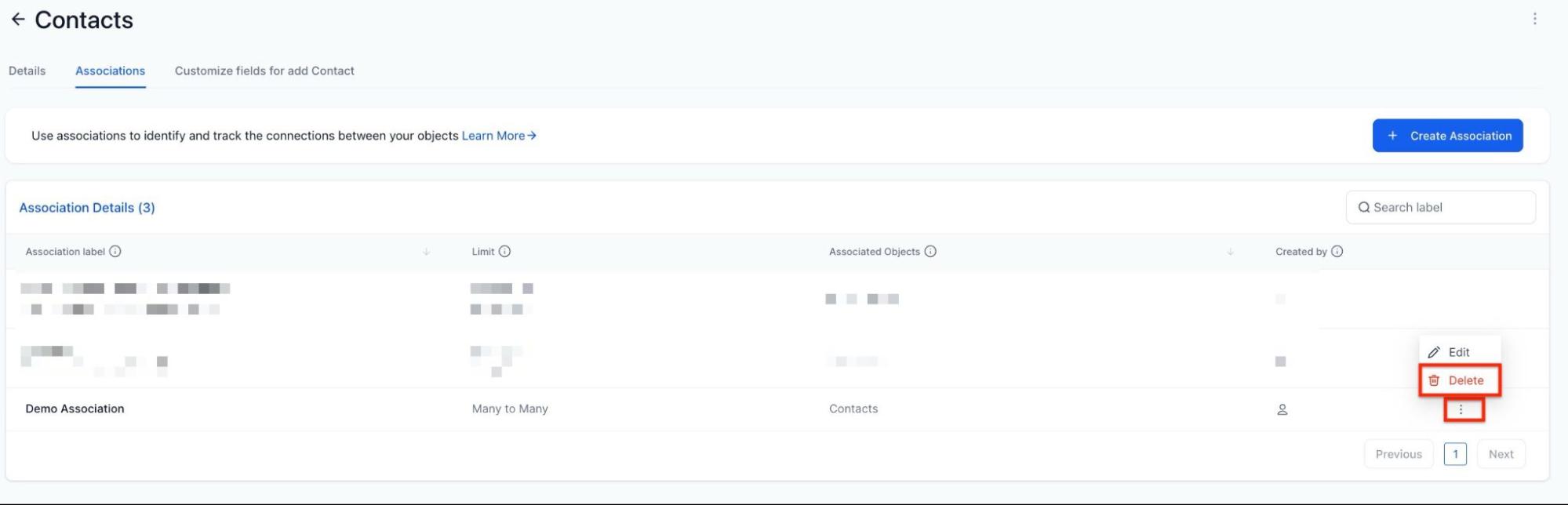
- Save the newly created association labels, which can be edited or deleted via the three-dot (kebab) menu.

- Linking Contacts and Viewing Linked Contacts
- Open the desired contact’s details page and locate the “Associations” section.
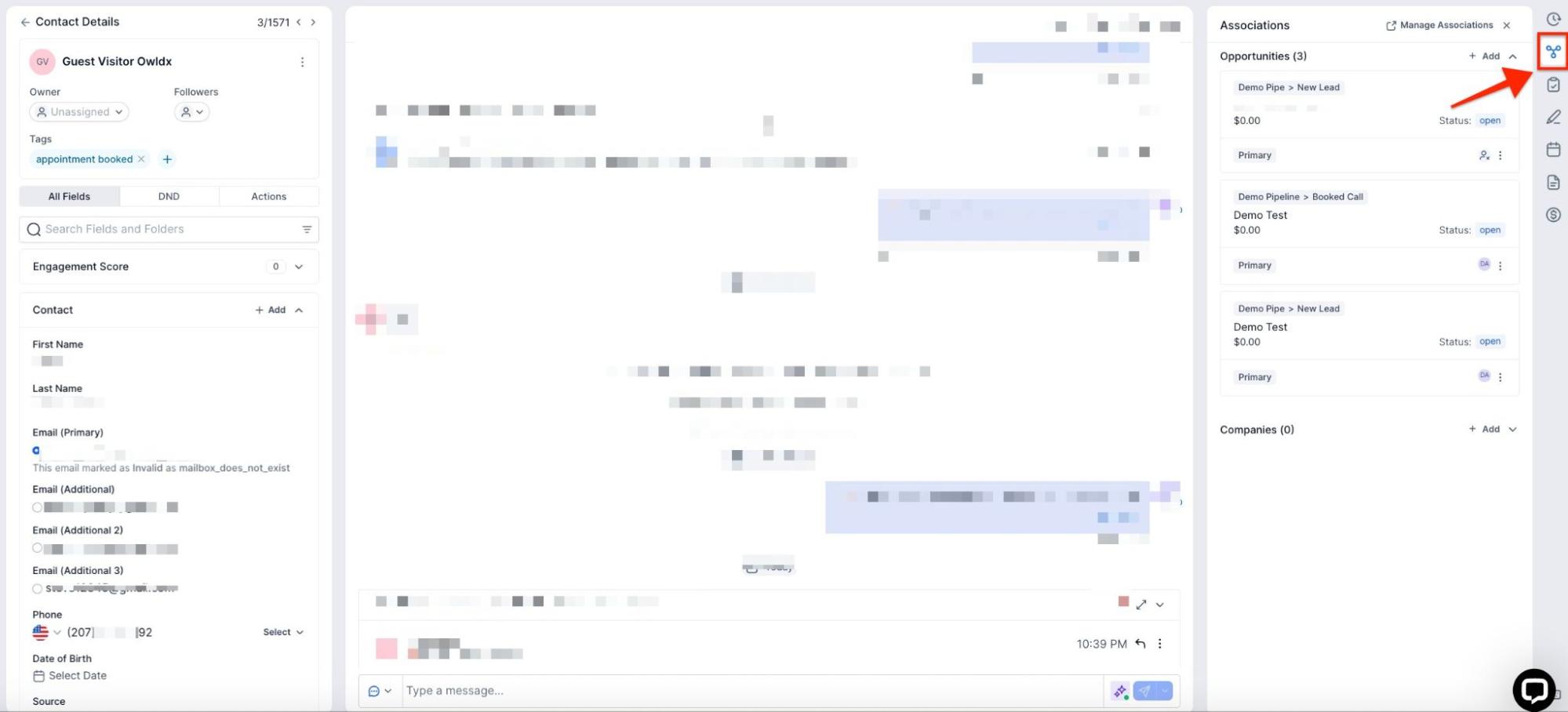
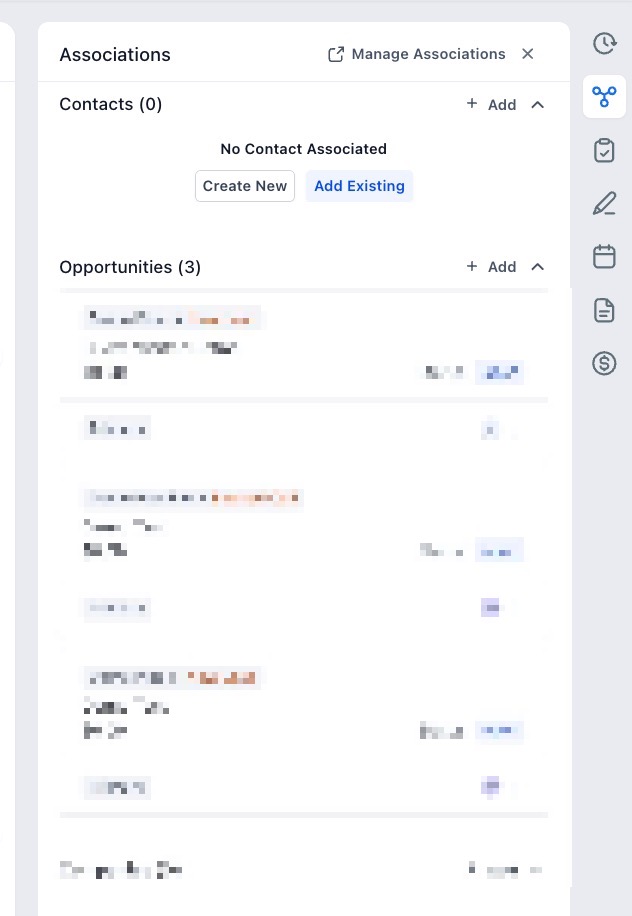
- Click “Add” next to Contacts, select the contact to associate, and apply the relevant label.


- Once associated, the connected contact will be visible within the “Associations” section, and the relationship will reflect reciprocally in the associated contact’s profile.
Pro Tips
- Choose Consistent Labels: Define labels that are universally understood within your organization to avoid confusion.
- Periodic Updates: Regularly review and update associations to ensure that they reflect the most current relationships within your contact database.
FAQs
Question: How do I create a custom label for contact associations? Answer: Go to Settings (Located in the bottom left corner) > Objects > Contacts and select + Create Association. Choose a single or paired label and save it for use.
Question: Can I edit or remove an association label after it has been created? Answer: Yes, use the three-dot menu (kebab menu) next to the label in settings to edit or delete any association.
Question: How many associations can I create per contact? Answer: Each contact can hold up to 10 association labels, allowing for diverse relationship management.
Question: What happens if I delete a linked contact? Answer: If a contact is deleted, the association will no longer display in the remaining contact’s details, as it is tied to the existence of both contacts.
Question: How can I view all associations for a particular contact? Answer: All associations are viewable within the contact’s details under the “Associations” section, with contacts grouped by the assigned labels.
Question: Are associations visible to all users? Answer: Visibility depends on your organization’s permission settings. Typically, associations are visible to users who have access to both contacts involved in the relationship.
**Question:If I link Contact A to Contact B, will the relationship show up on both profiles? Answer: Yes. The relationship reflects reciprocally, meaning the connected contact will be visible in the “Associations” section of both profiles once the link is applied.
Question: Can I create a “pair” of labels for relationships that work both ways?
Answer: Yes. When setting up an association, you can choose to create a single label (like “Assistant”) or a pair of labels (like “Husband-Wife”) to define how the contacts relate to one another.