Bulk Action - Export Company Records
allows you to move your data out of the platform for offline use. You can export multiple company records with a single click. The system provides a real-time progress bar so you can see exactly how many records are being processed for your download.
Practical Use Case:
Imagine you need to share a list of your current corporate partners with your accounting team for year-end reporting. Instead of copying details one by one, you can select the specific companies and download a complete spreadsheet in seconds.
Instructions (Step-by-Step):
To export selected companies:
- To view your company list, navigate to Contacts > Companies.
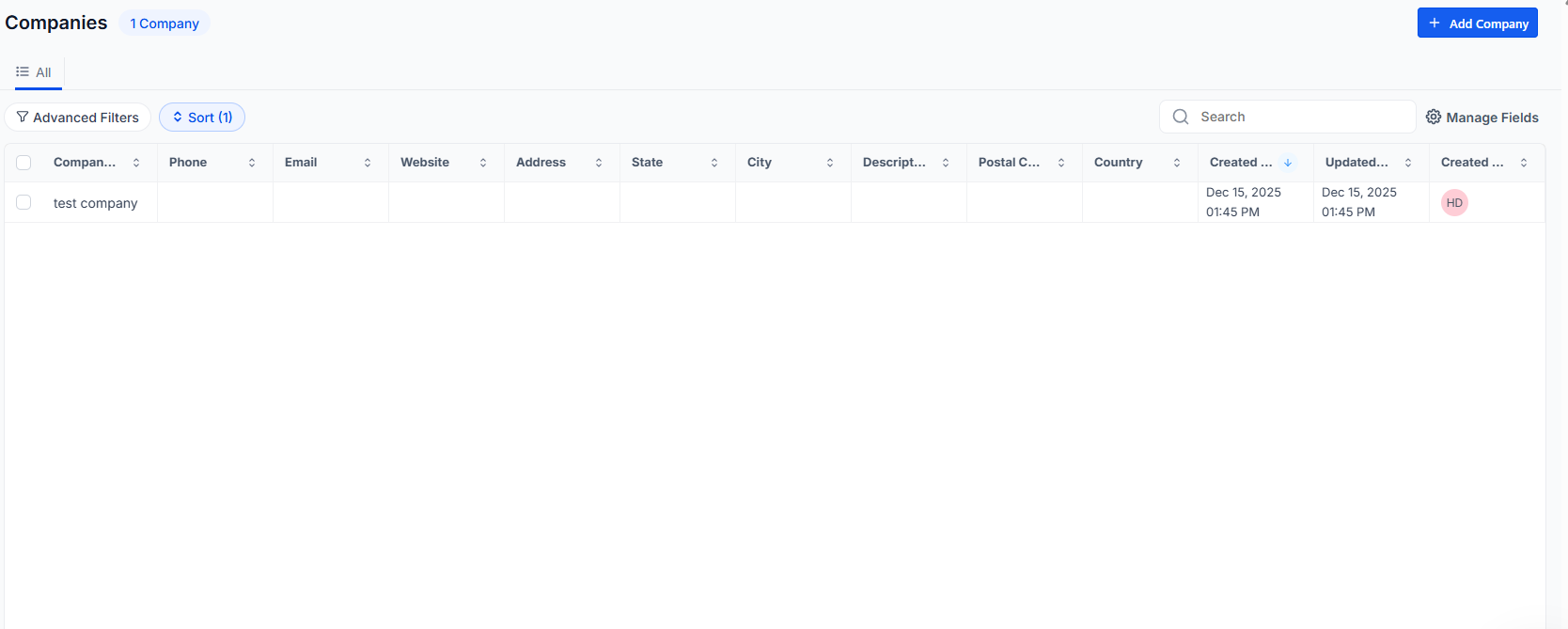
2. To choose specific records, click the Checkboxes next to the names of the companies you want to export.
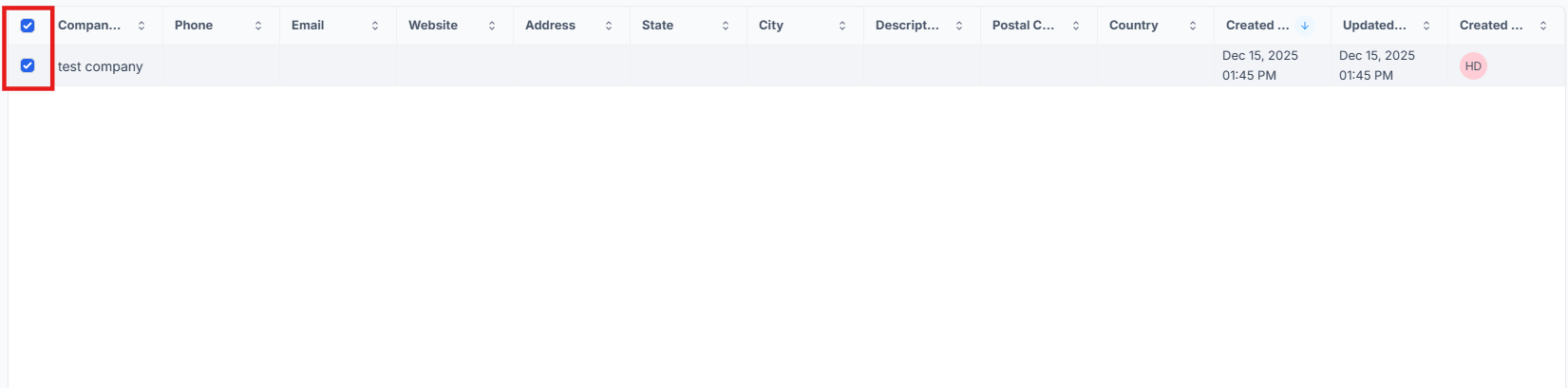
3. To begin the download, click Export in the action bar that appears at the top of the list.

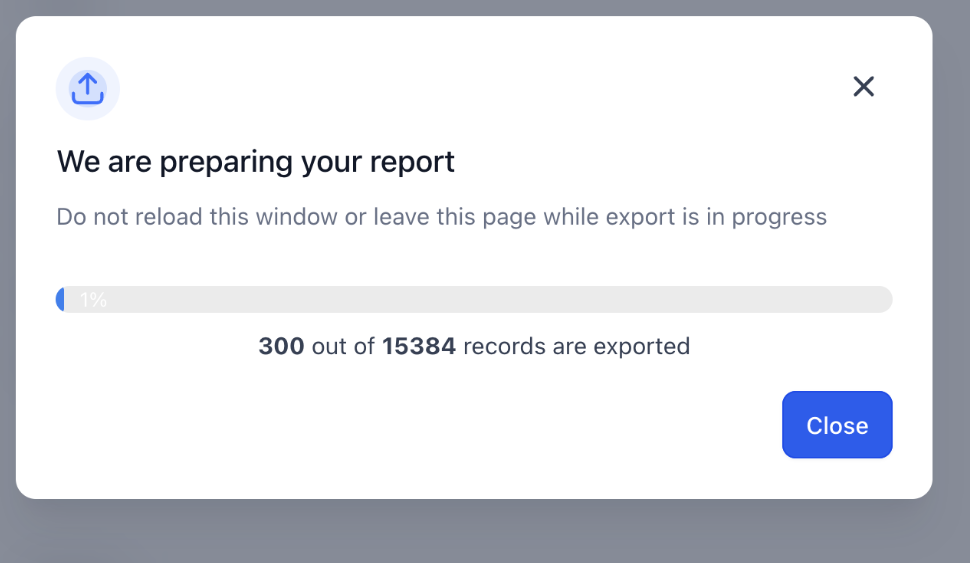
4. To track the process, watch the progress modal for the record count and percentage completion.
5. To save the file to your computer, click the link to download the generated CSV file once the process finishes.
To export all companies:
- To view your complete list, navigate to Contacts > Companies.
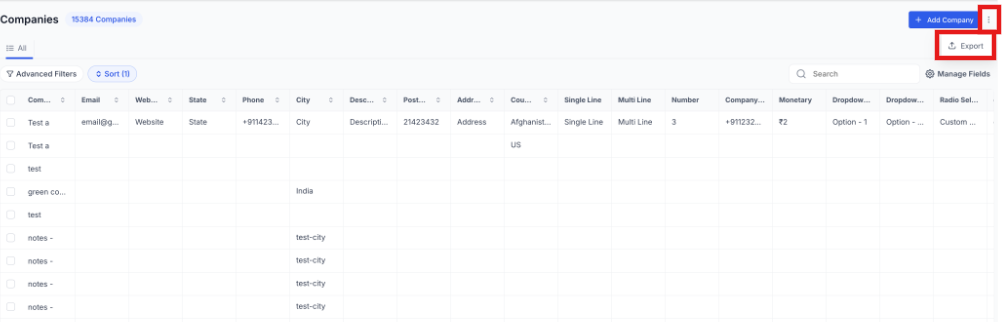
- To see more options, click the 3-dot menu located in the top-right corner of the screen.
- To start a full database download, select Export from the dropdown menu.
4. To monitor the status, wait for the export progress modal to reach 100%.
5. To finalize the process, open the CSV file that is automatically downloaded to your system.
Features and Benefits
Section titled “Features and Benefits”This provides several improvements to your workflow:
- Real-time progress: You can see exactly how many records are exporting and the percentage of completion.
- Flexible selection: You can choose to export everything or just a hand-picked list.
- Universal format: The system generates a CSV file containing all selected company fields, making it compatible with Excel or Google Sheets.
- Efficiency: This tool eliminates the need for manual data entry and simplifies offline analysis or data sharing with stakeholders.
Question: What file format is used for the export?
Answer: All company data is exported as a CSV (Comma Separated Values) file, which can be opened by any spreadsheet software.
Question: Can I export specific fields or columns?
Answer: The bulk export currently includes all available fields for the company records you select.
Question: Is there a limit to how many companies I can export at once?
Answer: No. You can use the “Export All” feature to download your entire company database regardless of size.
Question: Where can I find the file after the export finishes?
Answer: Once the progress bar reaches 100%, the file will typically save to your computer’s “Downloads” folder.
Question: Do I need to stay on the page while the export processes?
Answer: For large datasets, it is best to keep the window open until the progress modal confirms the export is complete to ensure your download starts.
Question: Will exporting companies delete them from the system?
Answer: No. Exporting simply creates a copy of your data in a spreadsheet; all records remain safe within .
Question: Do I have to manually click a link to get my file once “Export All” finishes?
Answer: When performing a full export via the 3-dot menu, the CSV file is automatically downloaded to your system once the progress modal reaches 100%.