Taxes and Processing Fees for Services
Managing calendar-based bookings requires transparency and accuracy, particularly when it comes to financial transactions. allows you to implement manual taxes and custom processing fees within your service configurations. This ensures that customers receive an itemized checkout experience while your internal reporting remains precise and compliant with local regulations.
Key Features and Benefits
Section titled “Key Features and Benefits”Implementing structured taxes and fees provides several operational advantages for your business:
- Cost Recovery: Easily pass through card processing or convenience costs by applying a labeled percentage-based fee.
- Regulatory Compliance: Meet local tax requirements by applying accurate sales tax, VAT, or GST rates to your offerings.
- Professional Transparency: By showing an itemized total before payment, you reduce customer confusion and the likelihood of billing disputes or chargebacks.
- System Consistency: Totals are aligned across booking pages, appointment records, receipts, and financial exports, ensuring a single source of truth for every transaction.
Configuration Steps
Section titled “Configuration Steps”To ensure every booking reflects accurate totals and streamlines your reconciliation process, follow these steps to set up your financial preferences:
1-Navigate to the Settings area of your account from the main left menu and select the Calendars section from the top right.
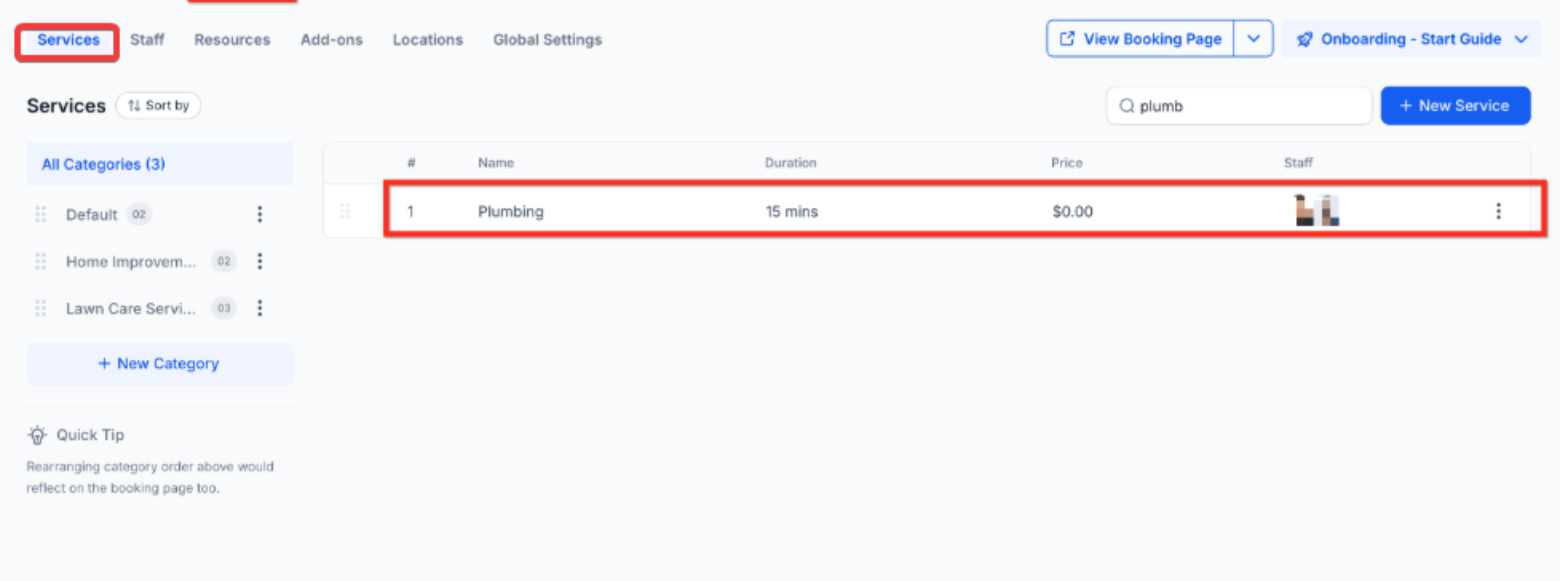
2- Find the Services tab, then click the three dots next to the service you want to edit.
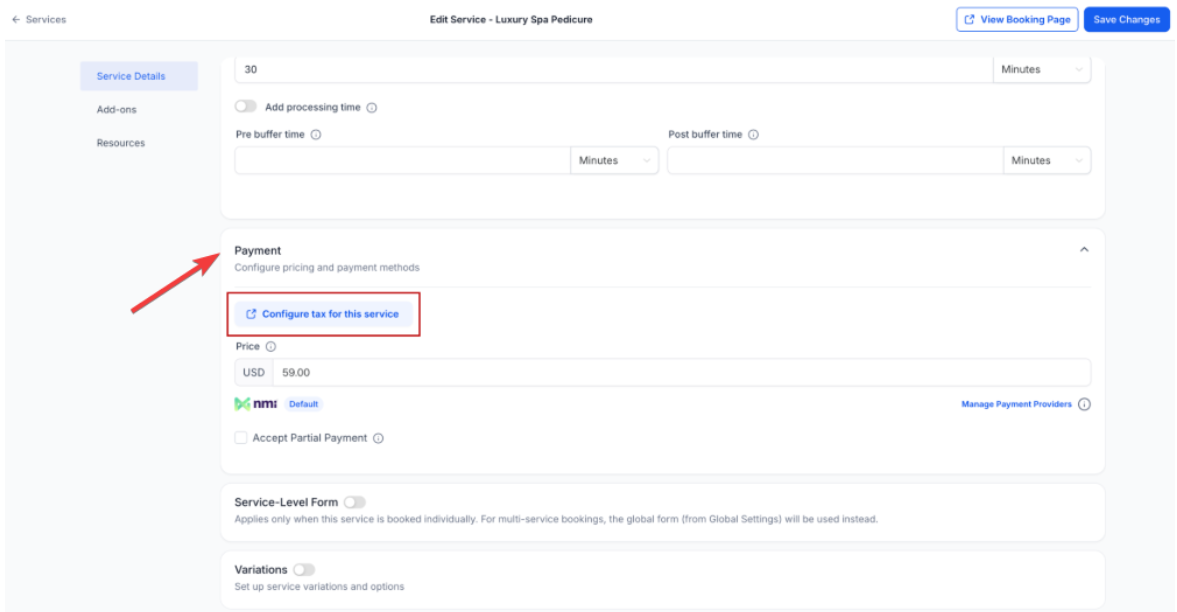
3-Scroll to the Payments section and select the option to configure taxes for the service.
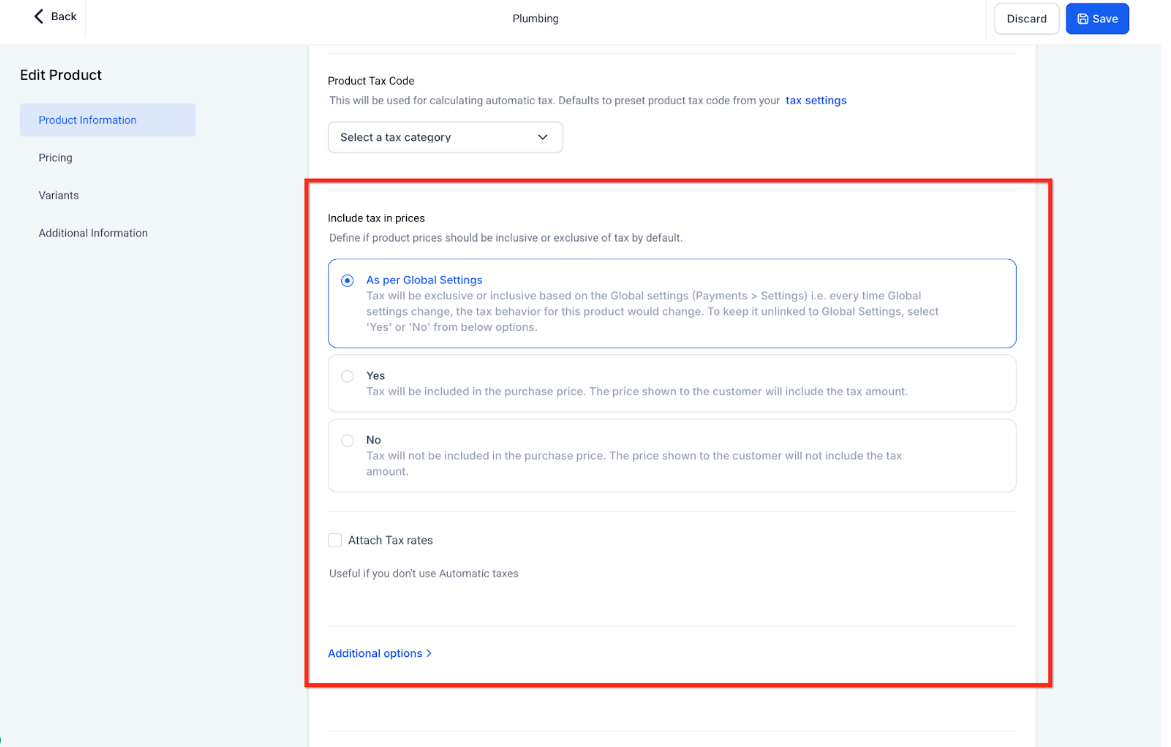
4-In the window for the linked product, you may add a new tax rate or select an existing one and save your changes.
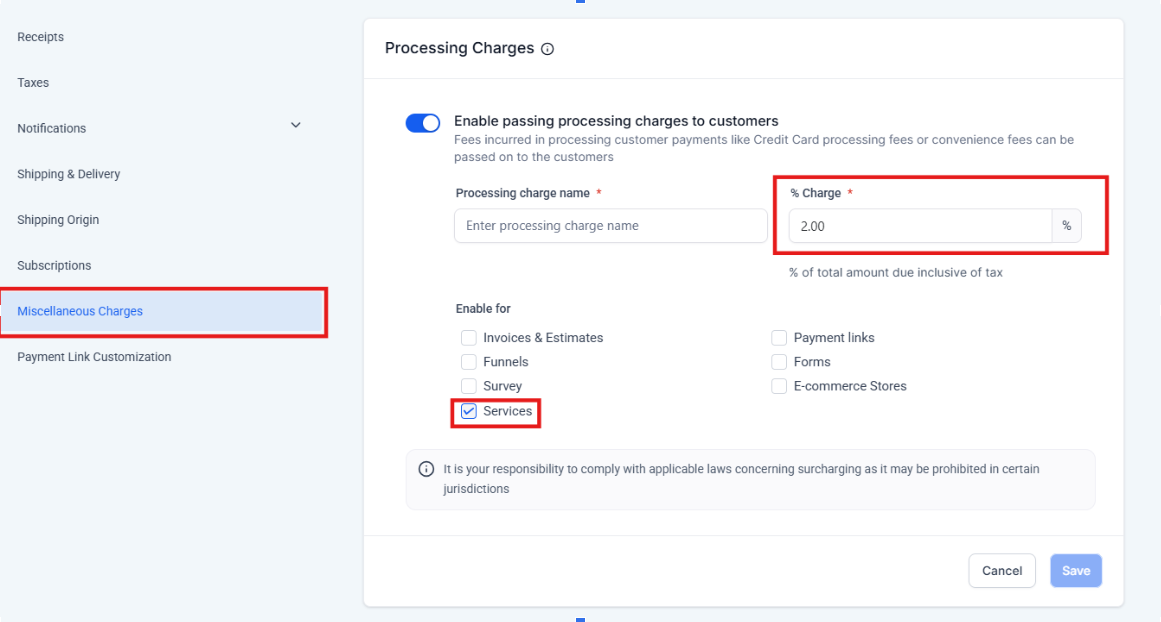
5-To add a processing or miscellaneous fee, enter your desired percentage and a custom label (such as “Service Charge” or “Convenience Fee”) directly on the service setup i.e in the settings sub-tab in the main payments tab located on the left menu bar.
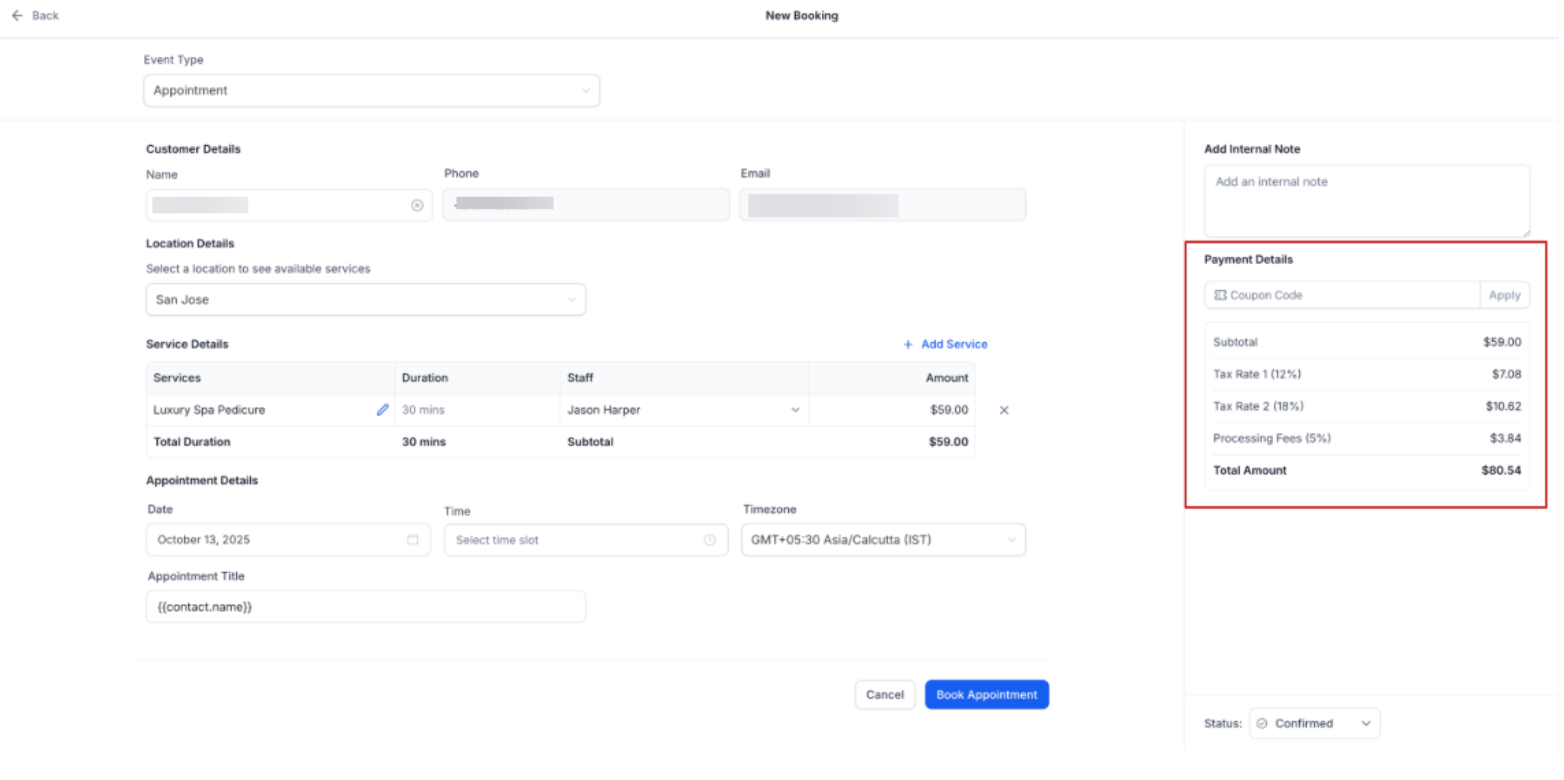
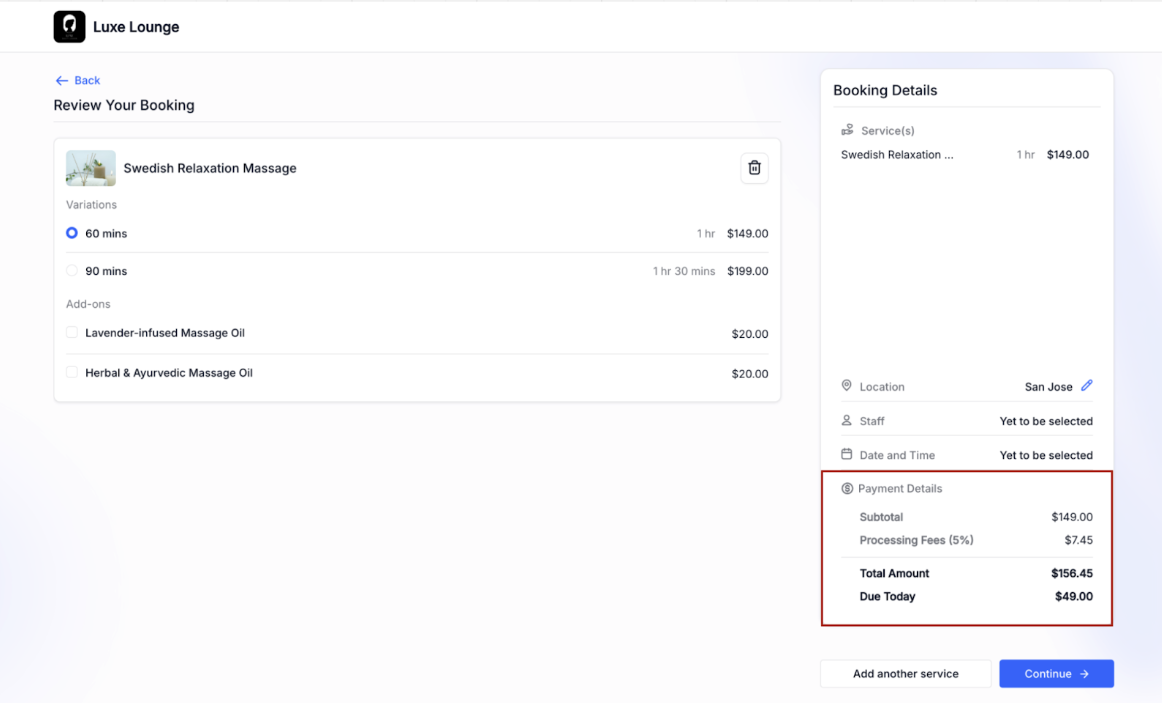
6-Save the service. All future bookings will now automatically itemize the fee and tax lines on the booking page and all subsequent records.
Visibility and Reporting
Section titled “Visibility and Reporting”Once configured, these items are visible in several key areas:
- Public Booking Form: Customers see an itemized breakdown just above the final total.
- Appointment Details: Staff can view the subtotal, specific fees, and taxes within the appointment record.
- Payment Receipts: If receipts are enabled, the itemized breakdown is included in the email sent to the customer.
Pro Tip
Section titled “Pro Tip”When exporting your financial data for accounting purposes, navigate to the transactions area to download a CSV. The export includes dedicated columns for fee labels and tax amounts, making it simple to reconcile your accounts without manual calculations.
Question: Can I apply different fees to different types of services?
Answer: Yes. Fees are configured on a per-service basis, allowing you to customize the percentage and label for each unique offering in your catalog.
Question: Will updating a tax rate change the price of appointments already booked?
Answer: No. Changes to taxes or fees only apply to new bookings created after the update. Previously completed bookings and existing receipts remain unchanged to maintain historical accuracy.
Question: How do discounts interact with taxes and fees?
Answer: Discounts typically reduce the taxable base of the service. Depending on your configuration, a percentage-based processing fee may also be calculated based on the discounted subtotal.
Question: Is there a limit to how many tax rates I can apply to a single service?
Answer: You can attach multiple tax rates to the product linked to your service, which is helpful for regions that require both state and local tax applications.
Question: What file types are supported for reporting exports?
Answer: You can export your transaction and order data as a CSV file, which is compatible with most major accounting and spreadsheet software.
Question: Can I apply more than one tax to a single service?
Answer: Yes; you can attach multiple tax rates to the product linked to your service. This is particularly useful if your region requires you to collect both state and local taxes simultaneously.