How to Deactivate and Activate Calendars
Learn how to temporarily deactivate a calendar service (e.g., a 30-minute consultation or demo) instead of deleting it. Deactivate calendars that are not currently offered and reactivate them later as needed.
How to Deactivate Calendars
Section titled “How to Deactivate Calendars”- Navigate to Settings > Calendars.
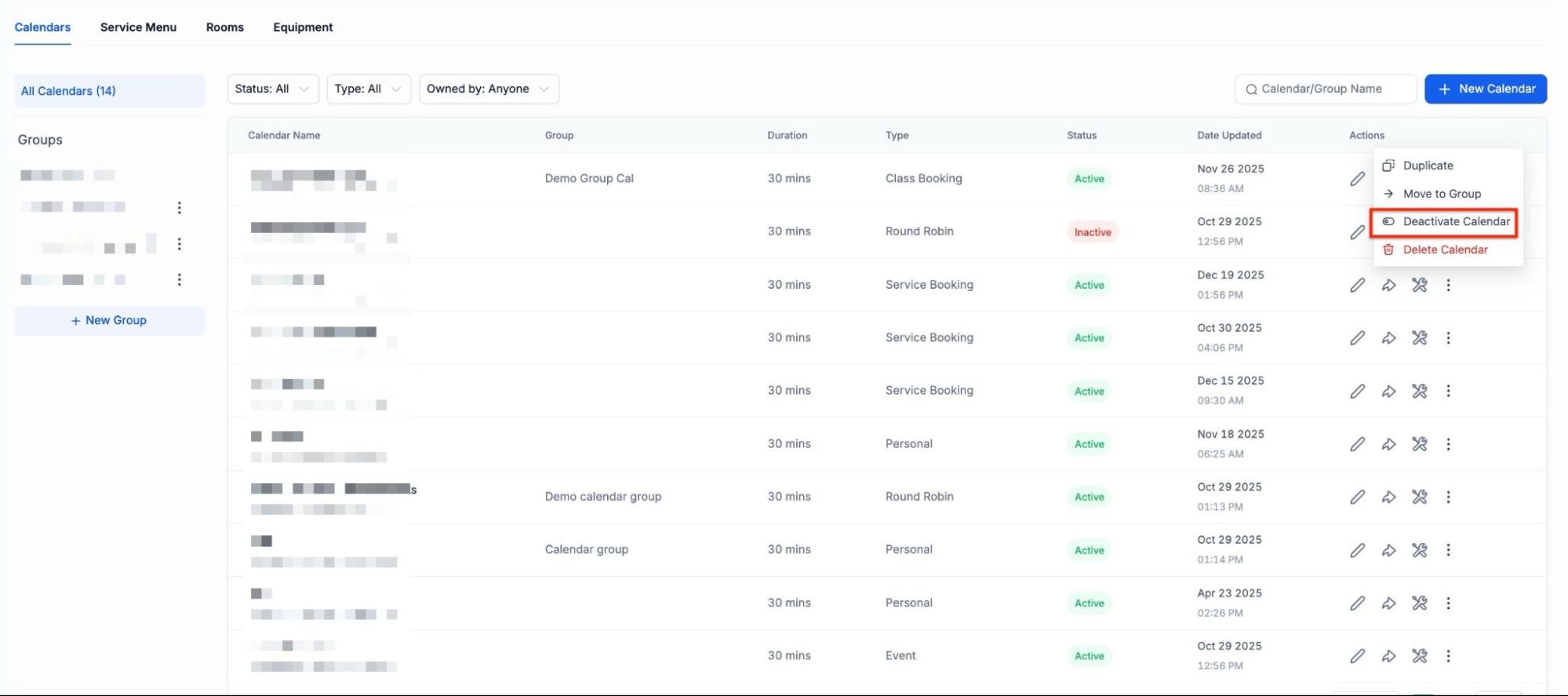
- Choose the one you’d like to deactivate and click the 3-dot dropdown menu.
- Click “Deactivate calendar.”
- In the pop-up window, click Save to deactivate the calendar.
.png)
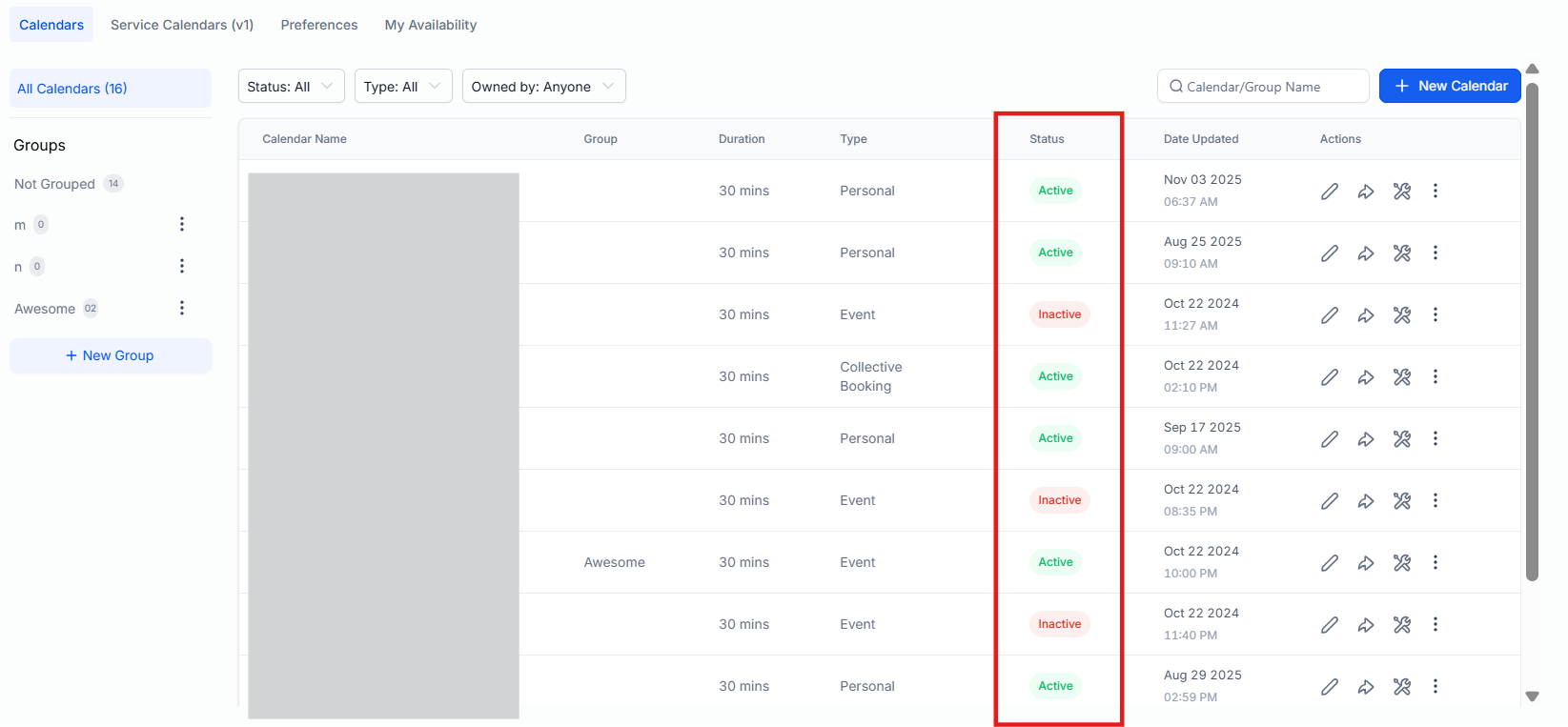
- Back in the calendar settings area, you’ll be able to tell which calendars are active by the “Status” column that shows inactive and active calendars.
NOTE: Deactivating a calendar hides it but does not delete or affect existing appointments. They will be visible once the calendar is reactivated.
How to Activate Calendars
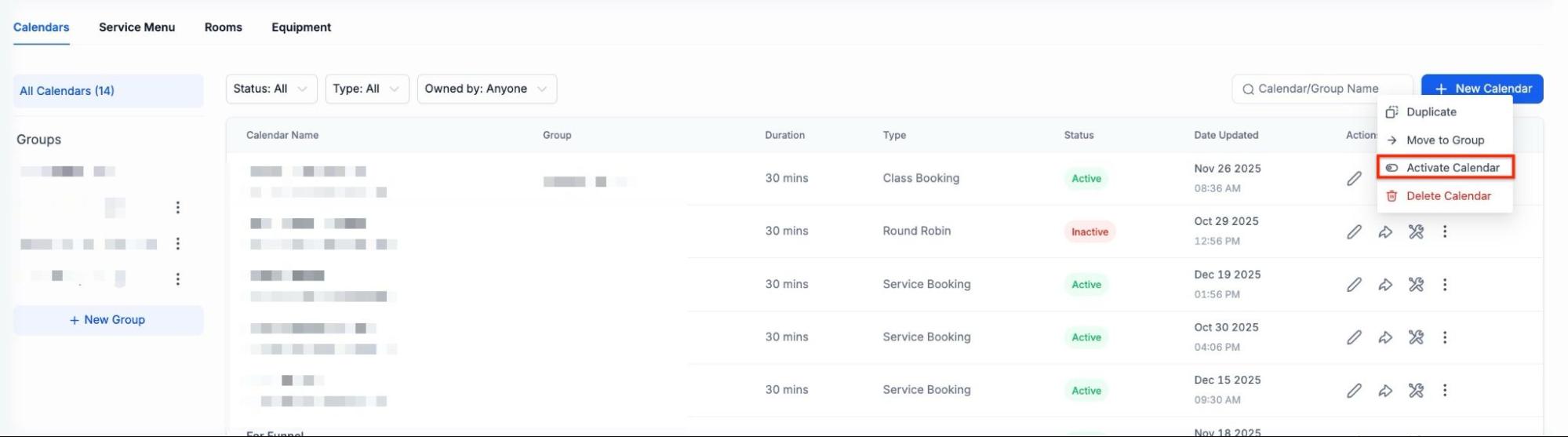
Section titled “How to Activate Calendars”- Click the 3-dot dropdown menu for the calendar you wish to reinstate or activate.
- Click “Activate Calendar”.
- The calendar will be instantly re-enabled.
Question: How do I deactivate a calendar service? **Answer:
- Navigate to Settings > Calendars.
- Select the calendar you want to deactivate.
- Click the 3-dot dropdown menu and choose “Deactivate calendar”.
- In the popup window, click Save to confirm deactivation.
Question: How can I tell which calendars are active or deactivated? Answer: In the calendar settings area, check the “Status” column. It will show which calendars are active and which are inactive.
Question: How do I activate a previously deactivated calendar? **Answer:
- Click the 3-dot dropdown menu for the calendar you want to reactivate.
- Select “Activate Calendar”.
- The calendar will be instantly re-enabled.
Question: Can I reactivate a calendar at any time? Answer: Yes, you can reactivate a calendar at any time using the steps outlined for activation.
Question: Will deactivating a calendar delete my existing appointments? Answer: No, deactivating a calendar does not delete any existing appointments. It simply hides the calendar from view until you reactivate it.
Question: What happens to the appointments in a deactivated calendar? Answer: Appointments in a deactivated calendar remain intact. They will reappear when you reactivate the calendar.
Question: Can I deactivate multiple calendars at once? Answer: Currently, the system allows you to deactivate one calendar at a time. If you need to deactivate multiple calendars, you will need to follow the steps for each individual calendar.
**Question:How long does it take for a calendar to become available again after I reactivate it?
Answer: The calendar will be instantly re-enabled once you click “Activate Calendar.”
Question: If I deactivate a calendar, will it still show up on my website or funnel where I’ve embedded it? Answer: No. Deactivating a calendar hides it from view. This allows you to temporarily stop offering a specific service (like a 30-minute consultation) without having to delete the calendar entirely. Once reactivated, it will become visible and available for booking again.