Collective Booking - Calendars
Overview:
Collective booking enables attendees to arrange meetings with multiple team members simultaneously. This type of calendar allows multiple users to share a common calendar. When someone schedules an appointment, they see available time slots based on the combined availability of all team members in that collective booking calendar.
Practical Use Case:
This feature is ideal for technical support calls where both a customer support representative and an engineer must be present, or for sales calls that require both an account executive and a sales development representative (SDR).
Instructions (Step-by-Step)
Section titled “Instructions (Step-by-Step)”1. Creating Your Collective Booking Calendar
Section titled “1. Creating Your Collective Booking Calendar”- To access your settings, navigate to Calendars > Calendar Settings.
- To start the process, click on + New Calendar.
- To choose the calendar type, select Collective Booking.
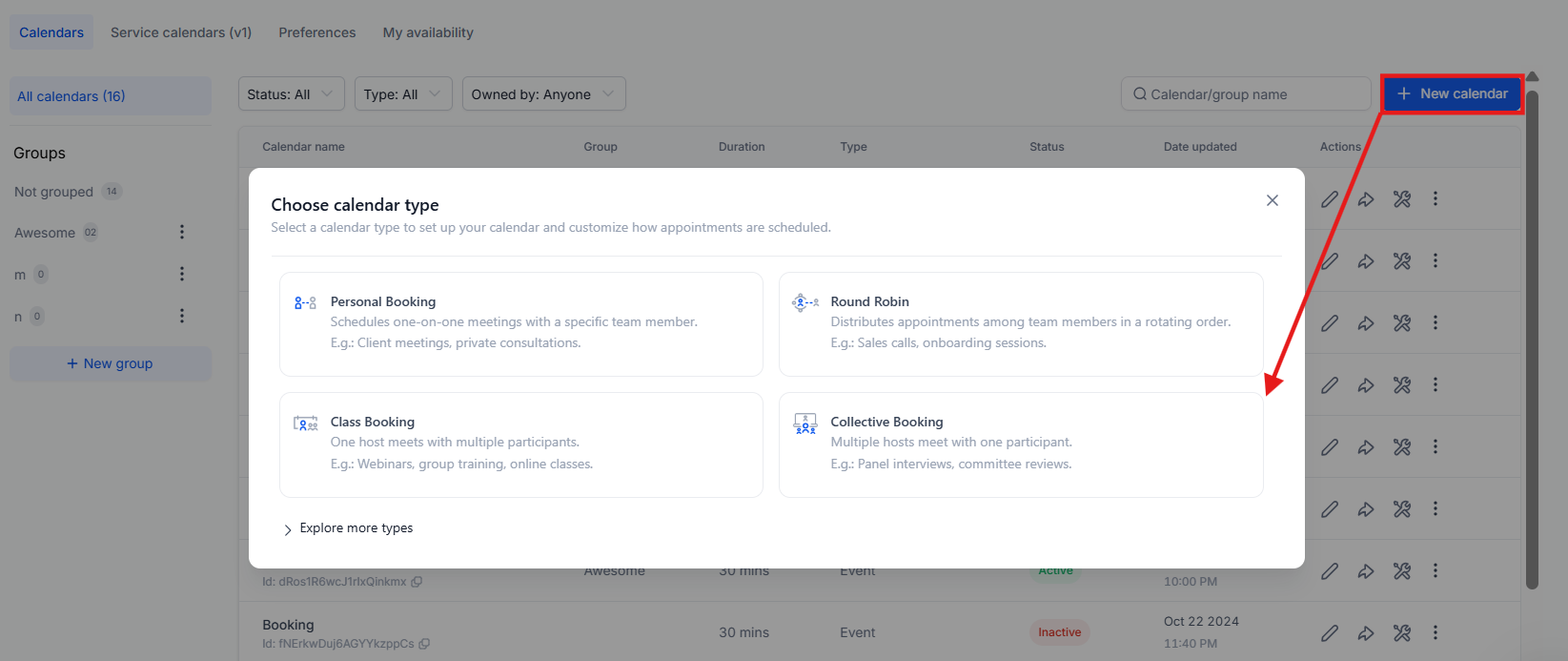
2. Adding Mandatory Details
Section titled “2. Adding Mandatory Details”- To identify the calendar, enter a Calendar Name.
- To define the group, select Team members. (Note: A minimum of 2 team members are required).
- To create a direct link, enter a Custom URL.
- To set the meeting length, select a Meeting duration.
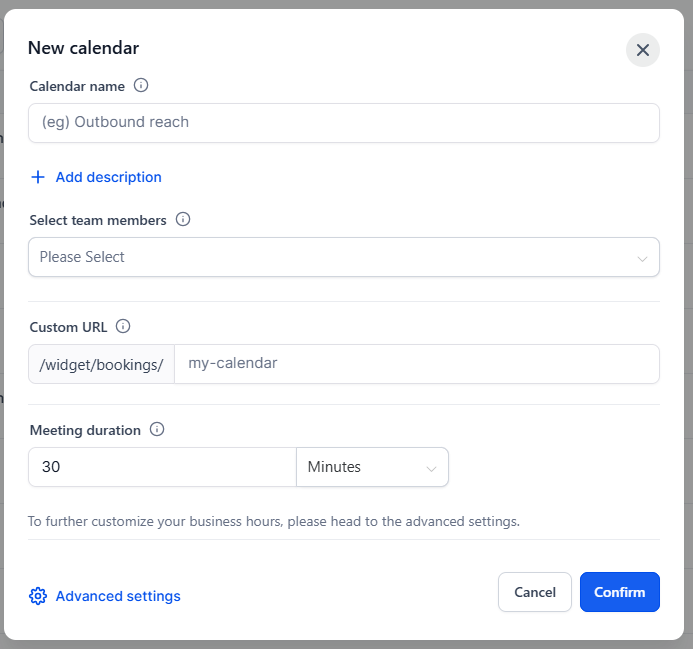
5. To define when the team is free, set the Booking availability.
6. To collect fees, toggle the Accepts Payments switch.
7. To finalize the creation, click Confirm.
3. Choosing the Primary Owner
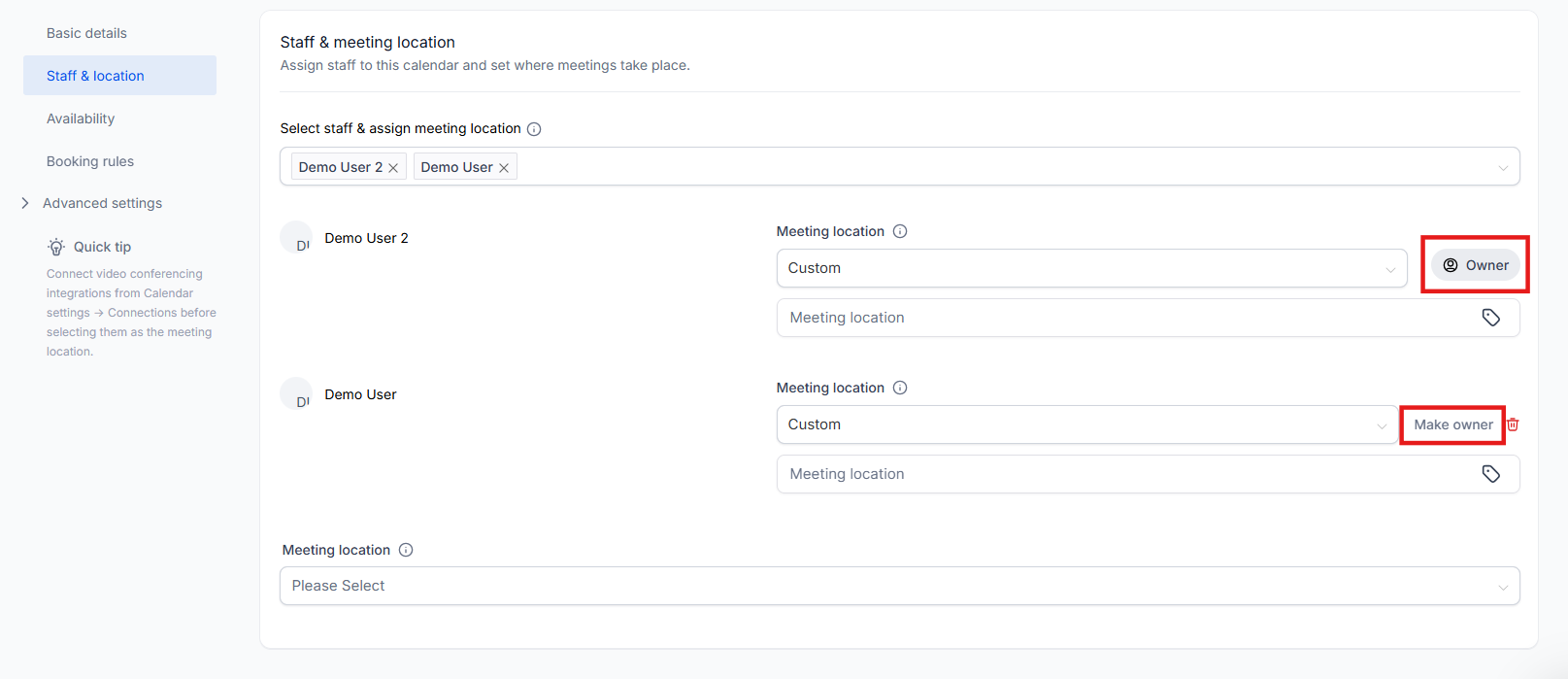
Section titled “3. Choosing the Primary Owner”The Primary Owner is the lead for the appointment. They act as the Appointment Owner, and if contact assignment is enabled, the contact is assigned to them. By default, the first person added is the Primary Owner and cannot be deleted until ownership is changed.
- To change the leader, navigate to Advanced Settings (or click Edit on the calendar) > Staff & location.
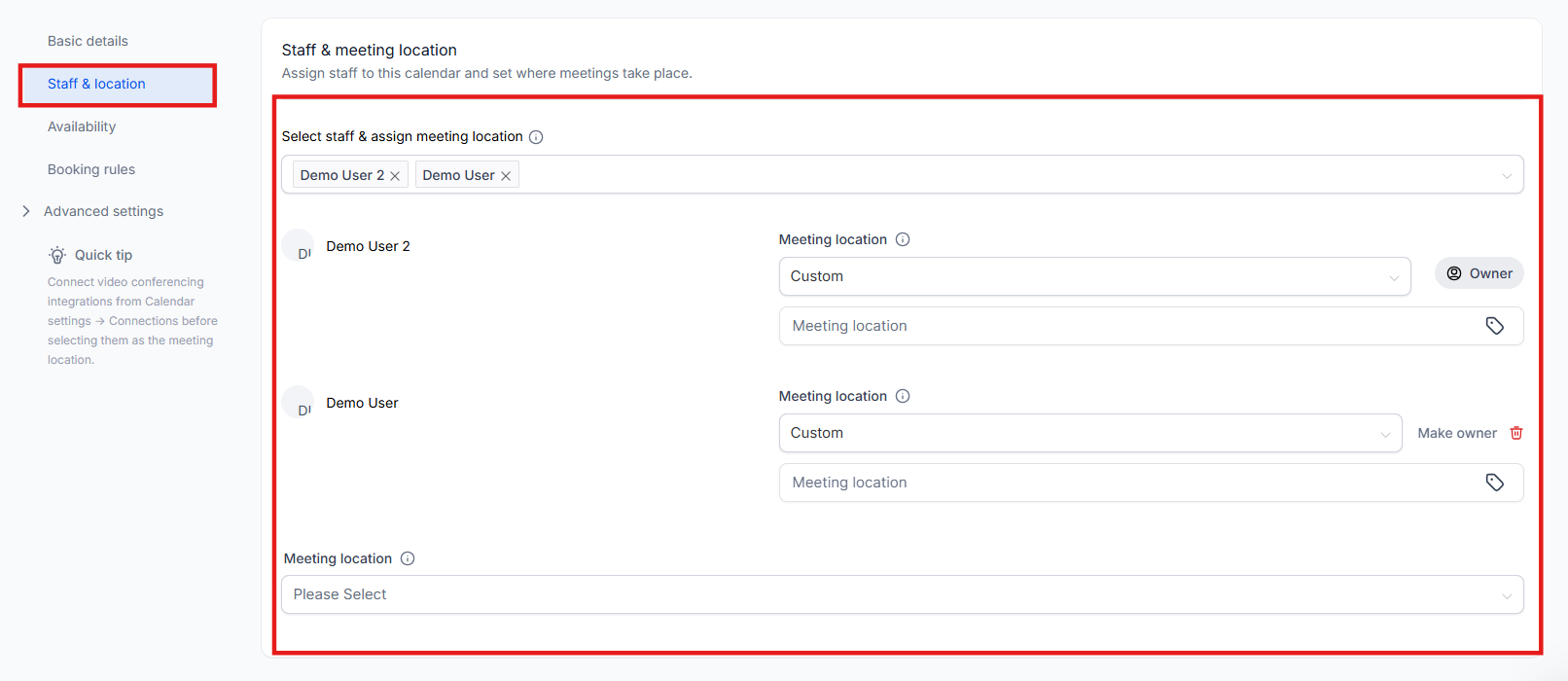
2. To assign a new lead, click Make owner against the team member who is not currently the owner.
3. To verify, look for the Owner label next to the team member’s name.
4. Configuring Availability and Advanced Rules
Section titled “4. Configuring Availability and Advanced Rules”- To set a repeating schedule, use Weekly Working Hours.
- To override regular hours for specific dates, use Date Specific Hours.
- To show the earliest available date first, configure Date-Specific Hours and ensure Weekly Working Hours are empty.
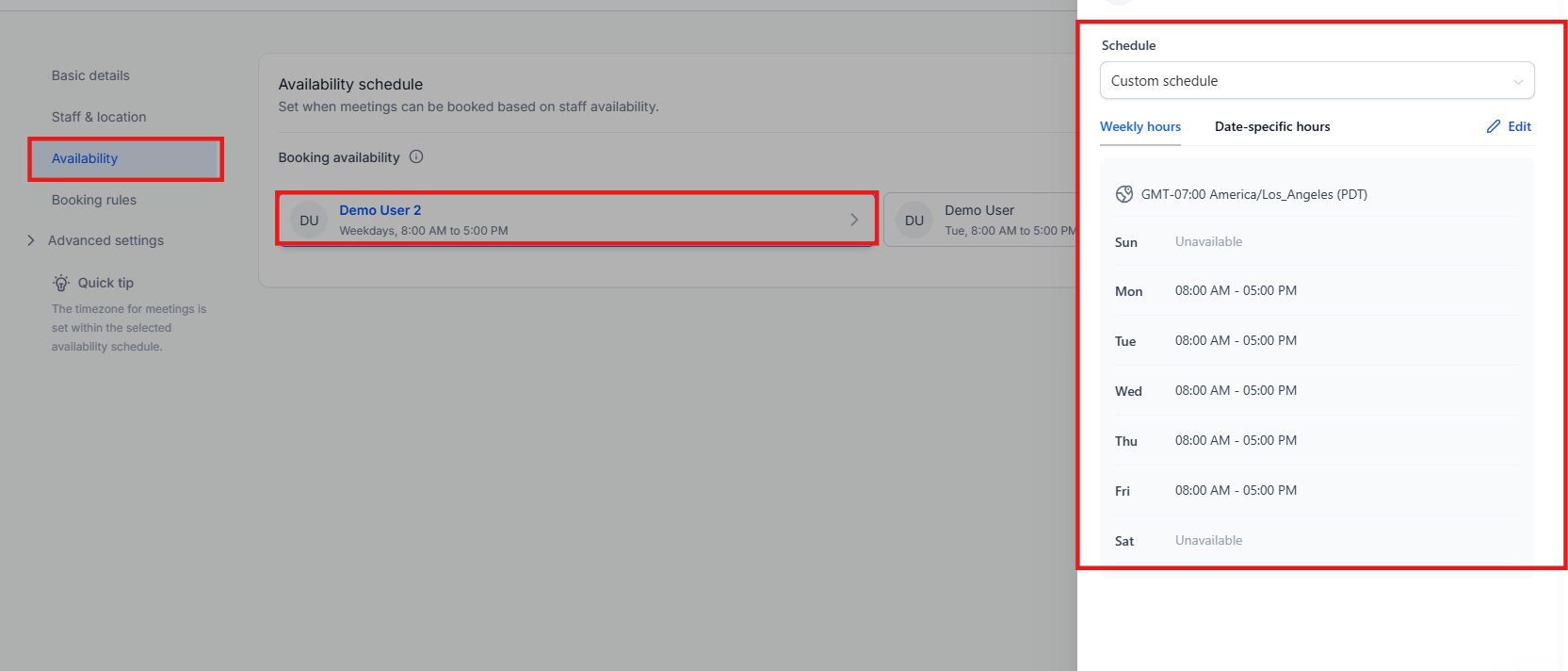
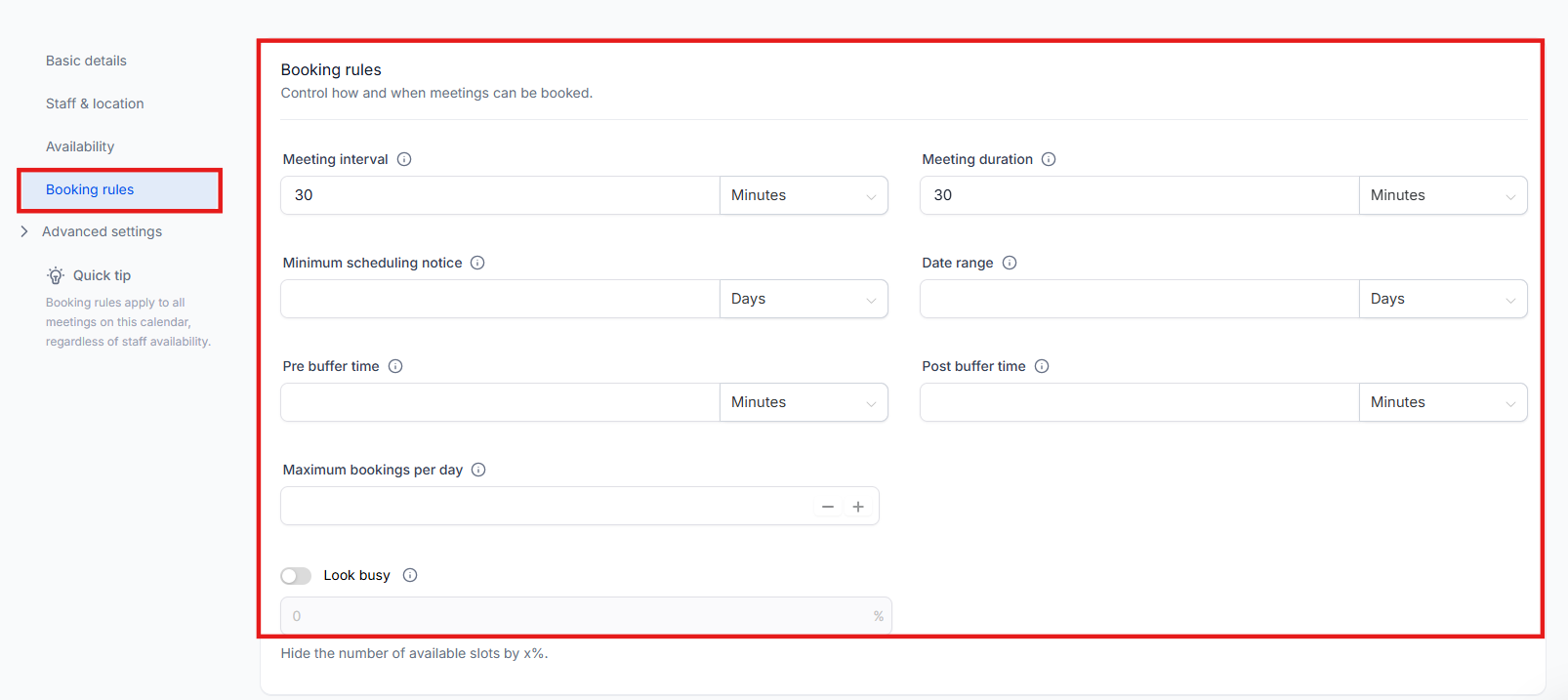
4. To set how often meetings occur, adjust the Meeting Interval.
5. To prevent back-to-back fatigue, set Pre Buffer and Post Buffer times.
6. To limit daily meetings, set Max Bookings Per Day.
5. Using the “Look Busy” Feature
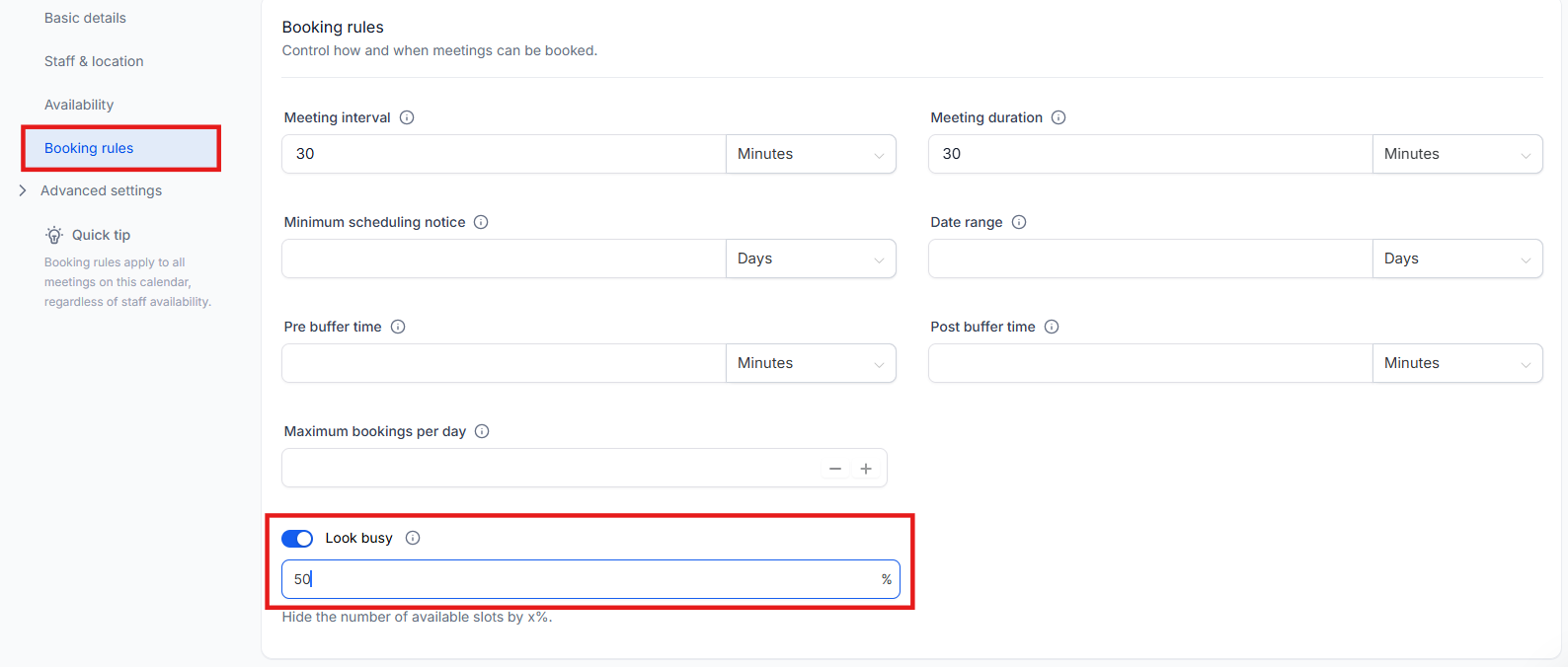
Section titled “5. Using the “Look Busy” Feature”This feature creates urgency by hiding a percentage of available slots, making you appear more in demand. The hidden slots are randomized.
- To enable this, navigate to your calendar settings and toggle on Look Busy.
- To set the intensity, choose the percentage of slots to hide.
- To finish, click Save. Note: This does not apply to class bookings or service menus.
6. Managing Notifications and Policies
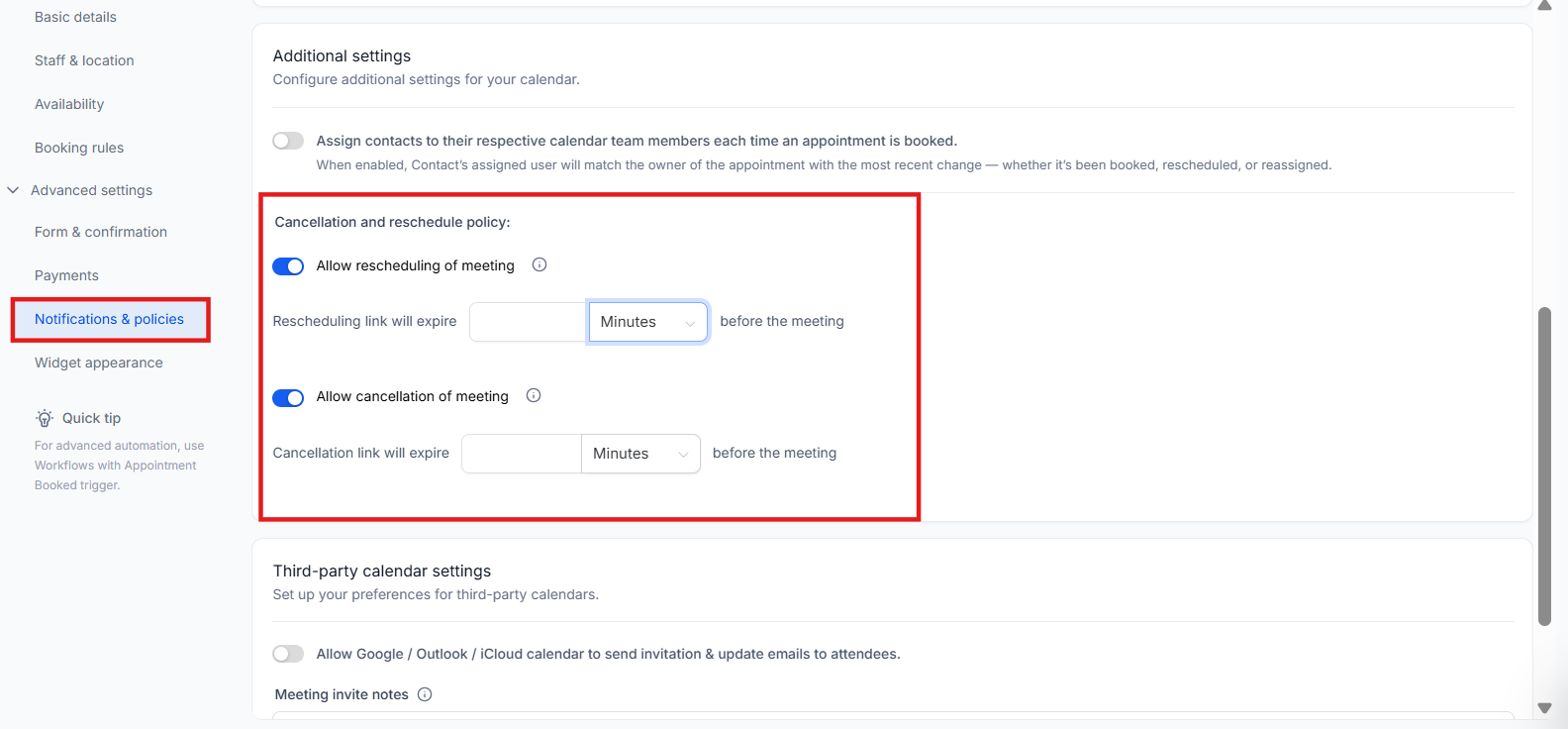
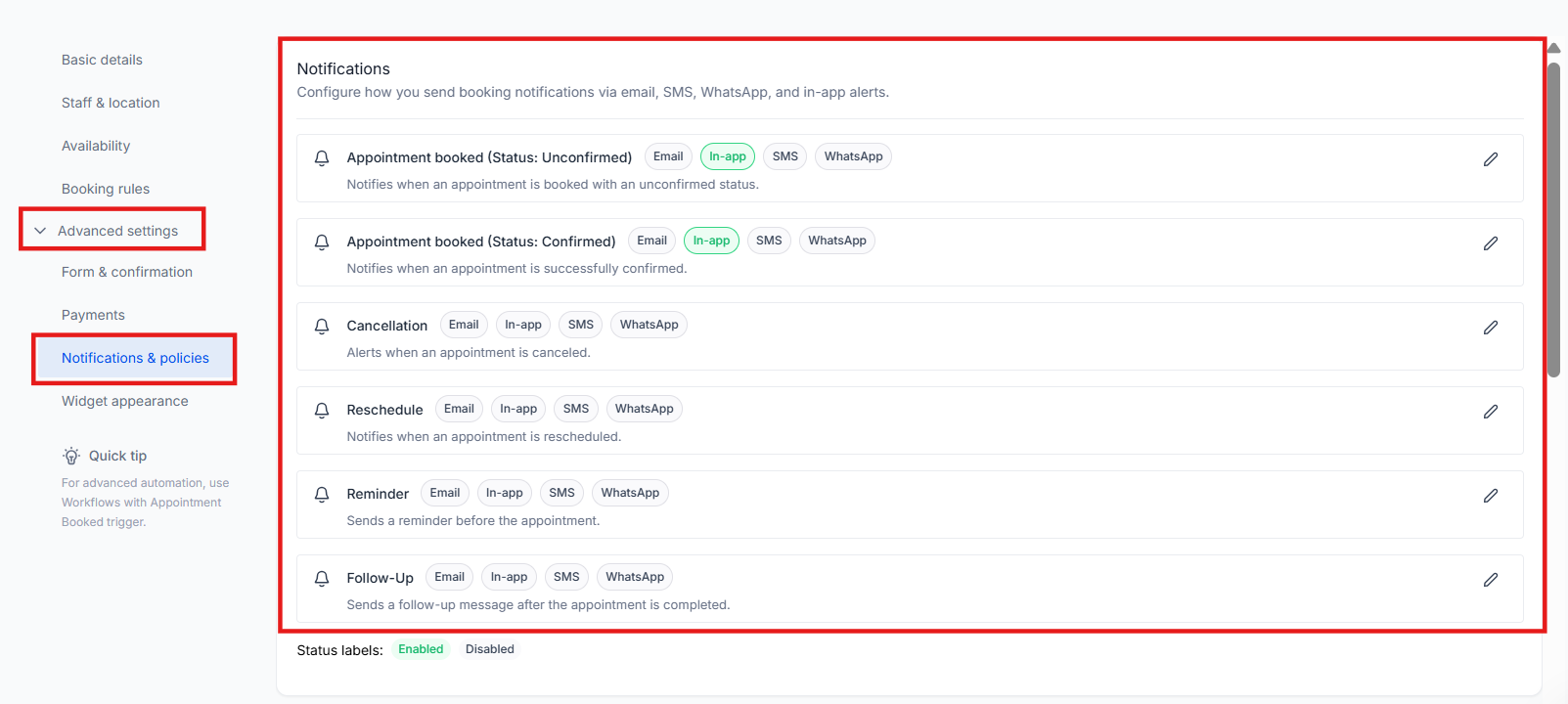
Section titled “6. Managing Notifications and Policies”- To manage alerts, go to Notifications and policies.
- To allow flexibility, toggle on Allow Cancellation and Allow Rescheduling.
- To prevent last-minute changes, specify the time range for link accessibility.
- To customize the message, select an existing email template or create a new one.
- To finalize all settings, click Save.
Detailed Feature Breakdown
Section titled “Detailed Feature Breakdown”Delving into Availability Settings
Section titled “Delving into Availability Settings”- Meeting Duration: Designate the length of your appointments (e.g., 30 minutes).
- Meeting Interval: Specify how often appointments can be scheduled.
- Buffer Logic: The system ensures buffers do not overlap with blocked slots. If you have a 30-minute post-buffer and a block at 12:00 PM, the previous slot must end by 11:30 AM.
- Max Bookings Per Slot: Defines the upper limit of appointments for each time slot.
- Scheduling Protocols: Dictate prior notice and lead time requirements via Minimum Scheduling Notice and Date Range.
- Recurring Appointments: Choose the rhythm of repeated sessions if needed.
Notifications and Payments
Section titled “Notifications and Payments”- Notification Flow: All team members are notified once a contact books. You can choose to send notifications to assigned users or specific users via the web or mobile app.
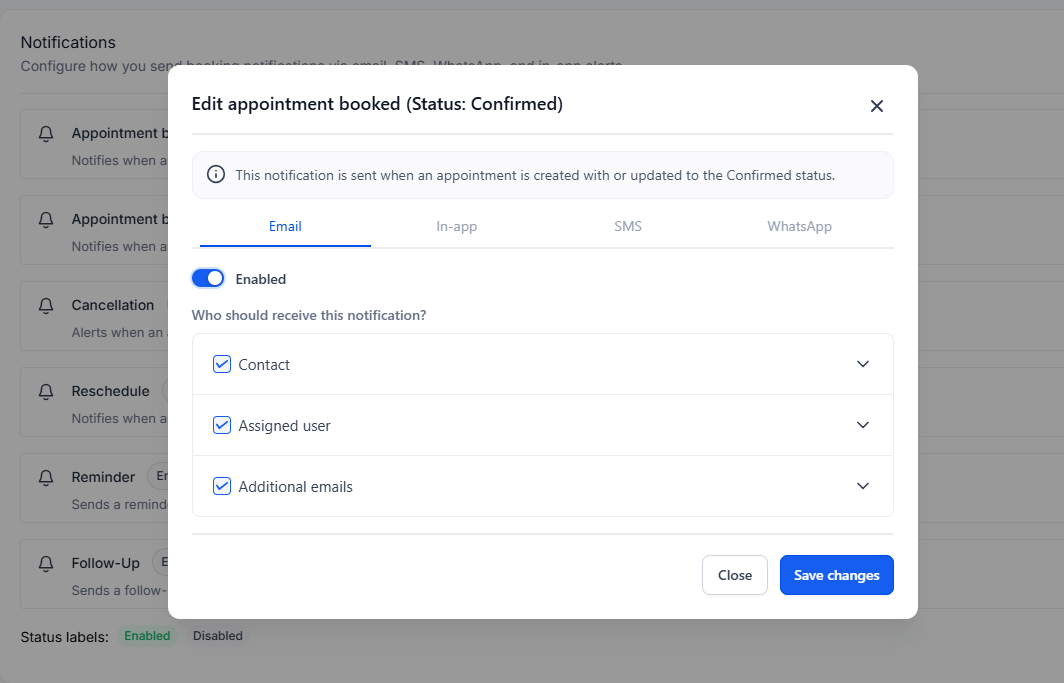
- Notification Types: There are six types, including Appointment Booked, Cancellation, and Follow-Up.
- Payment System: If enabled, the user must make the payment first. The appointment is only confirmed once the payment is successful.
Troubleshooting Tool
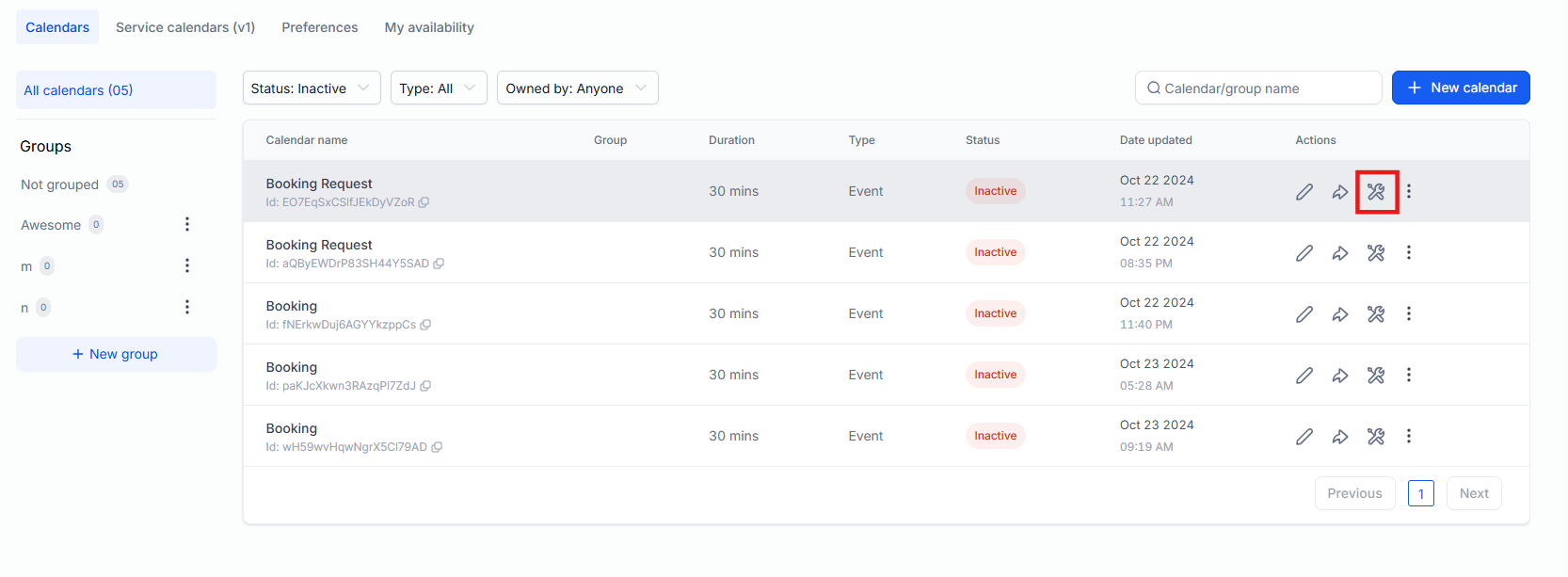
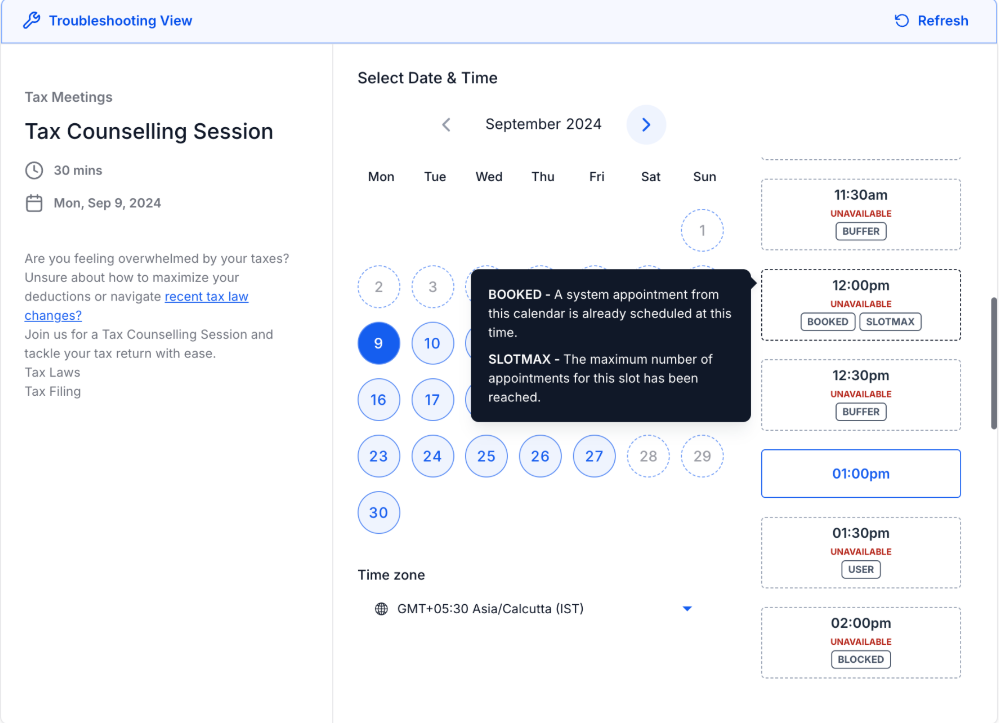
Section titled “Troubleshooting Tool”If you are unsure why a slot is unavailable, use the Troubleshoot Calendar option within Calendar Settings. It provides detailed insights and explanations for unavailable time slots to help resolve scheduling issues quickly.
Question: How many team members can I add to a single collective booking calendar?
Answer: You can add up to 100 team members. However, keep in mind that the more team members you add, the fewer the chances of finding available slots that fit everyone’s schedules.
Question: Would payments work in Collective Booking?
Answer: Yes, payments work for Collective Booking. If enabled, the user must complete the payment first, and once confirmed, the appointment will be booked.
Question: Can I use Collective Booking for virtual appointments?
Answer: Yes, Collective Booking can be used for both virtual and physical appointments. Ensure you add the correct details in the Meeting location field.
Question: Can I remove a team member from an existing collective booking calendar?
Answer: Yes, you can remove any member except the Primary Owner. To remove the Primary Owner, you must first assign ownership to someone else.
Question: I changed the Primary Owner, but the old appointment still shows the old owner. Why?
Answer: Appointments reflect the settings in place at the time of booking. Changes apply only to new appointments booked after the update.
Question: Is there a way I can change the Primary Owner for an already-created appointment?
Answer: No, there is no way to change the details of an already booked collective appointment, including the Primary Owner.
Question: Can I edit or reschedule a booked collective appointment?
Answer: Yes, you can edit or reschedule it. However, you cannot change the team members involved once the appointment is booked.
Question: Who receives the default notifications for different calendar types? Answer: For Event Calendars, the account admin is the default for in-app notifications. For other types, like Collective, the assigned user is the default.
Question: Why are some time slots unavailable on my calendar?
Answer: Use the Troubleshooting Tool in Calendar Settings. It shows the reasons behind unavailable slots, such as conflicting appointments or specific calendar settings.
Question: Can attendees cancel or reschedule appointments?
Answer: Yes, if you enable “Allow Cancellation” and “Allow Rescheduling” in the Notifications and Policies tab. You can also set a time window for when these links expire.
Question: Will every team member receive a notification when a meeting is booked?
Answer: Yes, by default all team members in the collective calendar are notified. You can customize these notifications in the settings.