Calendar Services - Mobile App
This article explains how to use the mobile-first service booking feature to manage multi-service appointments efficiently on the go. It highlights key functionalities that help teams and businesses streamline scheduling, handle service variations, staff assignments, add-ons, coupons, and multi-location bookings, all from a mobile device.
Key Features & Benefits
- Multi-Location Booking: Easily select available business locations during scheduling.
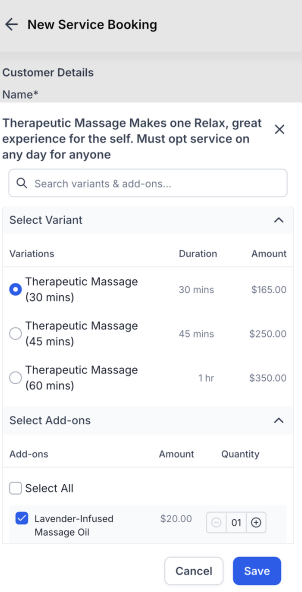
- Service Variants: Support for multiple options within a service (e.g., different durations or packages).
- Add-Ons with Quantity Support: Include optional extras or enhancements directly in the booking flow.
- Apply Coupons: Enter promo codes for discounts during checkout.
- Date-Specific Staff Hours: Reflects accurate availability for selected dates.
- Multi-Service Checkout: Add multiple services to a single appointment seamlessly.
- Calendar Filtering: View and filter booked appointments by services across Monthly, Weekly, and List views.
How to Use (Step-by-Step)
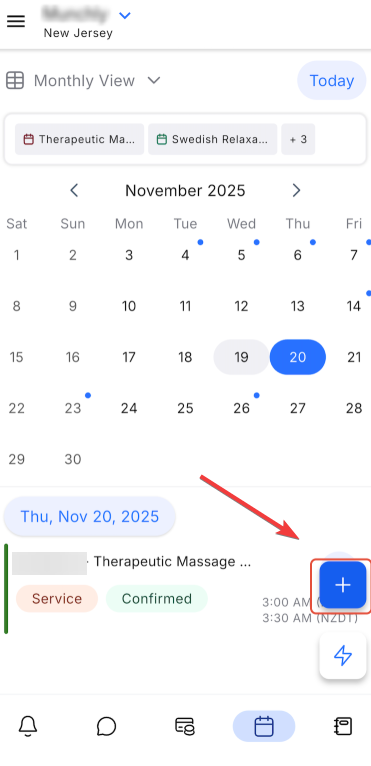
- Open the Calendar Module: Tap the + (plus) button and choose “Service Appointment.”
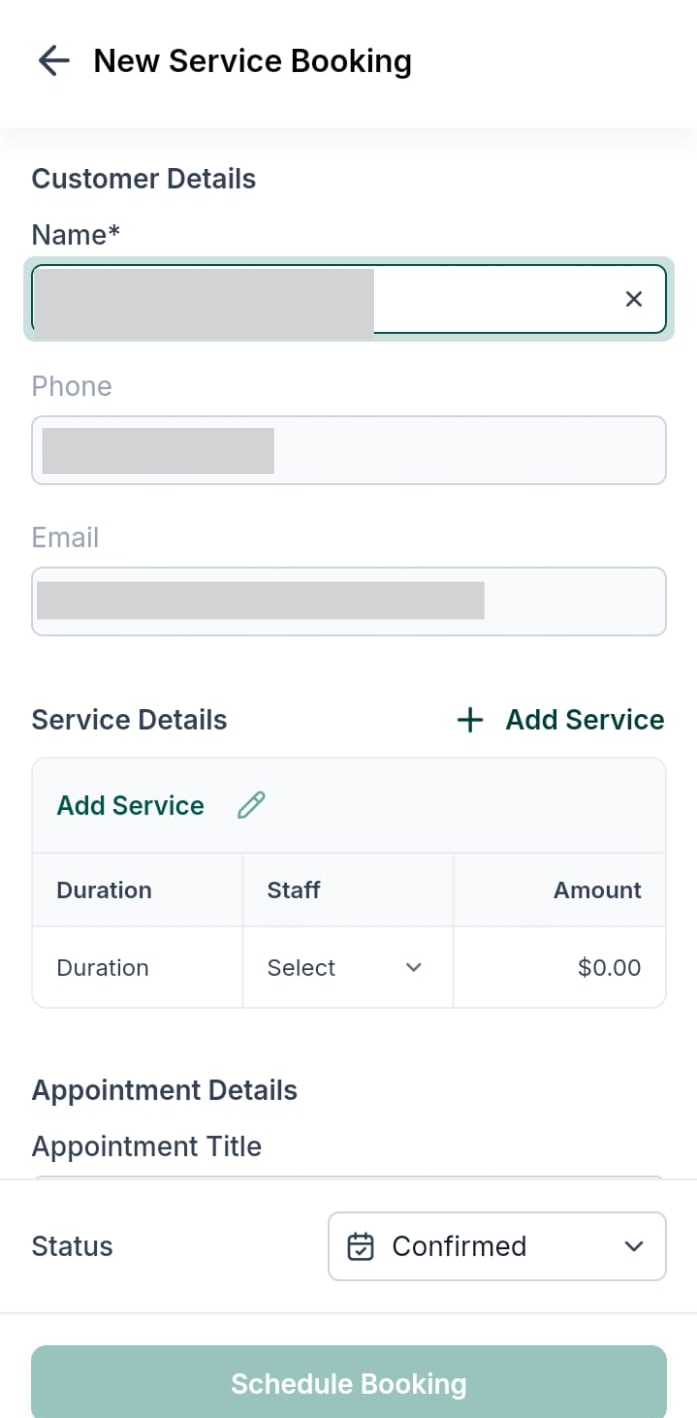
- Select Contact & Location: Search for a contact and pick the desired service location.
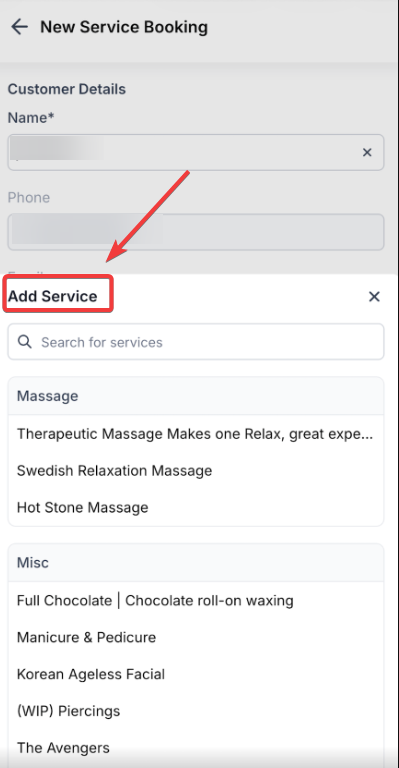
- Choose Services: Browse and select the services to include in the appointment.
- Select Variants & Add-Ons: Choose service options (e.g., duration) and add optional extras with quantities.
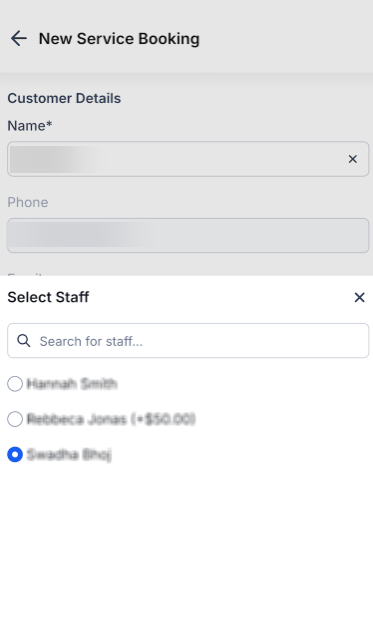
- Assign Staff: Assign a team member to each service; staff-specific pricing is applied automatically.
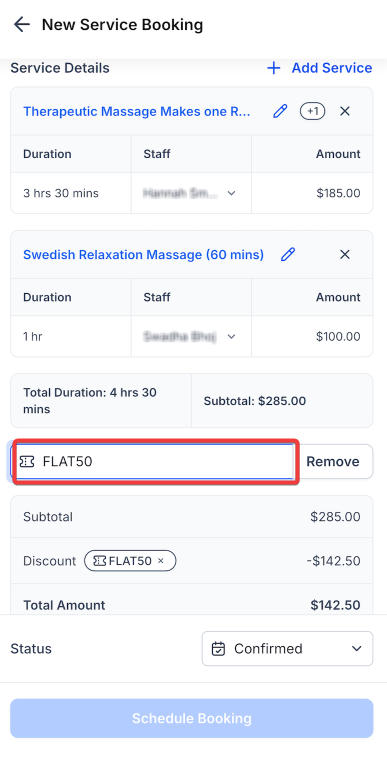
- Apply Coupons (Optional): Enter a valid promo code to apply discounts.
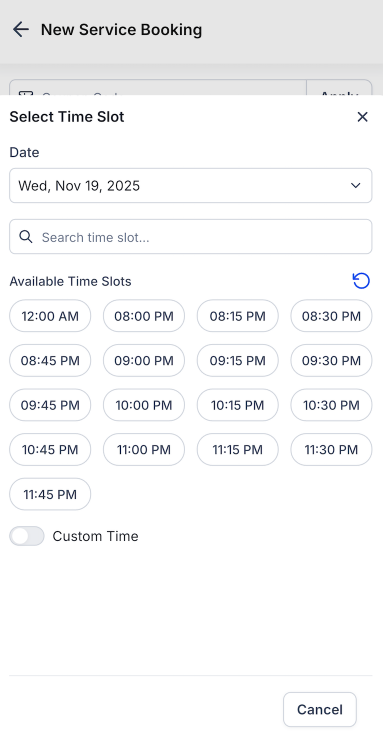
- Pick a Time Slot: Choose from available slots or select a custom time if enabled.
- Confirm & Schedule Booking: Review the service, staff, pricing, and discount details, then tap “Schedule Booking.”
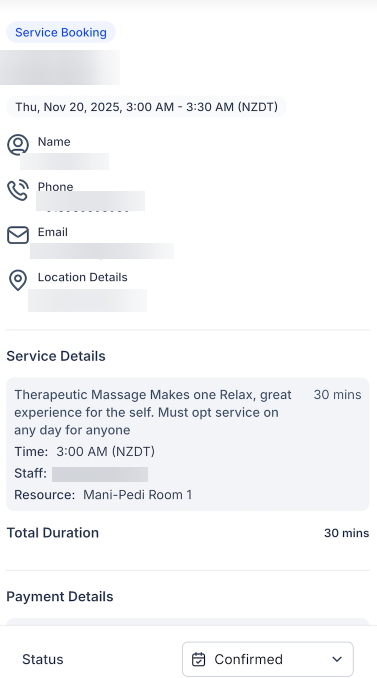
- View Booking Summary: Access a full overview of the appointment, including customer details, service breakdown, duration, pricing, and applied discounts.
Pro Tips
- Use the service labels at the top of the calendar to filter appointments by specific services for faster visibility.
- Ensure staff and calendars are properly set up to avoid missing appointments in the calendar view.
- Multi-service checkout can help reduce errors by combining bookings into a single workflow.
FAQs
Question: Can I book multiple services at once on mobile? Answer: Yes, the multi-service checkout allows you to add multiple services to a single appointment seamlessly.
Question: Can I apply coupons or discounts? Answer: Yes, you can enter promo codes during the booking process to apply discounts to the appointment.
Question: Can I edit or reschedule appointments on mobile? Answer: Currently, editing, rescheduling, or duplicating appointments is not supported on the mobile app.
Question: Will all appointments show if calendars are not set up? Answer: No, appointments may not appear if no calendars are configured, even if services and staff exist.
Question: Can I view only specific services in the calendar? Answer: Yes, you can filter calendar views by selecting service labels for clearer visibility across Monthly, Weekly, or List views.
Question: Does the system automatically adjust pricing if I assign a specific staff member?
Answer: Yes, staff-specific pricing is applied automatically once you assign a team member to a service during the booking process.
Question: Can I add multiple quantities of an extra service or enhancement to a booking? Answer: Yes. When selecting Add-Ons for a service, the system includes quantity support, allowing you to choose and include optional extras with specific quantities directly in the booking flow.