Creating Brand Board - Overview 101
Creating Brand Board - Overview 101
A brand board is an essential tool for maintaining consistency across all of your marketing channels. By organizing your brand’s visual elements like logos, colors, and fonts you ensure that your brand identity remains cohesive, whether it’s on a website, email, or social media platform. In this guide, we’ll walk you through how to create a brand board efficiently.
What is a Brand Board?
Section titled “What is a Brand Board?”A brand board compiles all your brand’s design elements, such as colors, fonts, and logos, in one place. This helps ensure that your brand’s visual identity is consistent across different platforms.
Benefits of a Brand Board
Section titled “Benefits of a Brand Board”1. Brand ConsistencyA brand board keeps your logos, colors, and fonts unified, ensuring your visual identity looks consistent across all channels.
2. Time EfficiencyWith all your visual elements in one place, you save time hunting for brand assets, making it faster to create new marketing materials.
3. Easy ManagementA brand board provides a centralized space for all your design elements, making it easy to update and manage them.
How to Create a Brand Board
Section titled “How to Create a Brand Board”Follow these steps to set up a brand board for your company:
Step 1: Access the Brand Board
Section titled “Step 1: Access the Brand Board”- Go to the Marketing tab or Settings in your dashboard.
- Select Brand Board.
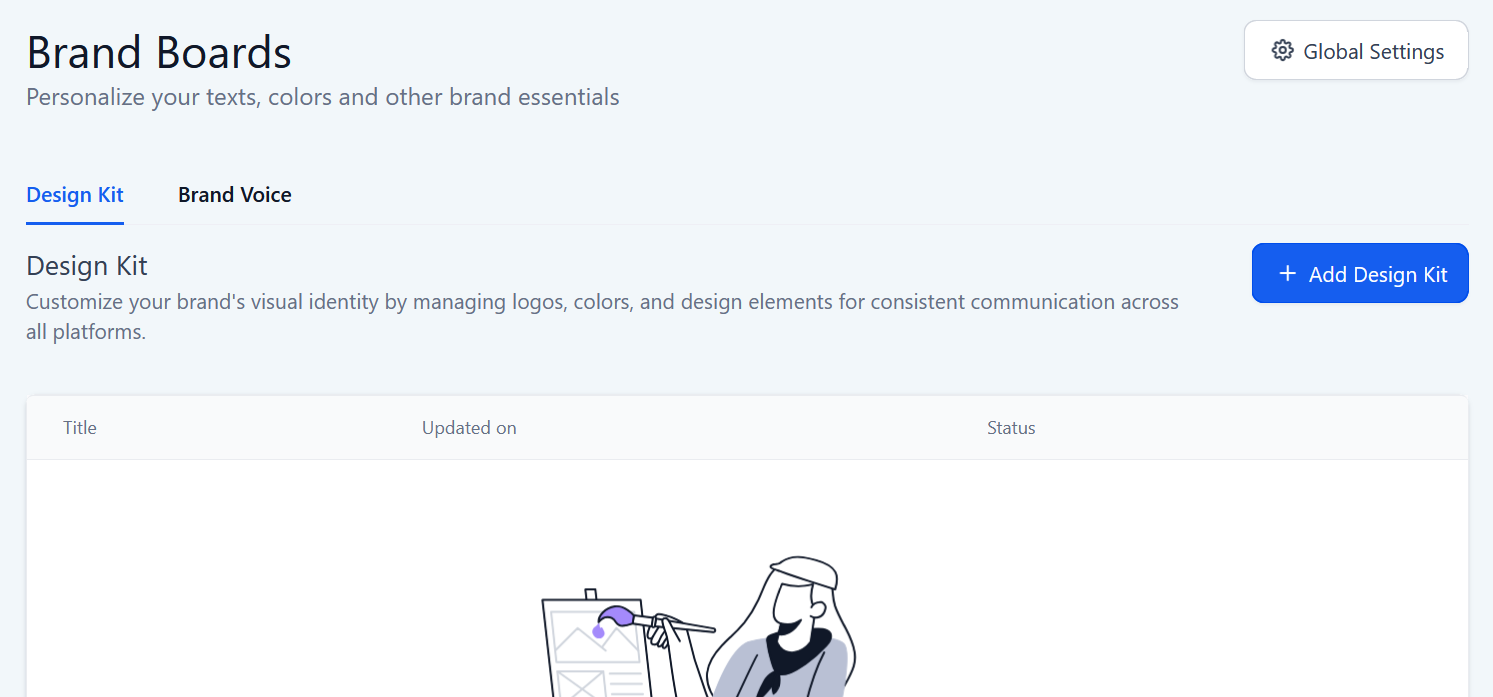
Step 2: Start a New Brand Board
Section titled “Step 2: Start a New Brand Board”- Click + Add Design Kit button to create a brand board.
- Choose whether to start with a Template or a Blank Board. Click Continue.
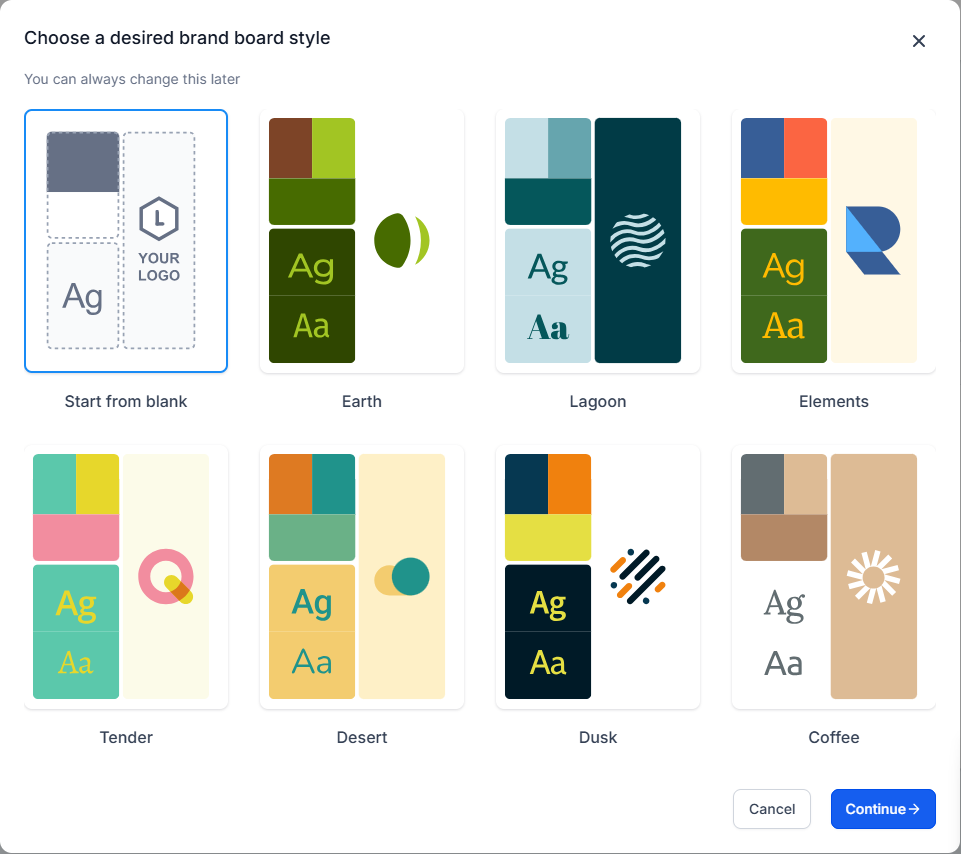
Step 3: Add Your Logo
Section titled “Step 3: Add Your Logo”- Click the edit icon in the Logo Section to upload your logos.
- You can upload up to 2 logos from your media library.
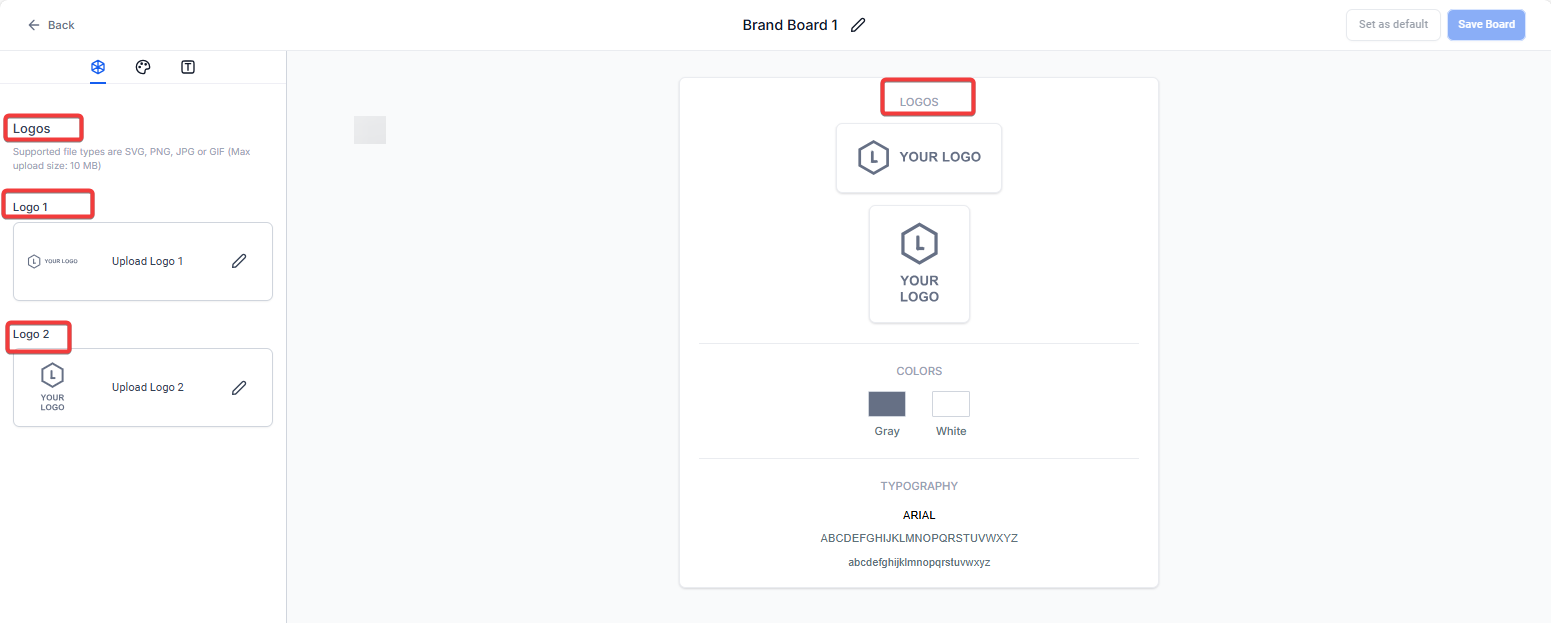
Note: If you haven’t uploaded your logos yet, use the upload option in the media library. Once uploaded, these logos will be stored in a folder automatically created for each brand board.
Step 4: Add Brand Colors
Section titled “Step 4: Add Brand Colors”- In the Colors Section, click Add to include your brand’s colors.
- You can add up to 10 colors.
- Rename each color as needed for clarity.
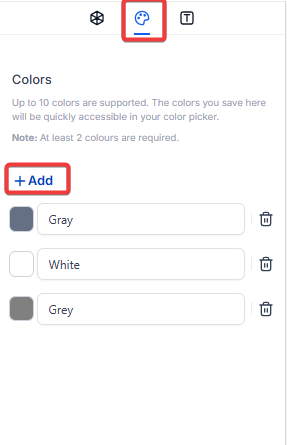
Note: This is the last time you’ll need to manually add hex codes. Once added, your brand colors will be easily accessible across your designs, including websites, funnels, and emails.
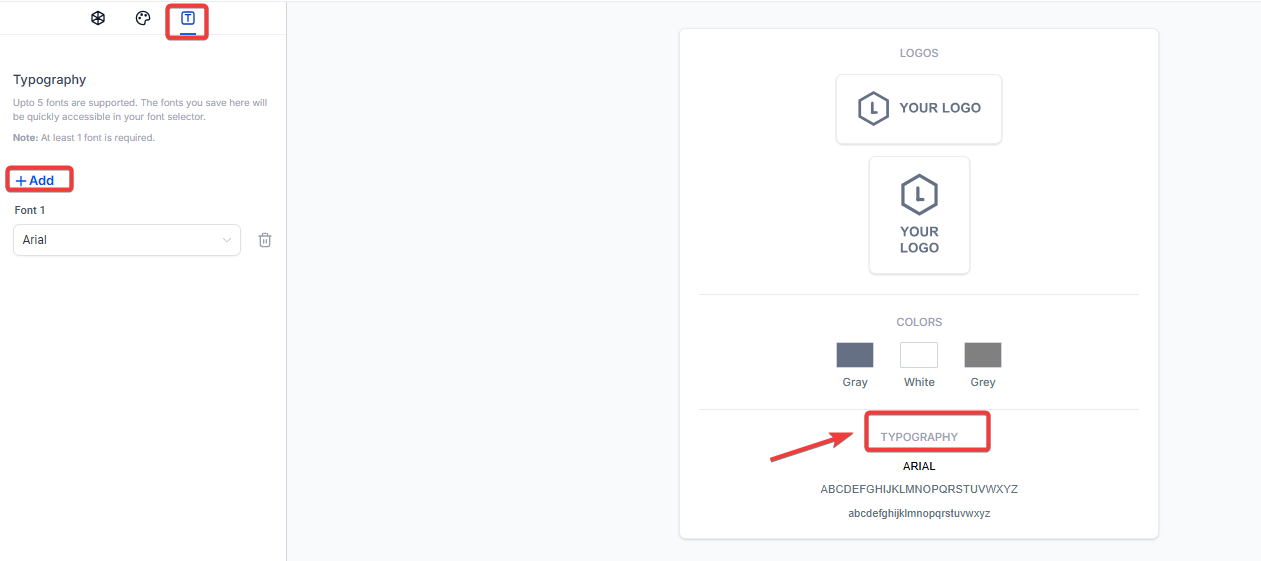
Step 5: Set Up Typography
Section titled “Step 5: Set Up Typography”- Navigate to the Typography Section and click Add to choose your brand’s fonts.
- You can add up to 5 fonts.
- Select each font from the drop-down menu and customize its appearance.
Finalizing Your Brand Board
Section titled “Finalizing Your Brand Board”Once you’ve completed the above steps, your brand board will be ready to use. This makes it easy to apply your brand’s logos, colors, and fonts consistently across all marketing materials.
You can manage multiple brand boards at once. If you have several boards for different brands or campaigns, you can set one as the default. This default board will always appear at the top of the color picker in design elements.
Brand Voice in Brand Boards:
Section titled “Brand Voice in Brand Boards:”The Brand Voice feature in Brand Boards allows you to define your unique communication style, including your business values, tone, and voice. This helps customize your experience across the platform and powers up AI tools to reflect your brand’s identity in all content.
How to use it:
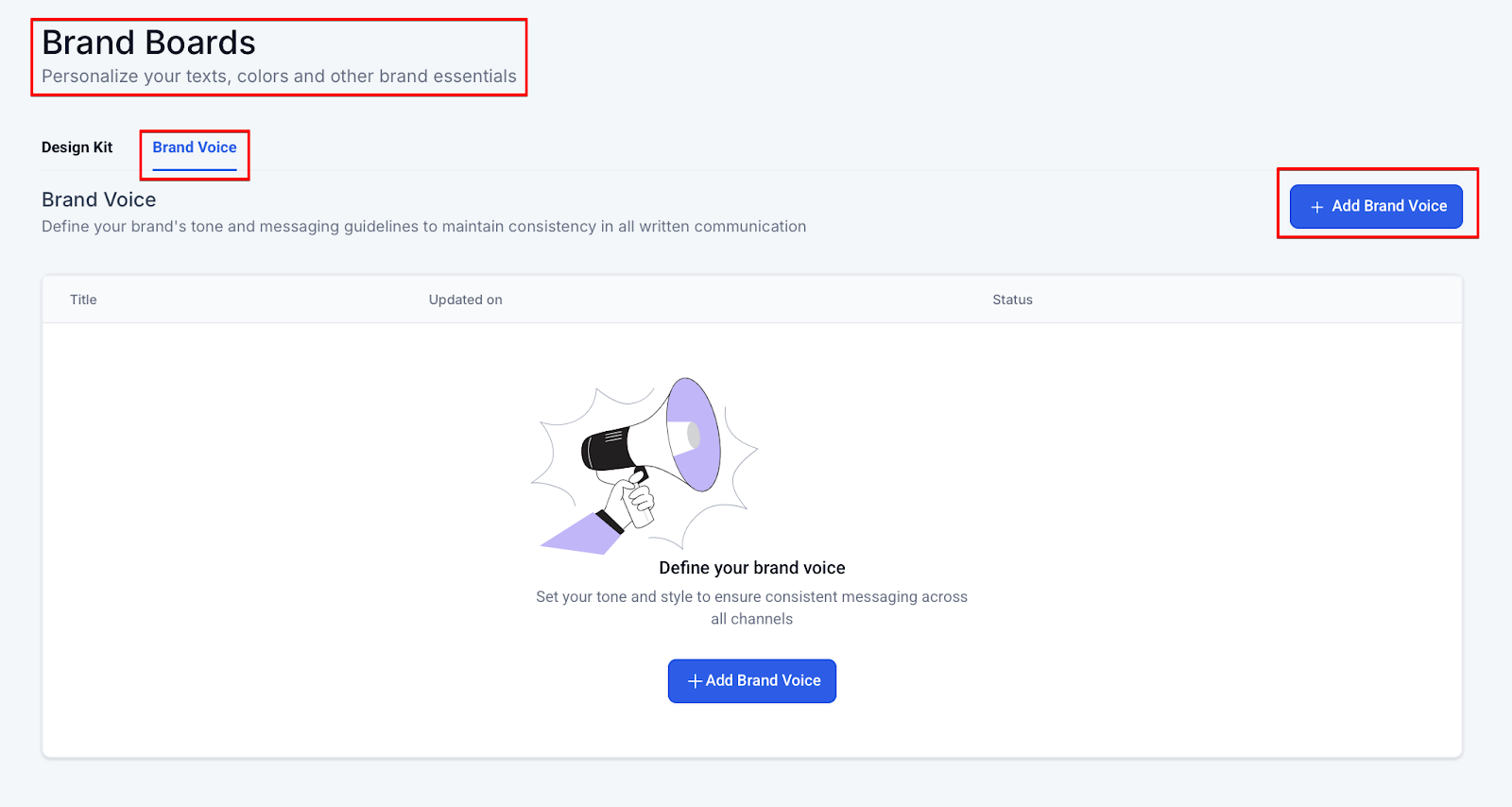
1- Navigate to Marketing → Brand Boards.
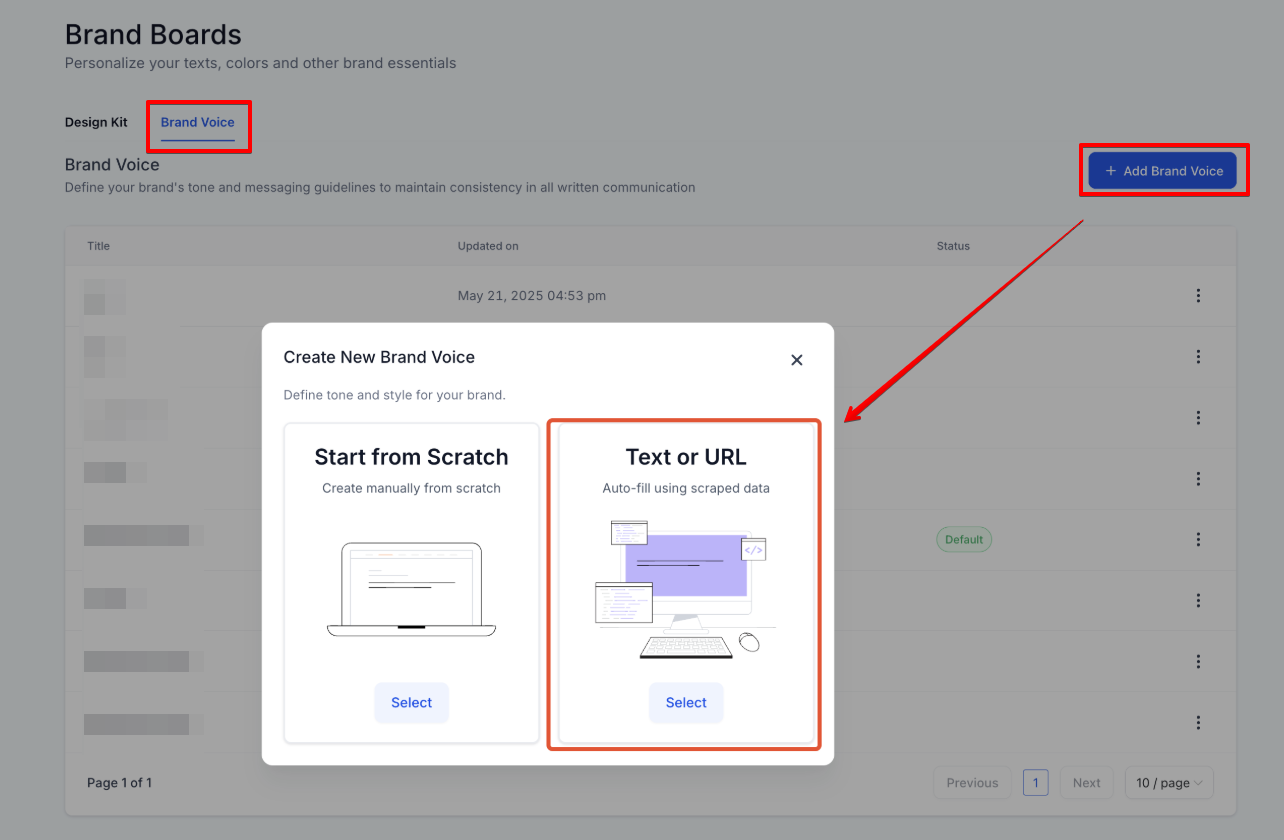
2- Click on Brand Voice and then Create New Brand Voice.
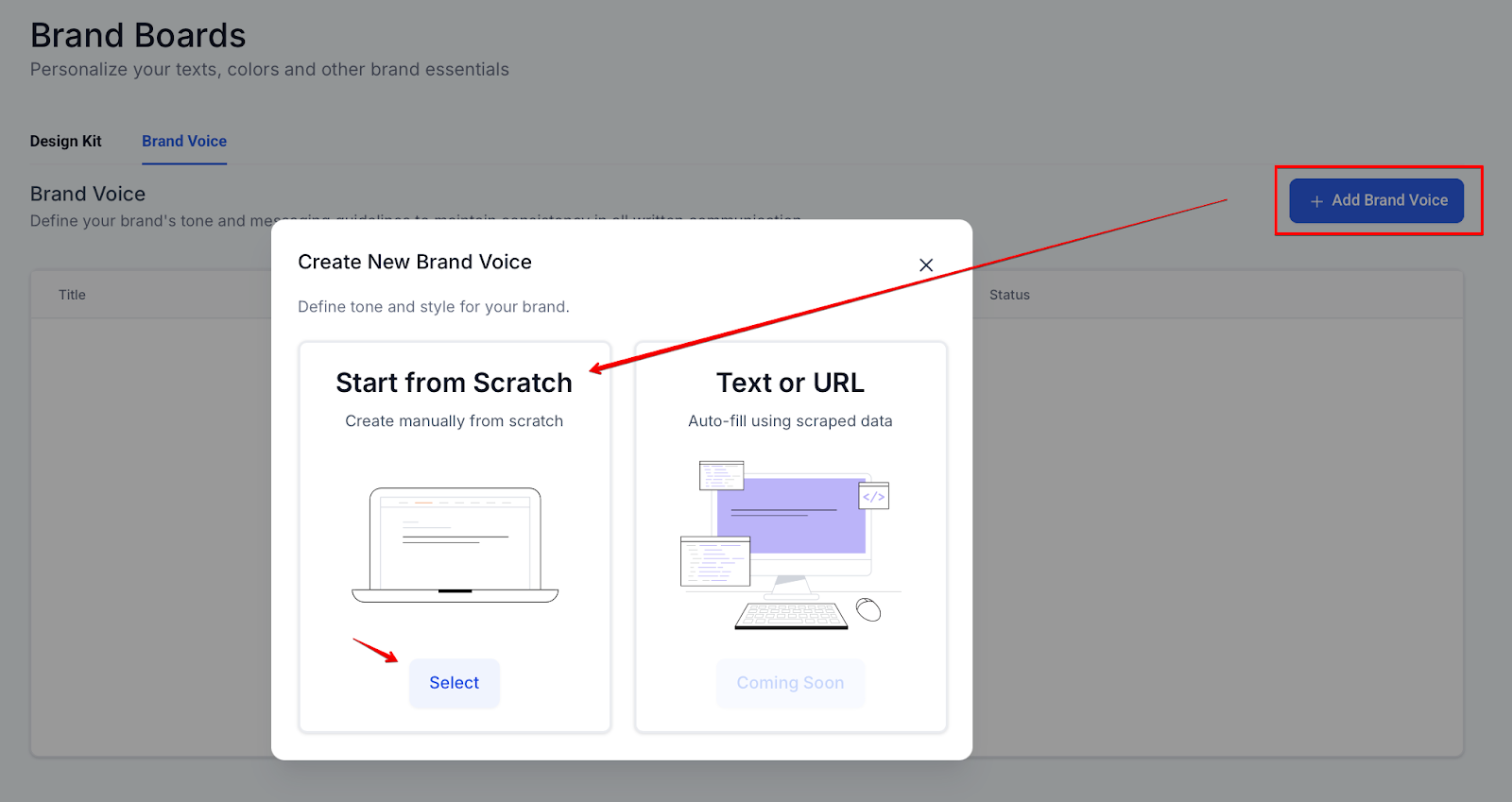
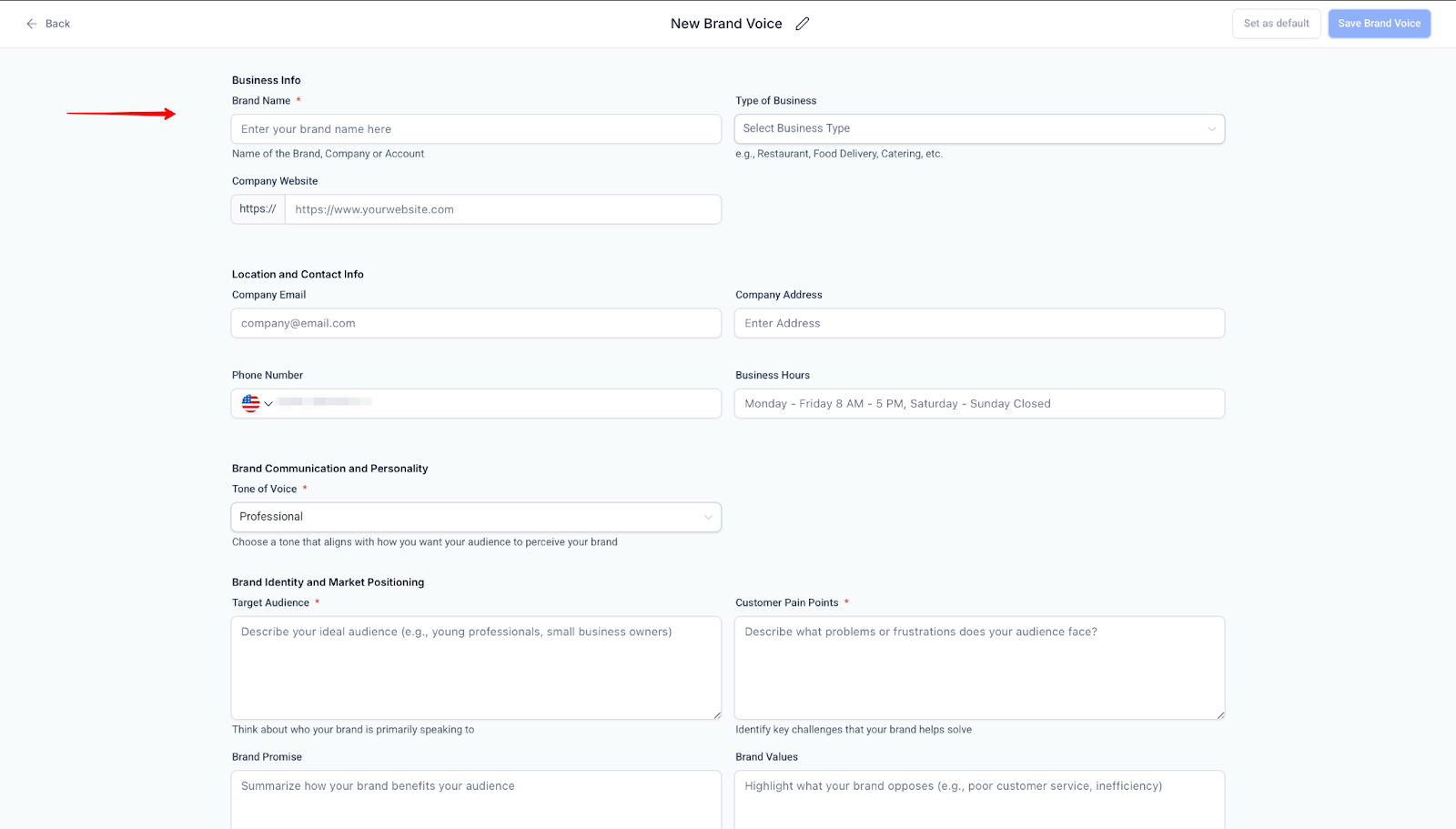
3- Choose the Start fromScratch Option and fill in your brand info, values, and tone.
4- Click Save.
5- Open Content AI and select your Brand Voice in the writing tone settings.
Brand Voice from Text or URL
Section titled “Brand Voice from Text or URL”You can quickly generate a complete Brand Voice by simply entering a website URL or pasting your brand’s text. This feature eliminates the need for manual setup, allowing you to create a custom voice instantly, which is fully editable to align with your tone.
How to Use It:
1- Go to Brand Boards → Brand Voice.
2- Click New, then select Create with URL or Text.
3- Enter your website URL or paste your brand text.
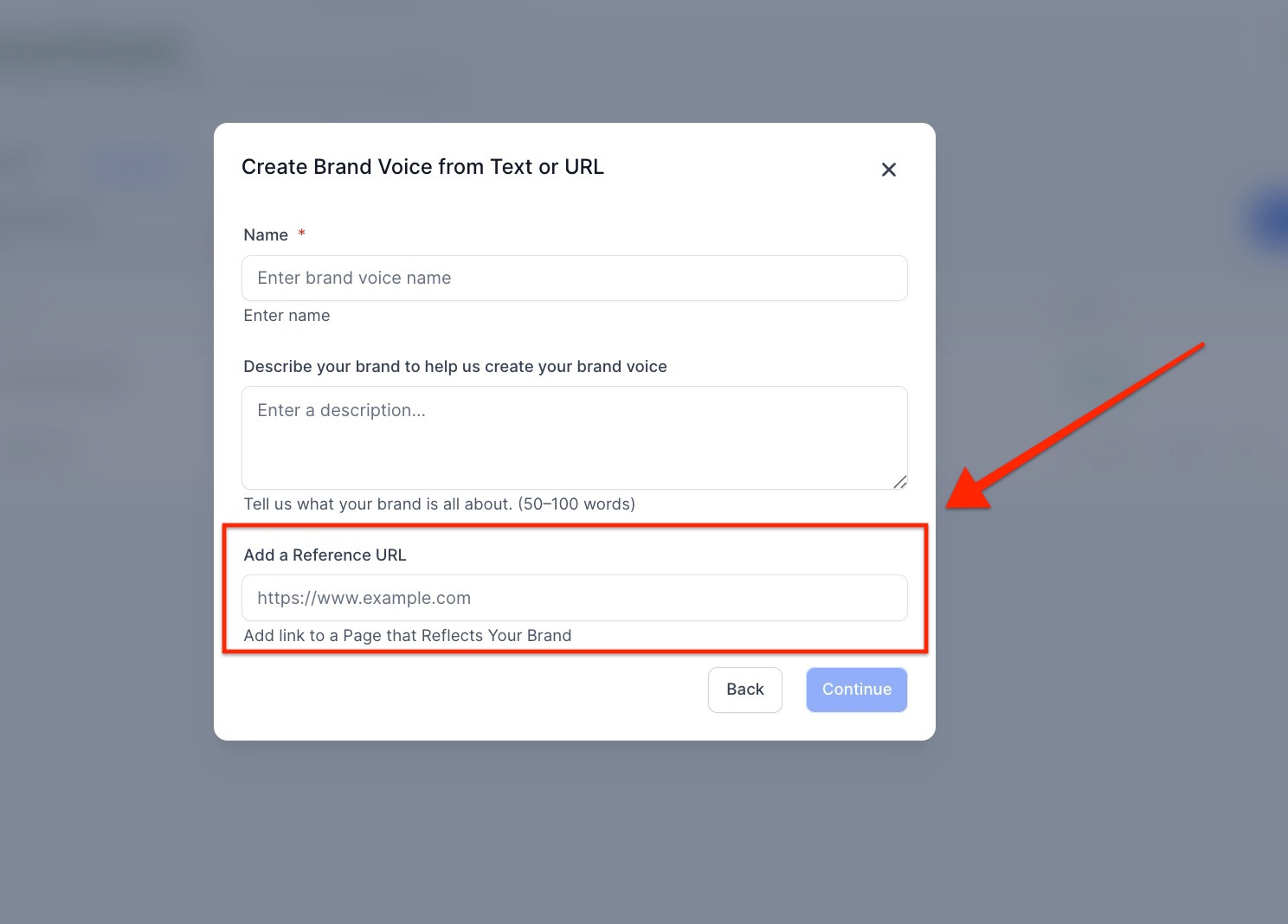
4- Click Continue, and your Brand Voice will be automatically created, ready to edit.
Global Custom Colors in Color Picker
Section titled “Global Custom Colors in Color Picker”The Global Custom Colors allows you to define and manage brand colors centrally within , ensuring consistent use of your brand palette across emails, funnels, forms, and more. Navigate to Marketing → Brand Boards → Global Settings,
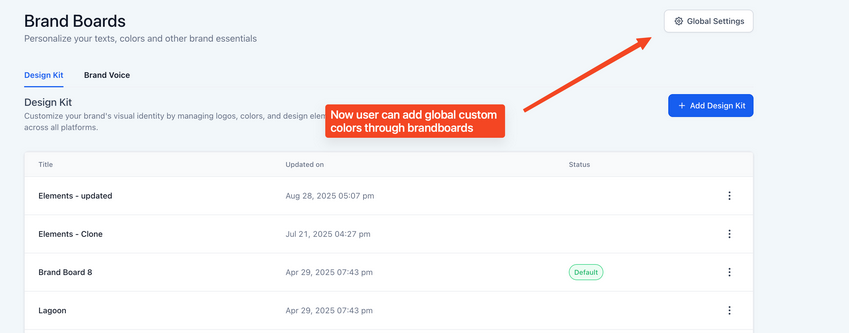
where you can add, edit, or remove colors; these colors will then be available across all color pickers on the platform.

Using Brand Boards Across
Section titled “Using Brand Boards Across”- Websites and Funnels: Your brand board elements (logos, colors, fonts) will automatically populate into design tools within websites and funnels, making brand consistency effortless.
- Emails: When designing email campaigns or templates, brand colors and fonts will appear in your selections, simplifying the process of keeping your emails on-brand.
- Media Library: Logos uploaded to the brand board will be stored in your media library, categorized by board name, making them easy to access for future projects.
Question: What happens if I change the colors on my brand board?Answer**: Changing the colors in the brand board will not retroactively update colors in existing emails or funnels. The changes will only apply to new designs moving forward.
Question: How many logos, colors, and fonts can I add to my brand board?Answer**: You can add up to 2 logos, 10 colors, and 5 fonts in a brand board.
Question: Where will my logos be stored?Answer**: Your logos will be stored in a folder within your media library under the brand board’s name. This makes it easy to access them for future use.
Question: Can I edit the name of my colors or fonts?Answer**: Yes, you can rename the colors or fonts you add to your brand board for better organization.
Question: Will the brand board affect my current designs?Answer**: No, the brand board only provides quick access to your branding elements. Existing designs and content will remain unchanged unless manually updated.
Question: What are the benefits of using a Brand Board?Answer: Key benefits include:**
- Brand Consistency: Keeps logos, colors, and fonts unified across platforms.
- Time Efficiency: Quickly access all brand assets without searching.
- Easy Management: Simplifies updating and managing brand elements.
Question: Can I create multiple brand boards for different brands or campaigns? Answer: Yes, you can create and manage multiple brand boards. This is useful if you handle different brands or want separate boards for specific campaigns.
Question: Do I have to manually type out my brand’s values to set up a Brand Voice?
Answer: No. You can use the Create with URL or Text option. Simply enter your website URL or paste existing brand text, and the system will automatically generate a custom Brand Voice for you, which you can then edit.